
What Reports Does BidWrangler Provide?
BidWrangler provides many built-in reporting tools, most of which live behind the Report tab on an individual auction. The cross-auction tools live under Multi-Auction Reports in the admin portal. Pick the one below that matches what you are trying to answer, then jump to the steps for it.
Where to Find Auction Reports in BidWrangler
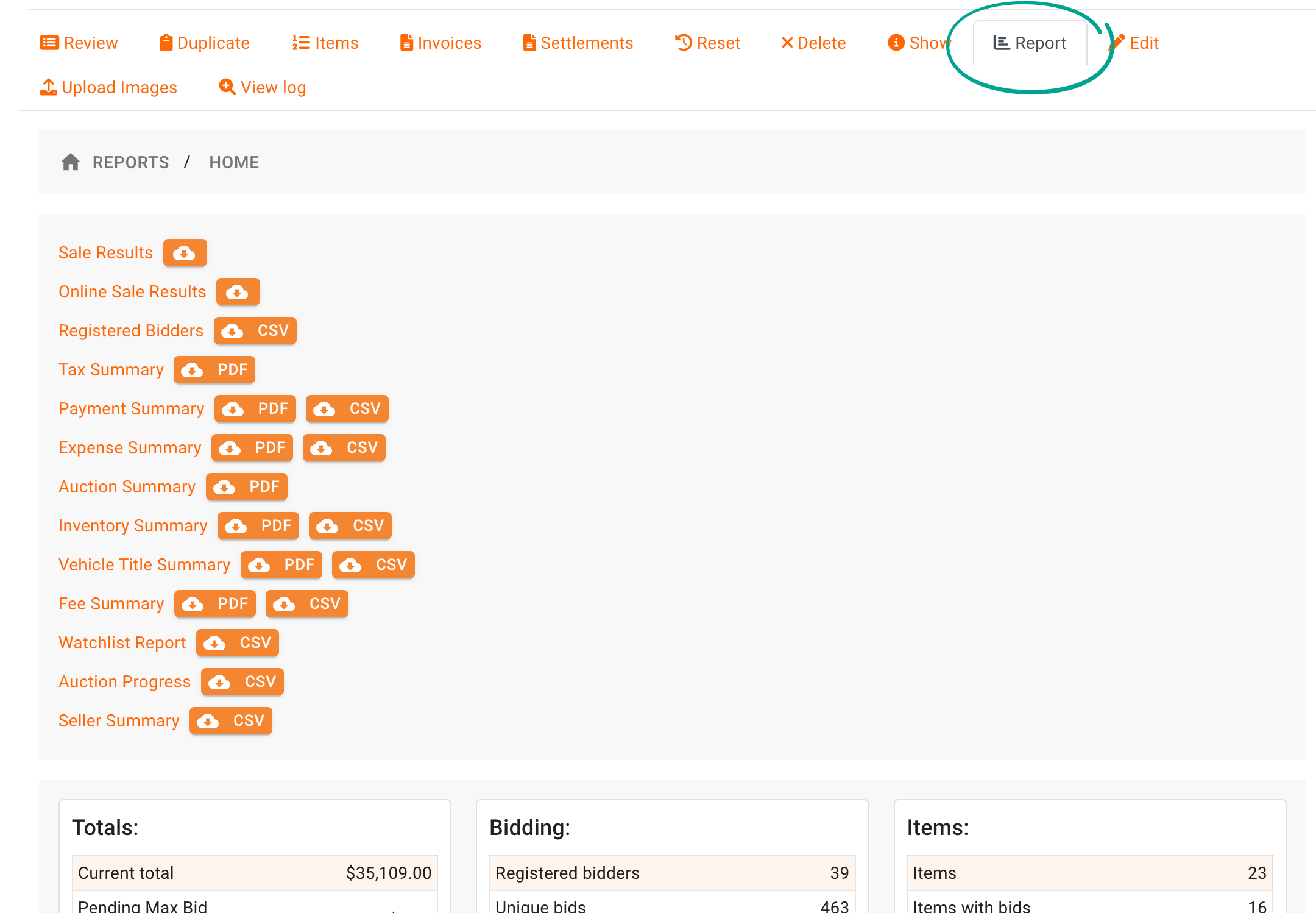
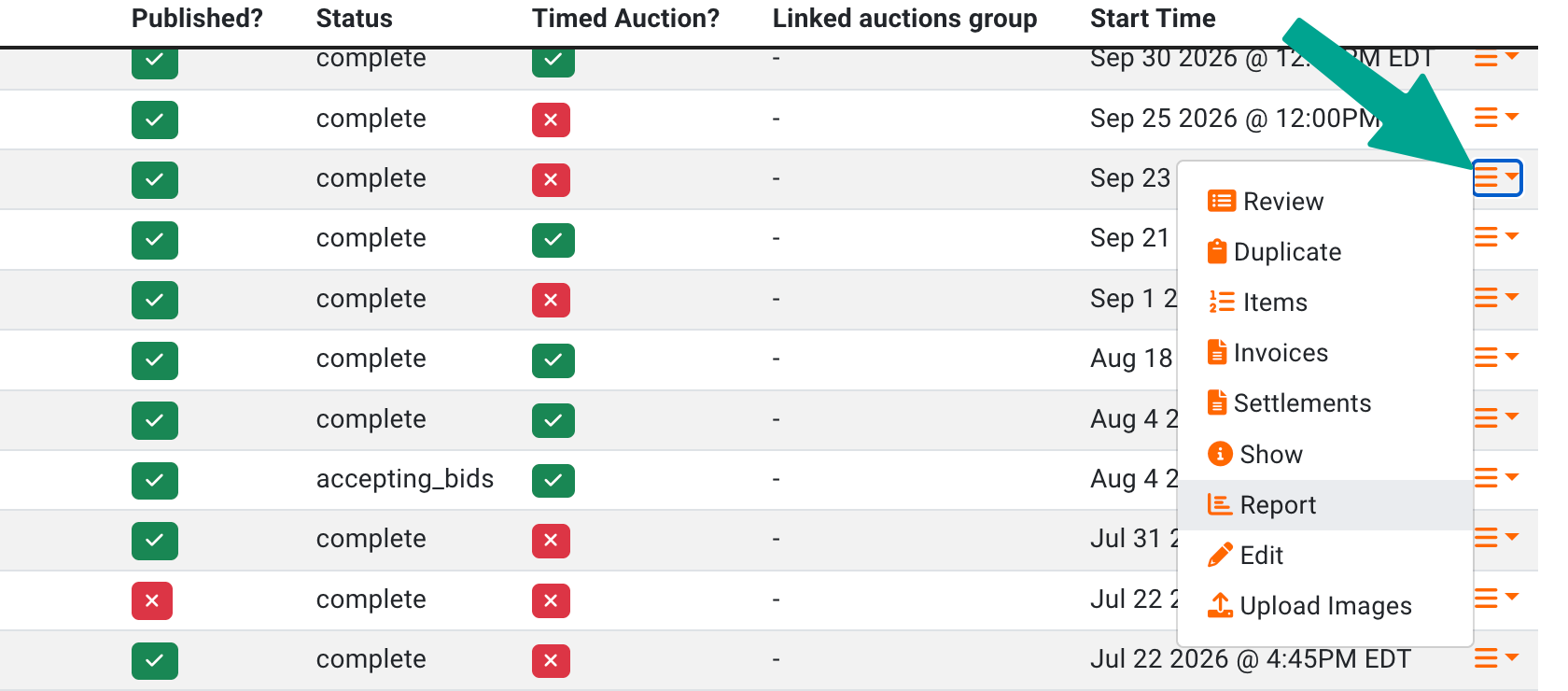
Each auction has a Report area that can be accessed either by using the Report tab at the top of the auction settings screen, or by using the menu on each auction in the Administer Auctions screen:
Reports Summary
The Report page includes an overview of some of the key details of your auction located at the bottom of the screen. A detailed description of this summary is provided here.
Before You Pull a Report
You need admin portal access with accounting permissions to reach any of these reports. Auction-level reports (Auction Report, Sales Results) are found on the individual auction. Cross-auction reports (Item Summary, Auction Summaries) are found under Multi-Auction Reports in the main admin navigation, not on any single auction.
Single Auction Reports
For individual auctions, the following reports are available from the Report tab:
Sales Results & Online Sales Results
Provides a list of items marked as Sold in your auction. Sales Results will include all items, whereas Online Sales Results will only show those sold to online bidders and filter out items sold to in-person bidders.
Both of these reports can include;
Lot ID, Lot Name, Buyer's Paddle Number, High Bid Amount, Quantity, Total (x qty), Bid Type (eg. placed manually or by a maxbid), Item Status, Placed At, Bidder Name and Contact Details, Seller number, name, and Email.
Registered Bidders
Provides details for your bidders who are registered in this auction. It will include bidders who are considered Online Complete and those registered Live, and it will exclude bidders who are Online Incomplete.
This report can include;
Approved for Online (yes/no), Paddle Number, Bidder Name and Contact Details, Bidder Company/Organization, Bidder Tax ID, Questionnaire Answers, Registration Creation Date
Tax Summary
This report groups the charges on your invoices by tax rate. A detailed description of this report is provided here.
Payment Summary
Provides a breakdown of invoice payments collected by type. It can be filtered by a specific Cashier or date range using the options top of the screen.
It can include;
Amount Collected, Change given, Payment Total, Date Paid, Invoice Number, Buyer Name, Buyer Paddle Number, Check number
Expense Summary
Provides a summary of all seller expenses related to this auction. There is also an option to create a new expense using the button above the expense item rows.
It can include;
Date, Expense Name, Lot ID, Expense Amount, Seller's Name and Number, Settlement Number, Taxed (yes/no), Tax Rate used, Tax Amount
Auction Summary
This comprehensive report provides an overview of your auction broken down into several different categories:
Payment Summary Derived from invoices - shows the amount collected and still outstanding, broken down by hammer price, buyers premium, buyers fee, convenience fee and tax.
Payment by Type Shows the total amount of payments collected broken down by type.
Other Income Shows the total income derived from seller settlements broken down by expenses, commission, seller taxes, and buy back fees.
Auction Details Includes the total number of lots, any sold lots not on invoices, total number of buy back lots, total photos and photos per lot, the average price per lot (total hammer price/total lots), the average expense per lot (total expenses/total lots), and the average profit per lot (auction net/total lots).
Tax Summary Each total is calculated as follows:
- Total Sales (hammer price)
- Non-Taxable (items without a tax rate or tax-exempt rate)
- Taxable (items with a tax rate)
- Tax (tax rates x taxable amount)
- Total Collected (total payments collected)
Invoices Breaks down invoices by paid in full, partially paid, and unpaid.
Totals Each total is calculated as follows:
- Auction Total (total hammer price, buyers premium, buyers fee, convenience fee, tax)
- Due to Sellers (total hammer price minus commission and seller expenses)
- Paid to Sellers (derived from paid settlements)
- Gross Profit Subtotal (auction total minus due to sellers)
- Taxes Total (tax rates x taxable amount)
- Auction Net (buyers premium, convenience fee, commission, seller expenses)
Lots Not Sold includes:
- Passed (lots with bids above reserve, or with no reserve, but not sold)
- Reserve Not Met (lots with reserves that were not reached)
- Total Lost Not Sold
Inventory Summary
This is the most comprehensive report for details about this auction's items and their associated buyers and sellers.
It can include;
Lot Details (Lot ID, name, description, category, start bid, reserve, high/low estimates, quantity, dates received and removed, location, stock number, title details, created by, last updated by)
Sale Details (status, hammer price, price x quantity, time sold, lot or choice sale type, buyers premiums, buyers fees, taxes, total amount)
Seller Details (name, number, account manager, settlement status, expenses)
Buyer Details (name, contact details, paddle number, invoice status, pickup status)
Vehicle Title Summary
Items marked with Title Required? in their settings can be tracked here. Full details are provided in this article.
Fee Summary
Provides a summary of all buyer fees related to this auction. There is also an option to create a new fee using the button above the fee item rows.
It can include;
Fee Name, Amount, Taxed, Tax Rate Used, Tax Amount, Tax Exemption, Lot d ID, Invoice number, and Invoice Status.
Watchlist Report
Provides for each item the number of bidders who have added each item to 'My Items'. This is indicated by 'Stars' - any time a bidder bids on an item, or adds it to their items, it will be saved to 'My Items' and the total number is recorded here.
The whole report can include;
Item ID, Item Sequence (sale position), Lot ID, Item Name, Number of Stars, Item Description, and Seller Name and Number
In addition, it is possible to export details for individual items by clicking the button in the Starts column. That per-item report can include bidder name, email, and location details.
Auction Progress
This report will provide a snapshot of the auction showing each item's status sorted into one of four categories:
Will NOT sell - Items with no bids, or bids below a reserve
Will sell - Items with bids above a reserve
Sold Online - Items marked as sold to an online bidder
Sold Live - Items marked as sold to a live bidder
Refresh this report as an auction closes, or during a live sale to track the progress.
Seller Summary
Provides an overview of the sellers associated with this auction, and the sales totals associated with their items.
For each seller, this report can show;
A link to their settlement, the Seller's name, number and contact information, their Account Manager and Contract, their total sales price, total commission, total expenses, total credits, total due, total paid, balance due, payments, paid items total based on invoices, total number of items, total number of items sold, and number of items passed or reserve not met.
Linked Auctions
For linked auctions, reporting is combined to show the report for all of the auctions within the group. The reports can be run from any of the individual auctions, but the totals will be derived from all of them.
To see results for individual auctions within a group, you would need to export the results into a .csv file, and then sort or filter by the auction name or ID number.
Viewing and Exporting Reports
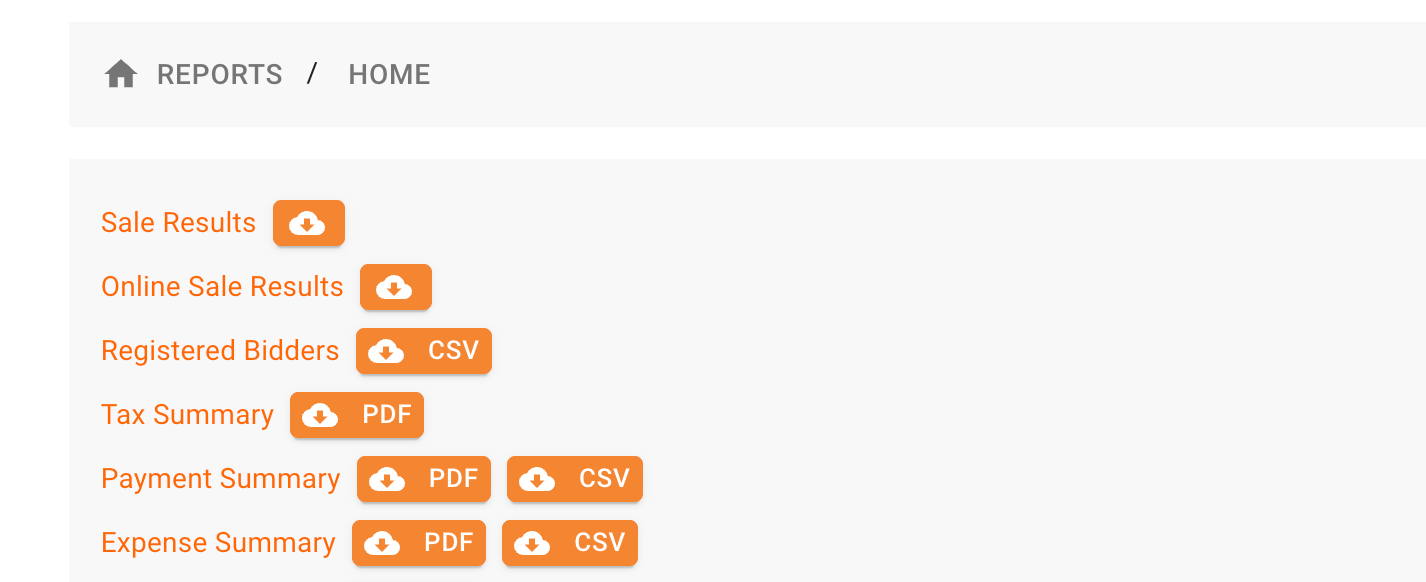
All reports can be exported as .CSV files, some are also offered as .PDF files. To download, click the cloud icon next to the appropriate report from the Reports tab. You can also see these options within each individual report.
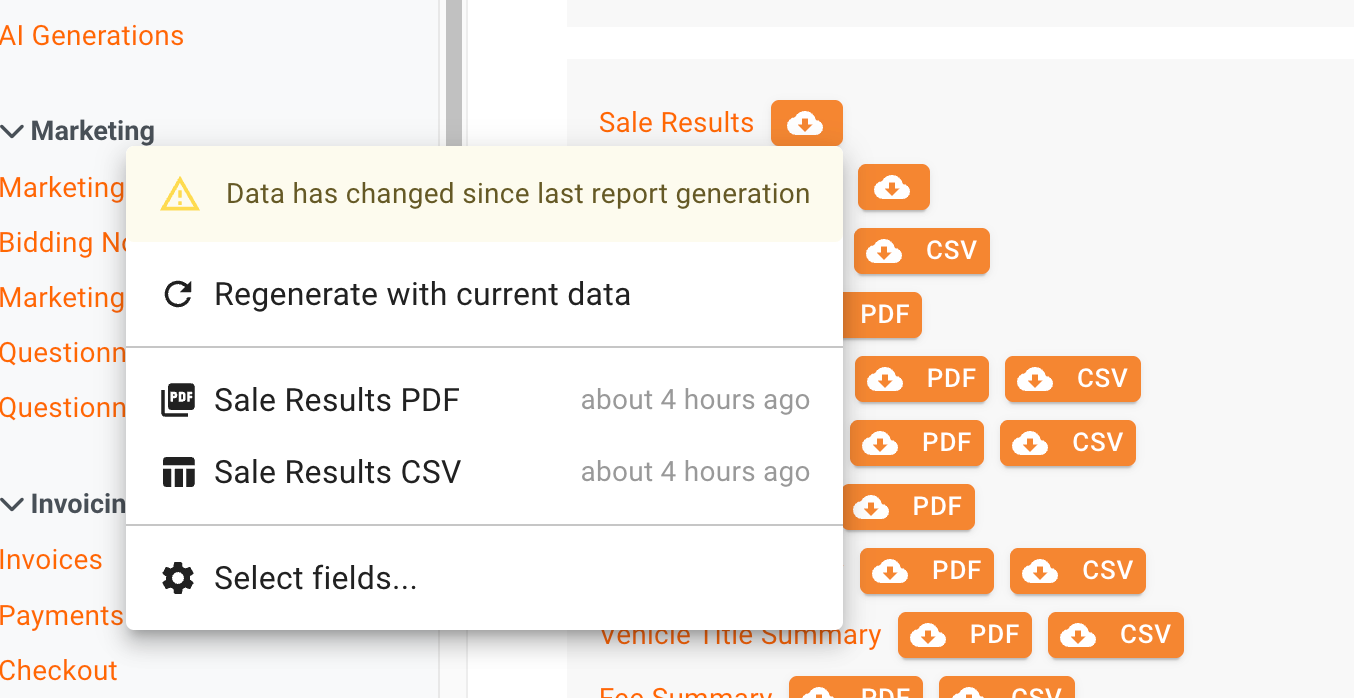
Many of these reports are derived from settlements and invoices and that data can change frequently once the report has been generated. When viewing a report on the screen, make sure you periodically refresh your browser to ensure you are viewing the most up-to-date information.
In addition, some reports offer a regenerate option and will alert you if the data has changed since the last time the report was generated.
Multi-Auction Reports
If you are searching for data over several auctions use the Multi-Auction Report options from the left-hand menu. Refer to each separate guide below for details on each report:
FAQ
Where do I find the report for a single auction?
Open the auction in the admin portal, click its menu icon, and select the Report icon. This works both while the auction is active and after it closes.
What is the difference between the Auction Report and Auction Summaries?
The Auction Report covers one auction in real time, with live totals, bids, and bidder detail. Auction Summaries combines numbers from every auction that finalized inside a date range you set, delivered afterward as a single PDF.
How do I find every item a specific buyer or seller was involved in, across auctions?
Use Item Summary under Multi-Auction Reports. You can filter by buyer or seller name, email, phone, organization, or bidder ID, and narrow further by date range or specific auctions.
Where do the totals on my auction's Reports tab actually come from?
See the Auction Summary Totals Guide, which explains exactly how each figure, including Current Total, Pending Maxbid Value, and the reserve met and not met breakdowns, is calculated.
How do I get a report I can import into my accounting software?
Use the Sales Results export on that auction. Download the CSV, choose the fields your accounting or billing software needs, and import it.
Can I see buyer information on a Seller Settlement report?
Yes. The Seller Settlement Report includes buyer information, along with Title Required and Title Received fields sourced from item settings, neither of which appear on a traditional settlement.
Is a report sent automatically when an auction ends?
Yes. When an auction closes, BidWrangler automatically emails the Auction Report to company admins.
How many items can one Item Summary search return
Up to 50,000 items per search.
Questions about a specific report? Reach out to helpdesk@bidwrangler.com and our team will be happy to help.