
How do I use the Buyer Summary Multi-Auction Report?
The Buyer Summary is a Multi-Auction Report in the BidWrangler admin portal. It totals one buyer's activity across all of your auctions in one screen. You can filter and sort by buyer's name, location, total money spent, number of auctions purchased items in, or number of items purchased. You can also select specific auctions or specify a time period. The report can be displayed on screen or exported as a CSV file.
When to run a Buyer Summary instead of opening each invoice
Run the Buyer Summary when you need totals across many auctions. For example, you can run the report by location to see where the majority of your buyers are located, or identify gaps. You can use the report to see who your regular bidders, and see how many auctions they have registered in, and the total money spent.
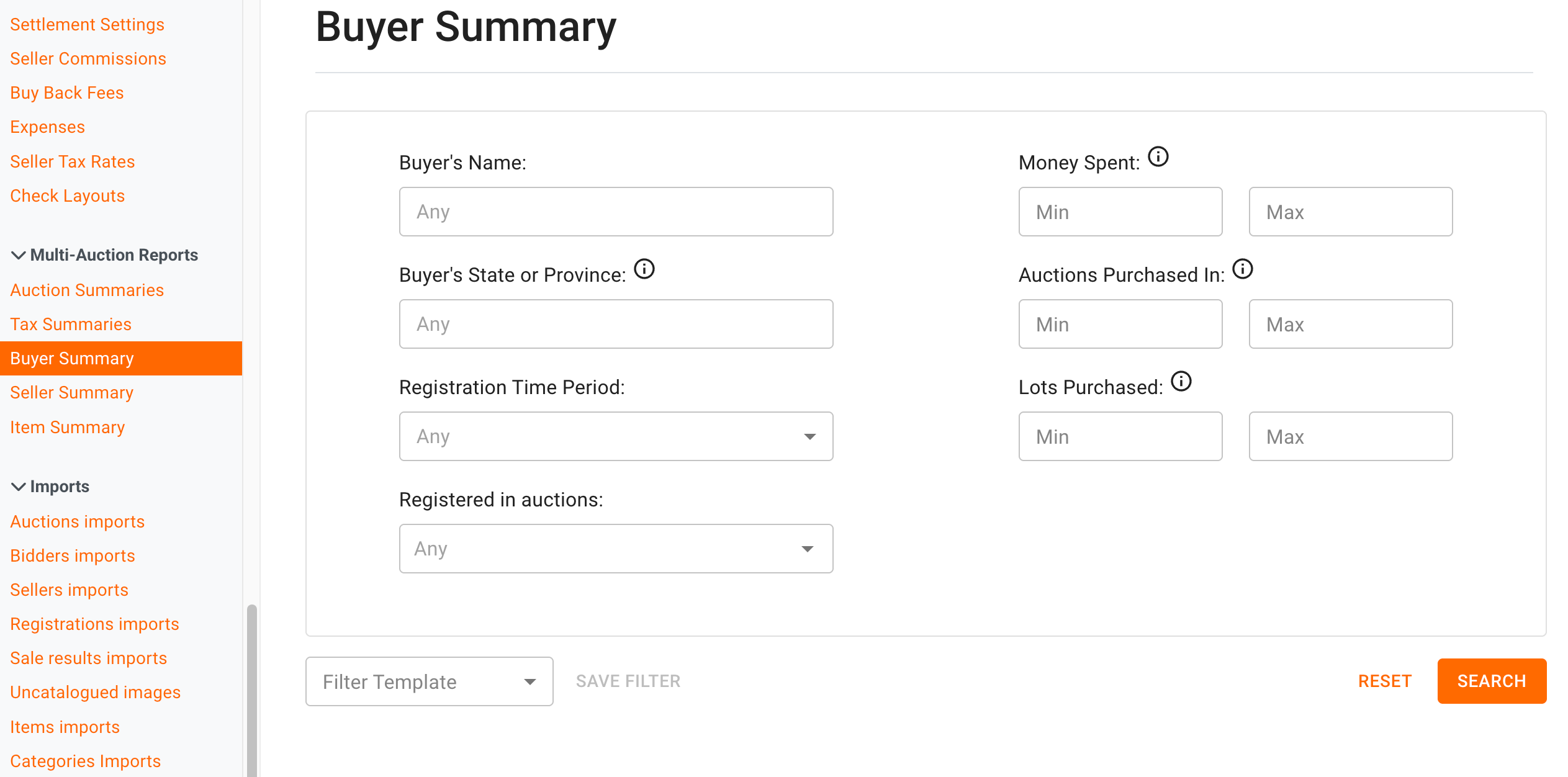
How to run the Buyer Summary report
Log in to the BidWrangler admin portal
Scroll down to the "Multi-Auction Reports" section in the left-hand menu
Click "Buyer Summary"
Enter the filters for your search. For example, enter the buyer name or location
Click Search
Scroll down to examine the report results
To keep the data, export the results as a CSV file
What the Buyer Summary shows
The report will contain the following information:
A link to the user account
Buyer's first name, last name, email, phone, and location
Permanent bidder number (if applicable)
Tax ID and Tax Rate
Company Name
Private Notes
Total Money spent (across all auctions)
Number of Auctions purchased in (across all auctions)
Total lots purchased (across all auctions)
What the Buyer Summary does not show
The Buyer Summary does not link to invoices or unpaid amounts. Instead, you can use the administer invoices screen and filter that by a particular user.
FAQ
What does the Buyer Summary show?
The Buyer Summary totals each bidder's purchases across all of your auctions on one screen. Use it when you want a buyer's history without opening each auction or invoice separately.
Where do I find the Buyer Summary?
In the admin portal, scroll to the Multi-Auction Reports section of the left menu and click Buyer Summary.
Do I need to run it one auction at a time?
No. One report covers all of your auctions. Use the filters to narrow the results.
Can I limit the report to certain auctions or a time period?
Yes. Use the Registered in Auctions filter to show only bidders registered for the auctions you select. Use the registration time period filter to show only bidders who registered in that period.
How do I find my top buyers?
Use the Money Spent, Auctions purchased in, and Lots purchased filters to find the bidders who spend the most or buy most often.
Can I save my filters?
Yes. Click Save Filter, enter a name, and save. Next time, select the saved filter from the dropdown.
Can I export it?
Yes, as a CSV file.
How do I see every lot one buyer purchased?
Run the Item Summary report and enter the buyer in the Buyer or Seller filter.
How is it different from the Seller Summary?
The Buyer Summary totals a bidder's purchases across all auctions. The Seller Summary totals a seller's sales, commission, and lots sold. Both are in the Multi-Auction Reports section.
If you have questions about the Seller Summary report, contact us at helpdesk@bidwrangler.com. We are happy to help.