
Global Watchlist (My Items) in BidWrangler: Track Saved Items Across Every Auction
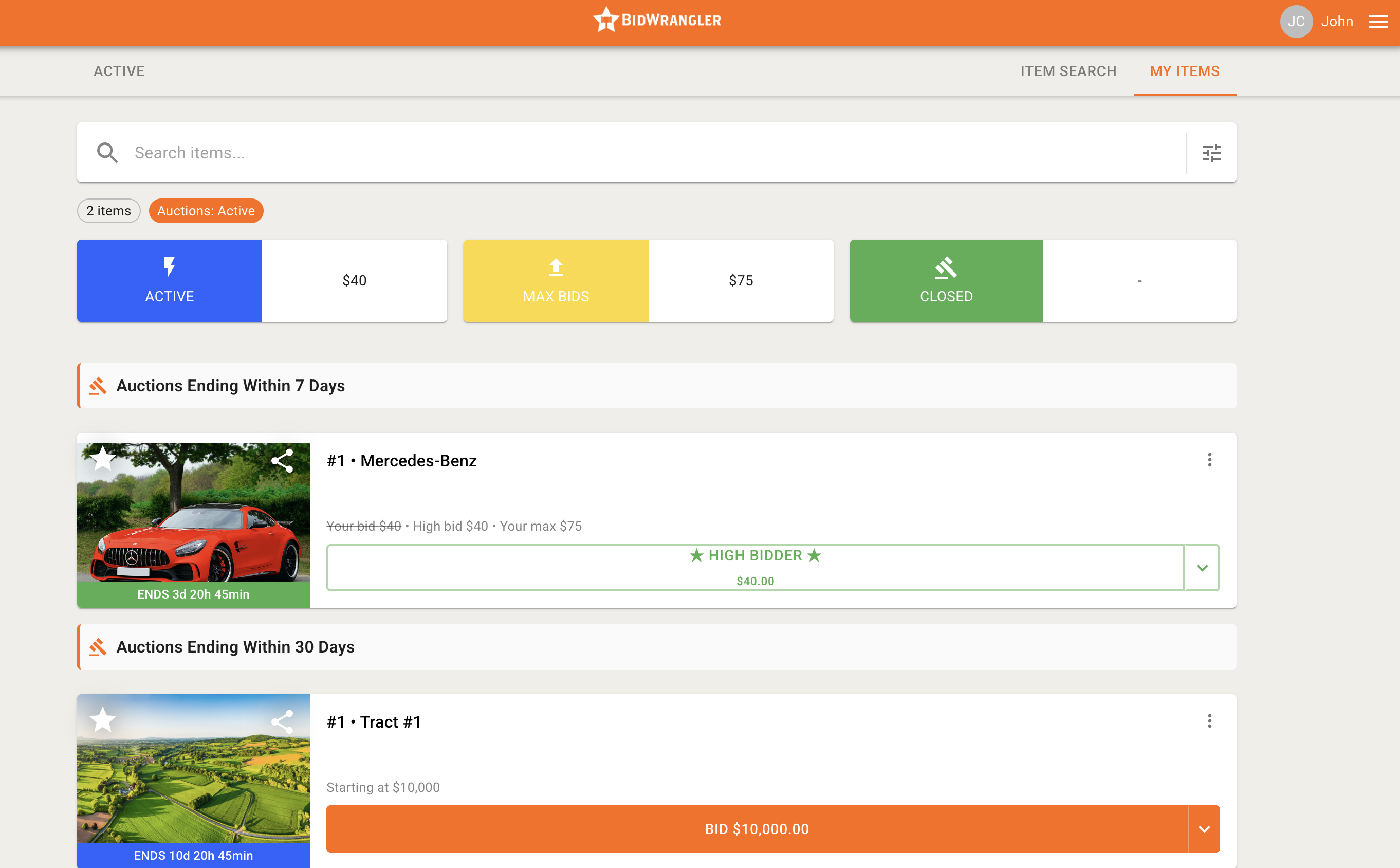
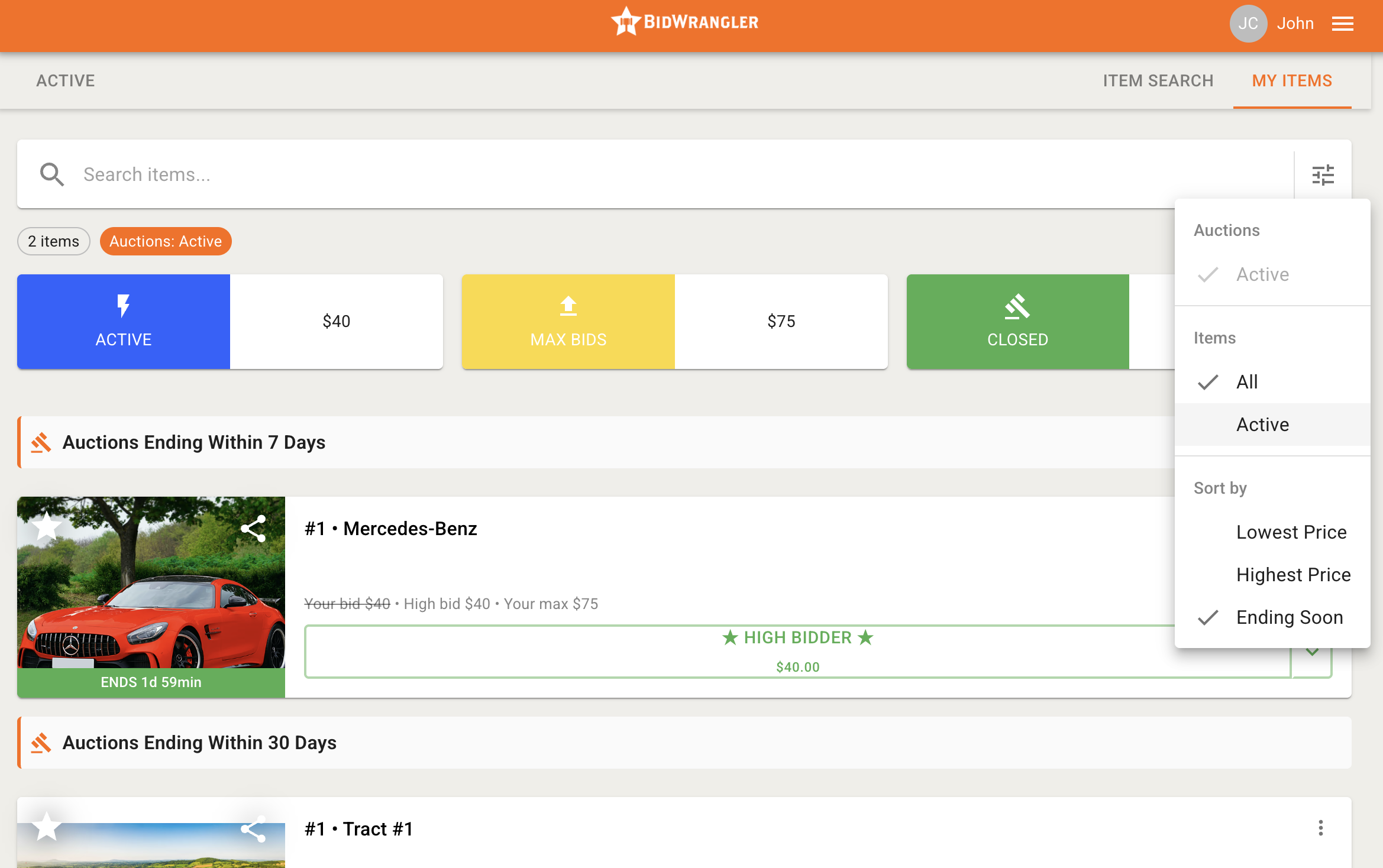
The Global Watchlist gives bidders one dashboard to see every item they've bid on or starred across all active auctions, instead of checking each auction one at a time. Bidders open it from the button in the top-right of the bidding platform homepage. From there, they can search their saved items, review their bidding totals, bid directly, and remove items they're no longer watching. Please note that the Global Watchlist only displays items from current, published, active auctions.
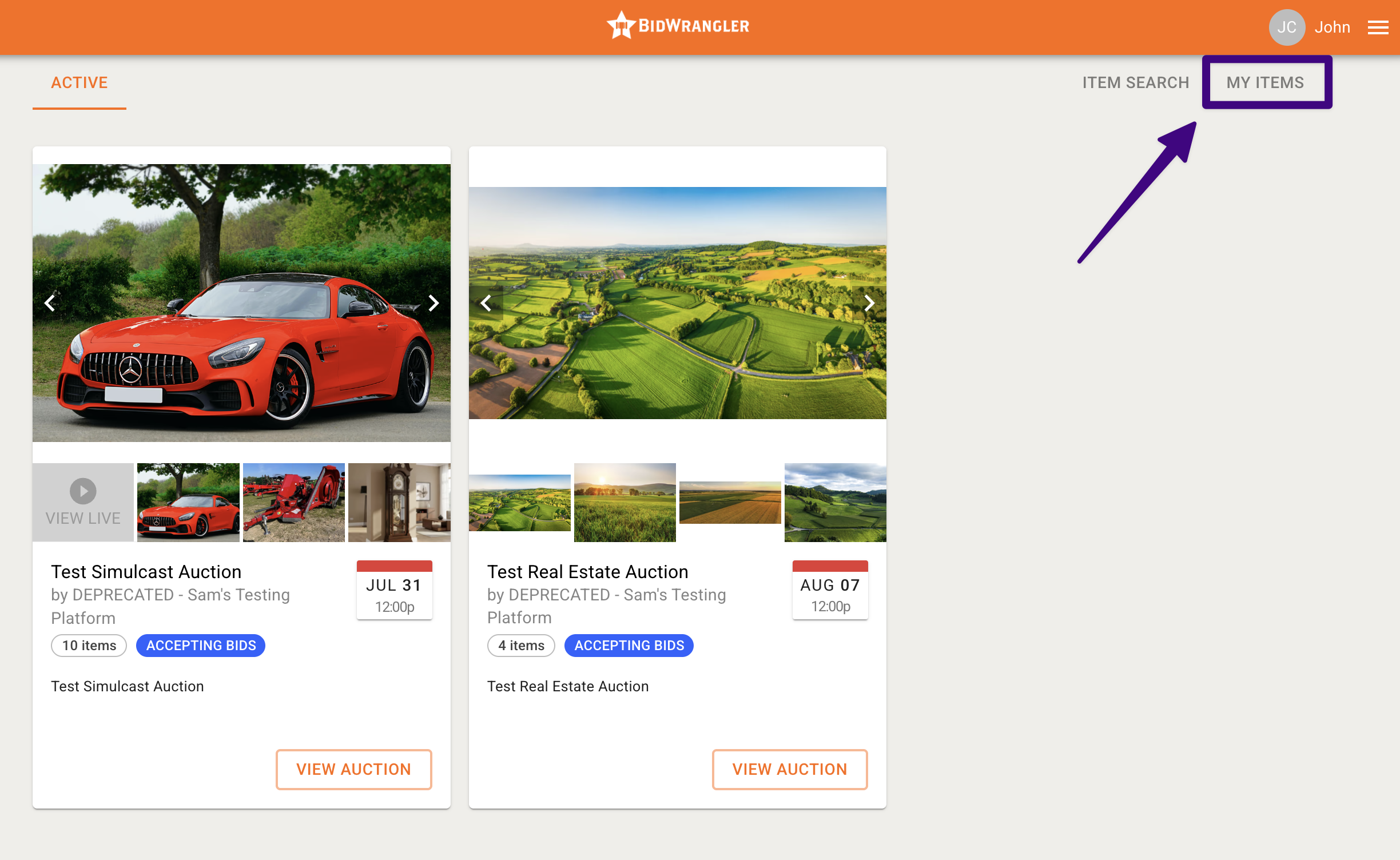
The Global Watchlist builds directly on Global Item Search. Once a bidder finds an item through Global Item Search and stars it or places a bid, that item lands on their My Items list. For more info on that feature, check out Global Item Search in BidWrangler: How to Search Items Across Active Auctions.
Single-Auction My Items vs. the Global Watchlist
Bidders can still navigate to a specific auction and click the My Items button to view and save items for that one auction on its own. The Global Watchlist does the same job at a larger scale, showing saved items across every active auction at the same time.
View | What it shows |
|---|---|
Single-auction My Items | Saved items for one specific auction, accessed from within that auction |
Global Watchlist | Saved items across all current, published, active auctions in one dashboard |
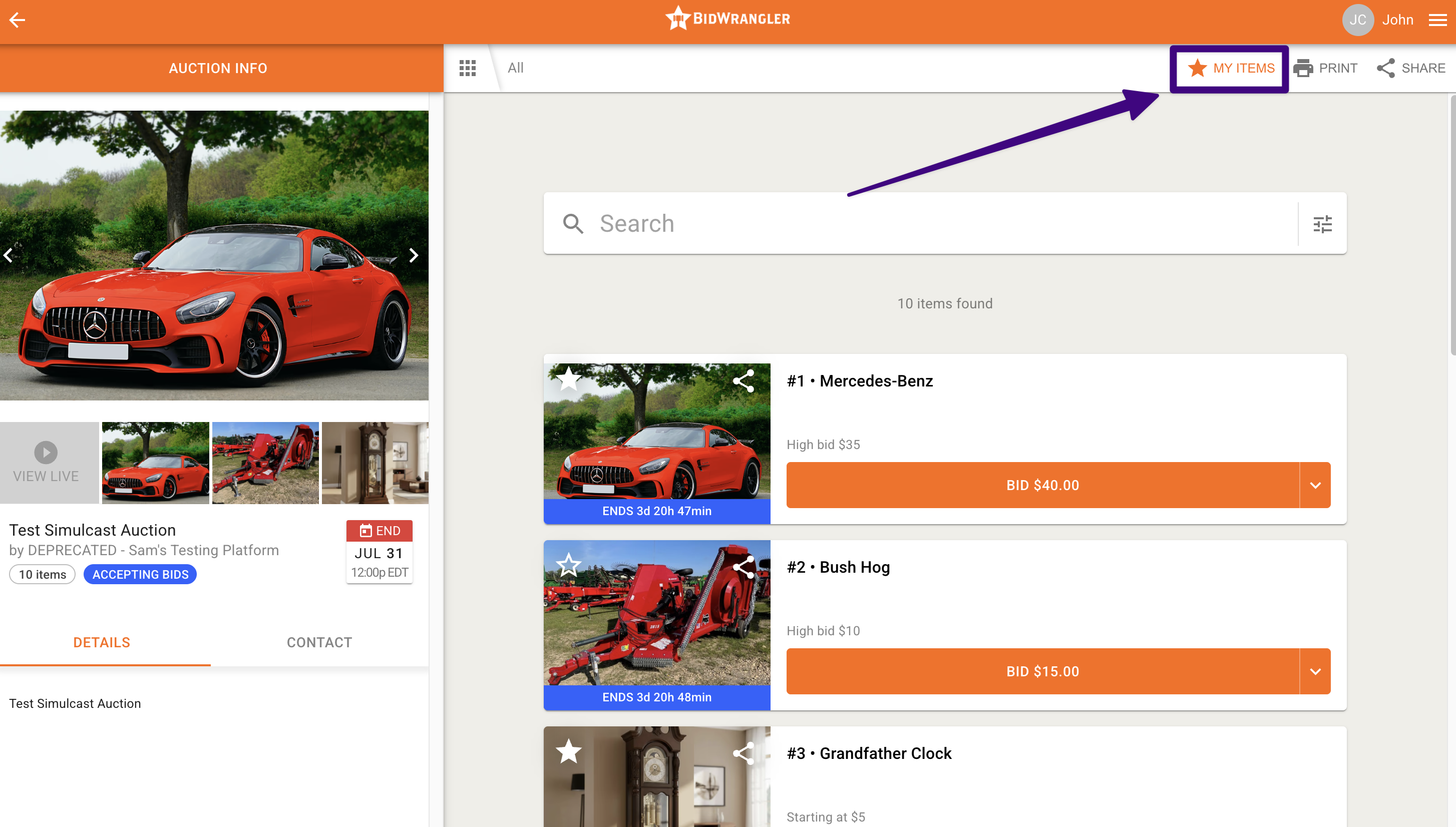
What can bidders do from the Global Watchlist?
The Global Watchlist is designed to streamline bidding by letting bidders take action directly from the dashboard, without opening each auction separately:
See active auctions only: The Global Watchlist displays items only from current, published, and active auctions.
Search saved items: Bidders can search through all of their saved items directly from this page.
Bid directly: Bidders can place bids straight from this screen, much like they can from Global Item Search.
Remove items: If a bidder is no longer interested in a lot, they can remove it from their watchlist right from this screen.
How do bidders get notified before a saved item closes?
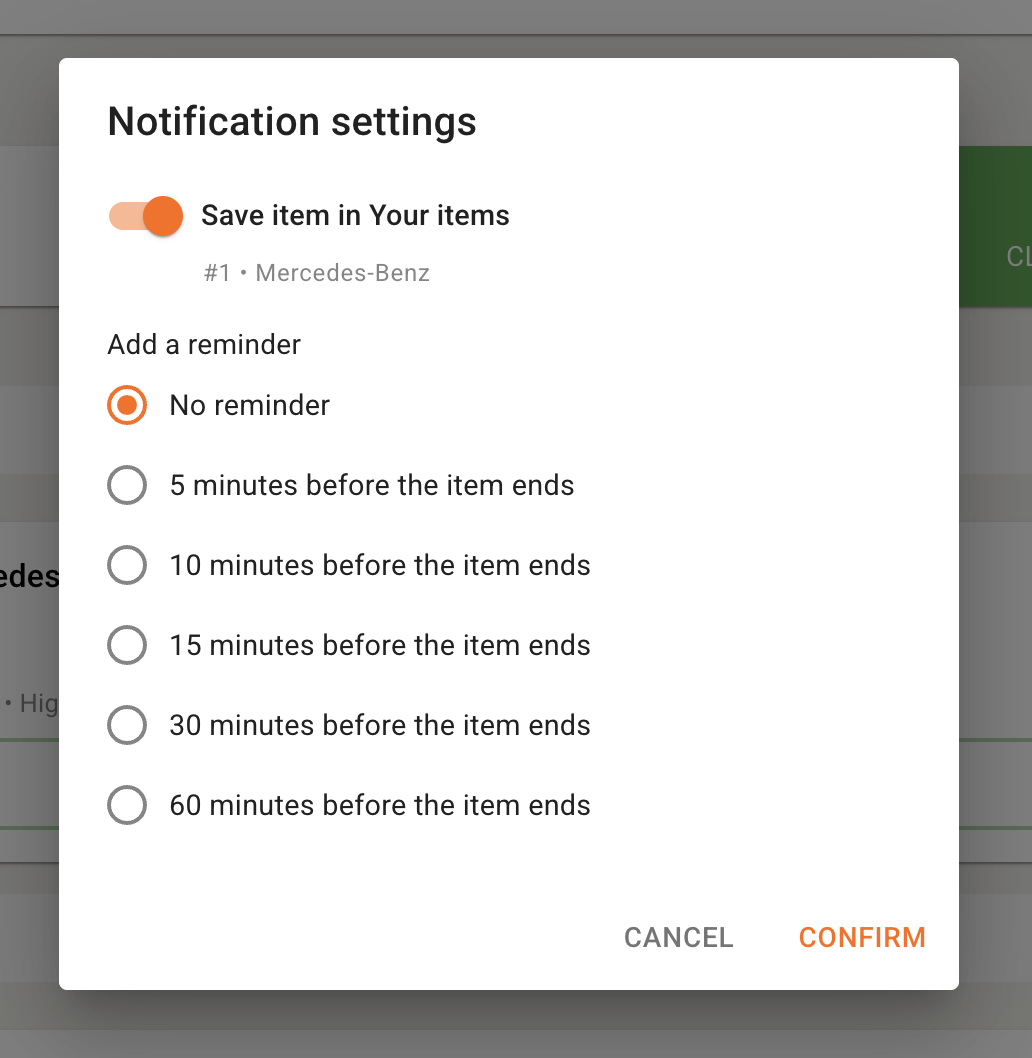
Beyond saving items to their Global Watchlist, bidders can set up alerts for when a saved lot is nearing its closing time. Clicking the Star button again on a saved item enables a notification and email reminder for that specific lot. These alerts appear directly in the bidder's Message Center, and they're also sent by email as long as the bidder has the Receive bidding notifications via email setting enabled on their account.
Understanding My Items Bidding Totals
At the top of the My Items list, three boxes display the bidder's bidding totals, giving an at-a-glance snapshot of their financial standing across their saved items:
Total | What it represents |
|---|---|
Active | The sum of all current high bids the bidder has placed on items that are still active |
Maxbids | The sum of all active max bids the bidder has placed on items |
Closed | The total of all winning bids on items that have closed |
How do I sort and filter the Global Watchlist?
Bidders can narrow and reorder their saved lots using the sorting and filtering options on the Global Watchlist page. These options mirror the ones in Global Item Search, so the experience is consistent across both features.
Auctions:
Filter | What it includes |
|---|---|
Active auctions | Only available for active auctions |
Item Filters:
Filter | What it includes |
|---|---|
All (default) | All items within active auctions, including those already sold and clerked |
Active | Only items that have not yet closed |
Sort By:
Option | What it does |
|---|---|
Ending Soon (default) | Sorts results so the soonest-closing items appear at the top |
Lowest Price | Sorts by current high bid in ascending order |
Highest Price | Sorts by current high bid in descending order |
Admin Insights: Watchlist Report
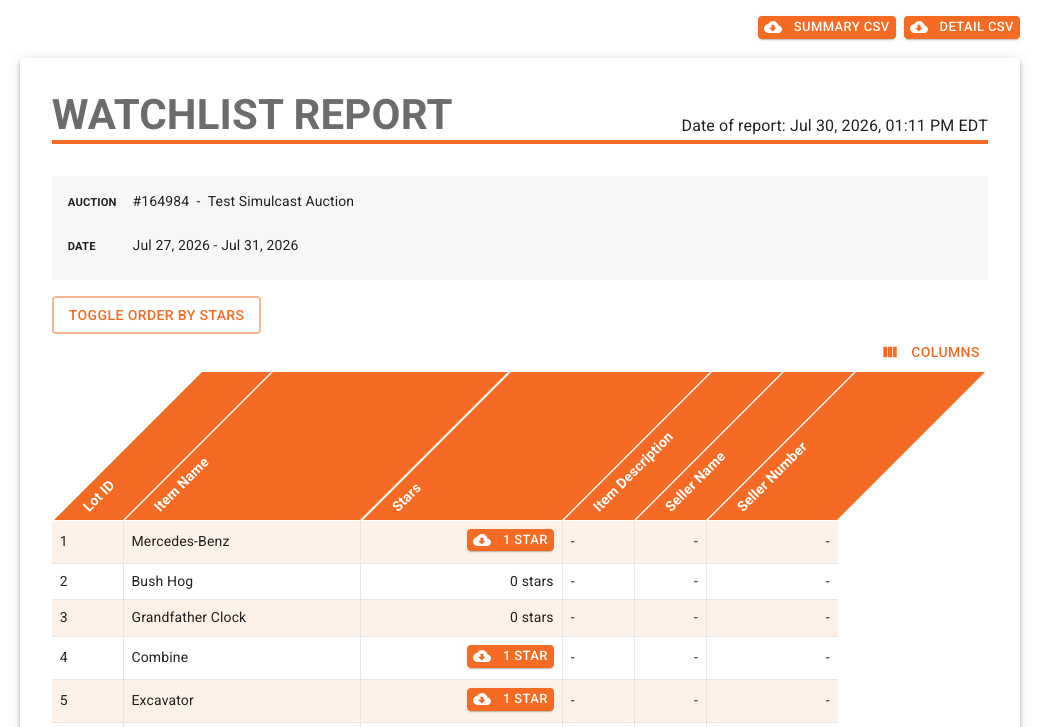
The Admin Portal includes a Watchlist Report that helps you see which items are gaining the most traction and which might need a marketing push. From this report, admins can view item popularity and download the user data of bidders who have added items to their watchlists — a valuable tool for targeted marketing outreach.
Accessing and Viewing the Report
The Watchlist Report sits at the bottom of your reports list and is formatted much like the Inventory Summary. It displays customizable columns — defaulting to Lot ID, Item Name, Stars, Item Description, Seller Name, and Seller # — and sorts items in ascending order by Lot ID.
Downloading bidder data
Admins have several ways to export this data and reach out to interested bidders:
Export option | What it does |
|---|---|
Individual items | Click the Stars button in any row to open a popup, choose which user details to include (such as First Name, Last Name, Email, and Address), and download a targeted CSV of everyone who starred that item |
Summary CSV (auction-wide) | A bulk download link in the top and bottom right corners of the report; exports basic data such as item and seller information |
Detailed CSV (auction-wide) | A bulk download link in the top and bottom right corners of the report; exports a comprehensive report of every item and every person who starred it, including lot details and all available bidder contact information |
Frequently Asked Questions
Where do I find the Global Watchlist? Click the button in the top-right corner of the bidding platform homepage. That opens your full Global Watchlist dashboard with every saved item across all of your active auctions.
What's the difference between My Items and the Global Watchlist? They're closely related. My Items is your list of saved and bid-on items; the single-auction My Items page shows that list for one auction at a time. The Global Watchlist shows your My Items across every current, published, active auction at once, in one dashboard.
How does an item get added to the watchlist? Star an item or place a bid on it — from Global Item Search, from an item's detail page, or from within an auction — and it's added to the My Items list, which appears in the Global Watchlist.
Does the Global Watchlist show items from past or closed auctions? No. The Global Watchlist displays items only from current, published, and active auctions. Items in past or closed auctions won't appear.
Can buyers bid directly from the Global Watchlist? Yes. Bidders can place bids straight from the watchlist dashboard, much like they can from Global Item Search, without opening the item's auction separately.
Can I change the star and share icon colors?
Yes. If the star and share icons would stand out better against your platform's branding in a different color, they can be adjusted. Just reach out to the BidWrangler support team and let us know.
Have questions about enabling or using the Global Watchlist? Contact the BidWrangler support team at helpdesk@bidwrangler.com.