
Administer Registrations Guide
What is Online Incomplete? Understanding registration status.
To be able to participate in an auction, bidders must first create an account (or log into their existing account) and register for a specific auction.
When bidders register online, their registration will show in one of two tabs in your Administer Registrations page;
Online Completed
Online Incomplete
Registrations will display in this list by order of date created, so will often contain a mix of registrations in different auctions. You can use the 'Filter by Auction' option to see registrations related to a specific auction. It's also possible to include additional filters to further narrow the results using the 'Add filter' option.
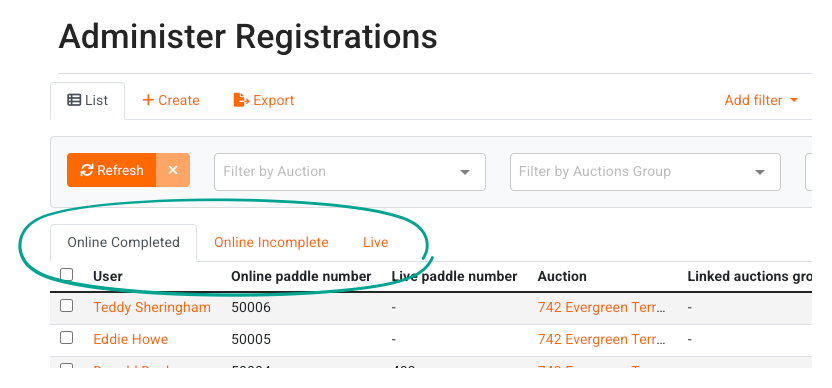
Online Completed
Registrations will show up under the Online Completed tab once they have provided the following information:
First Name
Last Name
Email Address
Phone Number
Address
Agreed to the Privacy Policy
Agreed to the Auction Terms an Conditions
Credit Card details (if enabled by the auction Terms and Conditions)
All of these fields are mandatory during online registration - with the exception of the Credit Card details which can be controlled via your auction's terms and conditions.
Once a registration is in Online Completed, that bidder is able to bid in the auction - unless you are using the Manual Approval feature.
Manual Approval
If you are using the Manual Approval feature in your Terms and Conditions then registrations will still display in your Online Completed tab, since they have completed the first step of registration.
However, they will not be able to bid in the auction until they have been approved by an auction admin. Once they have satisfied the additional requirements as per your manual approval process, an admin can toggle them to 'Approved For Online' by checking the Red X next to their registration.

Once this column shows a Green Checkmark, they will be able to bid in the auction.
Online Incomplete
Registrations will show up in the Online Incomplete tab if they have done the following at minimum:
Created a user account with a first name, last name, and email address
Clicked 'Register' on any auction
If for any reason they do not complete the full registration process, and provide all of the mandatory information, their registration is considered incomplete.
There may be several reasons for not completing their registration, including simply changing their mind, mistakenly clicking 'register', losing their internet connection mid-process, intending to complete their registration later, or failing the credit card verification step, etc.
It is typical for many user accounts in the online incomplete tab to be lacking otherwise required fields like phone number and address since this information is not saved to a user's account until they complete at least one registration. As such, bidders who fail the credit card verification step may have to re-enter all their information when they try again.
Manually Registering Online Incomplete Bidders
If you hear from a bidder who is experiencing issues completing their registration online, it is possible to manually approve them for online bidding and move them to the 'Online Completed' tab by having an admin toggle their registration to 'Approved For Online' by checking the Red X next to their registration.
However - we advise to exercise caution using this method, and you should always check to see that they have 'Accepted Terms' checked in their account first, otherwise you may have bidders participate without having agreed to any terms and conditions.

Live
There is a third tab containing any registrations that were added using our Live Registrations tool, but this only applies to auctions with in-person bidding.
Any registrations who were both successfully registered online and assigned live paddle numbers will appear in both the Online Completed and Live registration tabs.
Registration Actions
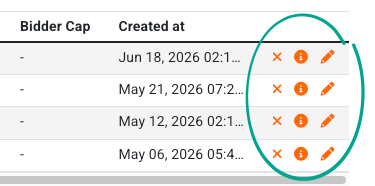
On the furthest-right column of each registration, there are three action buttons:
Delete Registration
'X' icon. Can allow you to delete a registration, although this is sometimes not possible if the user has already placed bids. To prevent any further bids being placed in this auction by this user, it's better to toggle the 'Approved for Online' option.
Show Registration
'i' icon. Allows you to see more information about a particular registration, including if the registration was part of an upload or any associated documents with the user.
Edit Registration
'Pencil' icon. Allows you to edit the registration, including the option to assign a specific buyer's premium, add a cap, or edit their paddle number.
Note: For information on the Bidder Cap feature, please review this article.
Exporting Registrations
It is possible to export registrations from this screen - you can find complete details about this process here.