
How to use the Auction Review Screen
The Auction Review screen in BidWrangler lets you edit, add, reorder, and search lots, manage photos, export, and share a preview of one auction.
Auction Review Screen Guide: How to Review, Edit, and Add Lots in BidWrangler
The Auction Review screen shows the full catalog for one auction in the admin portal. From this screen, you can edit lots, add new lots, reorder lots, search lots, manage photos, export the catalog, and share a preview link. To open it, click the Review button for the auction from the admin portal.
How to Open the Auction Review Screen
Sign in to the admin portal.
Select Auctions in the left menu.
Click the Review button for the auction.
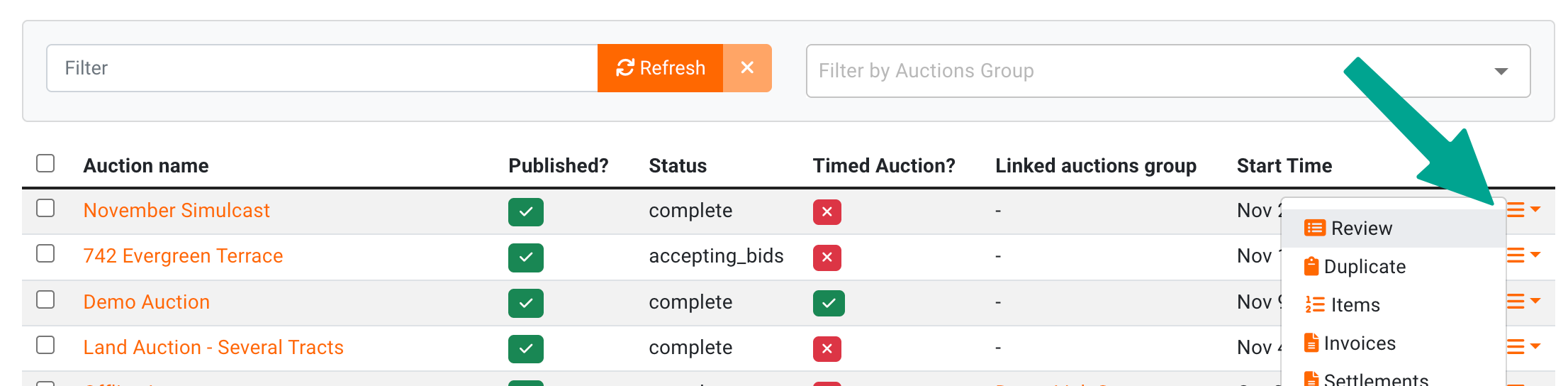
You can also click the auction title, then open the Review tab at the top left.
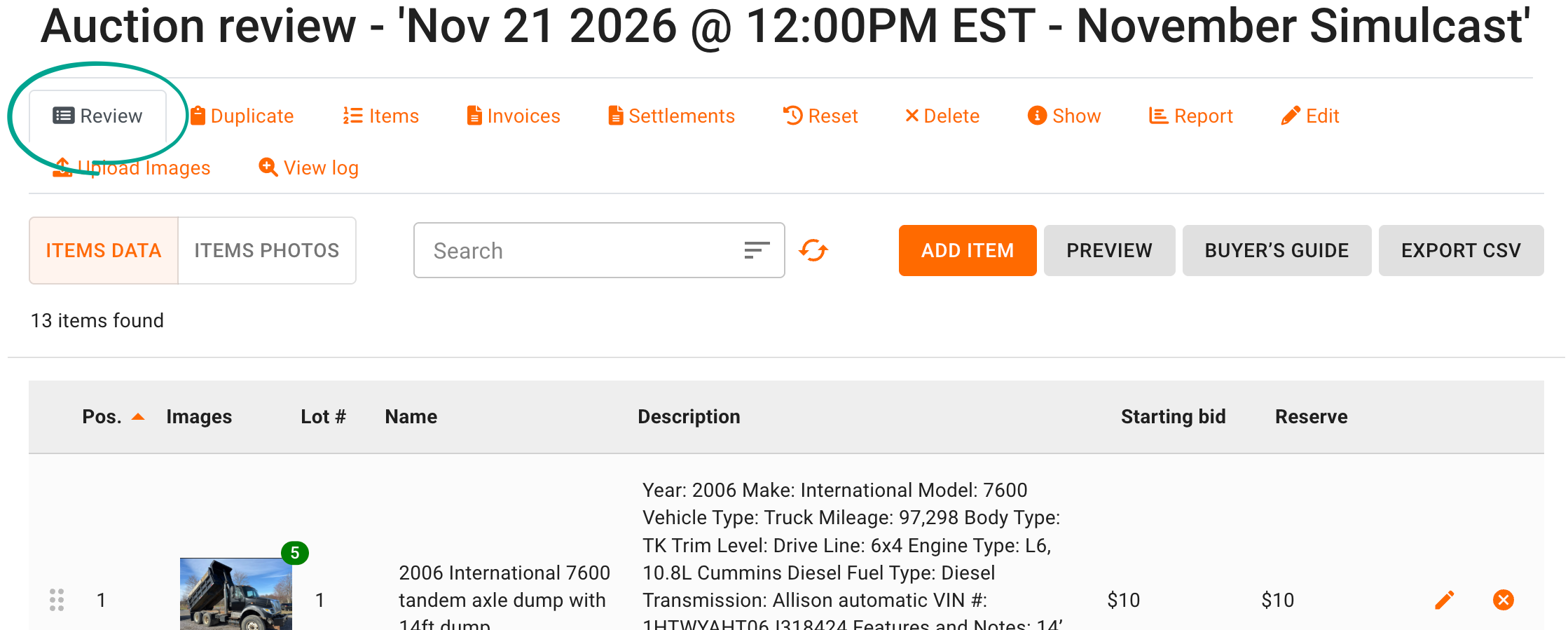
Available Tools
Items Data
Displays the basic information for each lot including Auction Position, the first Image (number of images on each is displayed in the top-right corner), Lot Number, Name, Description, Starting Bid, and Reserve.The catalog by default is always shown in order of auction position (sale order), but can be sorted by clicking on any of the other headings, or by clicking the menu in the search bar.
Items Photos
This provides many different options for managing photos. See this guide for more details.Search
The search feature allows you to search the items in your auction by name, description, lot ID, or private notes.Add Item
You can create a new item for this auction by clicking the Add Item button.Preview
Provides a link to access an auction on the bidding platform before it is published. This link is also useful for private auctions, when you need to share an otherwise hidden auction for invitation-only auctions or testing purposes.Buyer's Guide
Creates a customizable PDF of the auction catalog. Can be helpful for providing sellers a list to review, or setting up a clerking sheet. More details here.Export CSV
Provides a comprehensive .csv spreadsheet for selected details for each item within the auction. This is a helpful starting place for bulk updating, or exporting details to other platforms.Quick Re-order
The drag and drop feature allows you to quickly move the sale order for individual items - more details here.Catalog Interface
Allows for quick editing of the basic item details using an interface similar to that of the BidWrangler catalog app. More details below.
How to Edit a Lot
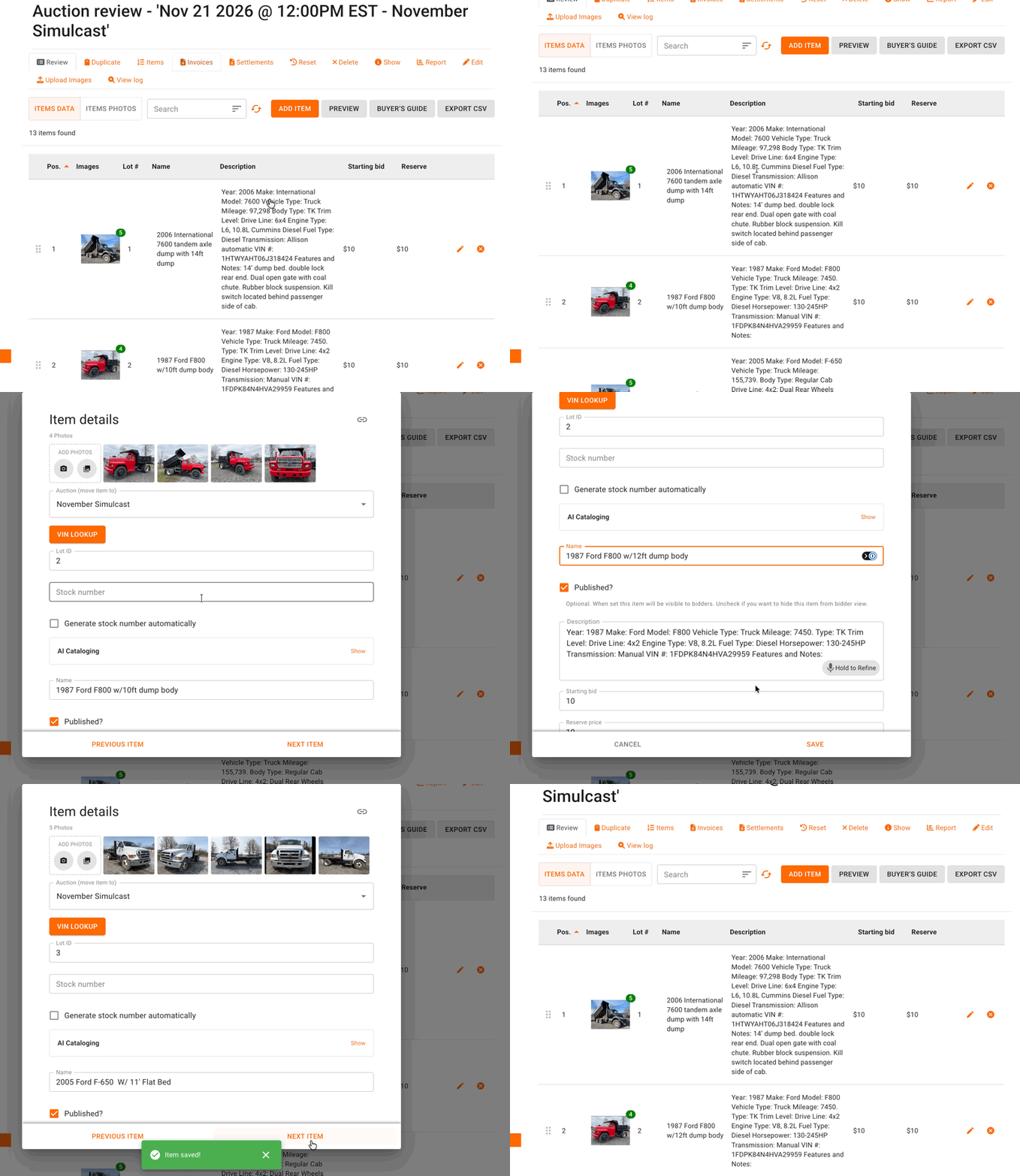
Each item in the review screen includes the pencil edit button in the right hand side. Clicking this will open the full item's settings in a new tab in your browser. An interface similar to that of the catalog app is also available for edits to the basic information by clicking on any of the lots.
Click the lot on the Auction Review screen. The cataloging window opens.
Make your changes. For example, select a seller in the Seller field.
Click SAVE.
Your changes apply as soon as you save.
How to Add New Lots
You can add lots without leaving the Auction Review screen. There are two ways to start:
Click Add item in the toolbar at the top of the screen.
Click Add new on the last lot in the catalog view.
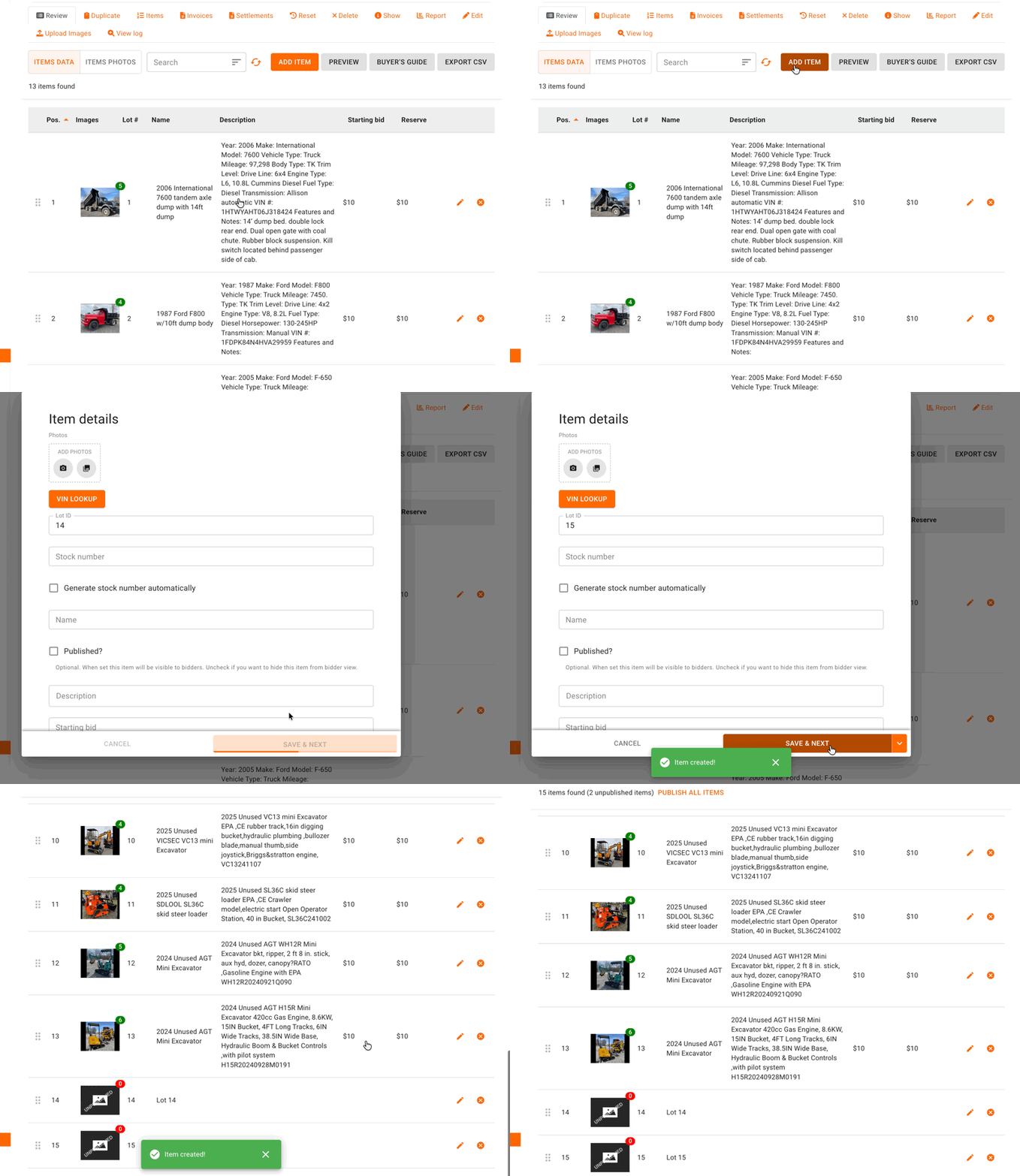
The new lot opens in the cataloging window. BidWrangler fills in the lot number for you, the same way the catalog app does. You can change the lot number if you need a different one.
Fill in the lot details, then choose how to save:
Save & Next saves the lot and opens a new lot, so you can add several lots in a row.
Save & Finish saves the lot and closes the cataloging window.
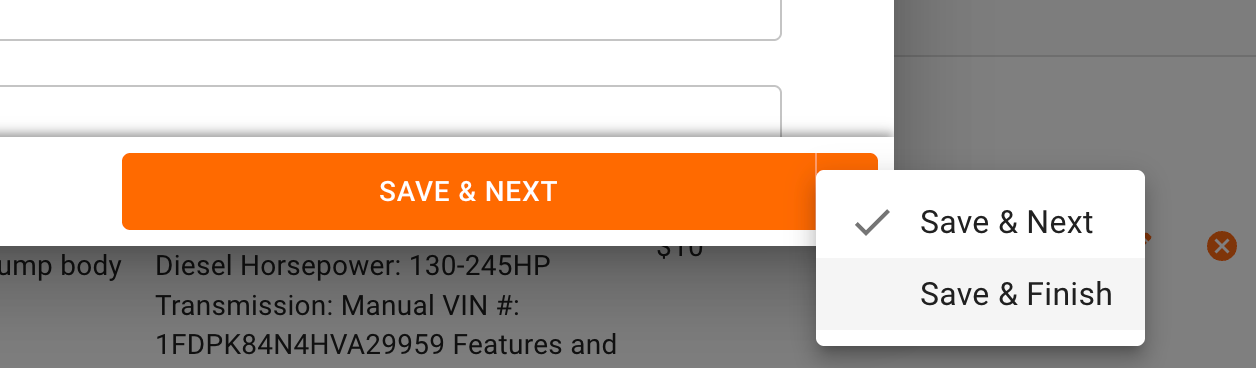
To put a new lot in a different position, add the lot first, then drag it to its new position.
How to Reorder Lots
Click and hold the handle icon on the left side of the lot row.
Drag the lot to its new position. Lots highlight as you pass over them.
Release the lot on the highlighted lot.
Confirm the move in the popup.
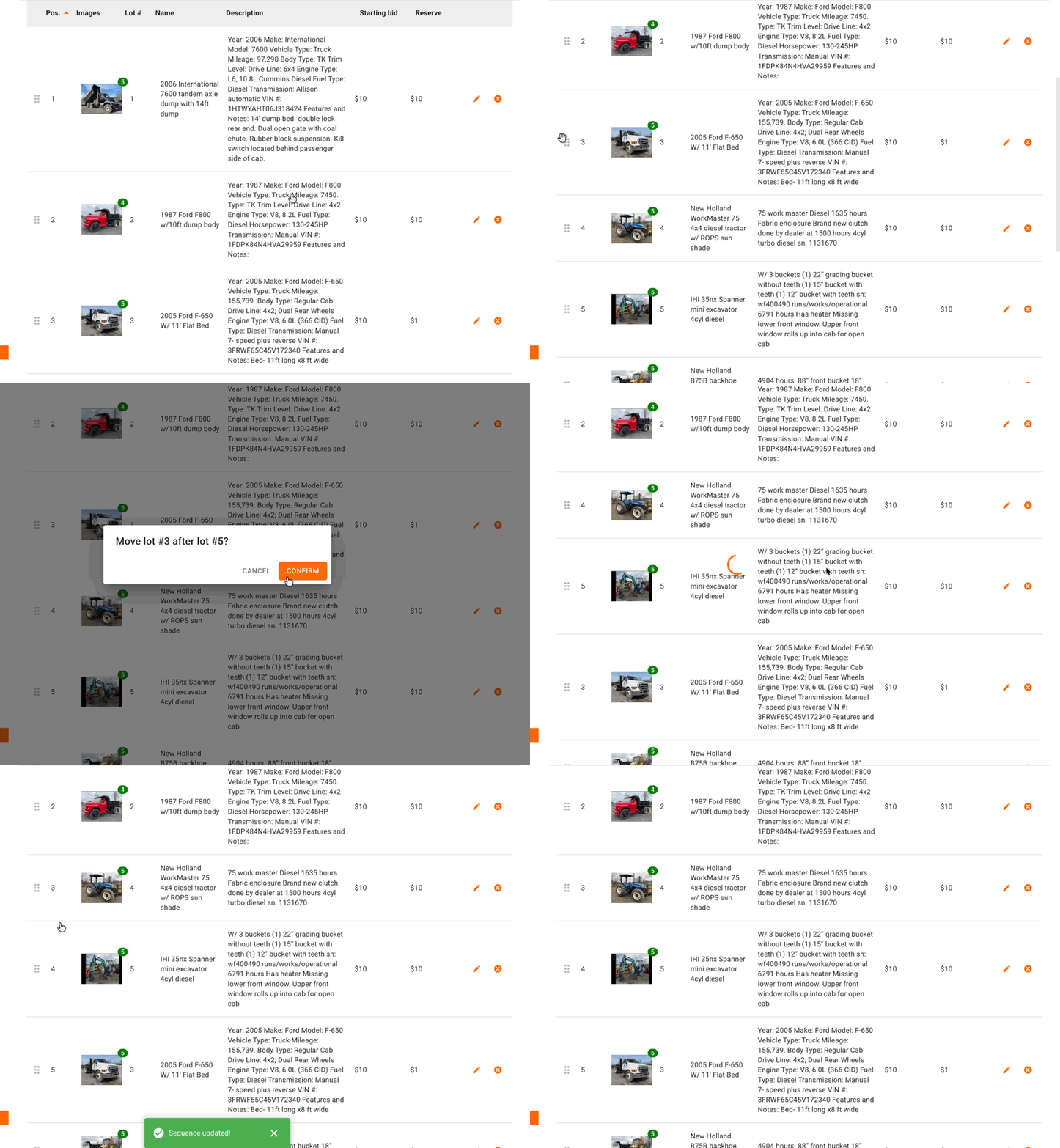
BidWrangler updates the position of each lot in order. The new order can take a few minutes to show on the public auction page. To sort the catalog by lot number, see How do I reorder items by lot number?
FAQ
Can bidders see private notes?
No. Bidders never see private notes on the bidding platform, in the app, or on your website.
Why does the public auction page still show the old lot order?
A new lot order can take a few minutes to show on the public auction page. Wait a few minutes, then refresh the page.
How long does a preview link work?
A preview link expires after 30 days. You can create a new link from the Auction Review screen at any time.
Can I add a lot to the start of the catalog?
Yes. Add the lot, then drag it to the top of the catalog. For more detail, see How Do I Add a Lot to the Beginning of My Auction?
How to Search Lots by Private Notes on the Auction Review Screen
How to update lot positions in an auction via Items Import/CSV
If you have a question about this article, email helpdesk@bidwrangler.com. We are happy to help.