
How Do I Use the BW Catalog App?
Complete guide to the BidWrangler Catalog App (BW Catalog): setup, signing in, cataloging lots with photos, Quick Capture, and editing your catalog afterward.
The BidWrangler Catalog App (BW Catalog) lets you build your auction catalog from your phone or tablet: you photograph each lot, enter its details, and the app updates your bidding platform in real time. One person can catalog on site while another writes descriptions in the admin portal at the same time. This guide covers setup, signing in, cataloging lots, the app's photo settings, and how to clean up your catalog afterward.
What You Need Before You Start Cataloging
An auction created in the admin portal. You cannot create a new auction inside the catalog app. Create and save the auction in the admin portal first, and it will then appear in the app's auction list.
Admin or cataloger credentials. The app uses the same email address and password you use to log in to your bidding platform as an admin or cataloger.
Downloading the App (or Using It in a Browser)
Install BW Catalog from the Apple App Store or the Google Play Store, or search "BW Catalog" in either store.
See Where do I download the BW Catalog App?
Prefer a desktop or laptop? The catalog app also runs in a web browser. Add /catalog to the end of your bidding platform URL, for example companyname.bidwrangler.com/catalog.
Note: Using "bid.companyname.com" will not work for the desktop browser version.
Signing In to BW Catalog
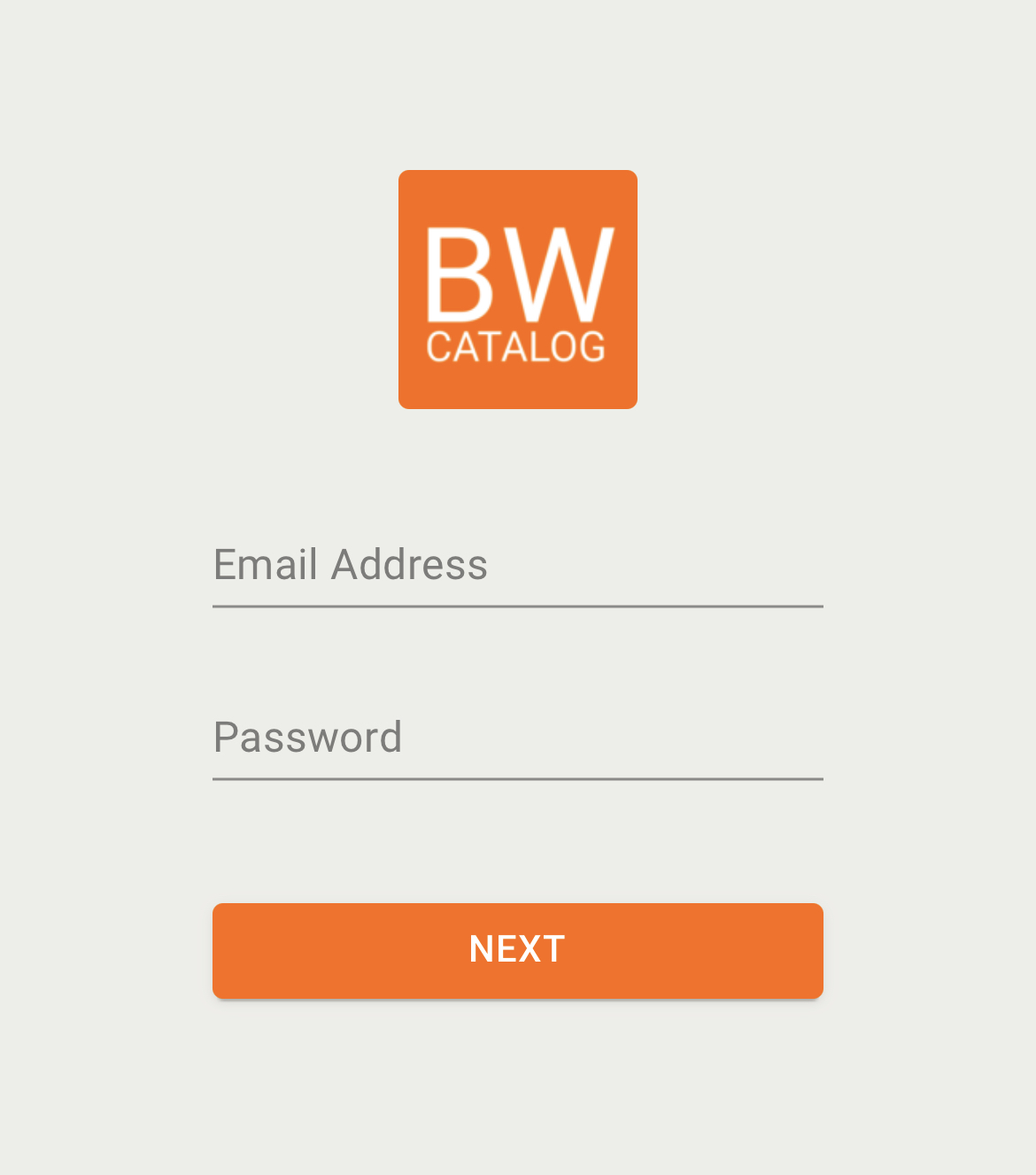
Sign in with the same credentials you use for your BidWrangler admin portal. If the app rejects your login, use the "Forgot Your Password?" link on your bidding platform to reset your password, then try the app again. If your login works in the portal but not in the app, contact helpdesk@bidwrangler.com.
Cataloging Lots in the App, Step by Step
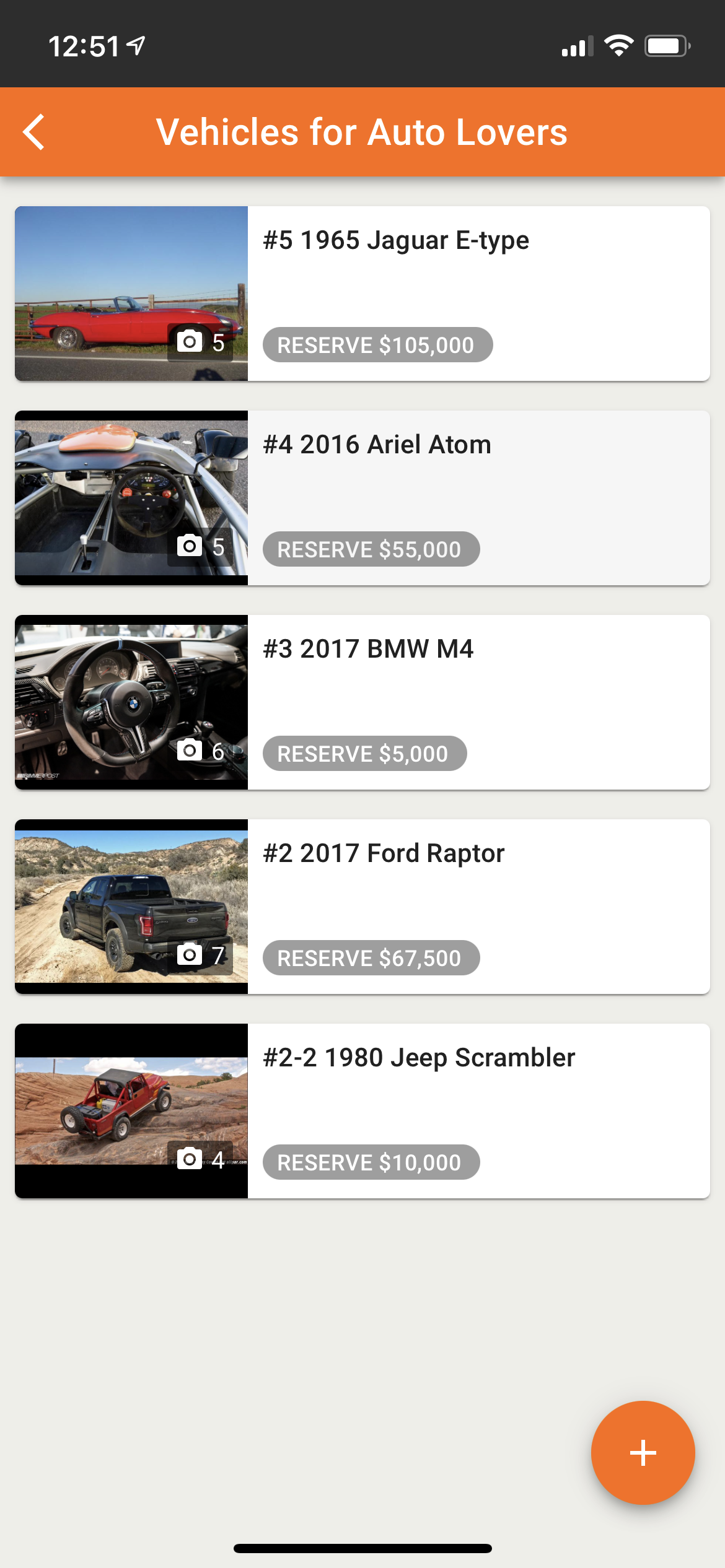
Select your auction from the list displayed after signing in.
Create a lot by tapping the + sign in the bottom right.
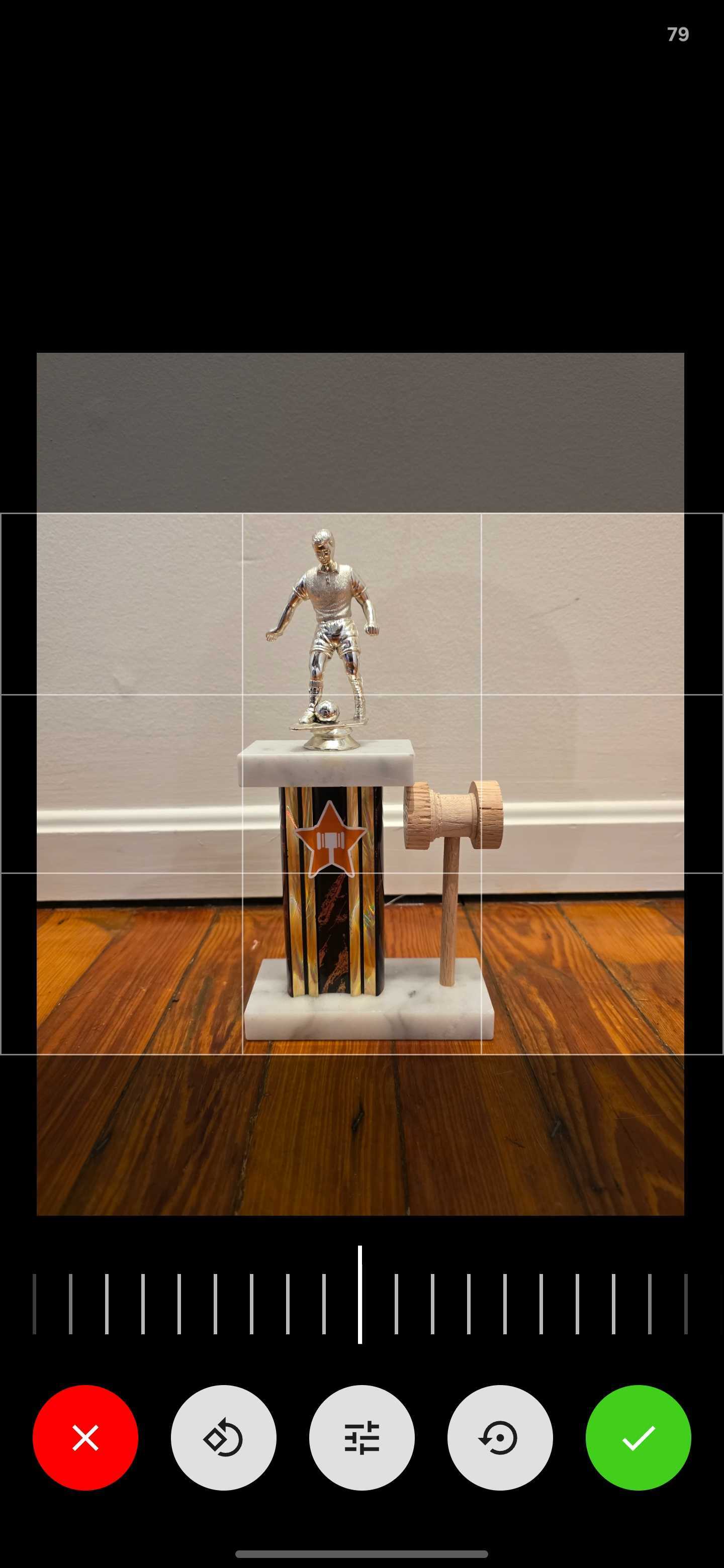
Add photos by taking new photos or uploading from your camera roll. With the photo editor active, you can crop and rotate images as needed (see the Quick Capture section below).
Enter the lot's details, such as its name and description.
Tap Save & Next to save the lot and move straight into creating the next one.
Saves update your bidding platform in real time. There is no separate sync or upload step, which is what allows cataloging and description writing to happen simultaneously.
You can take photos from your device or upload from your camera roll. You can crop and rotate the photos as well.
Hit "save & next" to continue cataloging items. This will update the items in your bidding platform in real time, so you are able to have someone cataloging and writing descriptions at the same time.
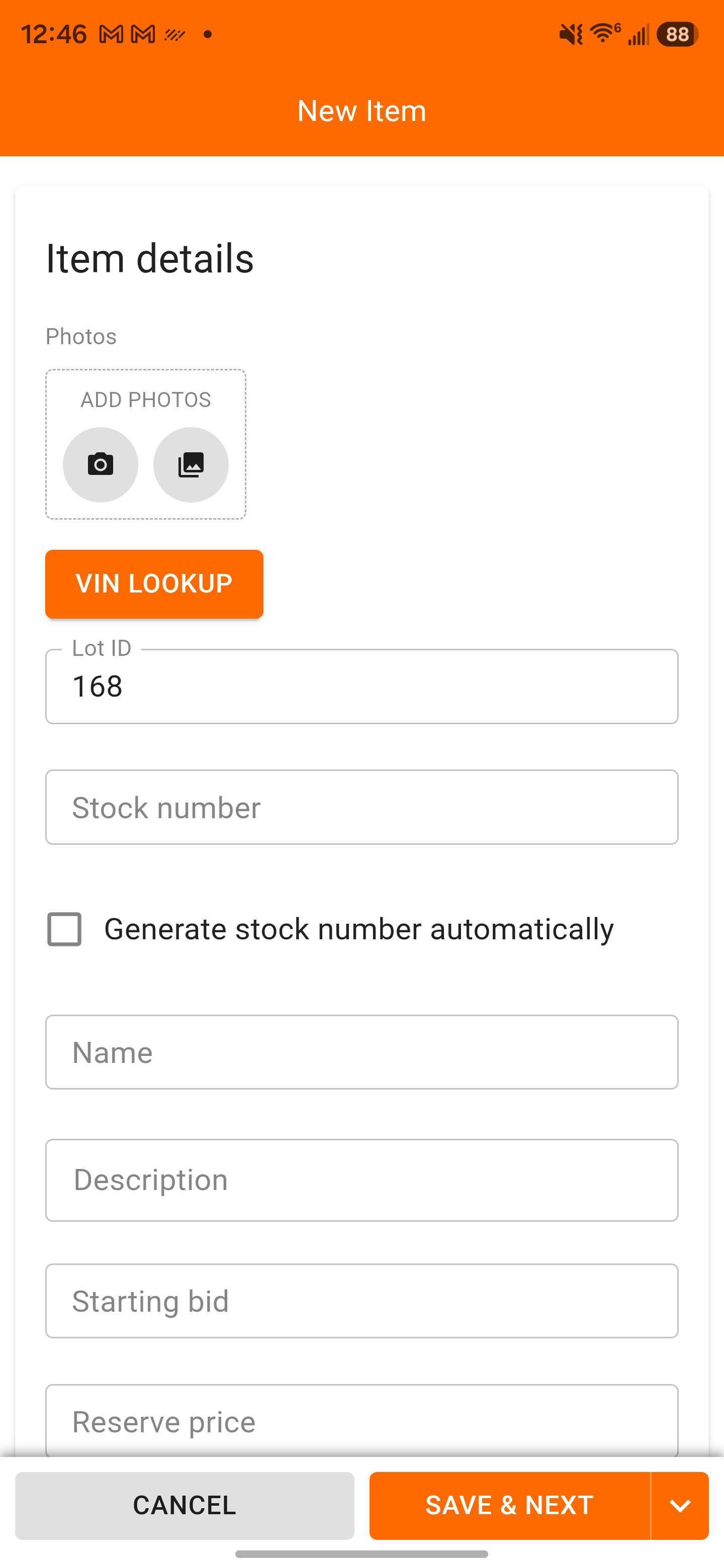
Saves update your bidding platform in real time. There is no separate sync or upload step, which is what allows cataloging and description writing to happen simultaneously.
Quick Capture and the In-App Photo Editor
The app's Quick Capture feature controls whether the photo editor opens after each photo. With Quick Capture enabled, the editor is skipped so you can shoot many items quickly, and image cleanup happens later in the admin portal. With Quick Capture disabled, the cropping and rotation tool opens after every photo so you can adjust each image before it saves.
To change the setting, tap the menu in the top left corner of the home screen and toggle Quick Capture on or off. For the full breakdown, see What is "Quick Capture" in the BW Catalog app?
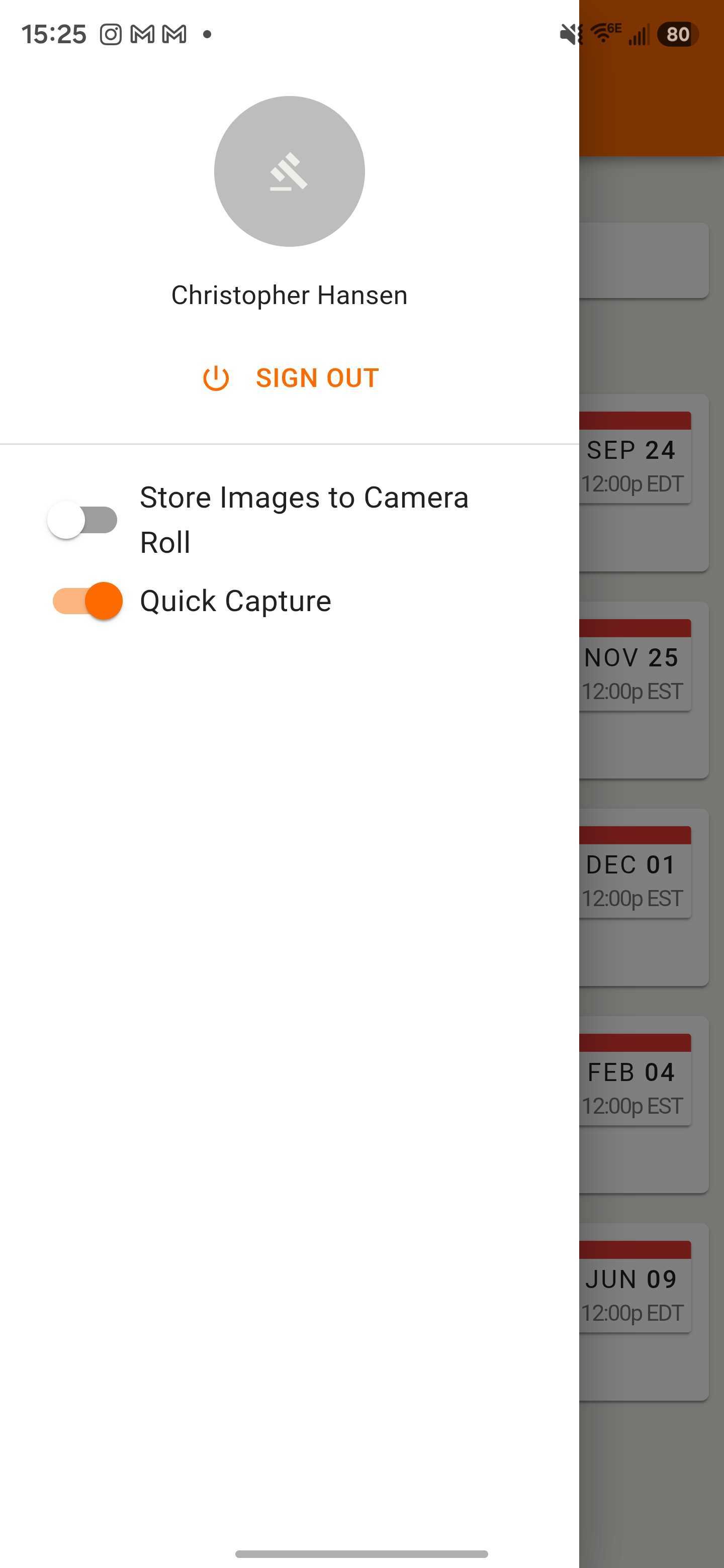
The same menu also contains Store Images to Camera Roll, which saves photos to your device as you take them. It requires the "Enable catalog plugin camera" setting in Company Settings under Customization and applies per device. See Can I save images to my phone from the BW Catalog App?
Cleaning Up Your Catalog After a Cataloging Session
Cataloging in the field is rarely perfect on the first pass. After your session, use the admin portal to finish the job:
Photos: Open your auction's Review screen and select the ITEMS PHOTOS button to open the Photo Manager, where you can rotate, crop, adjust, copy, move, and delete images. See How do I use the new Photo Manager screen?
Lot order: The Review screen is also where you confirm and adjust catalog order.
Sellers: Consignment sellers can be added from BW Catalog as well. See How Do I Add a Seller from BW Catalog?
How-to video:
Here's a video of how to use the BidWrangler Catalog App:
(This video was recorded on an Android device)
FAQ
Can I create a new auction in the catalog app?
No. Auctions must be created in the admin portal. Once the auction is saved there, it appears in the catalog app's auction list and you can begin cataloging into it.
What login do I use for the BW Catalog App?
The same email address and password you use for your BidWrangler admin portal, with an admin or cataloger account. If the login fails, reset your password with the "Forgot Your Password?" link and try again.
Why doesn't the photo editing screen appear after I take a picture?
Quick Capture is enabled. Quick Capture skips the photo editor to speed up shooting. Turn it off in the app menu (top left corner) if you want to crop and rotate each photo as you go.
Do I have to use a phone or tablet?
No. The catalog app runs in a web browser at your bidding platform URL with /catalog added to the end, for example companyname.bidwrangler.com/catalog.
Can I use AI Cataloging to automatically generate titles and descriptions of my catalog's pictures?
Yes, BidWrangler AI Cataloging is available at an additional cost. Contact us at helpdesk@bidwrangler.com if you're interested. Also, see the AI Cataloging help article here.
Do my changes save automatically to the bidding platform?
Saving a lot with Save & Next updates your bidding platform in real time, so someone in the admin portal sees new lots and photos as they are created.
The app isn't loading my auctions or won't let me catalog. What should I check?
First confirm BAM cataloging tools are enabled for your platform (email helpdesk@bidwrangler.com if unsure), then confirm the auction was created and saved in the admin portal, and that you are signing in with admin or cataloger credentials.
Related Articles
Need a hand getting your team cataloging? Email helpdesk@bidwrangler.com and we are happy to help.