
How do I create a private auction in BidWrangler?
Checking the Private? box in an auction's settings hides it from public view: it does not appear in your app or website listings, and only admin users and bidders registered for that auction can see it. Private auctions are published the same way as any other auction - the Private? checkbox is what keeps it out of public view, not leaving it unpublished.
When to Use a Private Auction
Private auctions fit invitation-only sales: a sale for a specific customer list, a sensitive consignment, or an auction a client needs to approve before it goes public. They are also the right setting for an in-person sale you do not want listed publicly but still need to clerk in BidWrangler, such as a benefit or charity auction with no online bidding.
If you only need someone to look over the catalog before the sale goes live, a preview link may be the better tool (see below), since it works without publishing at all.
Making an Auction Private
In the BidWrangler Admin Portal, open the Auction's settings (or the "Create" tab for a new auction).
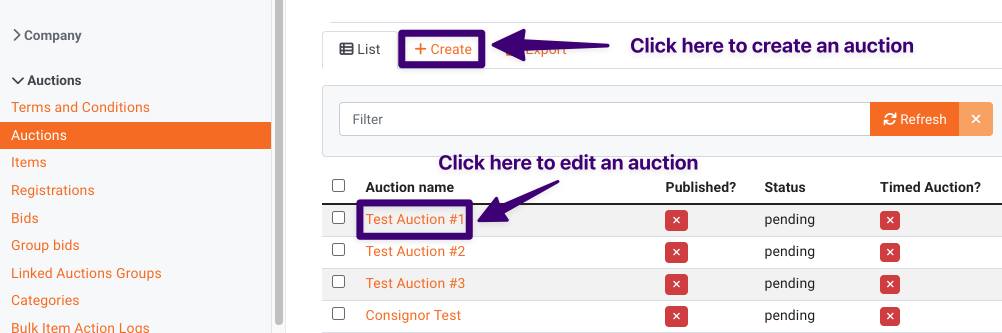
Check the Private? box.
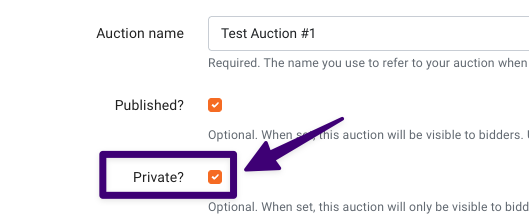
Complete the rest of the auction setup and save. Publish as usual when the catalog is ready.
The auction is now live but hidden: visible to admins and to bidders registered for it, invisible to everyone else.
Running an In-Person Sale That Is Not Listed Publicly
If you are clerking an in-person sale and do not want it appearing on your website or app, publish the auction and check Private?. Publishing is what activates the clerking tools, and Private is what keeps the sale off your public listings. The two settings do different jobs, and you need both for this scenario.
Leaving the auction unpublished does not accomplish the same thing. On an unpublished auction the clerking button is grayed out, so a clerk cannot open the Live Clerking Panel at all. Auctioneers running offline sales sometimes leave the auction unpublished to keep it hidden and then find they cannot clerk when the sale starts. Publishing with Private? checked avoids that entirely.
For a sale with no online bidding, the practical setup is:
Build the auction and catalog as usual.
Check Private? in the auction settings.
Publish the auction. It stays off your public listings because it is private.
Check bidders in through Live Registrations as they arrive.
Clerk the sale in the Live Clerking Panel, then invoice and check out as normal.
If the sale is time-sensitive and staffed by someone who does not use BidWrangler often, it is worth confirming this configuration a day ahead to be prepared when the sale time arrives.
Getting Bidders into a Private Auction
Register them manually. Have each bidder create an account, then register them for the auction from the admin portal. Once signed in, they see the auction like any other.
Register them at the door. For in-person sales, check bidders in through Live Registrations at the event. Bidders registered on site do not need online approval.
Share the direct link. View the auction while signed in as an admin and copy the URL from your browser. Anyone you send it to can access the auction from that link.
Sharing a Preview Without Publishing at All
If the goal is approval rather than bidding, for example a consignor who needs to sign off on the catalog, you do not need to publish or make the auction private. Generate a preview link from the Auction Review screen instead: recipients see the auction as if it were published, with a "Preview" watermark on photos and bidding and registration disabled. Preview links expire after 30 days. See: How do I send an auction preview?
FAQ
What is the difference between a private auction and an unpublished auction?
A private auction is published and fully functional, just hidden from the public; registered bidders can bid normally and your team can clerk it. An unpublished auction is not visible to any bidder, and its clerking tools are not available. Use private for invitation-only and in-person sales, unpublished for auctions still being built.
Can I clerk an auction that is not published?
No. The auction must be published before the clerking panel can be opened. On an unpublished auction the clerking button is grayed out. If your goal was to keep the sale off your public listings, publish it and check the Private? box instead, which hides it while leaving the clerking tools available.
We are running an offline sale with no internet bidding. How should it be set up?
Publish the auction with Private? checked. The sale stays off your website and app, your team checks bidders in through Live Registrations at the door, and the Live Clerking Panel is available for clerking. Invoicing and checkout then work the same as any other sale.
Who can see a private auction?
Admin users and bidders who are registered for that auction. It does not appear in your public auction listings.
Can bidders bid normally in a private auction?
Yes. Once registered, bidders experience a private auction exactly like a public one: bidding, notifications, and invoicing all work normally.
How do I let a consignor approve an auction without making it public?
Send a preview link from the Auction Review screen. They will see the lots as if the auction were published, without it being published and without the consignor needing an account. Preview links expire after 30 days.
Related Articles
Need help setting up a private sale? Reach out to helpdesk@bidwrangler.com and our team will be happy to help.