
How do I create a Buyer's Guide?
The Buyer's Guide lets you print a list of all items in an auction's catalog. Auctioneers use it as a handout for live bidders, as a reference document for pre-sale notes, and as a printable clerking sheet (also called a clerk sheet) for recording winning bids and paddle numbers on paper during a live sale.
Create a Buyer's Guide
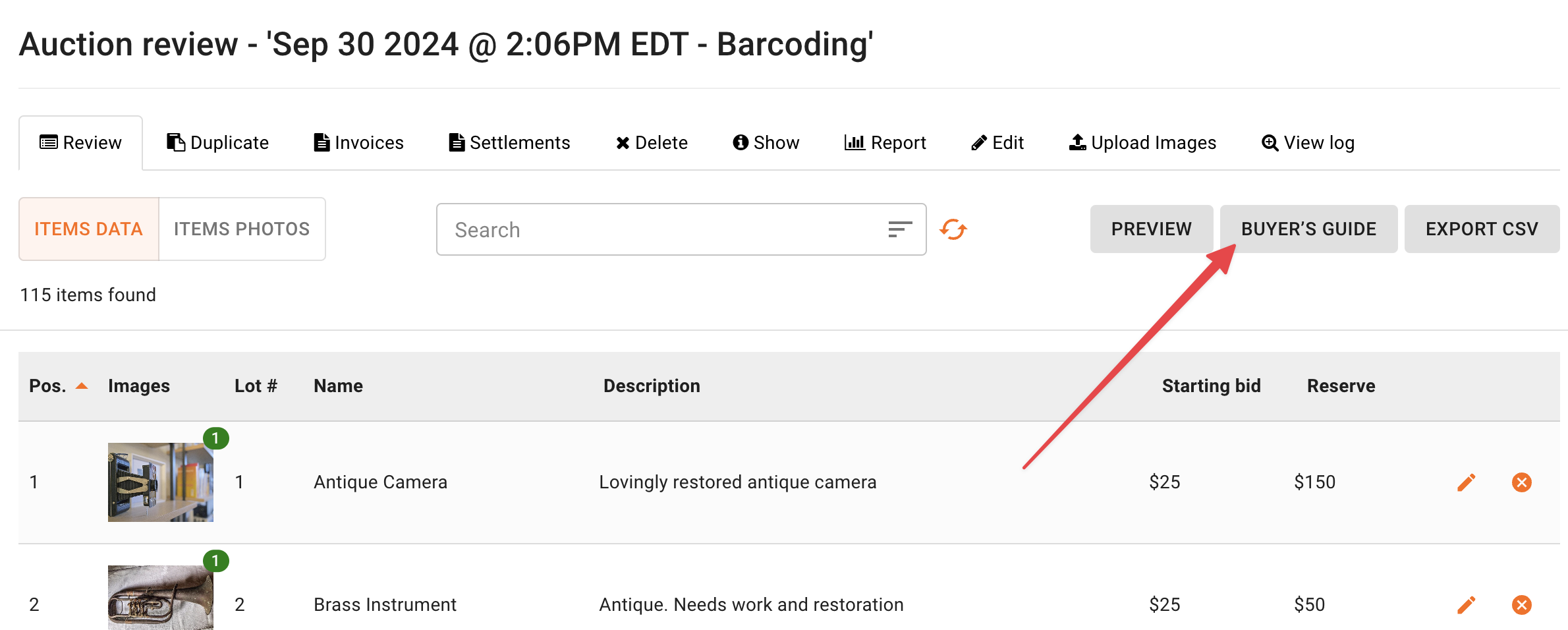
You will find this new document from the Auction Review screen listed as "Buyer's Guide".
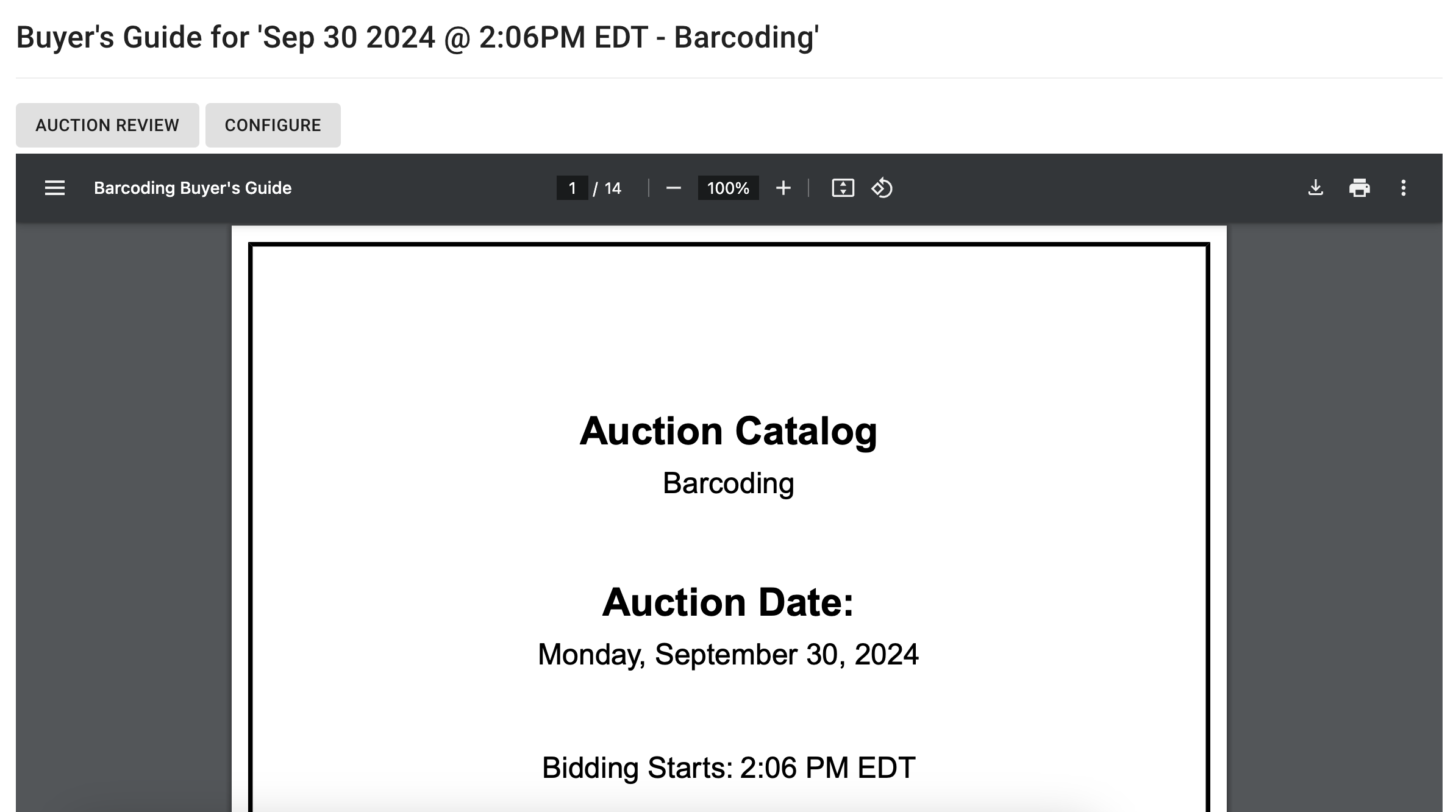
The Buyer's Guide page will populate the guide with the current configurations. You may view the documents many pages, adjust the zoom, width, rotate, download, and print via the PDF viewer.
To manipulate this document, click "Configure."
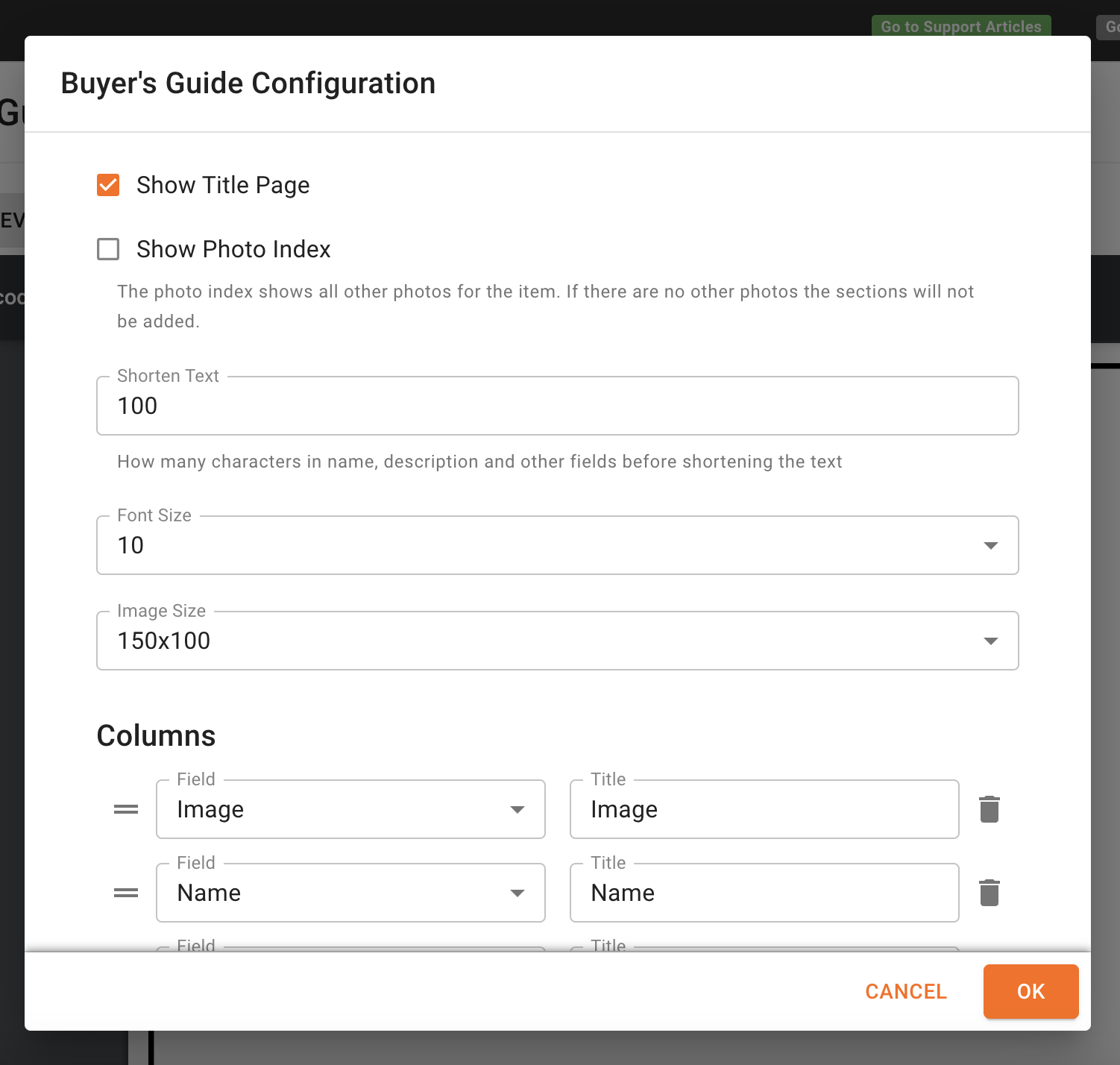
The configuration popup will provide a variety of options for editing the data presented on the document including Title Page, Additional photos, how much text to display, font size, and image size.
The item details/columns can be configured by adding, editing, or removing an field. "Add Column" will add another field to the document. Click on the "Field" dropdown to select a different field. The "Title" field will change the name of the column for that corresponding field. Click the trashcan to delete the field entirely.
Click "OK" to save, then wait for the data to load and populate on the document.
Printing a Clerking Sheet
If you want paper clerking sheets to be filled out on auction day, print the Buyer's Guide for your auction.
Several columns are already present on the document. To set it up as a clerking sheet, click the Configure button to add, delete, or edit columns until the sheet shows the fields your clerk needs, then print it. Column setup is covered in the steps above.
There's more details on how to use the buyer's guide to create a clerking sheet, as well as some other methods you may prefer in this article.
If you clerk digitally instead of on paper, the Live Clerking Panel records winning bids and paddle numbers directly in the platform and generates invoices automatically.
Frequently Asked Questions
Can I print clerk sheets to be filled out on auction day? | Yes. Print the Buyer's Guide for the auction, found under Auction > Review > Buyer's Guide. Use the Configure button to adjust the columns before printing so the sheet matches what your clerk records during the sale. |
Can I change which columns appear on the printed sheet? | Yes. Click Configure in the PDF viewer, then use Add Column, the Field dropdown, and the Title field to add, choose, and rename columns, or the trashcan icon to remove them. Click OK and let the document reload before printing. |
If you have any questions, please email us at helpdesk@bidwrangler.com.