
Exporting Auction Registrations in BidWrangler
How to Export Registrations from a Specific Auction
To export registrations for a specific auction, navigate to the Registrations tab in the Admin Portal, filter by the specific auction ID, and use the "Filtered Items" menu to export the data as a CSV file compatible with Excel.
Step-by-Step Guide
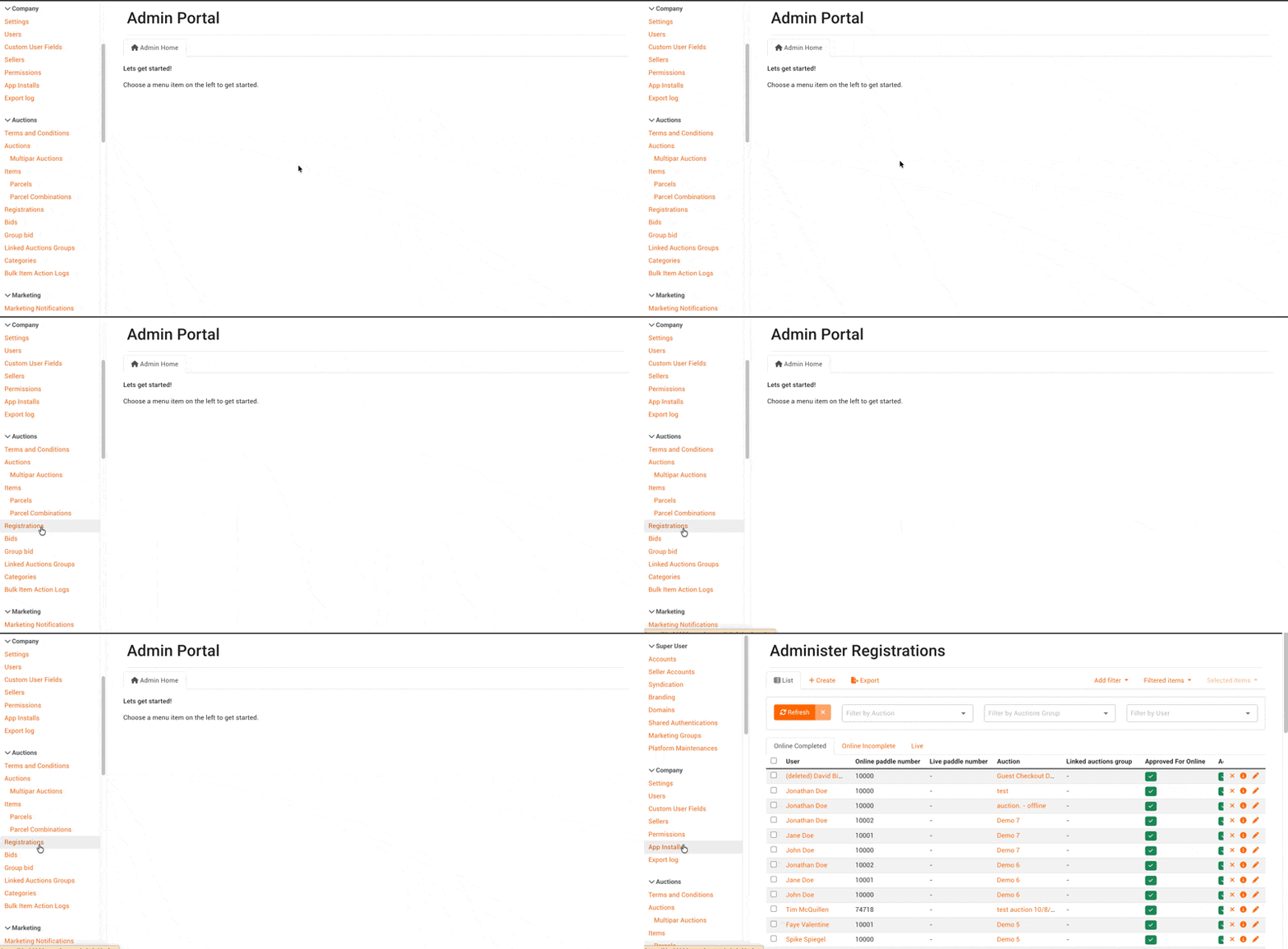
First, navigate to the Registrations menu. From the BidWrangler Admin Portal, locate the Auctions section on the left-hand menu and click on "Registrations".
Next, filter for the specific auction. To ensure you only download data for a single event:
Click the "Filter by Auction" dropdown menu at the top of the screen.
Select the appropriate auction from the list.
Click the "Refresh" button. This ensures that only the registrations for that specific auction appear in the list.
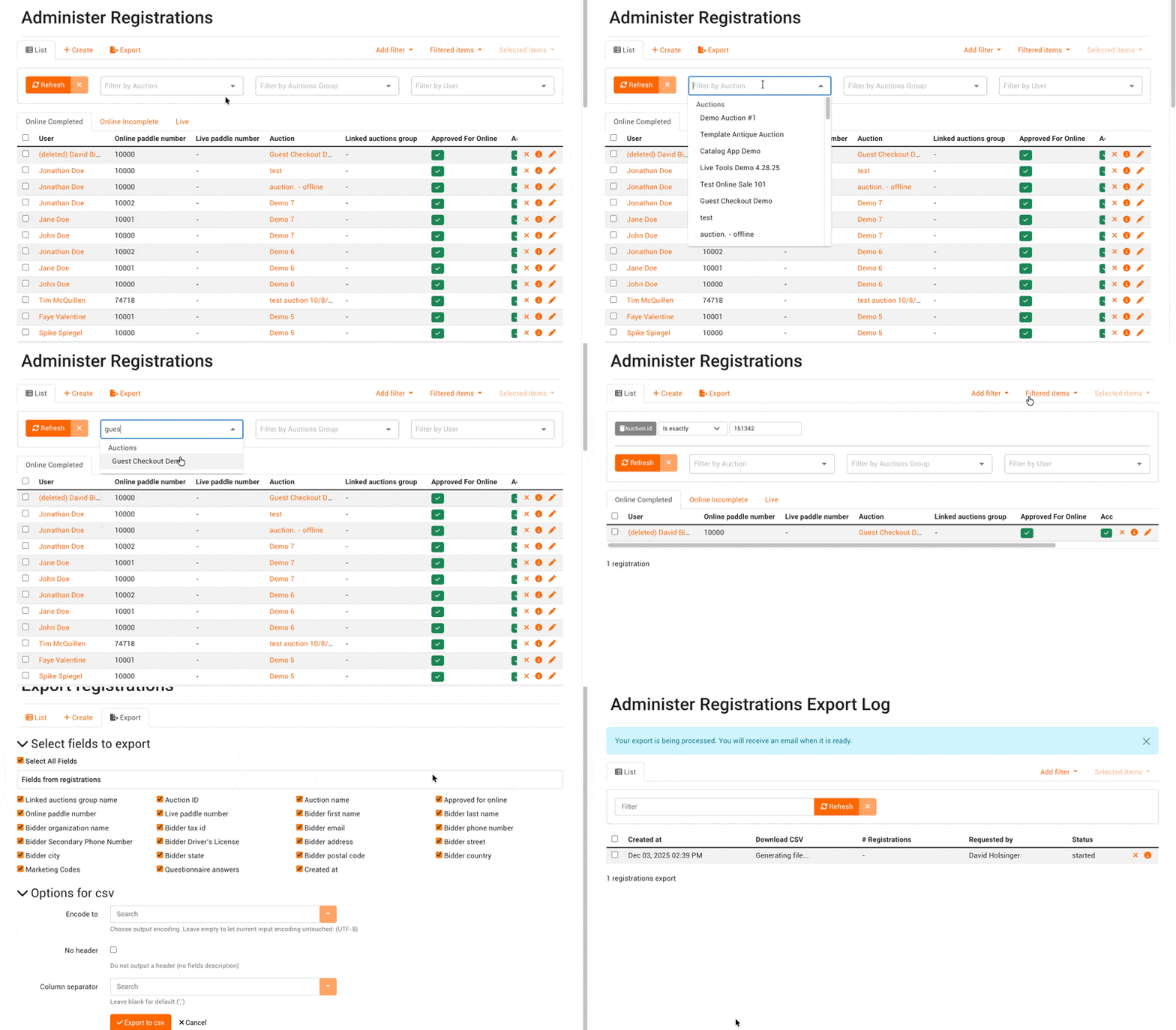
You may also filter by "Auction ID" number via "Add filter" and then selecting "Auction ID".
Finally, export the data. Once the list is filtered:
Click the "Filtered Items" button located at the top right of the screen.
Select "Export" from the dropdown options.
On the export screen, choose the specific fields you would like included in your report (such as name, email address, or paddle number).
Click to Export as CSV.
The export will run in the background and be emailed to you. You may also refresh the Administer Registrations Export Log page, where the "Download CSV" link will be provided once "done".
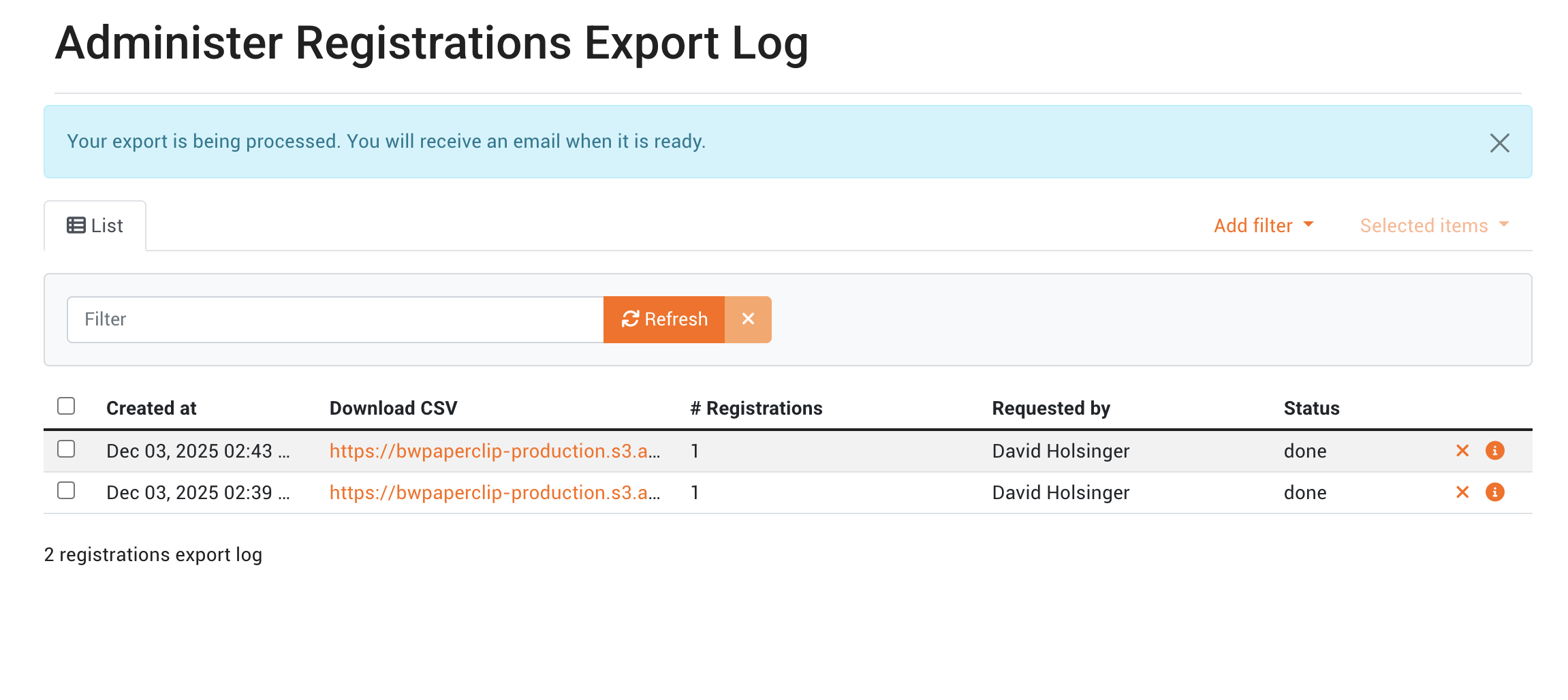
Once the export is complete, you can open this CSV file in Numbers, Google Sheets, Microsoft Excel, or other spreadsheet software for further organization and reporting.
Troubleshooting
Issue / Question | How to Fix / Answer |
My export has registrations from other auctions included. |
|
My in-person or live bidders are not included. | If you need to export only live-registered bidders, after filtering for the auction, adjust the view from "Online Completed" {the default view} to "Live", and then export as explained above. |