
How Do I Require Manual Approval for Bidder Registration?
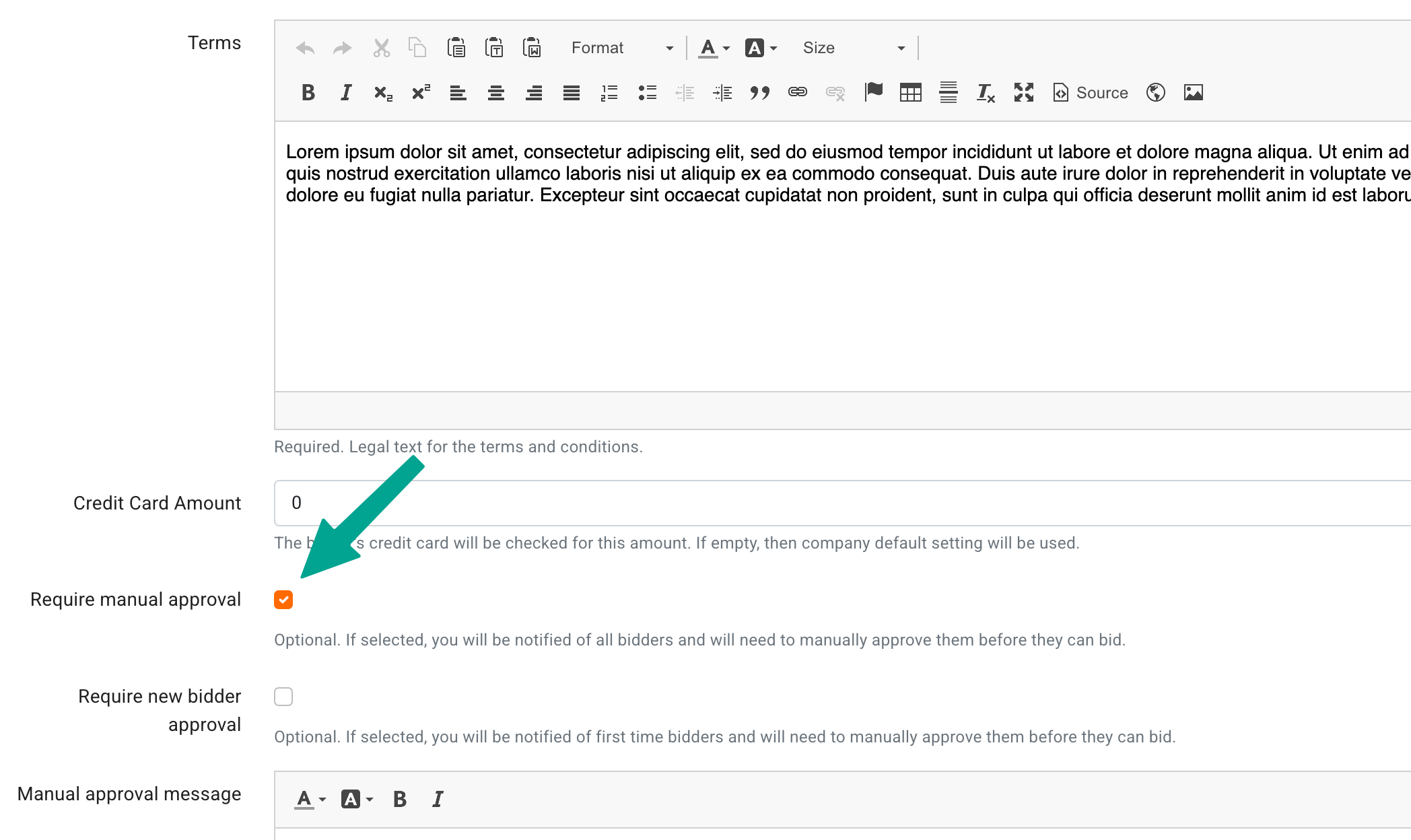
BidWrangler's Manual Approval feature lets you review and approve every bidder before they can place a bid, instead of approving registrations automatically. You turn it on by checking "Require Manual Approval" in your auction's Terms and Conditions. Once it's on, every registrant sees a pending status until an admin approves them from the Administer Registrations page or the live clerking panel.
Note that this feature will will apply for all bidders for a specific auction. If you would like to manually approve only new / first time users you can find details in this article.
Manual Approval vs. Require New Bidder Approval
BidWrangler gives you two related options, and picking the right one depends on how much vetting you need.
Require Manual Approval - Applies to every bidder, every time they register for an auction that uses it. Use this for high-value sales, such as real estate, where you want to personally vet each bidder (proof of funds, signed disclosures, buyer's agent confirmation) before they can bid.
Require New Bidder Approval - Applies only to first-time bidders on your platform. Once a bidder has been approved and registers for a later auction, they are automatically approved and are not sent through manual review again unless that auction also has Require Manual Approval turned on. This is a lighter-weight option if your goal is mainly to screen out fraudulent or bot registrations rather than vet every bidder on every sale. Full setup details are in How do I approve only new bidders?
Both options work through the same Terms and Conditions settings and integrate with credit card verification, so you can layer them if you want extra vetting on top of automatic screening.
Before You Turn On Manual Approval
Manual Approval is configured per set of Terms and Conditions, so before you enable it, have your terms built out in the admin portal under Terms and Conditions. From there:
Click the orange pencil icon to edit an existing terms entry, or Create to start a new one.
Decide whether you also want a Credit Card Check (Always, Reuse, or None) alongside manual approval. Credit card verification and Manual Approval are independent settings and can be used together or separately.
Decide your Terms Acceptance setting (Always or Once), since this affects whether returning bidders have to re-accept terms on future auctions.
How to Turn On Manual Approval and Set Your Approval Message
In the admin portal, go to Terms and Conditions and open the terms set attached to your auction.
Check Require Manual Approval (or Require New Bidder Approval if you only want to screen first-time bidders).
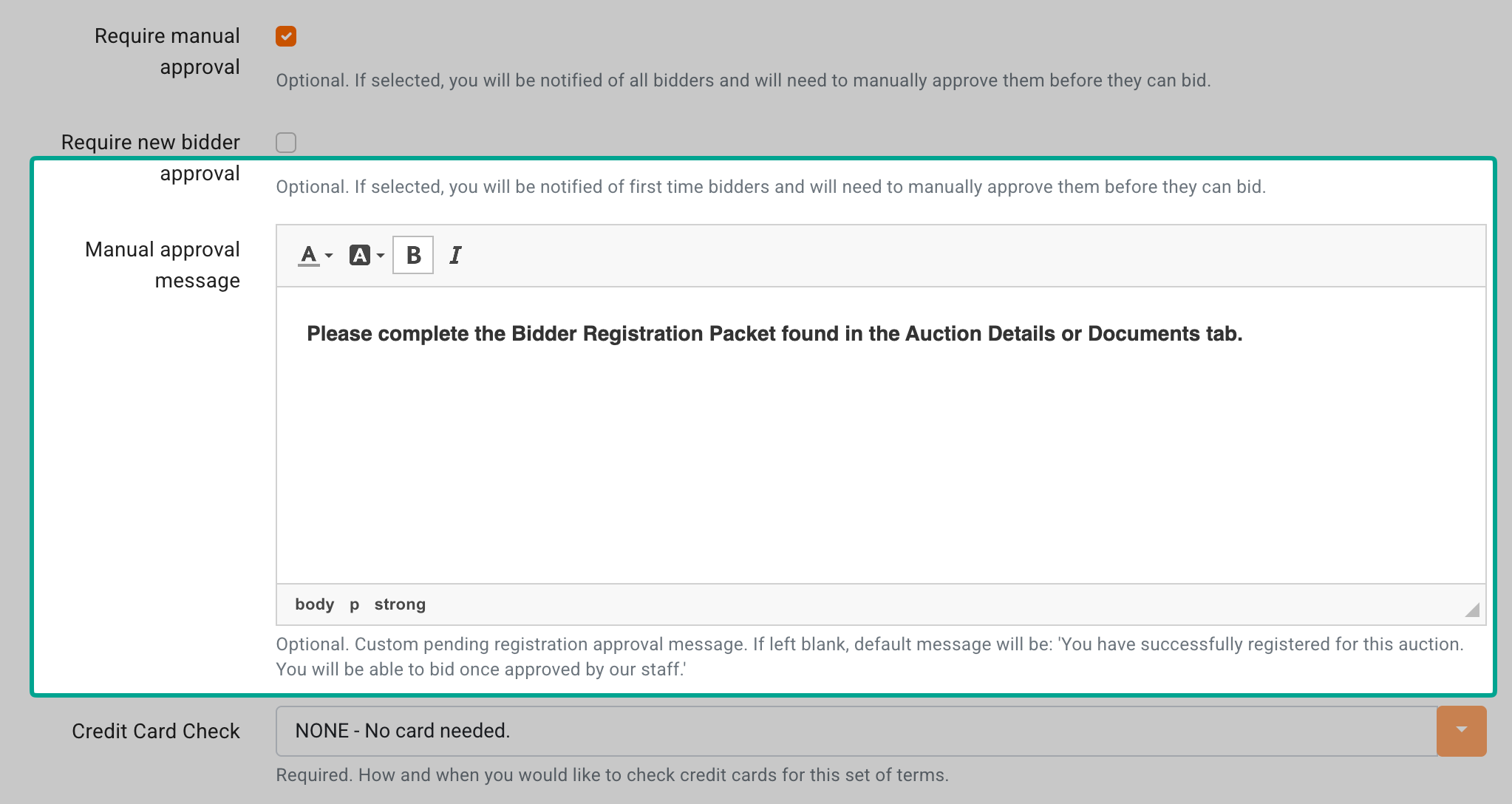
Fill in the Manual Approval Message field. This text is shown to the bidder immediately after they register and accept your terms, so it's your one guaranteed opportunity to set expectations before you speak with them directly. [NEW] Based on real auction setups, effective approval messages typically include:
What to expect next (a phone call, an email, a required document)
Whether proof of funds is required before approval
Whether bidders working with a buyer's agent or representative need to disclose that relationship If you leave this field blank, bidders instead see the default message: "You have successfully registered for this auction. You will be able to bid once approved by our staff."
Save your terms and confirm they're applied to the auction.
What Bidders See After Registering
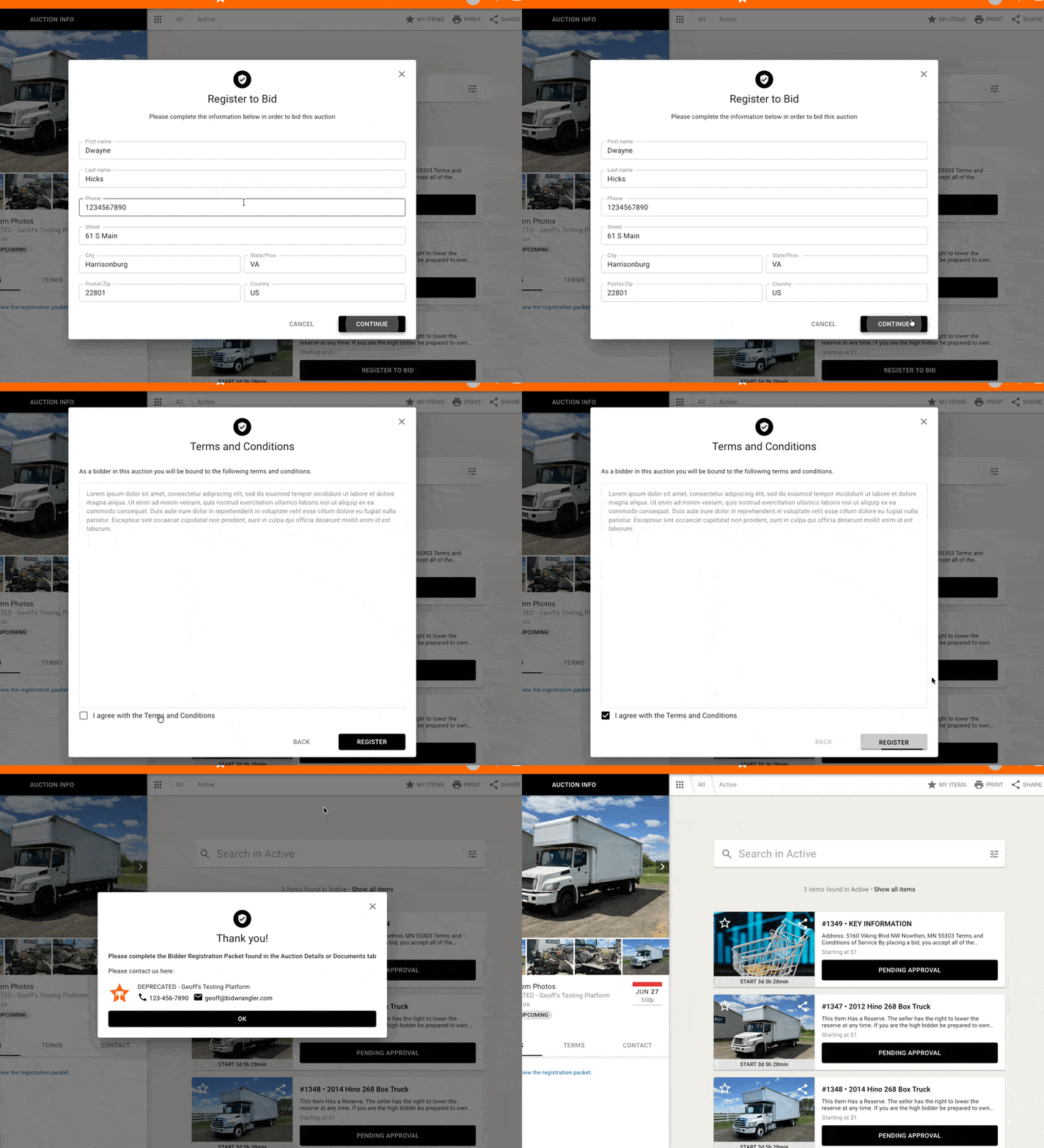
Once a bidder submits their registration, they see a popup confirming their approval is pending, using either your custom Manual Approval Message or the default message above. Until an admin approves them, the bid button on that auction shows Pending Approval and the bidder cannot place a bid.
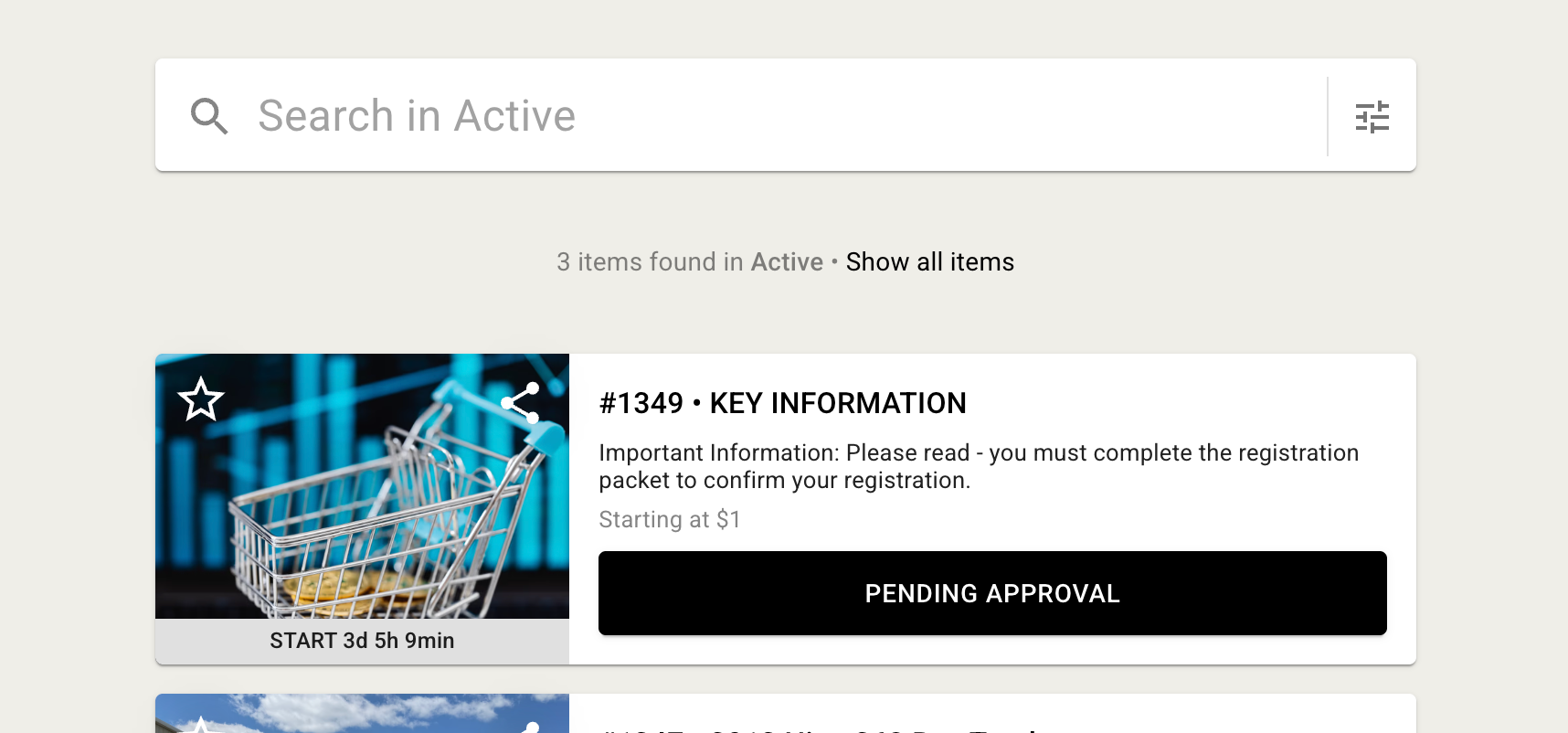
Until they are approved, they will be unable to place any bids - the bid button will display Pending Approval:
Approving Registrations from the Administer Registrations Page
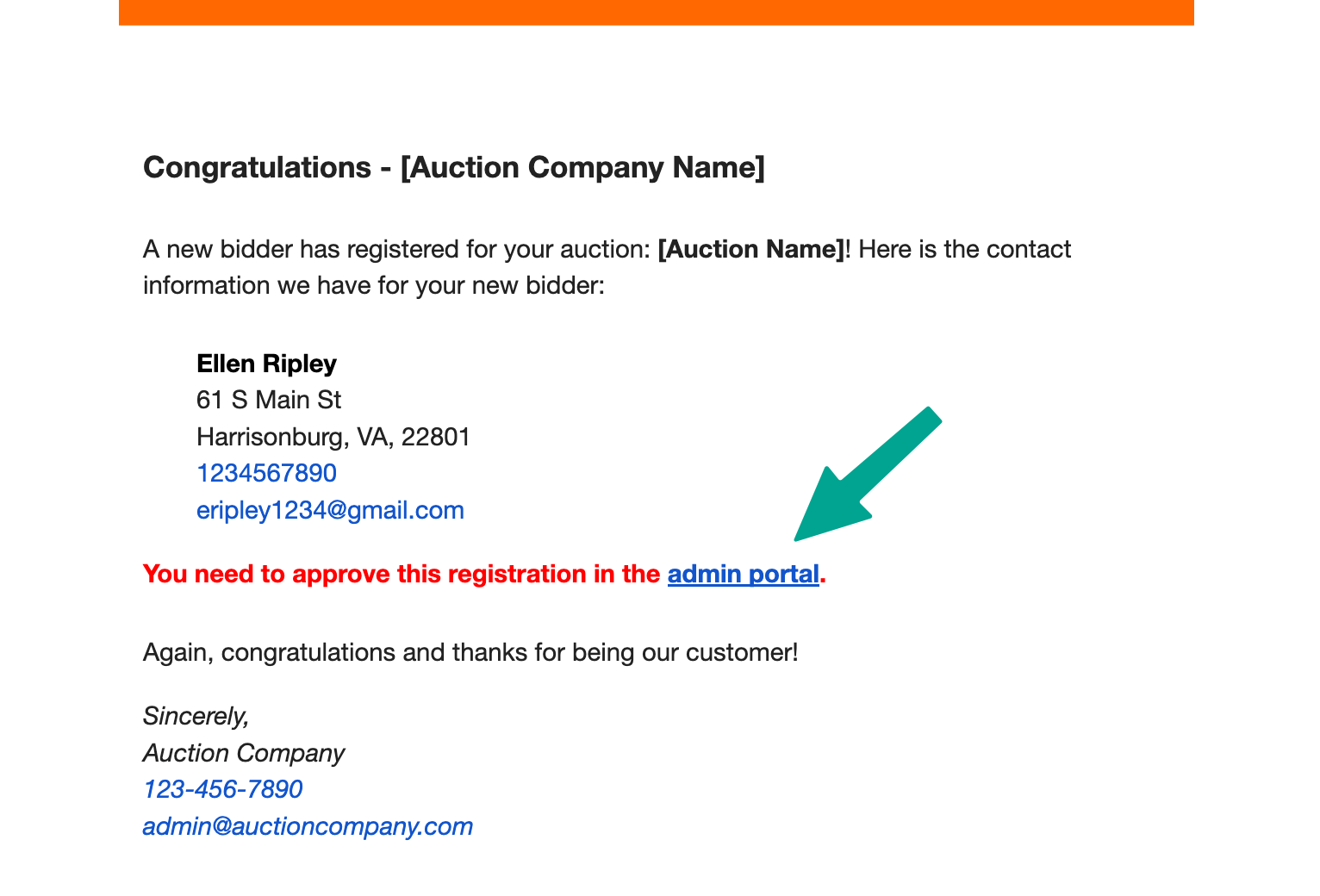
When a registration requires approval, admins receive an email notification linking to the Administer Registrations page. Bidders awaiting approval show a red X in the Approved For Online column. Click that icon to approve the bidder, which sends them a confirmation email and unlocks bidding for that auction.
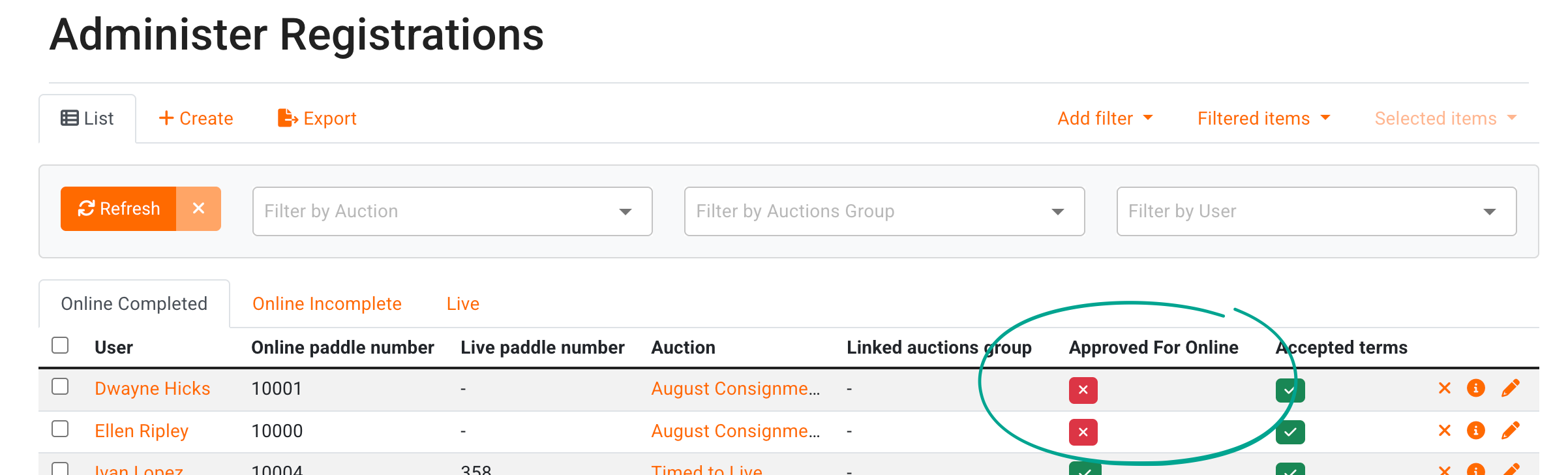
From the Administer Registrations screen, you will see bidders who are pending approval indicated by the red X next to their name in the Approved For Online column:
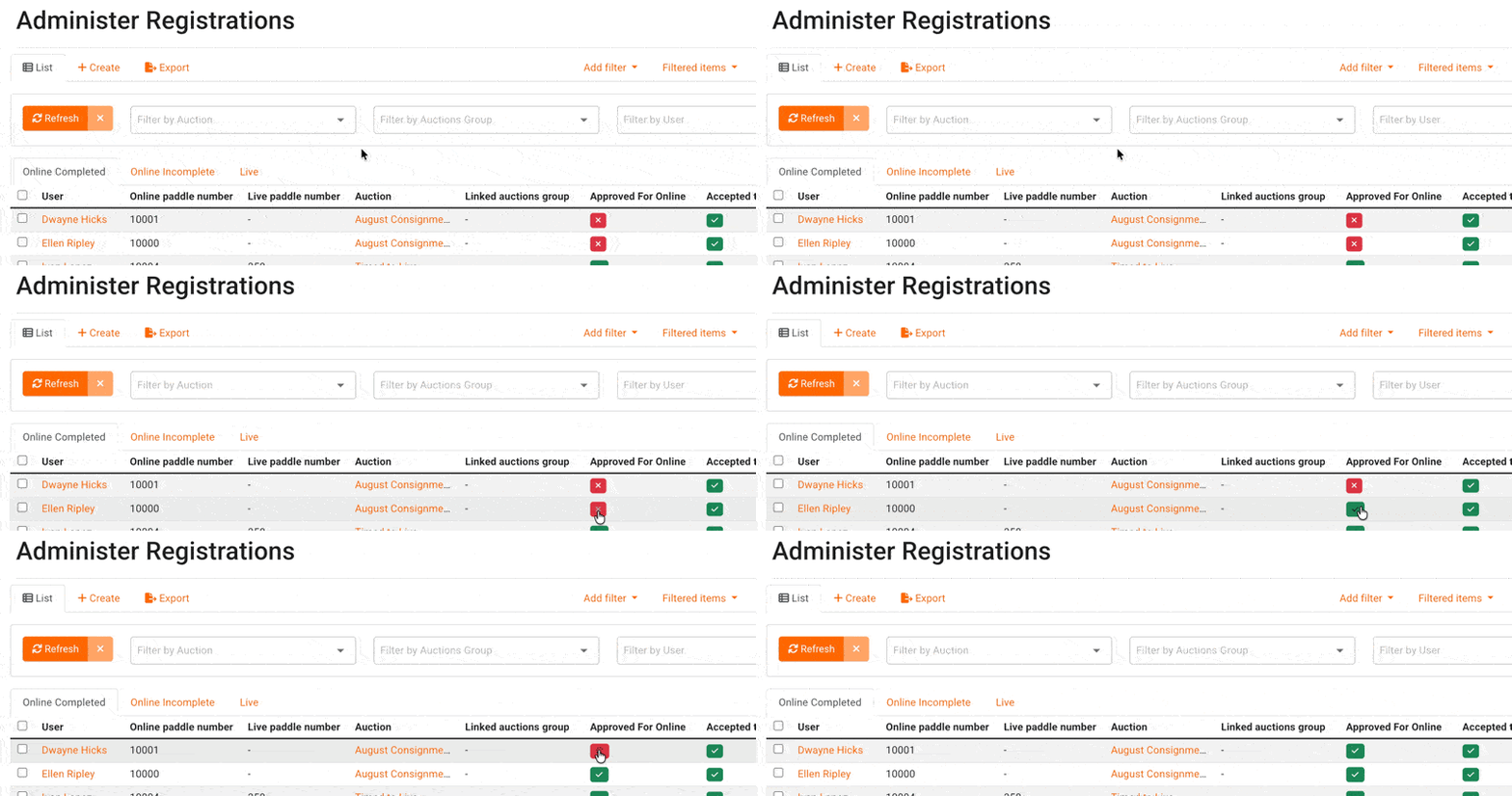
Once they have satisfied the additional requirements of your registration process, and you are ready to approve them, you can click this icon to approve their registration.
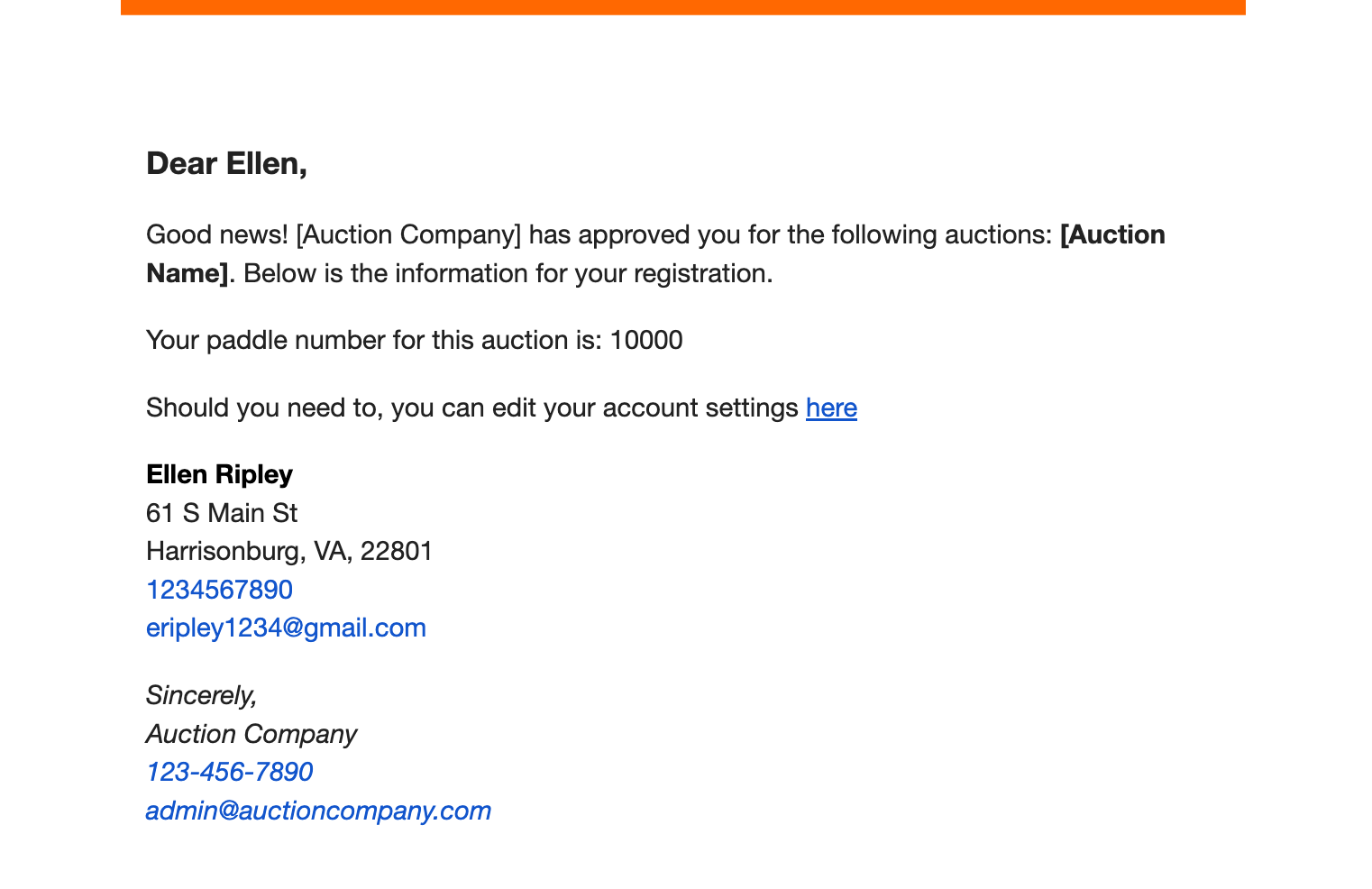
The bidder will now be able to place bids and will receive an email notification informing them that they have been approved:
Approving Registrations from the Online or Live Clerking Panel
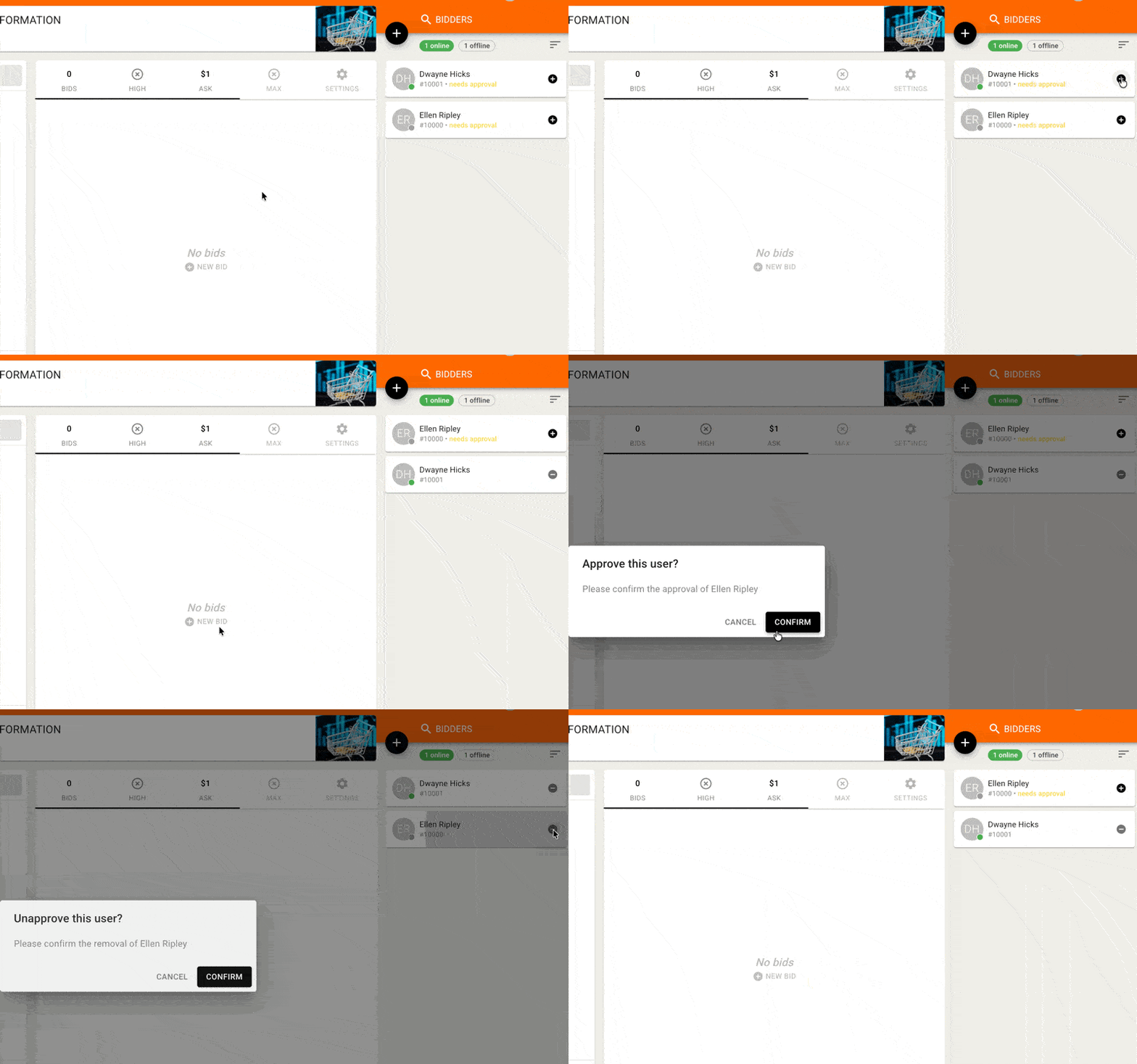
During a live or simulcast sale, you can approve a pending bidder without leaving the clerking panel. Click the + icon next to the bidder in the online clerking panel's bidder list to change their approval status directly.
Sharing Registration Documents
You can share required registration documents in two ways: as a hyperlink inside your auction or item description or terms (see Including a hyperlink), or by uploading files directly to an informational lot or item (see Uploading Documents).
Documents uploaded to an item or auction are visible to the public and are not restricted based on approval status. If you're using Manual Approval specifically to control who sees sensitive materials, such as due diligence documents on a real estate sale, uploading them to the lot will not gate access. Instead, keep those documents off the public lot and share them directly with bidders as part of your manual approval outreach, either by email or through your Manual Approval Message instructions.
Controlling Manual Approval Email Notifications
Registration and manual approval emails are controlled together, not separately. From Company Settings > Customization, Full Admins and Admins can turn off bidder registration approval emails and/or admin notification emails for new registrations. However, there is currently no setting that lets you keep manual-approval-pending emails on while turning off general registration emails, or vice versa. It's an all-on or all-off toggle per email type. If you need more granular control here, submit a feature request at BidWrangler.com/feedback so it can be tracked for a future release. See How do I turn off registration notifications? for the full notification settings.
FAQ
What is the difference between Require Manual Approval and Require New Bidder Approval? Require Manual Approval reviews every bidder on every auction that uses it. Require New Bidder Approval only reviews a bidder the first time they register on your platform; once approved, they're automatically approved for future auctions unless those auctions also require full manual approval.
What should I put in the Manual Approval Message? Use it to tell bidders exactly what happens next, for example that you'll call them for proof of funds, that they need to sign a document before approval, or that they should disclose if they're working with a buyer's agent. This message is the only communication every registrant automatically receives, so treat it as your instructions for getting approved, not just a confirmation.
Can bidders see due diligence or registration documents before they're approved? Yes, if those documents are uploaded to the auction or an item, they are publicly visible regardless of approval status. Manual Approval does not restrict document access. To keep sensitive documents private until you've vetted a bidder, share them directly during your approval outreach instead of uploading them to the lot.
Can I turn off general registration emails but keep manual approval emails on? No. Registration approval emails and admin notification emails are each controlled as a single on/off setting in Company Settings > Customization. There is no way to disable general registration emails while keeping manual-approval-specific emails active, or the reverse.
Where do I approve a bidder who's pending? From the admin portal, go to the Administer Registrations page and click the red X next to the bidder's name in the Approved For Online column. During a live or simulcast sale, you can also approve them from the online clerking panel by clicking the + icon next to their name.
Does Manual Approval require credit card verification too? No, they're independent settings. You can require manual approval without credit card verification, use credit card verification without manual approval, or combine both for additional vetting. Many auctioneers running high-value or real estate sales rely on manual approval alone, since a phone call and proof-of-funds request vets a bidder more thoroughly than a credit card check.
Will a bidder need to be re-approved for every auction? With Require Manual Approval, yes, every auction that uses it requires a fresh approval. With Require New Bidder Approval, no, only their first-ever registration requires manual review.
Related Articles
If you have questions about setting up Manual Approval for your auction, reach out to helpdesk@bidwrangler.com.