
How Do I Administer Terms and Conditions for My Auction?
BidWrangler lets admins create Terms and Conditions sets in the admin portal, then attach a set to any auction to control how bidders register, including whether they must accept terms and enter a credit card every time. Terms sets can be generic and reused across auctions or built specific to a single sale. This article covers how to create and edit Terms and Conditions, what each setting does, and BidWrangler's recommended configuration.
Accessing and Managing Terms and Conditions
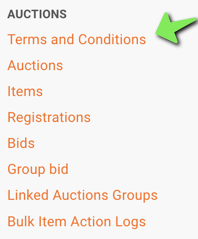
To administer Terms and Conditions, navigate to the BidWrangler admin portal and select Terms and Conditions from the left-hand menu. From here you will see a list of all terms and conditions created. To edit terms, click the orange pencil icon on the right. To create a new set of terms, click the Create tab.
From here, you will see a list of all terms and conditions created. To edit terms, click the orange pencil on the right.
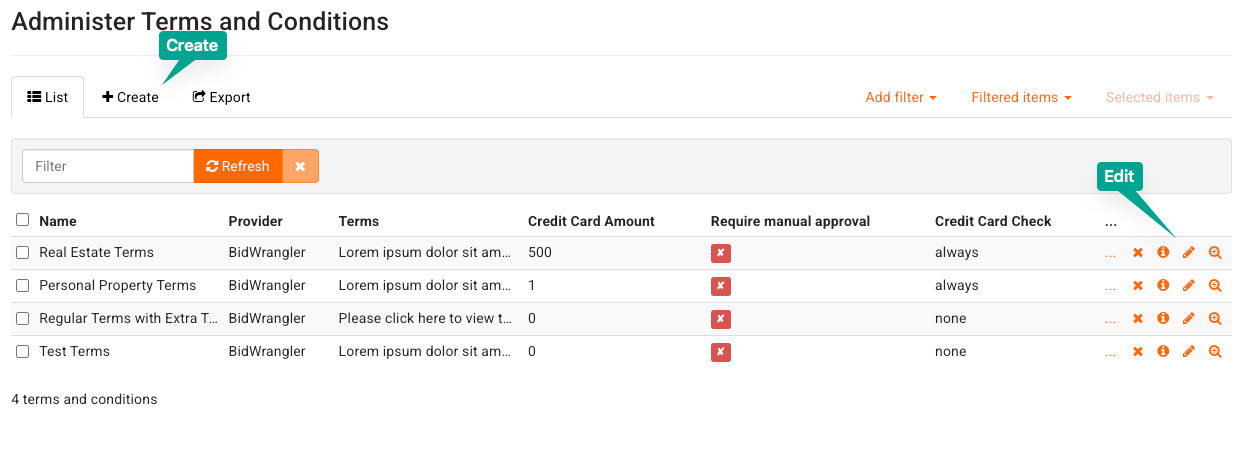
To create a new set of terms, click on the "Create" tab.
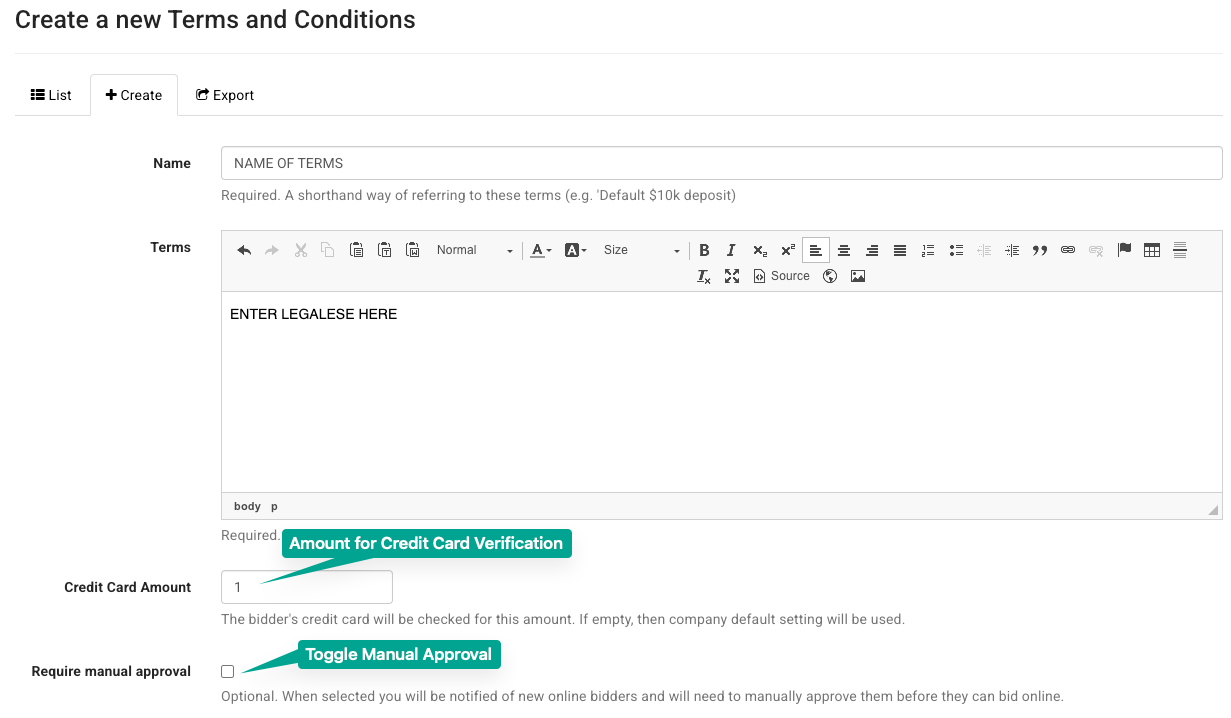
Name. Each set of terms requires a name, which is selected when attaching that set of terms and conditions to an auction.
Terms. The "Terms" text field can be copied and pasted into, and accepts HTML.
Credit Card amount. A numerical amount that a bidder's credit or debit card will be checked against for available funds before they can register for an auction. This defaults to a company setting but can be adjusted for each set of terms and conditions.
Require manual approval. When checked, every bidder must be manually approved by an admin and cannot self-register for the auction. Each bidder has a pending approval status until approved in the admin portal, and the admin is notified by email. More detail on manual approval can be found here.
Require new bidder approval. Similar to "Require manual approval," except approval is only required for bidders who have never registered for an auction with your company before. Admins are notified, and a first-time bidder on your platform waits for approval the same as under the traditional manual approval process.
Manual approval message. Controls what instructions are shared with the bidder in order to be approved to bid.
Credit Card Check. Sets the requirement for a bidder's credit card to be checked for funds at registration. There are three options:
ALWAYS - Require bidder to enter a card and verify deposit amount. Requires a card to be entered manually every time, for each auction these terms are used on, and verifies funds on the newly entered card.
REUSE - Ensure bidder has a valid credit card. No limit verification. Require new card if invalid. Checks a bidder's stored credit card profile from a previous registration for an expiration date, and requires a new card if the existing one is out of date or invalid. Bidders without a card profile on file enter a card manually and are checked against the Credit Card amount. Note: this does not verify funds on existing cards through Stripe or Authorize.Net.
NONE - No card needed. Credit card verification is not required for bidders to register for this auction.
Terms Acceptance. Controls whether bidders are automatically registered for future auctions using the same terms, or must accept those terms every time:
ALWAYS - Bidder will always have to accept these terms. Bidders must review and accept the terms and conditions for every auction that uses them.
ONCE - When a bidder has accepted these terms once, they will never have to again. Once a bidder accepts a specific set of terms, they are automatically registered for future auctions that use the same terms without reviewing or re-accepting them.
When you are done, click Save, and the terms and conditions will appear in the list.
Our Recommended Terms and Conditions Settings
For most auctions, BidWrangler recommends setting Terms Acceptance to Always and Credit Card Check to Always.
Terms Acceptance set to Always means every bidder accepts your current terms at every registration, not just the first time they ever registered. With Once, a bidder who accepted your terms once, potentially years ago, can bid immediately on any new auction without seeing your current terms again. Because Terms Acceptance lives on the terms set itself, switching it to Always covers every bidder automatically, with no account-by-account changes needed, and meaningfully reduces your liability exposure.
Credit Card Check set to Always requires a fresh card entry and funds verification at every registration. This surfaces expired or invalid cards, and cards without sufficient funds, before the auction closes rather than after, which is when a declined card is hardest to resolve.
If your priority is reducing registration friction for returning bidders, set Credit Card Check to Reuse instead of Always. Reuse still confirms a stored card hasn't expired, and combined with Terms Acceptance set to Always, returning bidders re-accept your current terms each sale without re-entering their card. The tradeoff: Reuse does not re-verify funds on a stored card the way Always does, so an occasional declined card at checkout remains possible. This is the same exposure most auctions already carry under the Once setting today, not a new one.
You can adjust both settings from the Terms and Conditions screen for any terms set. Automatic registration is a separate, related setting found in Company Settings > Customization; turning it off ensures bidders actively complete registration, including terms acceptance and card verification, for each auction rather than being carried over automatically.
Frequently Asked Questions
Why does BidWrangler recommend Always for Terms Acceptance instead of Once? Once auto-registers a bidder for future auctions after their first terms acceptance, which means they can bid on a new sale without ever reviewing your current terms. Always requires every bidder to accept your current terms at every registration, which keeps your terms in front of bidders every sale and reduces your liability exposure without any manual account updates.
Why does BidWrangler recommend Always for Credit Card Check instead of Reuse? Always performs a fresh funds verification on every registration, which catches expired, invalid, or insufficiently funded cards before an auction closes. Reuse only confirms a stored card hasn't expired; it does not re-verify funds, so a card that looked fine at registration can still be declined at checkout.
Will Reuse cause more declined cards at checkout than Always? It can. Because Reuse skips funds re-verification on stored cards, a card that has since been maxed out, cancelled, or otherwise become invalid for that charge won't be caught until the charge itself is attempted. If you're seeing declined cards at auction close, switching Credit Card Check from Reuse to Always is the first thing to check.
Can I require a credit card without requiring terms acceptance every time? Yes. Credit Card Check and Terms Acceptance are independent settings on the same terms set, so you can set Credit Card Check to Always or Reuse regardless of whether Terms Acceptance is set to Always or Once.
Does changing Terms Acceptance to Always affect bidders who are already registered? No existing registrations are removed. The change applies going forward: the next time a previously auto-registered bidder tries to bid on a new auction under that terms set, they will be required to accept the current terms again.
Where do I change these settings? Go to Terms and Conditions in the admin portal, open the relevant set with the orange pencil icon, and update the Credit Card Check and Terms Acceptance fields. Automatic registration is controlled separately under Company Settings > Customization.
Related Articles
Questions about which setting is right for your auction? Reach out to helpdesk@bidwrangler.com and we're happy to help.