
How do I include a Document with my Auction?
Documents can be added to either an Auction, or to an Item and will display in as a separate 'Documents' tab for bidders to download.
Supported documents include: .PDF, .Doc, .RTF
Adding a Document to an Auction
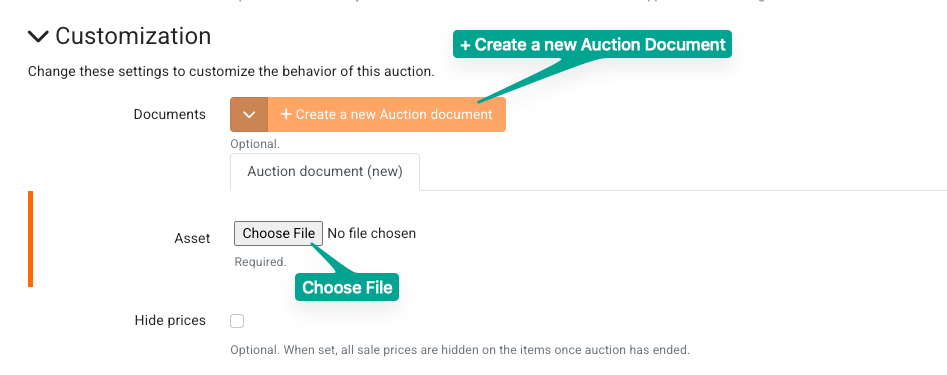
From your Auction's settings, scroll down to the Customization options.
To add a new document, click the +Create a new Auction document button, and a new asset tab will display below.
Click Choose File to select the document you wish to upload from your device.
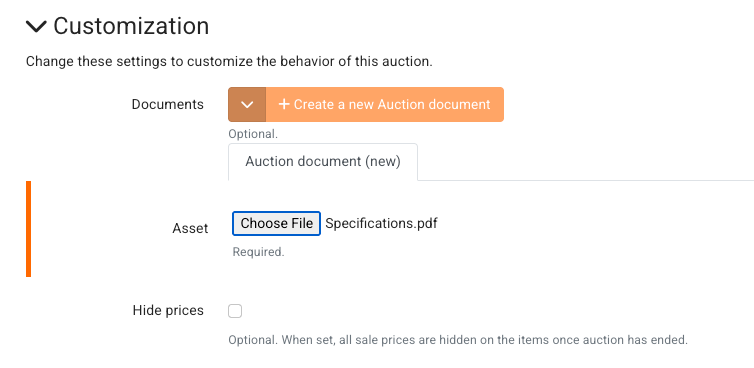
Once added, the name of the document will appear. Save your auction settings to upload the document to your auction.
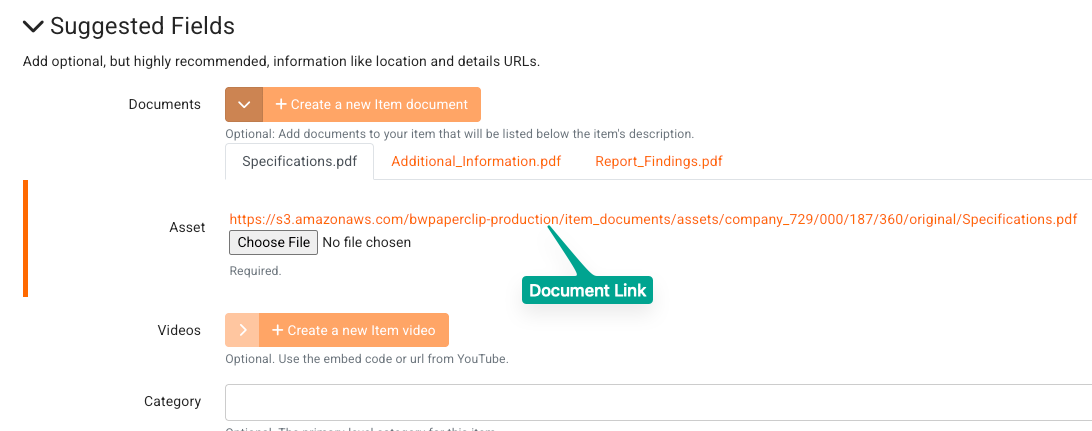
Once saved, a document link will be available:
Note concerning single-item Auctions
If your auction only has a single item in it, as is common for Real Estate auctions, it is recommended to add documents to your item rather than the auction itself. From a bidder's perspective, when they view the auction they are directed to the item details, so any documents saved to the auction may not be easily located.
Adding a Document to an Item
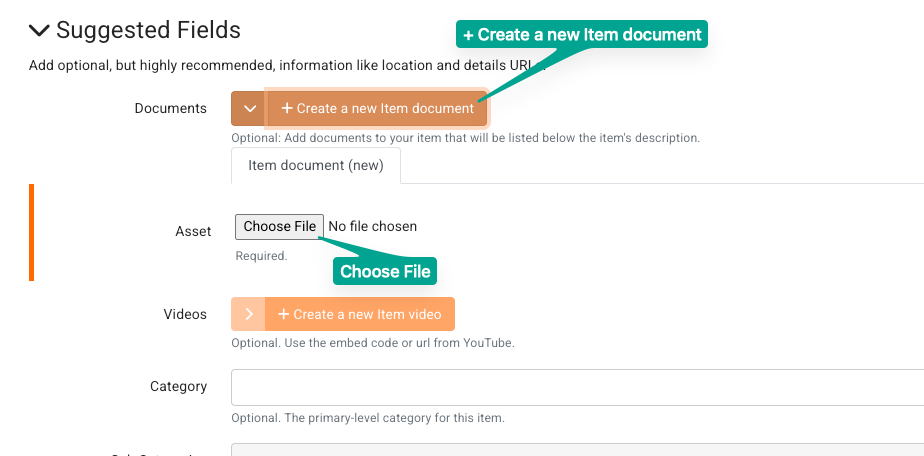
Documents can also be added to items - from your item's settings, scroll down to the Suggested Fields options.
To add a new document, click the +Create a new Item document button, and a new asset tab will display below.
Click Choose File to select the document you wish to upload from your device.
Once added, the name of the document will appear. Save your auction settings to upload the document to your auction.
Adding Multiple Documents
You can add multiple documents to the same Auction or Item. Each time you click the + Create button, a new asset tab will appear below.
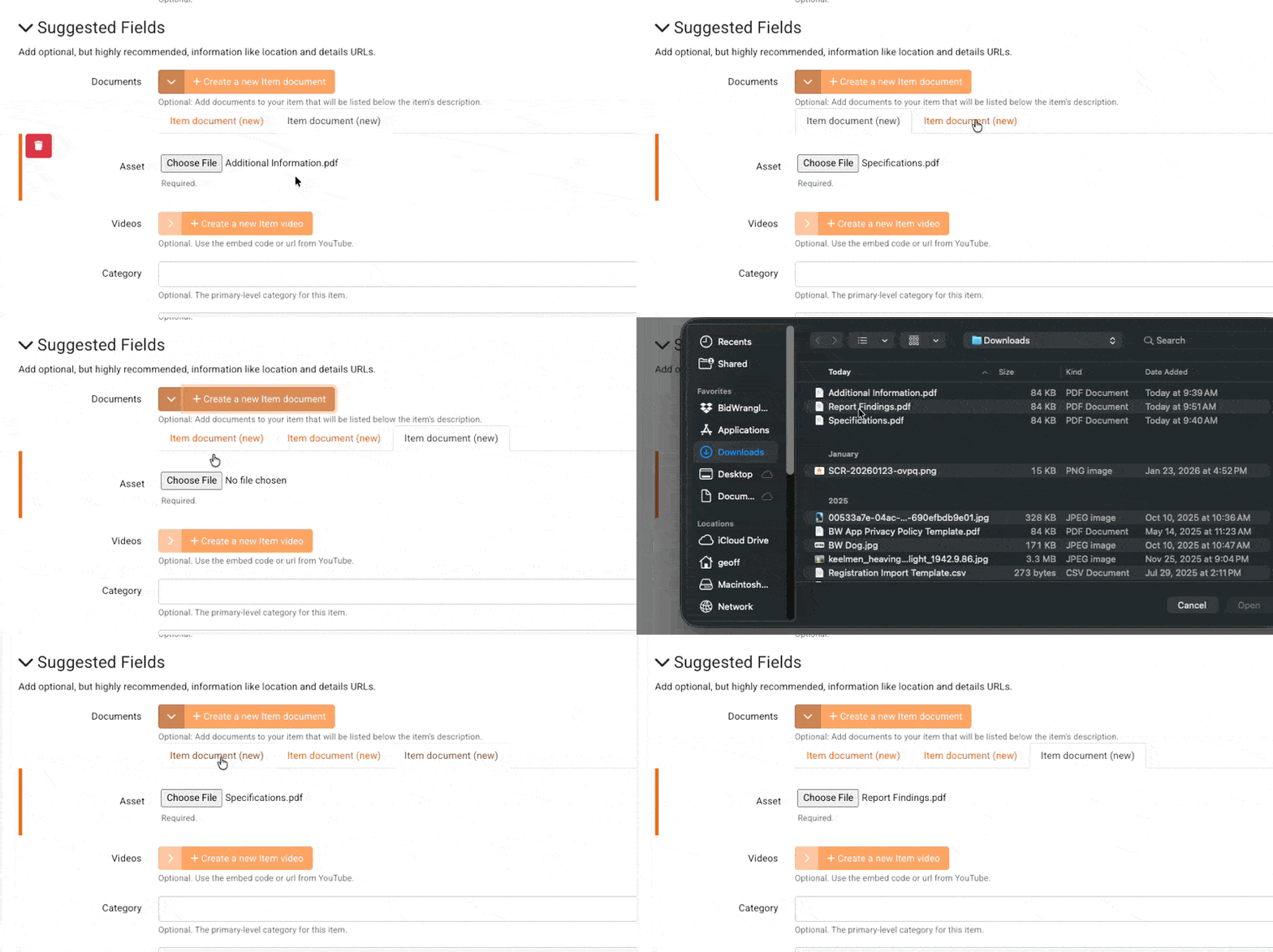
You can navigate between the tabs by clicking each one. In the new tab, you can include an additional document by choosing the asset file and uploading.
Deleting a Document
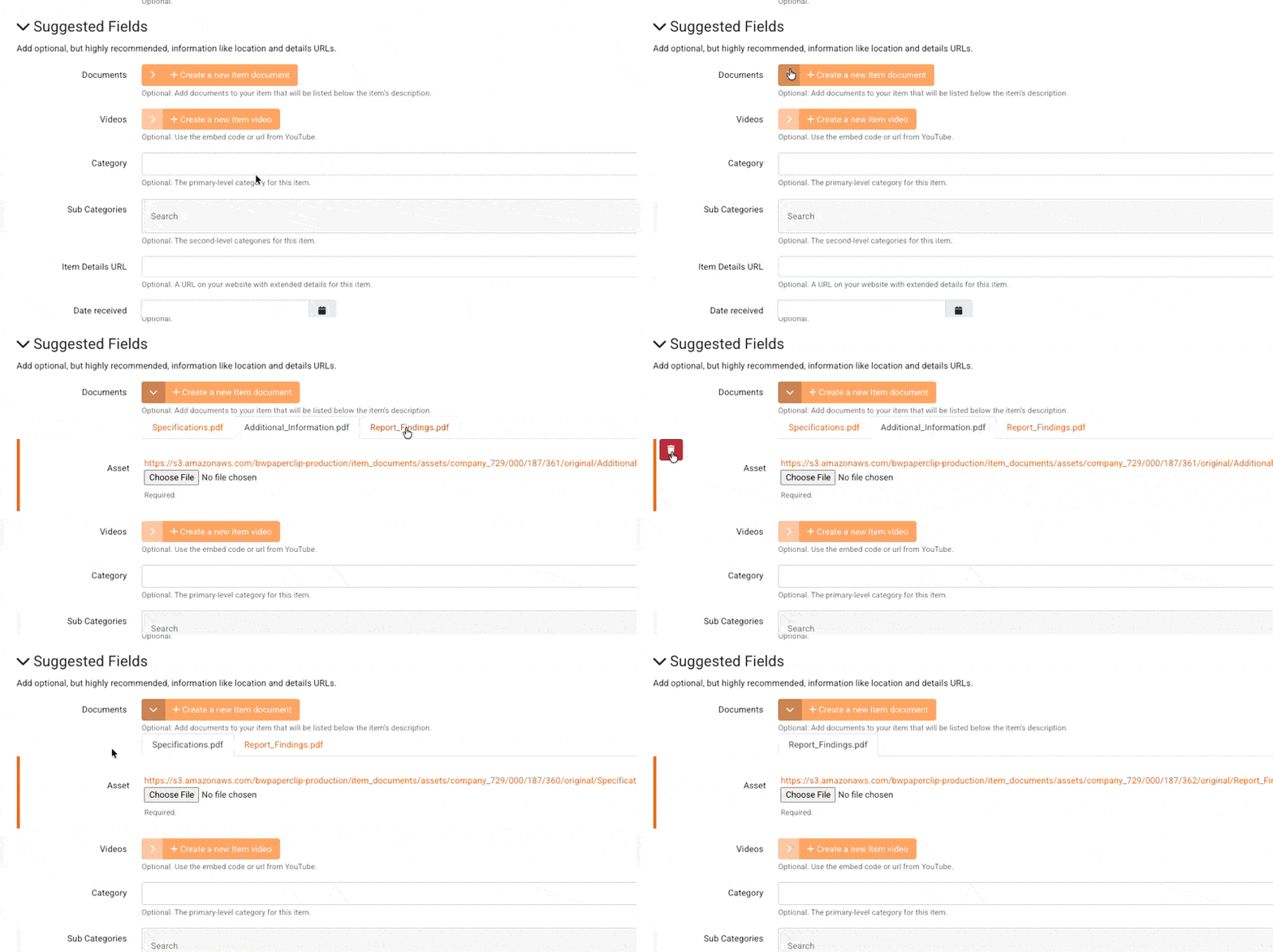
To delete a document from an Auction or an Item, navigate to the documents field within the settings, and click the '>' to the left of the + Create button to view the documents.
If you have multiple documents, click the tab for the document you wish to delete.
The delete option is a red trash can icon that will appear to the left of the document asset when you move your mouse to that area. Click this to remove the document, then save the settings.
Document Asset can't be blank - Error
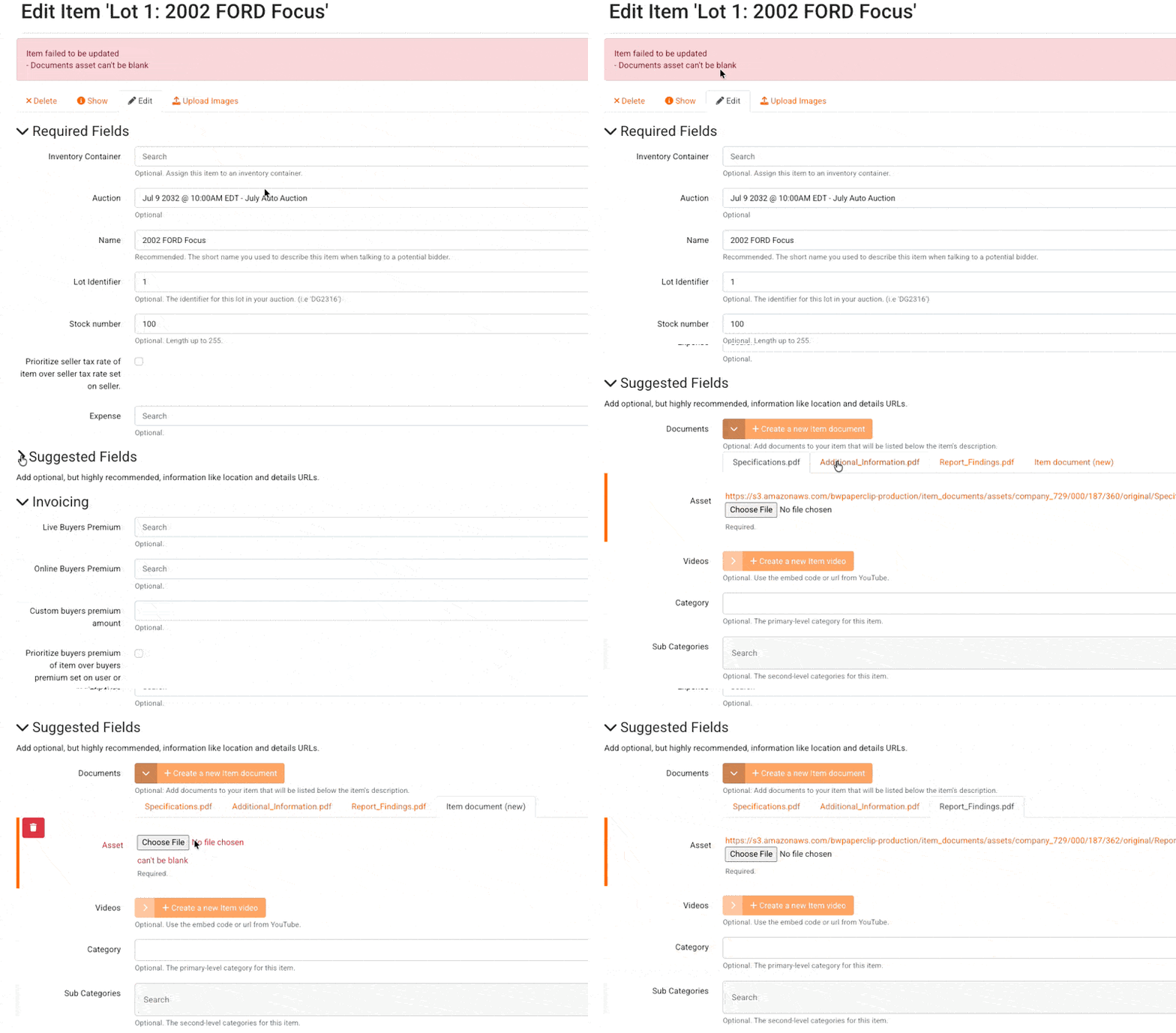
A common error when saving Auctions or Items is "failed to be updated - document asset can't be blank". This happens when you save an auction or item with an empty document asset tab.
To fix this, scroll down to the Documents field, and use the '>' button to view existing documents. You'll see at least one tab called 'Auction/Item Document (New). If you click on this, you'll see that the Asset is empty, and there's an error stating No File Chosen.
You can either add a document, or delete this asset tab to remove it. You can now save and continue.
Bidder's Perspective
From the Bidder's perspective, Auction Documents appear as downloadable links in a Documents tab between the auction description (Details) and Contact information:
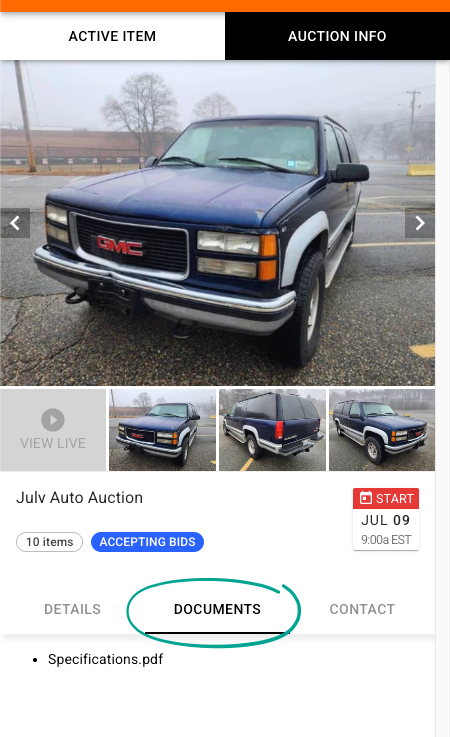
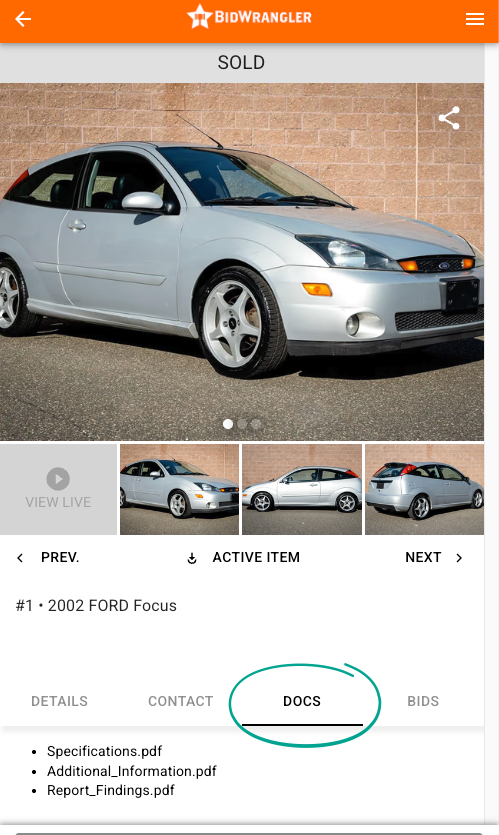
From the Bidder's perspective, Item Documents appear in a Docs tab as downloadable links between the Contact information and Bid History tab:
If you have a website with us, these documents will show up on your website under the Documents tab.