
How do I create an auction in BidWrangler?
Required Fields
Auctions have several required fields to properly display in the app and website. The type of auction being created (timed, live, or listing) will change some of the required fields needed.
Every auction will require the following
"Auction Name"
"Primary Description"
"Terms and Conditions"
"Time Zone"
"Start Time"
Timed Auctions will also require
"Scheduled End Time"
"Timed Auction?" box checked
"Closing Speed - Lot"
"Closing Speed - Seconds"
Note: Every auction will also need at least one item to properly display in the app. Once an auction has been created, items can then be associated added to the auction.
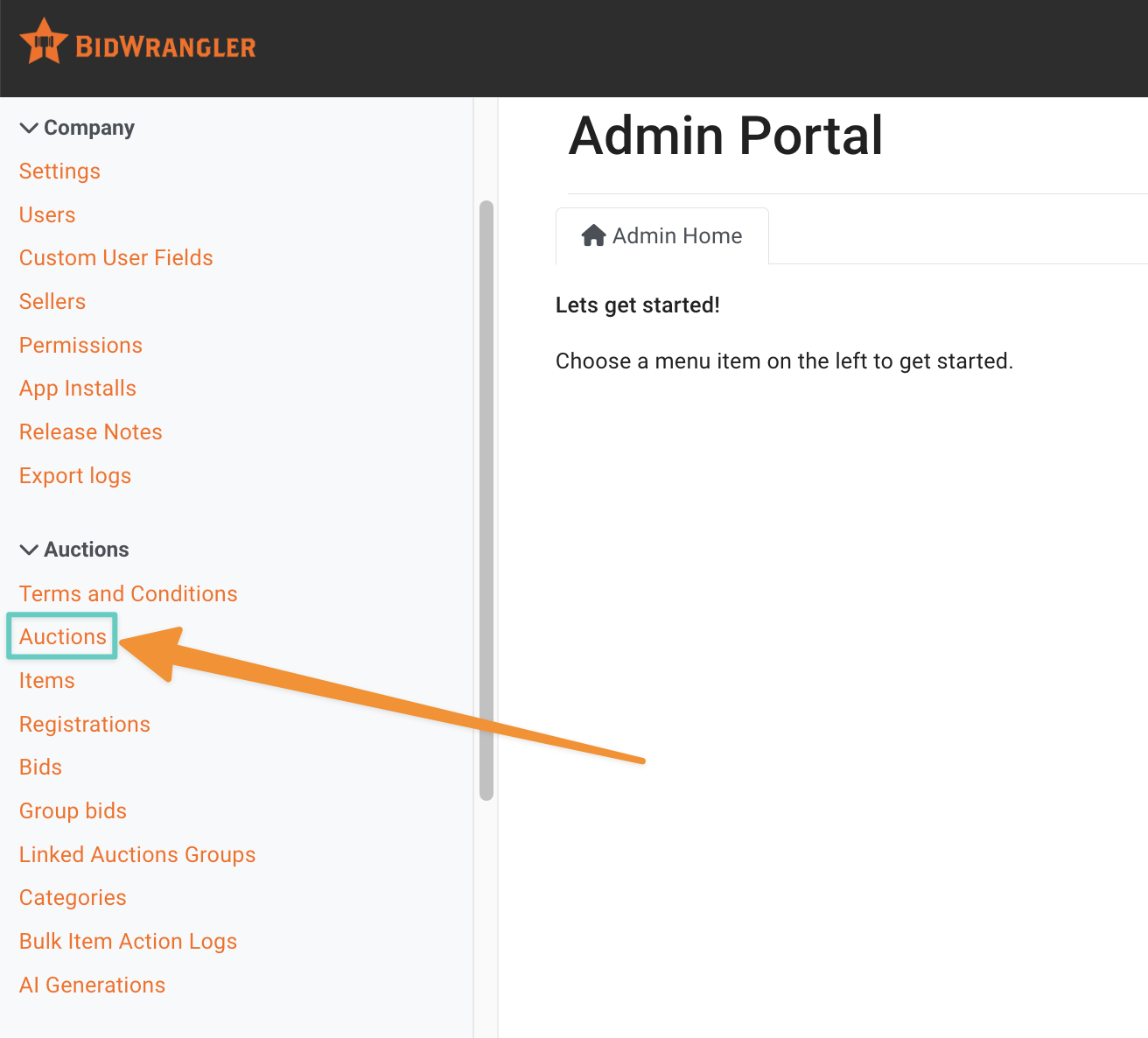
To create an auction, first navigate to the BidWrangler Admin Portal, and select "Auction" from the left menu
From there, select the "Create" tab
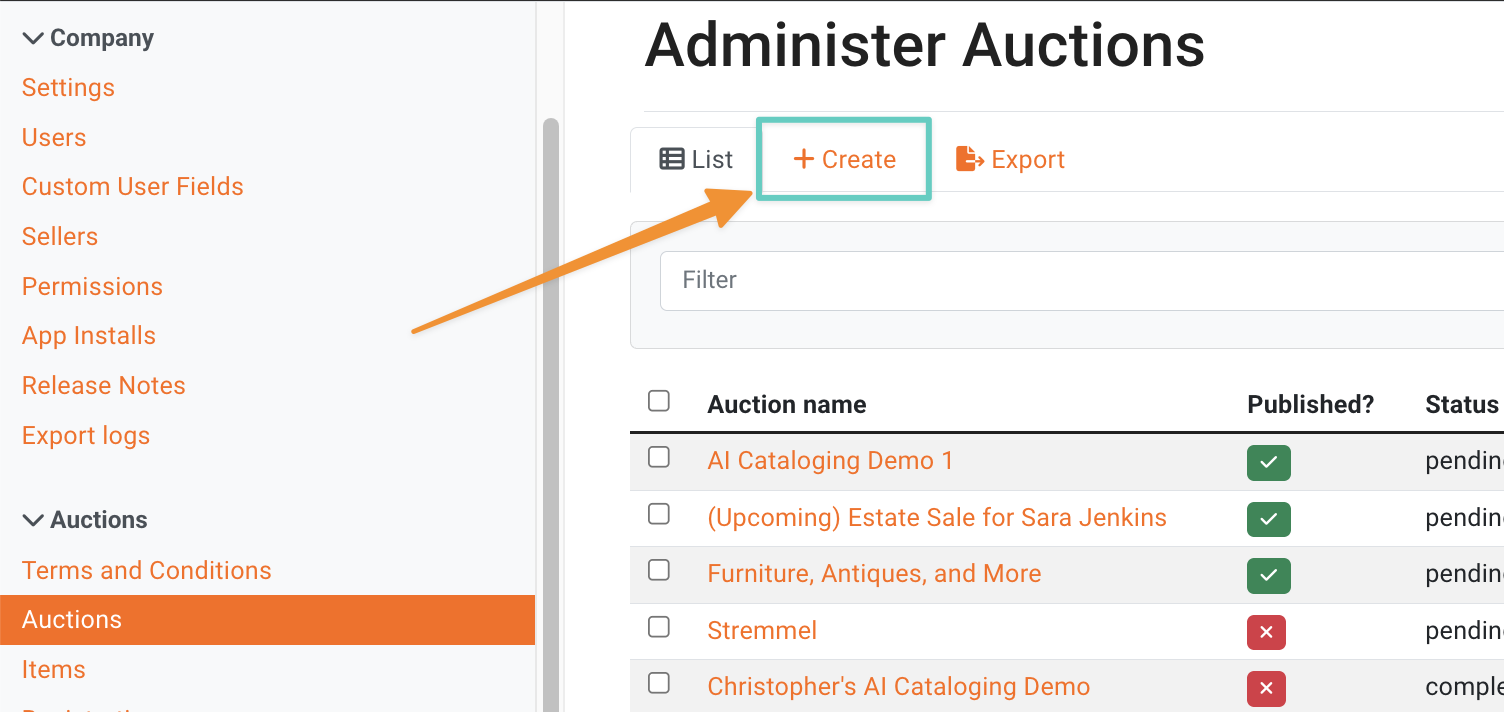
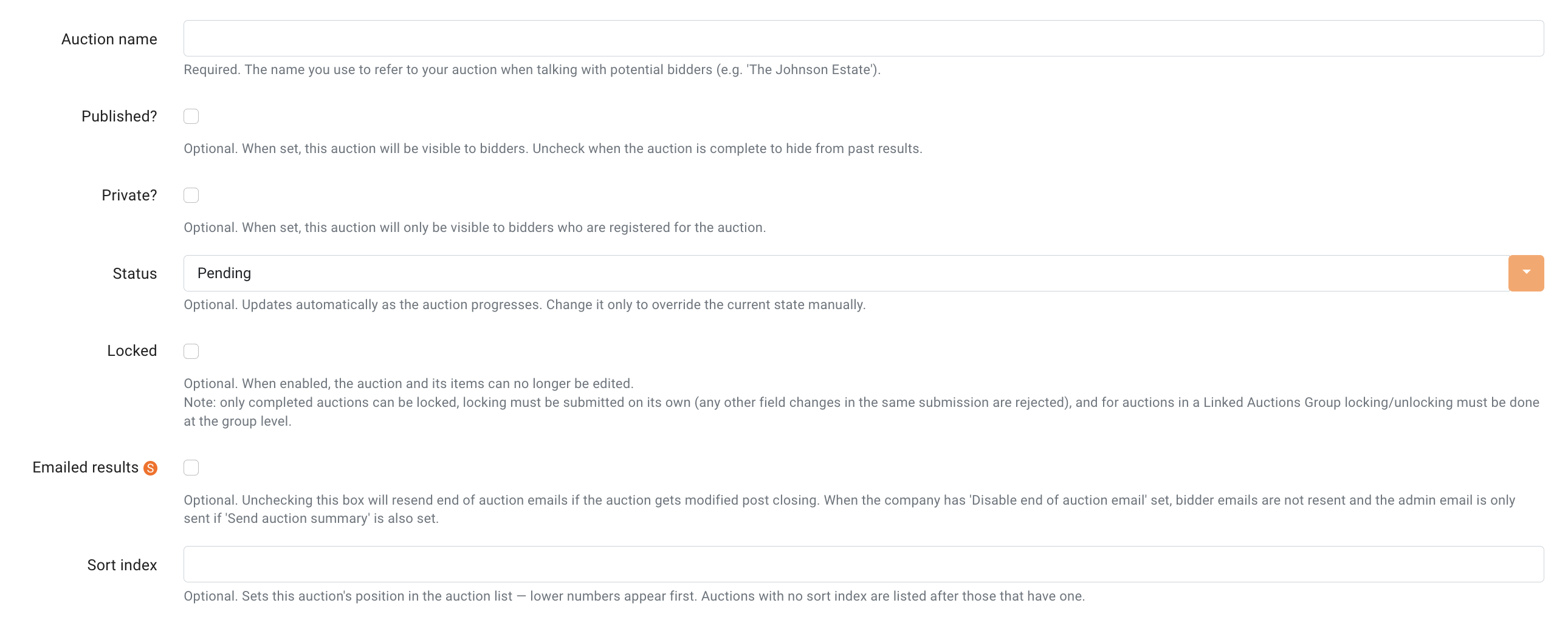
Displayed will be all fields needed to create an auction. Note all fields required for creating the auction.
"Linked Auctions Group" - The group this auction belongs to. Auctions in a group share terms, questionnaire, invoicing/settlements, and paddle number settings.
"Auction Name" - This is a required field. This will be what displays to bidders, as well as what you will use to reference the auction when adding items/editing the auction settings.
"Published?" - While creating the auction, leave the "Published" box unchecked. When the auction is finished with the creation process (and items have been created/assigned to the auction), this will be what publishes the auction to the bidding platform when saved.
"Private?" - Auction setting will hide the auction from public view until a user is registered for that specific auction. For more on this setting, refer to this document - Can I create a private auction?
"Complete?" - Manually marks the auction as complete and will prevent bidders from placing any more bids. (The auction will automatically move to a completed state once the auction has ended.)
"Sort Index" - Determines the display position of the auction on the app. For example, if you want this auction to be displayed first set the Sort Index to '0' (zero)
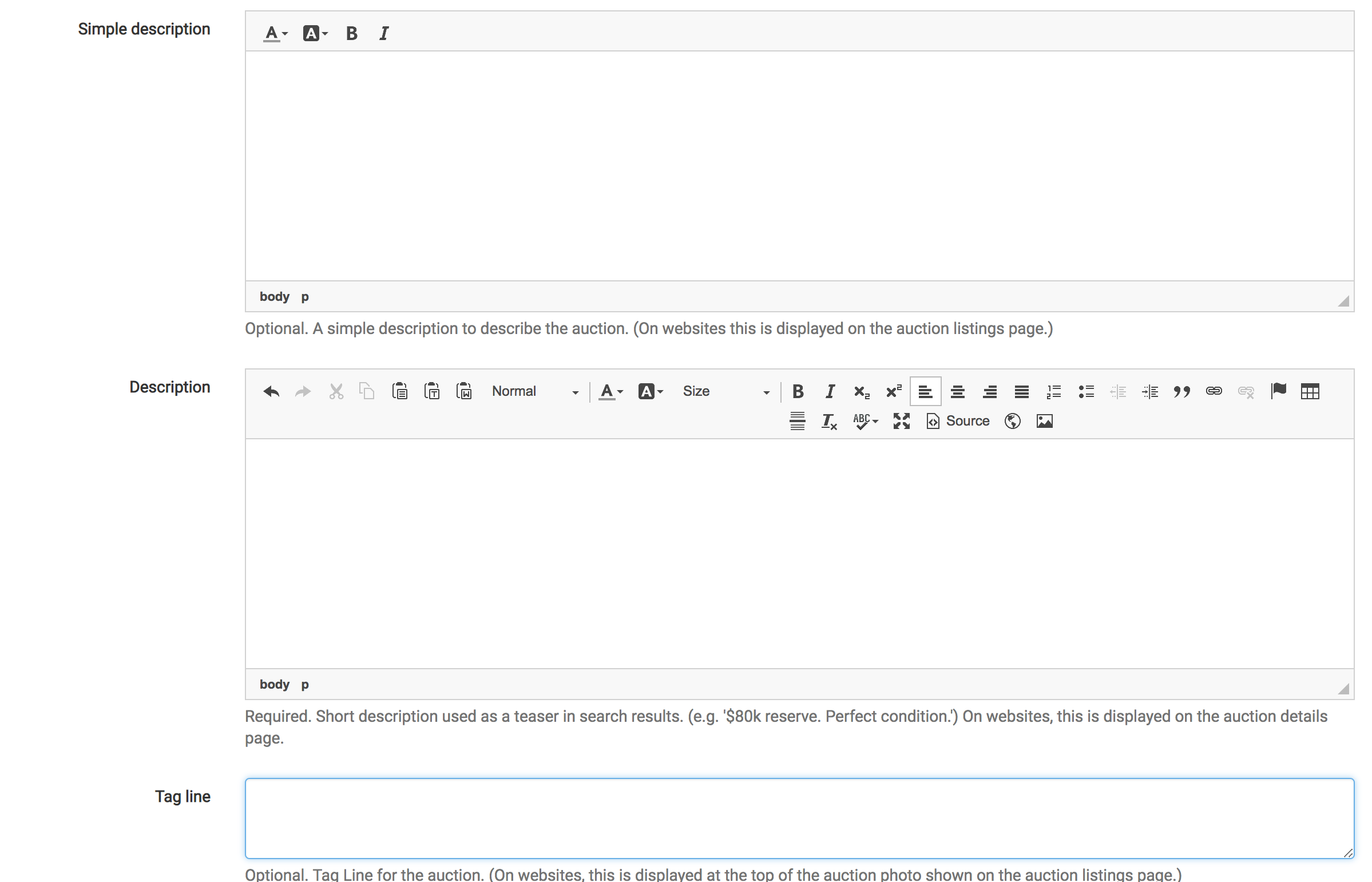
"Simple Description" - This field is not required, but will default to the primary description if left blank. This is a short description that will display below the auction in the app.
"Description" - This is a required field. This is the auction's detailed description that will be displayed in both websites and in the app. HTML can be input into this field, as well as hyperlinks to outside web pages.
"Tag Line" - This is not a required field, and does not apply to users without a BidWrangler website with this feature enabled.
For a detailed explanation on "Simple Description", "Description", and "Tag Line", and how these fields will display in the app/website, refer to this document How do I manage auction descriptions?
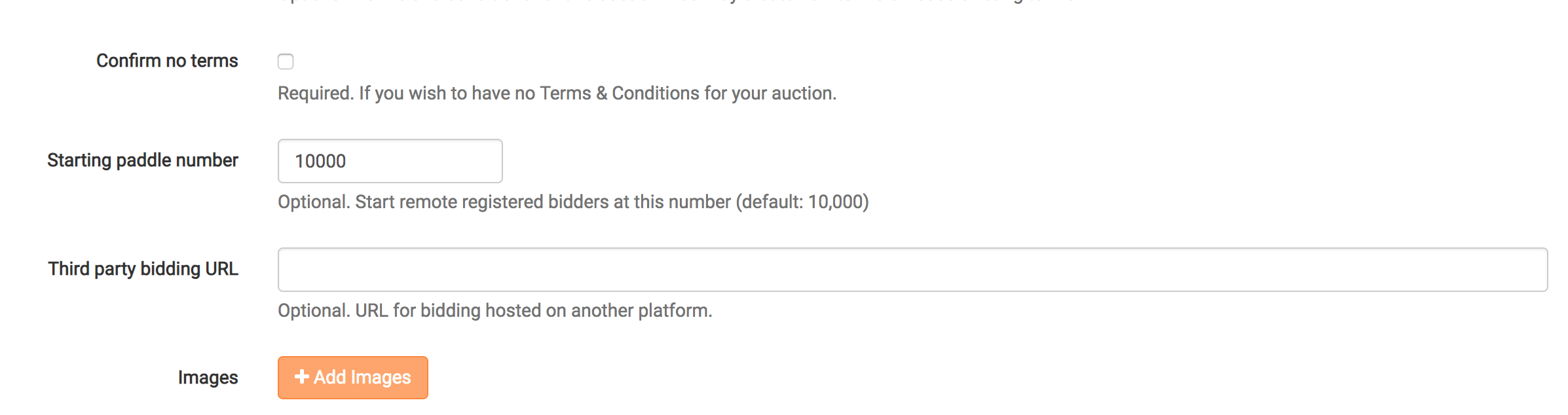
"Terms and Conditions" - These are REQUIRED for every auction. Can be applied by opening the dropdown and searching for your desired terms. Additionally, terms can be created or edited from the dropdown field. For a more detailed explanation on managing terms and conditions for an auction, refer to this document - How do I administer terms and conditions for my auction?
If you fail to specify terms and conditions for an auction, users will be able to register for the auction without accepting terms, so make sure you select these before you publish an auction.
"Confirm no terms" - This is required, if you wish to have no Terms & Conditions for your auction.
"Starting Paddle Number" - This is a unique number assigned to every bidder within an auction used to identify bidders. This number will be automatically generated; there is generally no need to edit this number.
"Third Party Bidding URL" - This field is for auctions that will be cross linked to another platform from within the app. Copy and paste a link to the auction page here, and the auction will appear in the app and link to the 3rd party platform web page.
"Image" - Uploading an image here will create a new primary image for the auction as it displays in the app. By default, the first item's first image will be the primary auction image unless overridden here. Do not use an image that will be used for an item/lot in the auction, or there will be duplicate photos in the image slider. Typically, this is used for an image that is unique and descriptive of the overall auction.
DATES:
"Timezone" - This is a required field. This associates a timezone to the auction, as well as the relevant starting times.
"Start Time" - This is a required field. This is the scheduled starting date and time for the auction. Timed online auctions will automatically open bidding at this time.
"Scheduled End Time" - This is a required field for timed auctions. This is an optional field for live auctions. Timed auctions will automatically begin closing on this date and time.
"Preview Starts" - This is the start date and time for the auction preview. This will display on select BidWrangler websites.
"Preview Ends" - This is the end date and time for the auction preview. This will display on select BidWrangler websites.
"Pickup Starting Date" - This is the start date and time for the auction's item pickup for winning bidders. This will display on select BidWrangler websites.
"Pickup By Date" - This is the ending date and time for the auction's item pickup for winning bidders. This will display on select BidWrangler websites.
CUSTOMIZATION:
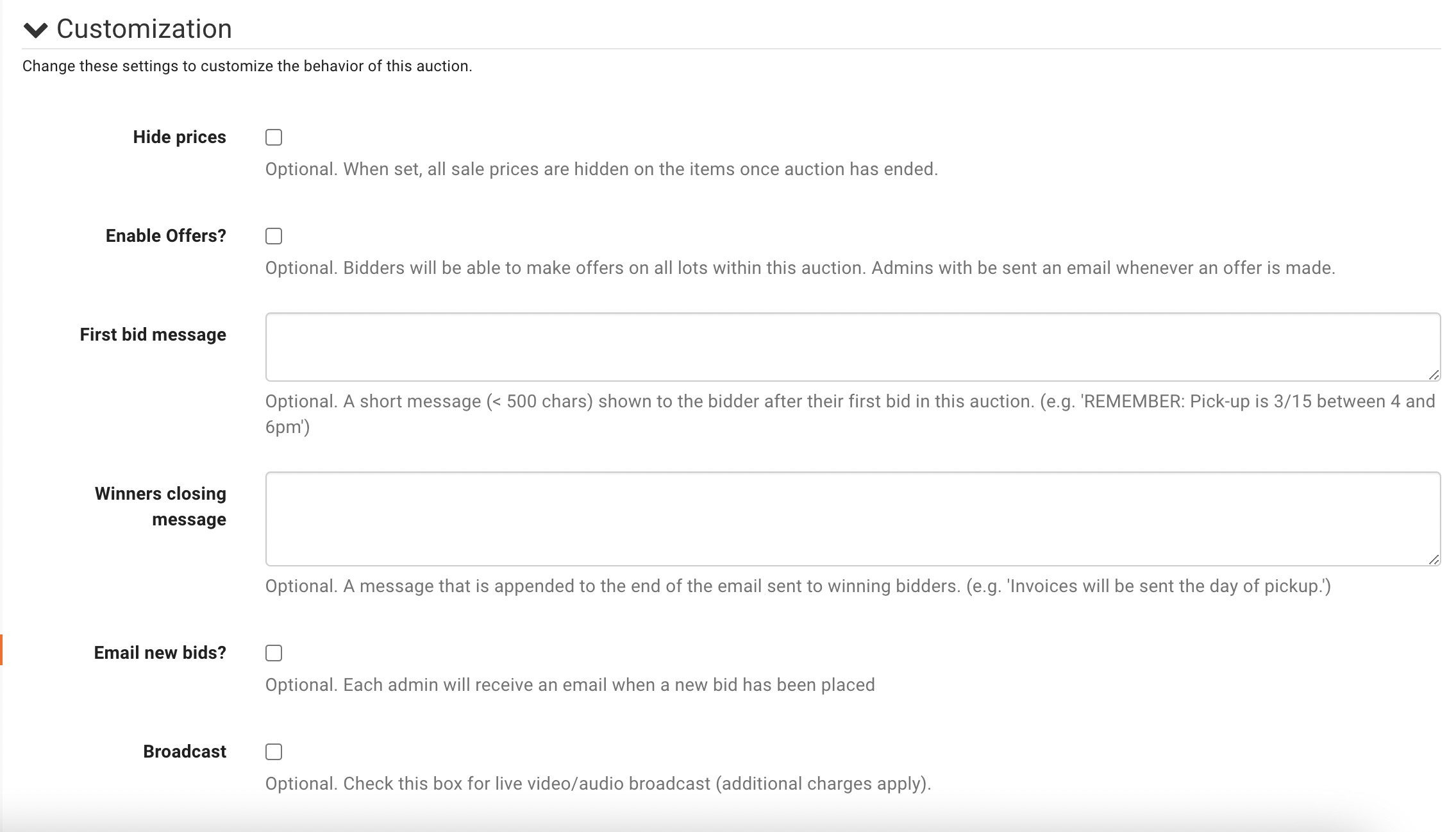
"Hide Prices" - Keeps the final bid amount hidden once the auction is complete. This will hide the price on both items that have sold/met reserve, as well as those that did not meet the requirements for a sale.
"First bid message" - This sends out a message to a bidder when they place their first bid within an auction.
"Winners closing message" - A message that is appended to the end of the email sent to ALL winning bidders. (e.g. 'Invoices will be sent the day of pickup.')
"Email New Bids" - This will send an email to each admin for ALL new remote bids within an auction. This is useful for auctions that have a small number of items, such as a real estate auction.
"Broadcast" - This will enable live video streaming through the app for registered bidders to view. NOTE: requires an additional plugin within the app from BidWrangler, and additional charges apply for live video streaming.
LIVE AUCTIONS:
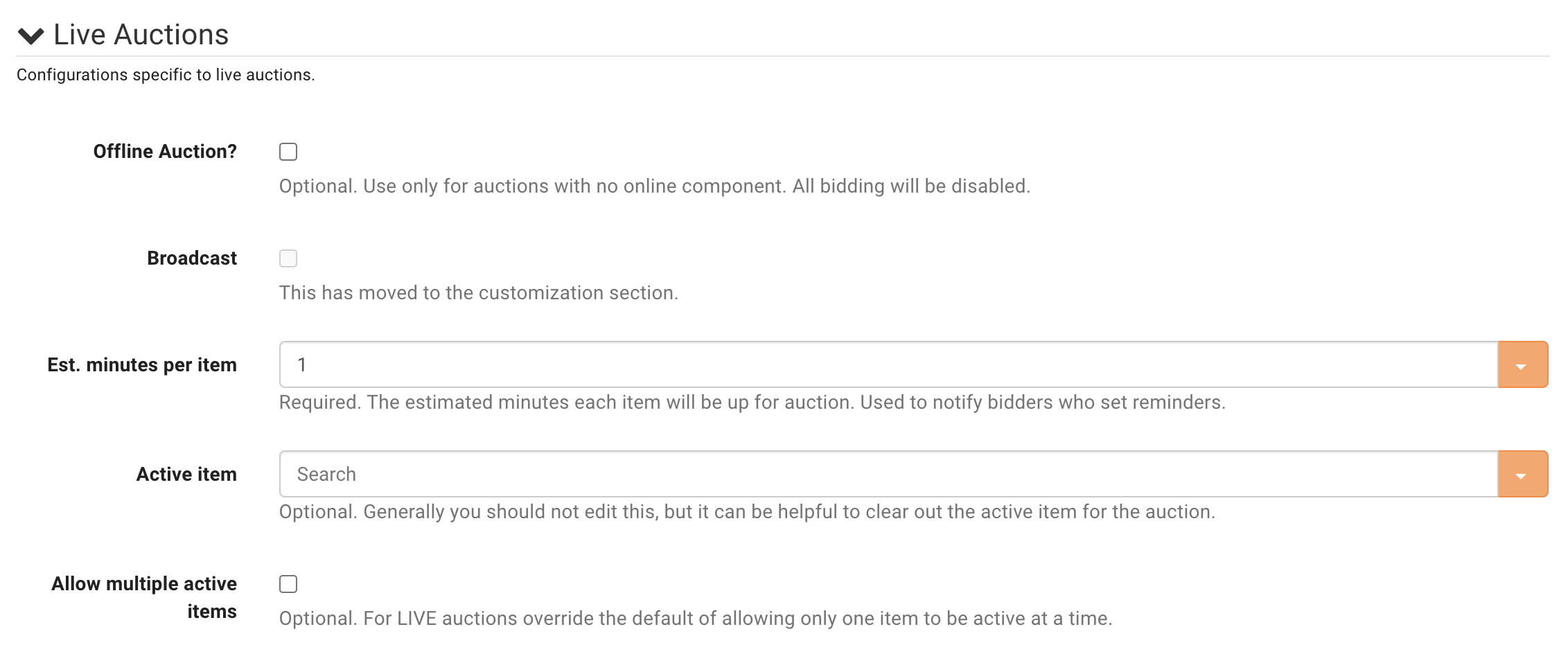
"Est. minutes per item" - This is a required field for live auctions. This is an estimated time in minutes that each item will be up for bid, and is used for bidders who set reminders for bidding on an auction item.
"Active Item" - Optional. Generally you should not edit this, but it can be helpful to clear out the active item for the auction.
"Allow multiple active items" - Optional. For LIVE auctions override the default of allowing only one item to be active at a time.
TIMED AUCTIONS:
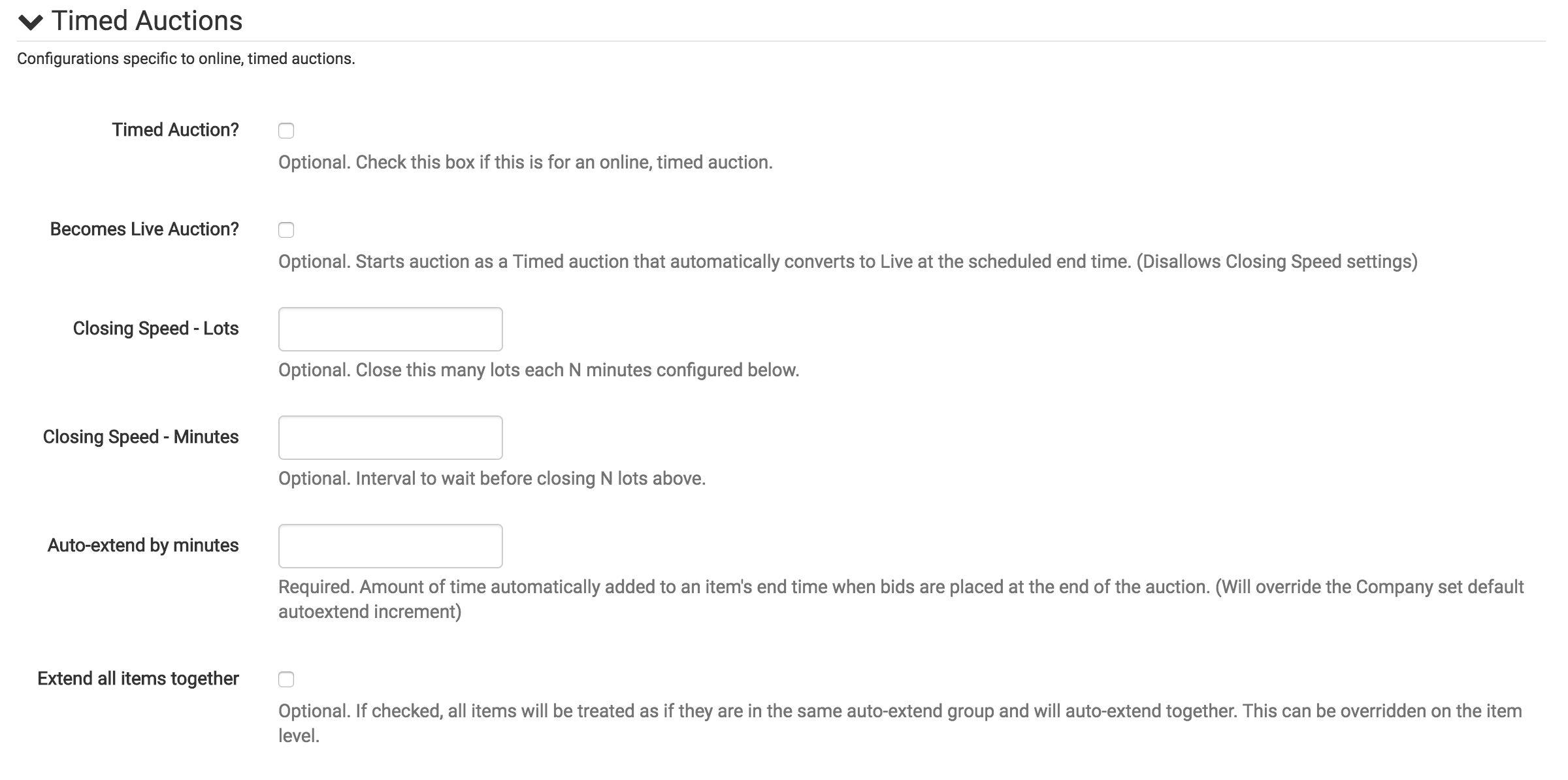
"Timed Auction?" - This is a required field for TIMED auctions. Checking this box will configure the auction to be an online only, timed auction.
"Becomes Live Auction?" - Starts auction as a Timed Auction that automatically converts to Live at the scheduled end time. (Disallows Closing Speed settings.)
"Closing Speed - Lots" - This will configure the number of lots that will close together in an auction by the selected amount of minutes in the field below. (Example: Auction will close this(Closing Speed - Lots) number of lots every (Closing Speed - Minutes) minutes.)
"Closing Speed - Minutes" - This will be the amount of time each set(number selected in above field) of items will close in minutes for the auction. (Example: Auction will close this(Closing Speed - Lots) number of lots every (Closing Speed - Minutes) minutes.)
"Auto-extend by minutes" - This is the amount of time that will be added to the end of each item when bids are placed at the end of the auction. This will override the company default setting.
"Extend all items together." - If checked, all items will be treated as if they are in the same auto-extend group and will auto-extend together. This can be overridden on the item level.
For more information on auto-extending items/lots, refer to this document - How do I set a group of items to auto-extend together?
LISTINGS:
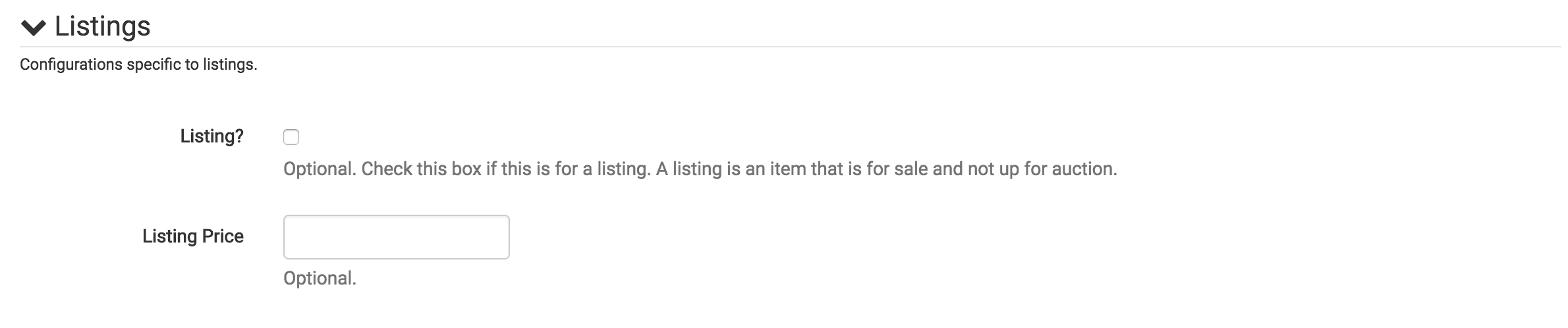
"Listing?" - This box will make the item a listing, and exclude the item from being handled as an auction in the app. Listings will display in the app(typically with one item/lot) with all information, photos, and links, but will not enable the bidding platform software.
"Listing Price" - Optional.
BIDDING CONFIGURATION:
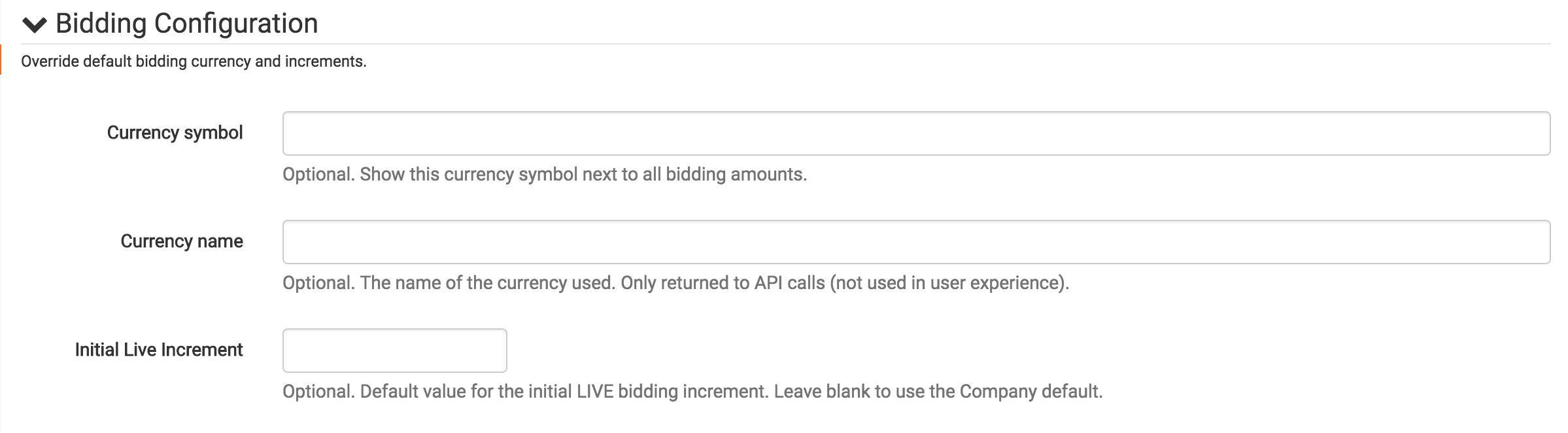
"Currency Symbol" - This will override the company default currency symbol that displays for auctions in the app. Each bid amount will show this currency symbol next to all bidding amounts for this specific auction.
"Currency name" - The name of the currency used. Only returned to API calls (not used in user experience).
"Initial Live Increment" - Default value for the initial LIVE bidding increment. Leave blank to use the Company default.
CONTACT INFORMATION:
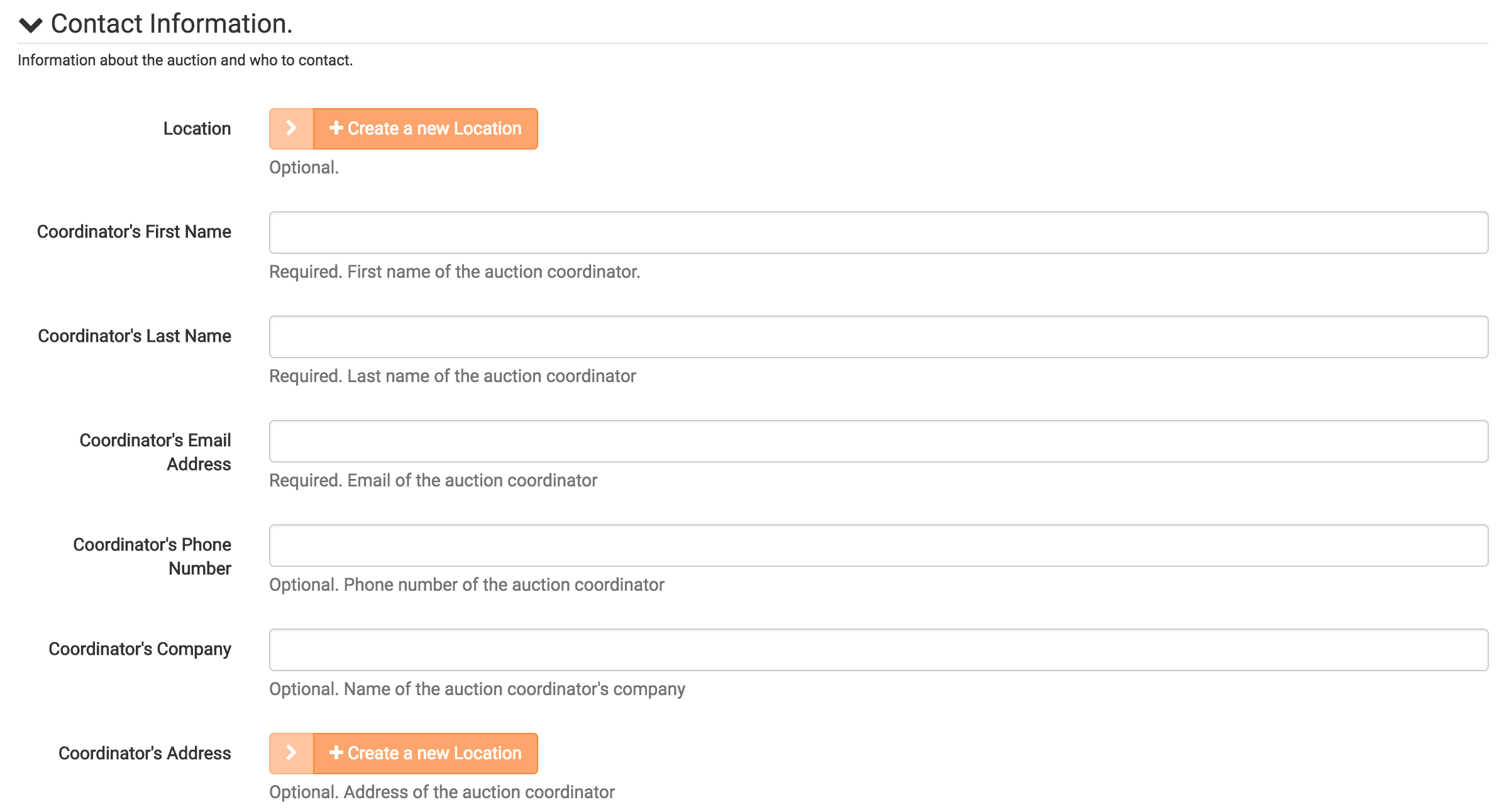
"Location" - This dropdown will initialize an auction location that will display in the app. The fields for the address will be displayed, and will need to be filled in to complete the address.
"Coordinator's First Name" - Auction coordinator's first name to be displayed in app for contact information.
"Coordinator's Last Name" - Auction coordinator's last name to be displayed in app for contact information.
"Coordinator's Email Address" - Auction coordinator's email address to be displayed in app for contact information.
"Coordinator's Phone Number" - Auction coordinator's phone number to be displayed in app for contact information.
"Coordinator's Company" - Name of the auction coordinator's company.
"Coordinator's Address" - Address of the auction coordinator.
Once all required fields are completed, click save at the bottom of the page.

The auction will now be ready to have items associated with it. AN AUCTION REQUIRES AT LEAST ONE ITEM TO DISPLAY IN THE APP! For more information on adding an item to an auction in BidWrangler, reference this document - How do I create an item in BidWrangler?When the auction has items successfully associated to it, click publish at the top of the screen, and re-save the auction.


The auction should now be displayed in the app.
Frequently Asked Questions: Creating an Auction
What fields are required to create any auction?
Every auction needs an Auction Name, a Primary Description, Terms and Conditions, a Time Zone, and a Start Time. You'll also need at least one item associated with the auction for it to display in the app.
Are there extra required fields for timed auctions?
Yes. In addition to the standard required fields, timed auctions require a Scheduled End Time, the "Timed Auction?" box checked, a Closing Speed – Lot value, and a Closing Speed – Seconds value.
How do I create an auction?
Navigate to the BidWrangler admin portal, select "Auction" from the left menu, then choose the "Create" tab. Fill in all the required fields, click save at the bottom of the page, add at least one item, then publish and re-save.
Why isn't my auction showing up in the app?
An auction requires at least one item to display in the app. After creating the auction, associate an item with it, click publish at the top of the screen, and re-save.
Publishing and Visibility
When should I enable the "Published?" checkbox?
Leave it unchecked while building the auction. Checking it (and saving) is what makes the auction visible on the bidding platform once your items are created and assigned.
How do I control where my auction appears in the app?
Use the Sort Index. A lower number displays earlier — set it to 0 to have the auction appear first.
Descriptions and Terms
What's the difference between Simple Description, Description, and Tag Line?
The Description is the required, detailed description shown on websites and in the app (it supports HTML and hyperlinks). The Simple Description is a short blurb shown below the auction in the app; if left blank it defaults to the primary description. The Tag Line is optional and only applies to users with a BidWrangler website that has the feature enabled.
Are Terms and Conditions required?
Yes, for every auction. You can apply them from the dropdown, where you can also create or edit terms. If you don't set terms, users can register without accepting them — so always set these before publishing.
What if I don't want any terms and conditions?
Use the "Confirm no terms" option, which is required if you want to run an auction with no Terms & Conditions.
Images and Links
What is the Third Party Bidding URL for?
It's for auctions cross-linked to another platform. Paste the link to the external auction page, and the auction will appear in the app but direct bidders to that third-party page.
Dates
What date fields can I set?
Beyond the required Time Zone and Start Time (and Scheduled End Time for timed auctions), you can set Preview Starts/Ends and Pickup Starting/By dates. The preview and pickup dates display on select BidWrangler websites.
Auction Type Settings
How does Closing Speed work for timed auctions?
Closing Speed – Lots sets how many lots close together, and Closing Speed – Minutes sets the time interval. Together they mean the auction closes a set number of lots every set number of minutes.
What does auto-extend do?
"Auto-extend by minutes" adds time to the end of an item when late bids come in, overriding the company default. Checking "Extend all items together" treats all items as one auto-extend group so they extend simultaneously.
What is a Listing?
Checking "Listing?" turns the item into a listing rather than an auction. Listings display in the app with information, photos, and links, but without the bidding platform enabled. You can optionally add a Listing Price.
Other Settings
Can I hide final prices after the auction ends?
Yes. "Hide Prices" keeps final bid amounts hidden once the auction is complete, for both sold items and those that didn't meet sale requirements.
What contact information can I add?
You can set a Location (with address fields) plus the coordinator's first name, last name, email, phone, company, and address, all of which display in the app.