
How do I manually register a bidder for my auction?
An admin or a clerk can register a bidder for an auction manually in BidWrangler. You can do this in two ways: In the admin portal, create (if needed) the user account and then create a registration for the auction. Or in the clerking panel for the auction, click the plus button to register an existing user or to create a new bidder/registration.
Which Manual Registration Method to Use
Use the admin portal when you register a bidder before a sale and want to approve the registration yourself. Use the clerking panel while a sale is live or closing, because it is the fastest method. To register many bidders at one time, use the Registration Import. For walk-in bidders at a live or simulcast sale, use the Live Registrations check-in screen.
How to Register a Bidder in the Admin Portal
Create the bidder's user account
(If the bidder already has an account, skip to the next section.)
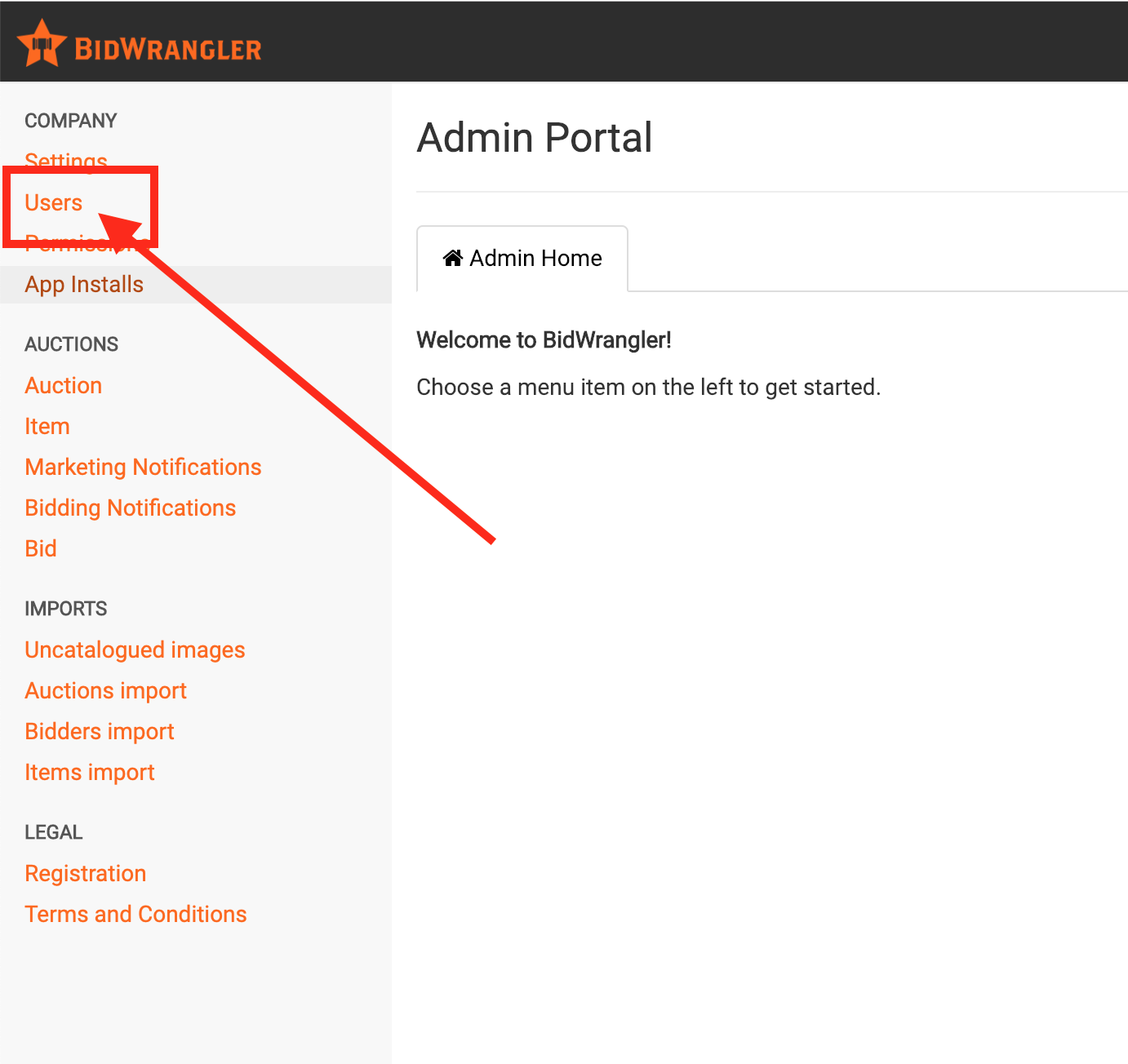
Open the BidWrangler admin portal and click "Users."
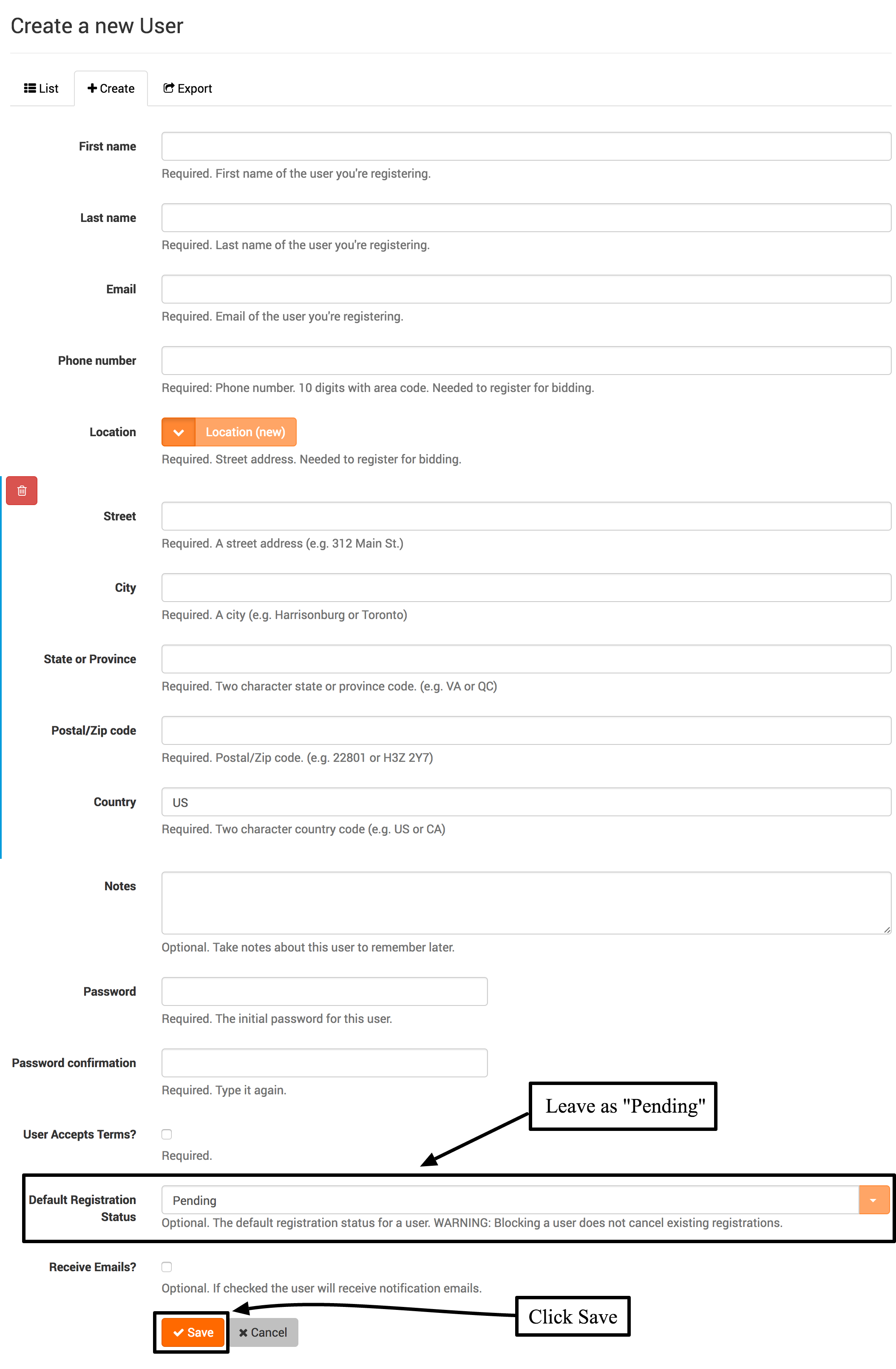
Click "Create" to make a new user account.
Fill in all of the required fields, including the address.
Leave the default registration as "Pending" in the dropdown.
Click "Save" at the bottom of the screen.
Create the registration for the auction
Once the bidder's account has been created, you will need to manually create a registration for the user for the specific auction.
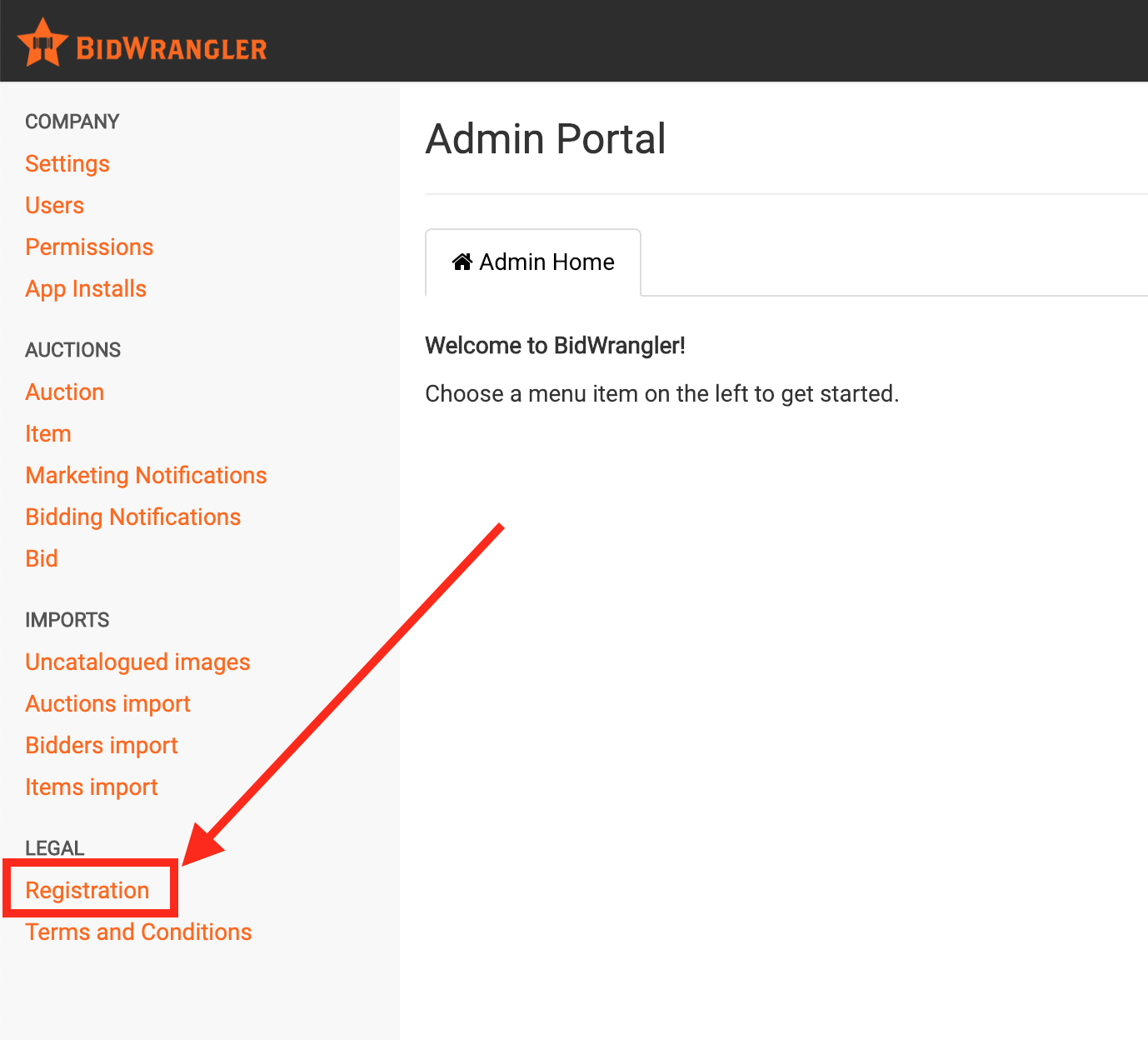
In the admin portal, click "Registration" in the left menu.
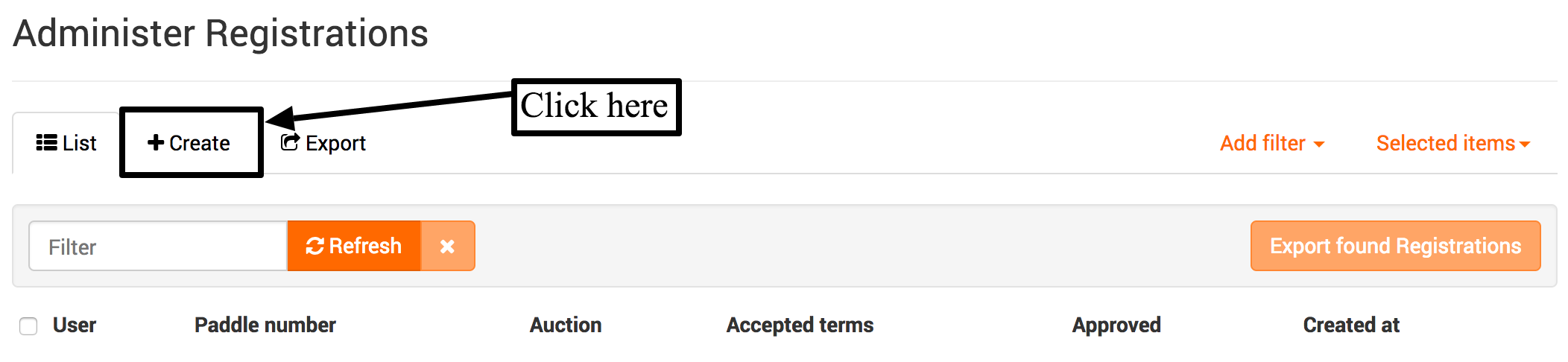
Click "Create" in the top menu bar.
Select the user in the user dropdown.
Select the auction in the auction dropdown.
Select the "Approved" checkbox.
Click "Save."

If you created a new account, send the user their login information.
The user is now registered and can bid in the auction.
NOTE: An account created by an admin does not have a password that the bidder set. The bidder cannot bid online until they get their login information and sign in.
How to Register a Bidder in the Clerking Panel
Open the clerking panel for the auction.
Click the "plus" button in the top right.
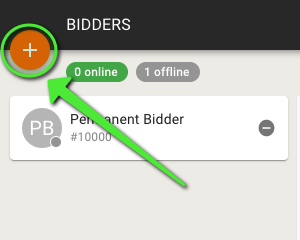
If the bidder already has an account, search for the user in the "Register new bidder" popup and register them.
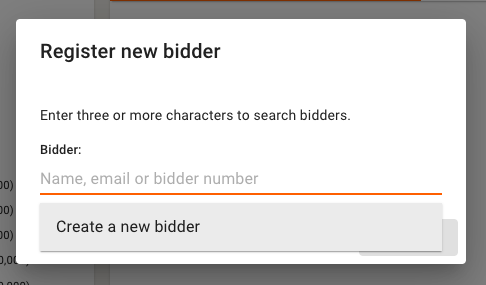
If the bidder does not have an account, click the empty field and select "Create a new bidder."
Type the information for the new bidder to register them for the auction.
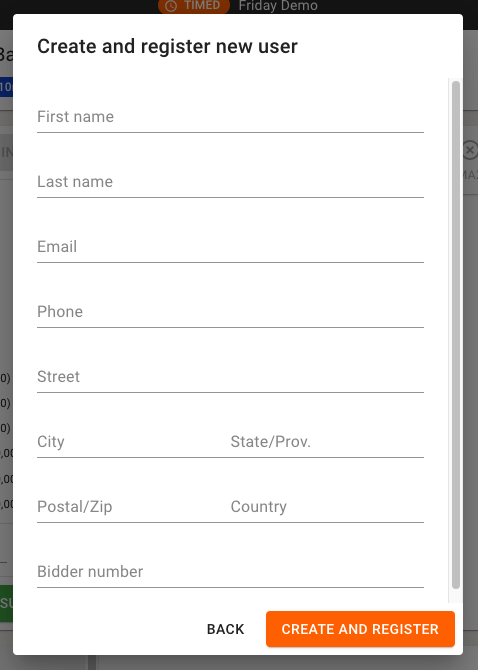
The clerking panel is the fastest method while a sale is live or closing. To register many bidders before a sale, use the Registration Import instead of the clerking panel.
Manual Registration Frequently Asked Questions
Can the bidder log in and bid online after I register them manually?
Yes, after you send them their login information and they sign in. An account created by an admin does not have a password that the bidder set. For bidders who plan to bid online, self-registration on your bidding platform is the easiest path.
The bidder tried to register themselves and their card was declined. Should I just register them manually?
Manual registration can help when an auction closes soon, but also examine the decline. The decline reason comes from your payment gateway. In Authorize.net, recent declined attempts show under Unsettled Transactions. A failed card verification does not save the address that the bidder entered, so the bidder's profile can be missing address fields. Confirm the address with the bidder and update it on their account. Then tell the bidder to log out, log back in, and try again.
How do I register a lot of bidders at once?
Use the Registration Import. With it, you can register all of your permanent bidders in bulk. A different import is available for registrations from other platforms. The Related Articles below link to both.
I'm at a live sale and need to register a walk-in bidder with a paddle. Which tool do I use?
Use the Live Registrations check-in screen to assign paddles to in-person bidders at live and simulcast sales. You can also use the "Register new bidder" popup in the clerking panel during the sale. To sell an item to a bidder and create an invoice, the paddle number must belong to a registered bidder in that sale.
Why doesn't my manually registered bidder show as needing approval?
When you create the registration in the admin portal, you select the "Approved" checkbox. The registration is approved when you save it. It does not wait for approval the way a self-registration under manual-approval terms does.
Related Articles
How to Register All Permanent Bidders in Bulk via the Registration Import
Can a clerk accept registered bidders in the clerking panel?
If you have questions about manual registration, contact us at helpdesk@bidwrangler.com.