
How Do I Set Up a Stripe Billing Account for BidWrangler?
A Stripe billing account lets BidWrangler collect credit card information from bidders when they register for an auction. To connect Stripe to BidWrangler, create a Stripe account in Live mode and copy your live Publishable key and Secret key. Then paste the two keys into the API Integrations section of the BidWrangler Admin Portal. Also turn on the Using card Tokens for payments API policy in Stripe. Without this policy, many new Stripe accounts do not let bidders save a credit card at registration.
What BidWrangler Uses Your Stripe Account For
BidWrangler uses Stripe to collect credit card information when bidders register. Your company can connect its own Stripe account to BidWrangler. You can then use the stored credit cards to charge bidders one at a time. For example, you can charge a required cash deposit at auction close. You can also charge a bidder who did not pay an invoice.
What You Need Before You Connect Stripe
You must have a Stripe account, or the details to create one at https://dashboard.stripe.com/register.
You must have access to the Company settings in the BidWrangler Admin Portal.
You must have this link ready to paste into a Stripe form: https://support.bidwrangler.com/en/articles/2676224
Stripe can ask for more security steps when you log in.
How to Create a Stripe Account and Copy Your Live API Keys
Complete the steps to create your Stripe account.
Make sure that the Stripe account is in Live mode, not Test mode. NOTE: A Stripe account in Test mode cannot process transactions.
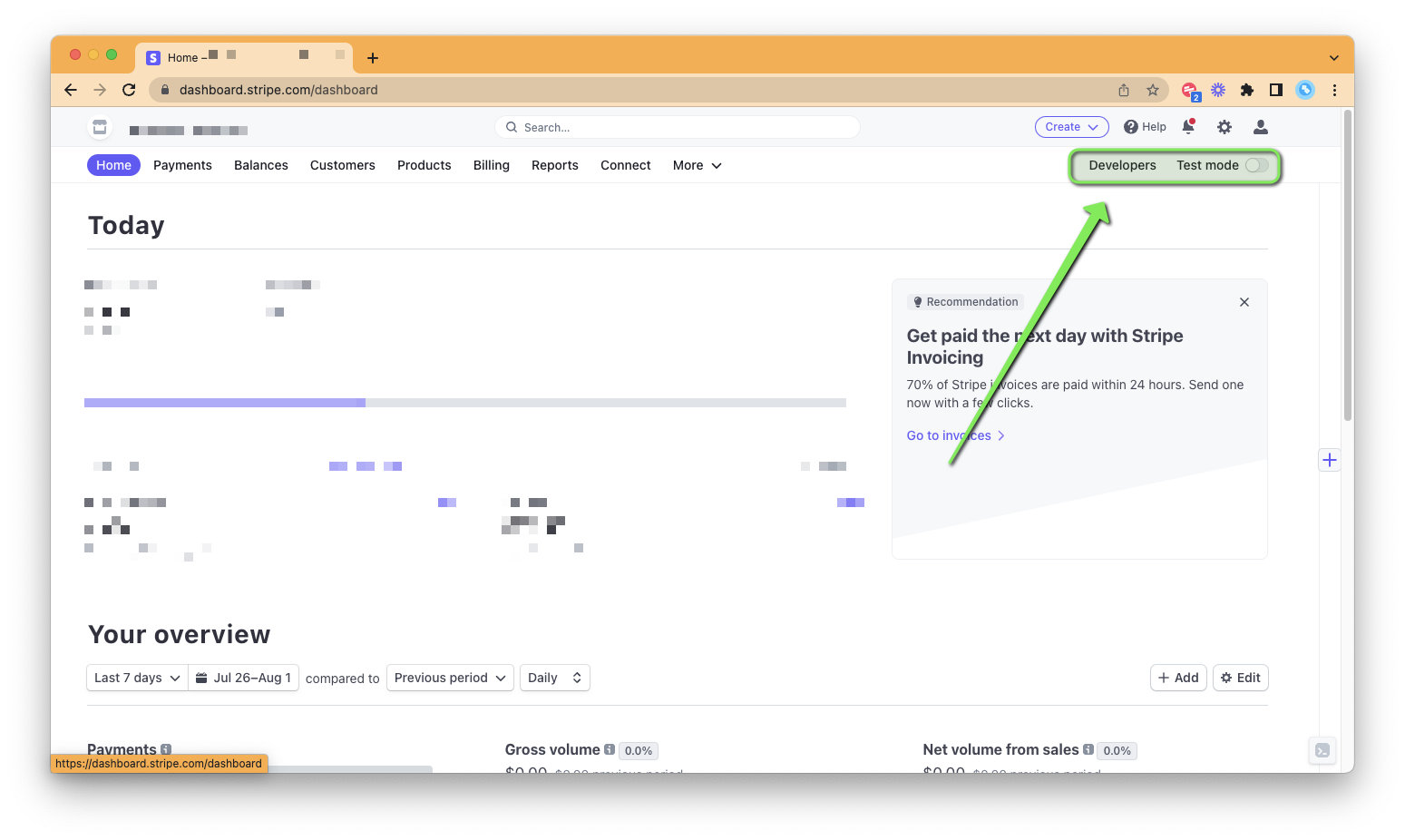
In the top right of the Stripe Dashboard, next to the Test Mode switch, select Developers.
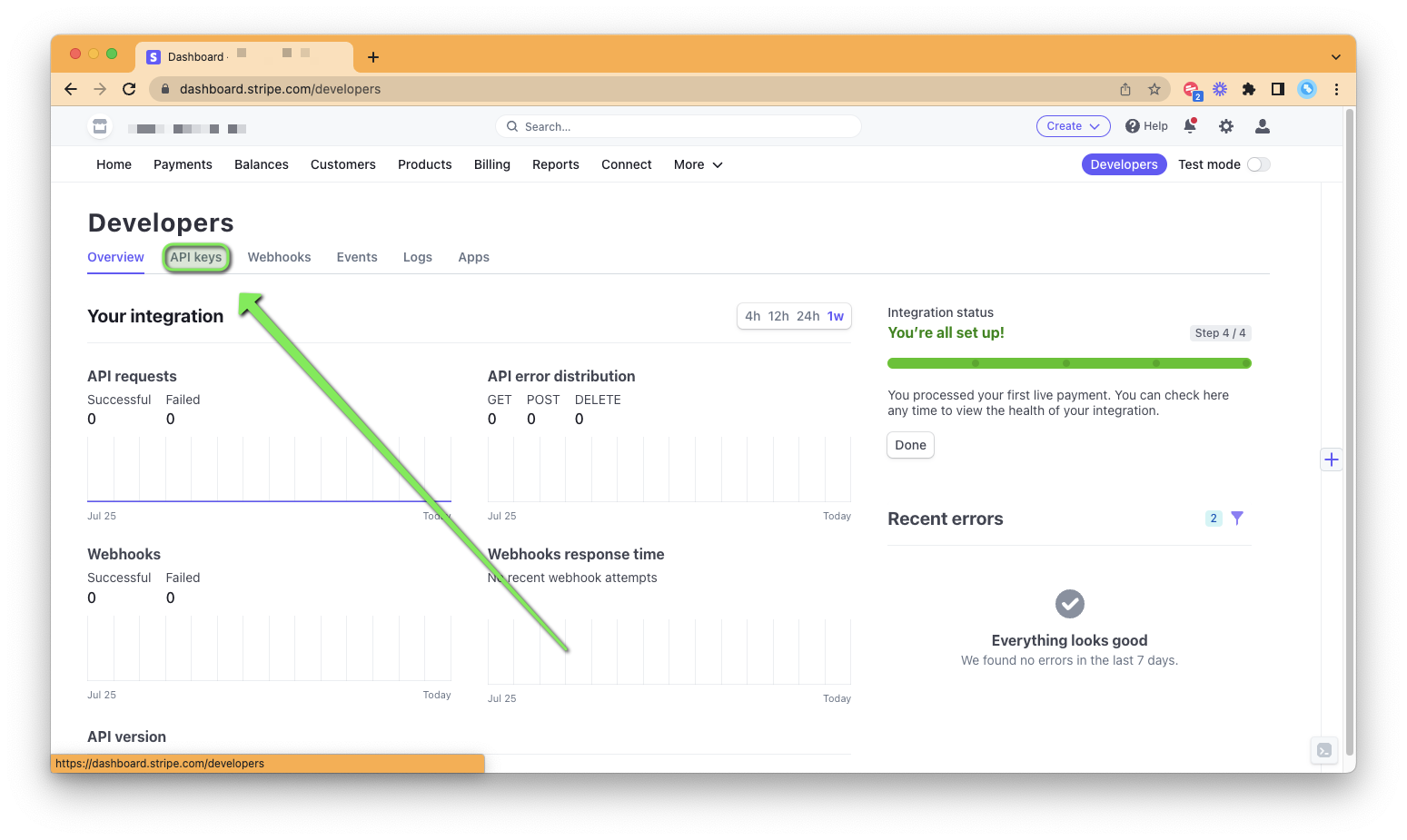
In the Developers dashboard menu, click API keys.
Copy the Publishable key and the Secret key.
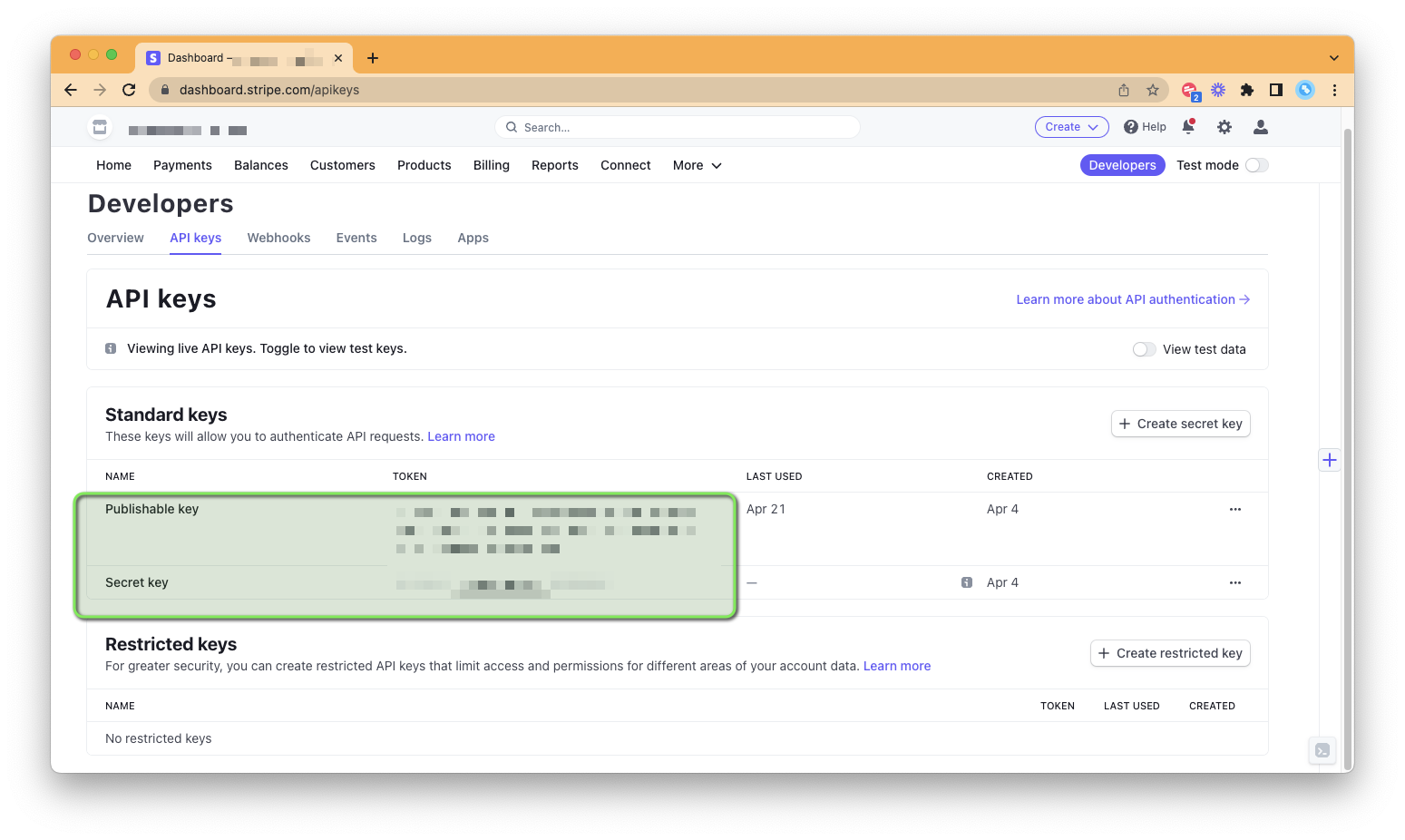
Make sure that the Publishable key starts with
pk_live_and the Secret key starts withsk_live_. NOTE: Test keys start withpk_test_andsk_test_. Test keys cannot accept real payments.
How to Add Your Stripe Keys to the BidWrangler Admin Portal
In a new browser window, open your BidWrangler Admin Portal.
Go to Company > Settings > Edit.
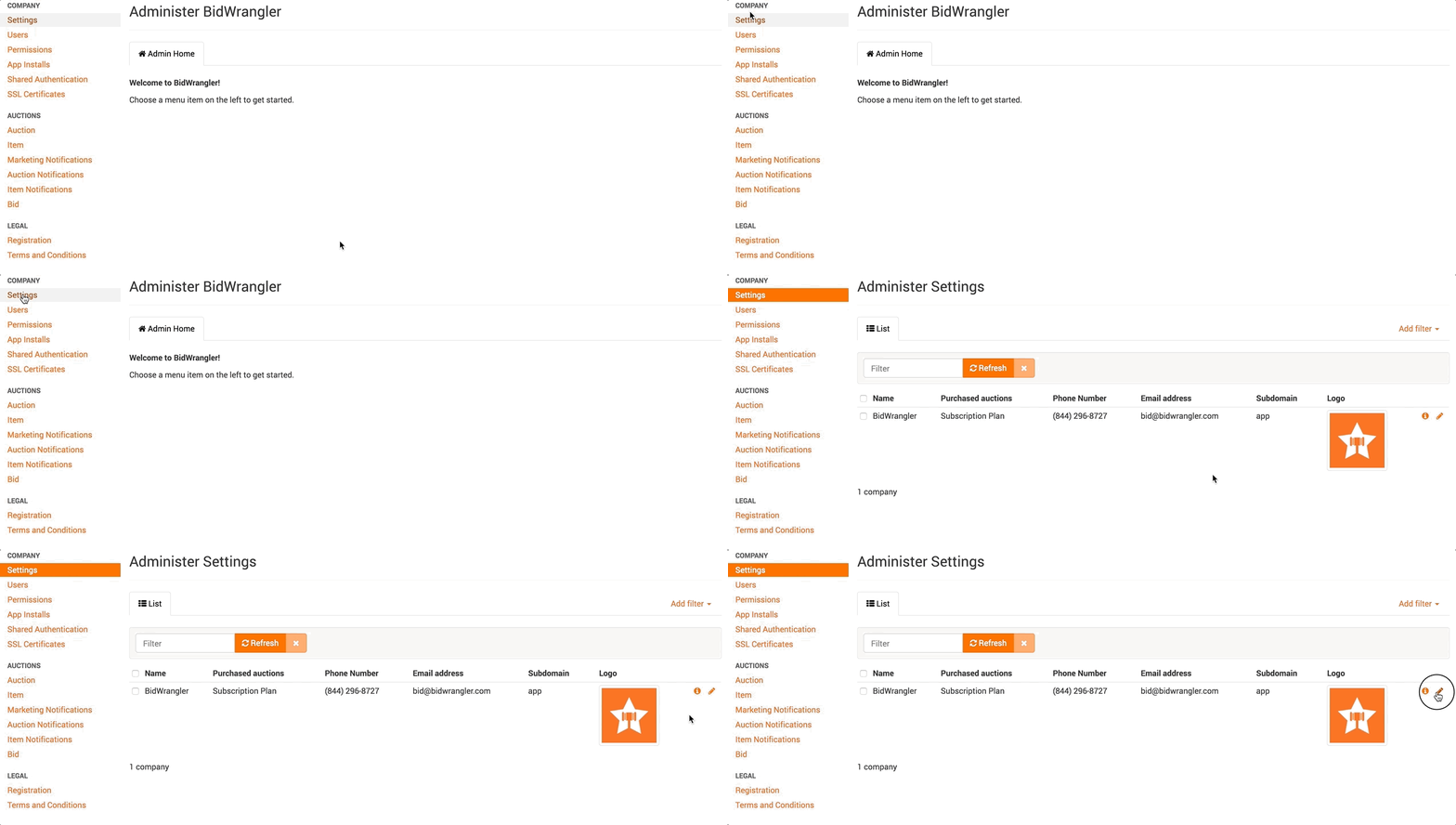
Scroll down to the API Integrations section.
Expand the API Integrations section.
Paste the live Publishable key into the Payments Public Key field.
Paste the live Secret key into the Payments Private Key field.
In the Payment Gateway Name dropdown, select Stripe.
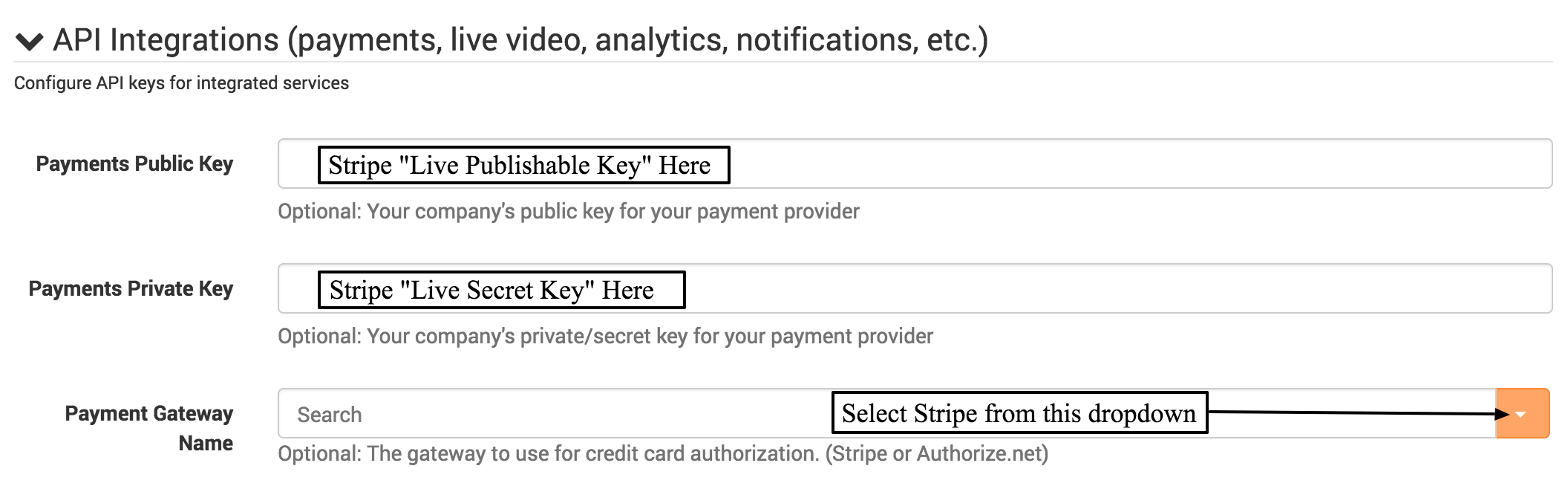
Scroll to the bottom of the page.
Click Save.

How to Turn On "Using card Tokens for payments" in Stripe
BidWrangler uses card Tokens to process bidder credit cards. Stripe blocks card Tokens on many new Stripe accounts. If the Using card Tokens for payments API policy is off, bidders cannot save a credit card at registration. The bidder then sees this error in red text under the credit card form:
Error: Card Token usage on the Customers API and Charges API has reached end of life. In order to continue processing your payments, you will need to use the Payment Intents and Payment Methods API. Read more about what you should do here: https://docs.stripe.com/payments/payment-methods/integration-options. If you need to continue to use Card Tokens on the Customers and Charges API, enable this functionality in your API policies settings: https://dashboard.stripe.com/settings/developers/api-policies
Turn on the policy before your first auction with a new Stripe account. You can also go directly to the API policies page: https://dashboard.stripe.com/settings/developers/api-policies
Log in to the Stripe Dashboard.
In the top-right corner of the Stripe Dashboard, click Settings.
On the Settings page, select Developers.
Select the API policies tab.
In the Policy column, find Using card Tokens for payments.
In the Edit policy column on the same row, click the pencil icon. The Edit API policy window opens.
Click the toggle next to Using card Tokens for payments to turn on the policy.
Under Why does your integration need to create legacy cards?, select Other.
In the What docs or guides did you follow to integrate with the legacy APIs? field, paste this link: https://support.bidwrangler.com/en/articles/2676224
Click Save changes. Show Image
Make sure that the Status column shows Enabled for Using card Tokens for payments.
Send an email to helpdesk@bidwrangler.com to tell us that you saved the change.
After we get your email, BidWrangler support completes the integration test on your account.
FAQ
What is a Stripe billing account used for in BidWrangler?
BidWrangler uses Stripe to collect credit card information from bidders at auction registration. When your company connects its own Stripe account, you can charge bidders one at a time. For example, you can charge a required cash deposit at auction close or an unpaid invoice.
Where do I enter my Stripe API keys in BidWrangler?
In the BidWrangler Admin Portal, go to Company > Settings > Edit and expand the API Integrations section. Paste the Stripe live Publishable key into the Payments Public Key field. Paste the live Secret key into the Payments Private Key field. Select Stripe as the Payment Gateway Name, then click Save.
Why won't my Stripe account process transactions?
A Stripe account in Test mode cannot process transactions. Make sure that the Stripe account is in Live mode. Also make sure that the keys in BidWrangler are live keys. A live Publishable key starts with pk_live_, and a live Secret key starts with sk_live_.
What does "Card Token usage on the Customers API and Charges API has reached end of life" mean?
Stripe no longer recommends card Tokens with the Customers API and Charges API for new integrations. The BidWrangler Stripe integration uses card Tokens with these APIs. Stripe blocks them until you turn on the Using card Tokens for payments API policy in your Stripe Dashboard.
Do I need new Stripe API keys to fix the card Token error?
No. New Stripe API keys do not fix the card Token end of life error. The fix is the Using card Tokens for payments API policy in your Stripe Dashboard. You do not need to change any settings in BidWrangler.
Does my existing Stripe account need the "Using card Tokens for payments" policy?
In our tests, Stripe accounts that already process payments through BidWrangler did not show the card Token error. The error appeared on Stripe accounts that were new to BidWrangler. If a bidder reports this error on your auction, turn on the Using card Tokens for payments policy.
What do I select for "Why does your integration need to create legacy cards?"
Select Other. Stripe then shows a second field that you must complete: What docs or guides did you follow to integrate with the legacy APIs? Paste https://support.bidwrangler.com/en/articles/2676224 into that field, then click Save changes.
What happens after I connect Stripe and turn on the policy?
Send an email to helpdesk@bidwrangler.com to tell us that you saved the change. BidWrangler support then completes the integration test on your account. After the test, bidders can save a credit card when they register for your auctions.
Related Articles
How to Fix the Stripe Card Token "End of Life" Error in BidWrangler
Why Are Some Bidders Missing a Credit Card on File at Invoicing?
If you need help to connect your Stripe account, please contact us at helpdesk@bidwrangler.com. Our support team is glad to help you.