
How do I show affiliation logos in a Content Block?
New to blocks? Start with “How do I add or edit a Content Block?”.
The Affiliations layout shows your trade association, partner or certification logos in a clean row, with nothing else. The logos speak for themselves.

The Affiliations layout: a row of four logos between two thin lines.
Step 1: Add each logo once
In the control panel, click Content Manager, then Add New, then Affiliations.
Type the organization’s name in the Title. Visitors who use a screen reader hear it.
Upload the logo.
Optional: in the Link box next to the image, type the full website address, starting with
https://(for examplehttps://www.example.com). Visitors who click the logo open it in a new window. Leave it empty for no link.Save.
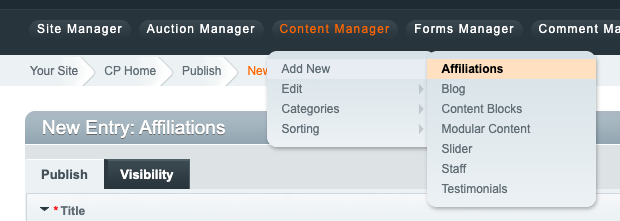
Content Manager, then Add New, then Affiliations.
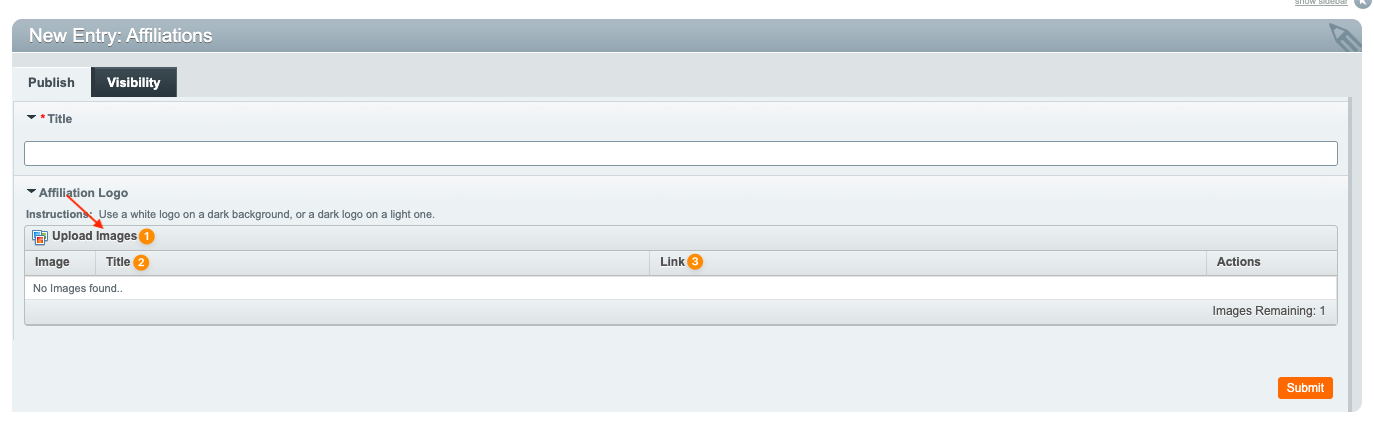
A new Affiliation: a Title and one logo.

The Link box sits next to the logo.
Step 2: Show them in a block
Create a block, or edit one, and set Layout to Affiliations.
In each item, pick the logo from the Affiliation Logo list. Leave the item’s other fields empty: the name and link come from the Affiliation entry.
Save, and add the block to a page.

In the block, set Layout to Affiliations.
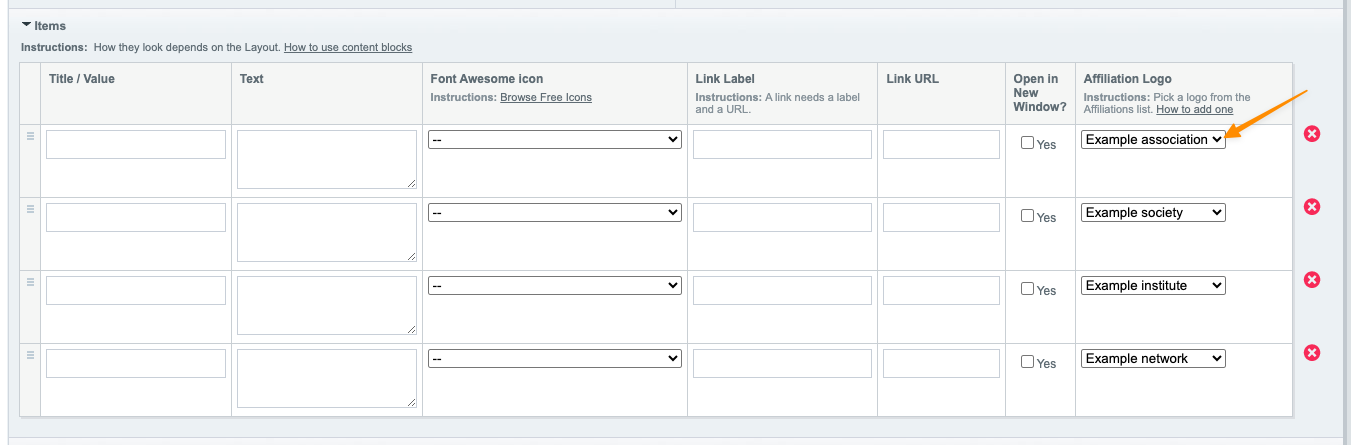
In each item, pick a logo from the Affiliation Logo list.
Choose the right logo color
A logo does not change color with the background. Use a white or light logo on a Dark background, and a dark logo on a Light or Muted one.
Good to know
Up to 4 logos. They share the row equally, two per row on a phone.
Logos are always centered, whatever the Alignment.
Use logos in an Affiliations block. In other layouts a logo competes with the text, and Cards are always white, so a white logo disappears there.
Keep reading
How do I add or edit a Content Block? The step-by-step for creating a block and adding it to a page.
Which Content Block layout should I use? Examples of every layout, with when to use each one.
How do I set up the Auction Feed block? Show your upcoming auctions on a page.
Still need help?
Contact BidWrangler Support at helpdesk@bidwrangler.com.