
How do I set up the Auction Feed block using Content Blocks?
New to blocks?
New to blocks? Start with “How do I add or edit a content block?”.
The Auction Feed block shows your upcoming auctions on a page. The list comes from the bidding platform, so it updates by itself when you create or end an auction.
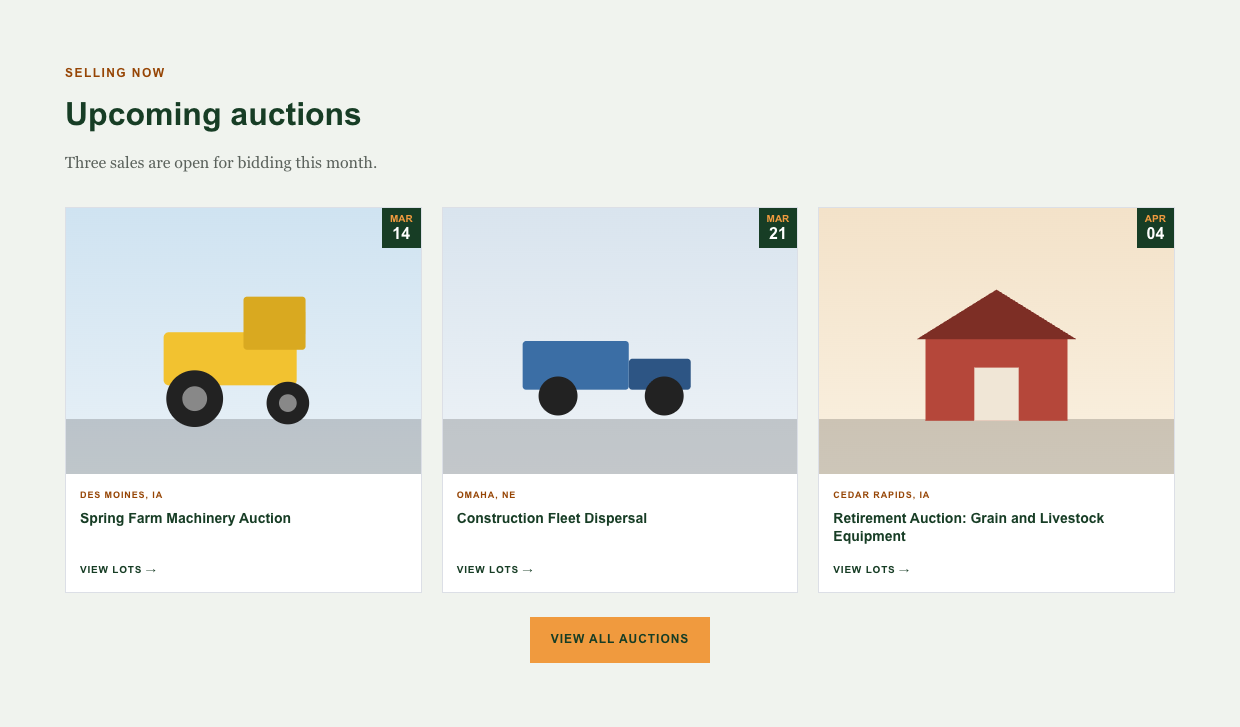
An Auction Feed block with three auctions.
Set it up
Create a new block, as in “How do I add or edit a content block?”.
Set Layout to Auction Feed.
Open the Auction Feed tab. It has three settings:
Number of Auctions: 3, 6 or 9. Choose 3 if you usually have only a few auctions.
Show: Current (auctions open now) or Past (closed auctions).
Feed Category: the exact name of a category in your bidding platform. Leave it blank to show all of your auctions.
Back on the first tab, add an Eyebrow Headline, Block Title and Description if you like, and a button such as “View all auctions”.
Save, then add the block to a page.
What visitors see
Each auction appears as a card with its photo, date, location, title and a “View lots” link. On a phone the cards stack into one column.
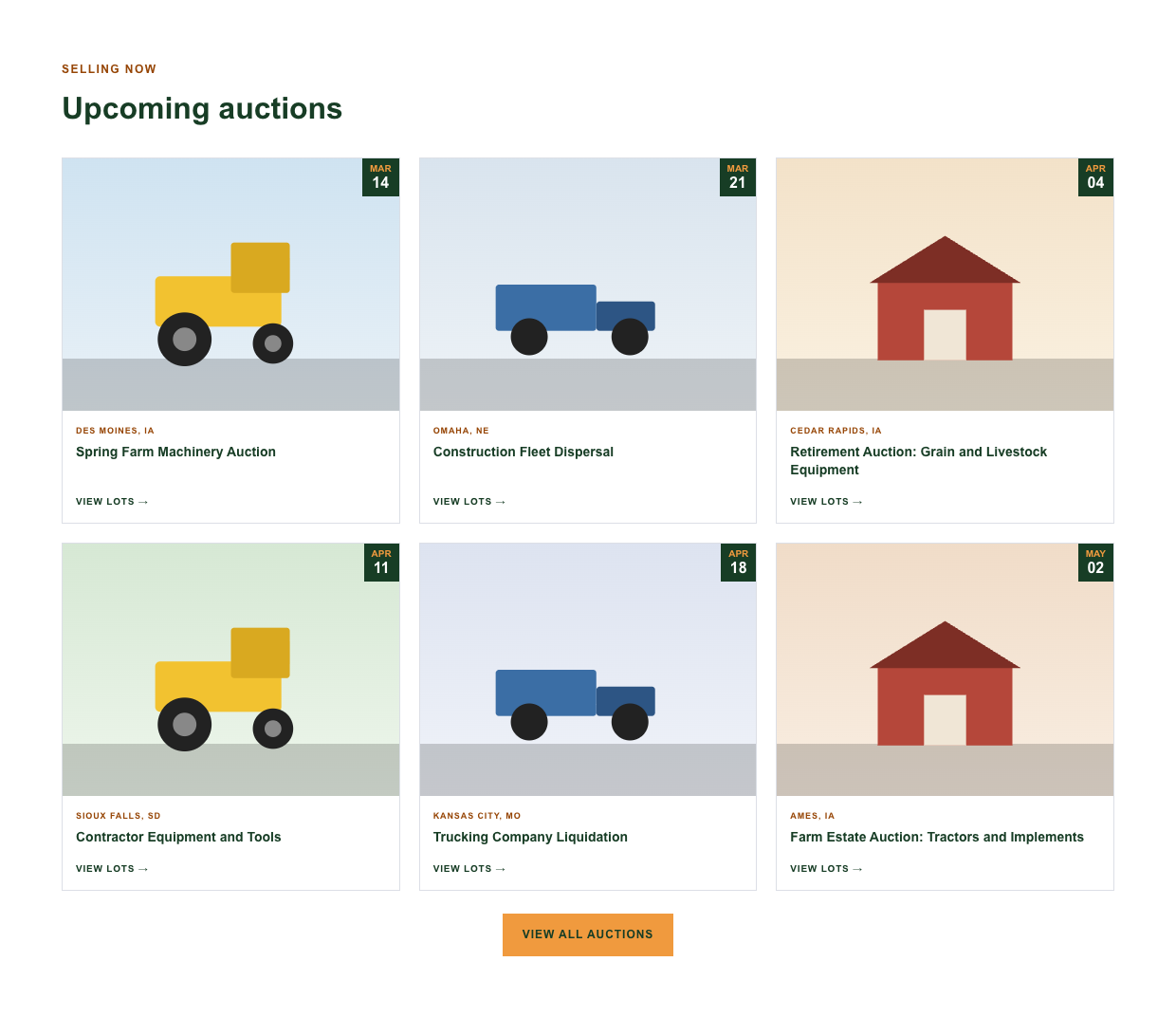
Six auctions: two rows of three on a computer.
Online-only auctions show their end date; live auctions show their start date.
If there are no auctions
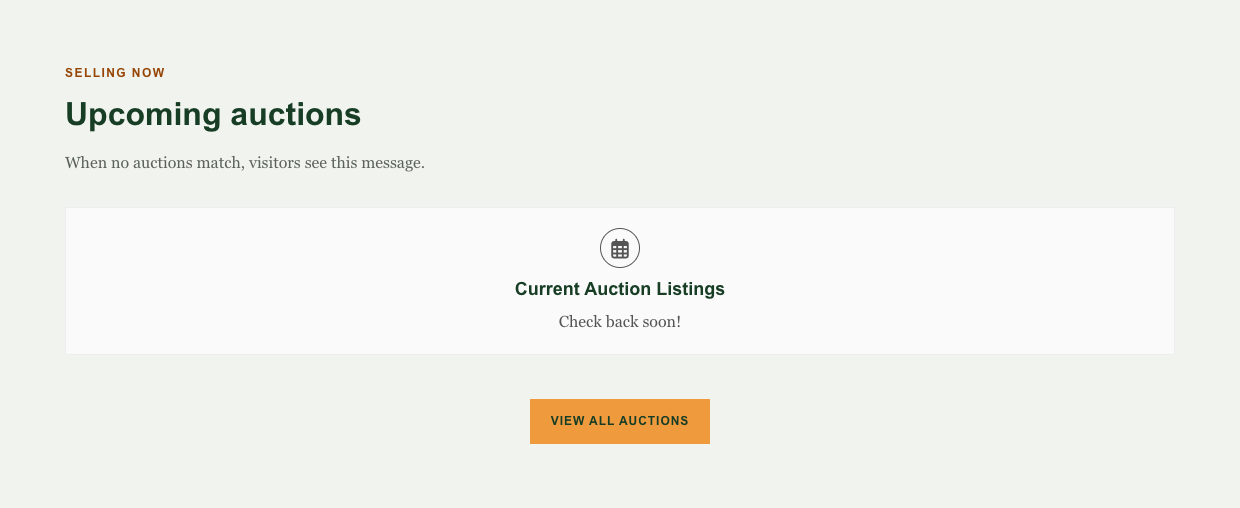
Visitors see “Current Auction Listings. Check back soon!” under the block’s title, and your button still shows.
If the feed looks wrong
Nothing shows but you have auctions: check the Feed Category spelling. It must match the category name exactly. The control panel cannot check it for you, so a typo shows up only on the page.
You see past auctions instead of current ones: check that Show is set to Current.
Fewer cards than you set: the block shows only the auctions that match.
Keep reading
Which block layout should I use? Examples of every layout, with when to use each one and when to skip it.
How do I add or edit a content block? The step-by-step for creating a block and adding it to a page.
Still need help?
Contact BidWrangler Support at helpdesk@bidwrangler.com