
How to Edit Images in the BW Catalog App
You can edit images in the BW Catalog App using the photo editor screen that opens after each photo you take, where you can crop and rotate the image before saving it to the lot. If that editor screen is not appearing, the app's Quick Capture feature is enabled, which skips the editor to speed up photographing. You can turn Quick Capture off in the app menu, or leave it on and edit your images later in the admin portal's Photo Manager.
Available Editing Tools
| Cancel - return to the image gallery |
| Rotate in 90° increments (counter-clockwise) |
| Access Color Correction Tools (details below) |
| Revert to original - discard changes |
| Save Changes |
| Rotate in 1° increments - drag the slider left/right to adjust |


Color Correction Tools
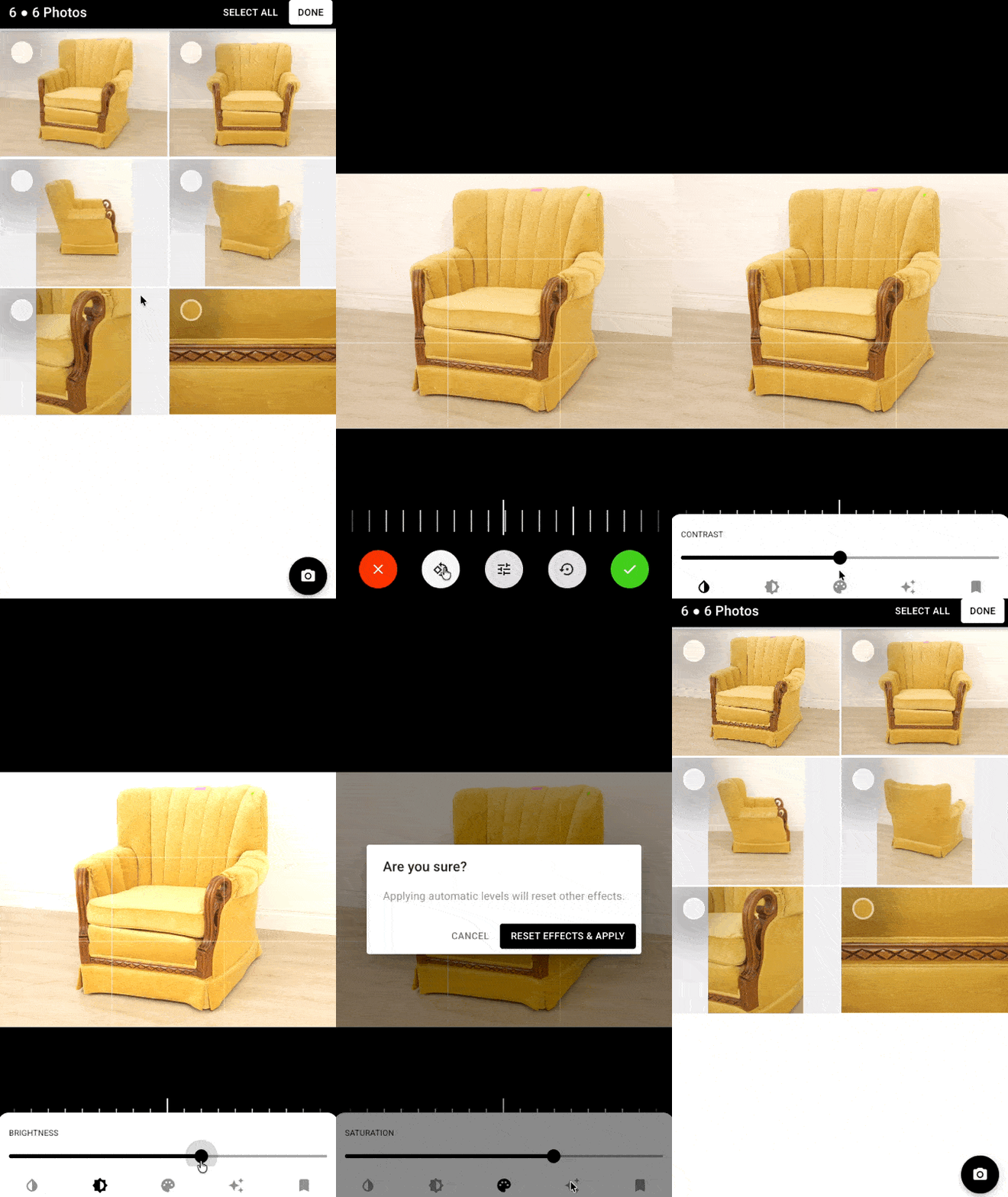
| Contrast - Controls the balance between the darkest shadows and lightest highlights. Select this option and drag the slider right/left to adjust. |
| Brightness - Adjusts the overall lightness or darkness of an image. Select this option and drag the slider right/left to adjust. |
| Saturation - Dictates the intensity and purity of colors, pushing hues toward vivid, vibrant tones or dialing them back toward grayscale. Select this option and drag the slider right/left to adjust. |
| Auto Levels - Automatically adjust the Contrast, Brightness, and Saturation. |
| Preset / Bookmark Settings - Allows you to save these adjustments as a template for the next image. Hold down the preset button to save the settings, then on the next image click this button to apply the settings. |


Cropping
Cropping images in the catalog app is done by pinching the image with two fingers - move your fingers apart to zoom in, and move your fingers closer to zoom out. Guidelines will display over the image to show where the frame is - anything outside of that frame will be cropped out. If your image is smaller than the frame then a black background* will be displayed.
Cropping in the admin portal's Items Photos screen can be achieved by dragging a box with your mouse over the desired crop area.
*Note that it is possible to change the color of this background - please contact helpdesk@bidwrangler.com if you'd prefer a different color be used. This will apply to all images.
Edit As You Catalog
Each time you take a photo for an item in the catalog app, a preview of that photo will display on screen with the editing tools.
Why the Editing Screen May Not Be Appearing
A recent update to the cataloging app introduced Quick Capture, which is designed for faster image capture. When Quick Capture is enabled, the photo editor is disabled and photos save immediately after you take them, with editing handled later in the admin portal. When Quick Capture is disabled, the cropping and rotation tool opens after each photo so you can adjust the image before it saves.
If your team suddenly finds that photos need rotating after cataloging, or that the editing screen "disappeared," Quick Capture being switched on is the usual cause.
Turning Quick Capture Off to Edit Photos as You Go
Open the BW Catalog App and go to the home screen.
Tap the menu in the top left corner.
Toggle off Quick Capture.
With Quick Capture off, the photo editor opens after each photo you take, and you can crop and rotate the image before saving. This restores the in-app editing experience and makes rotation much easier during cataloging.
Editing Images After They Are Saved to a Lot
Even if you keep Quick Capture enabled for speed, you can always edit your images later from the catalog app or admin portal.
From the Catalog App
Open the BW Catalog App and choose an auction, then item. Tap on an image at the top of the screen to open the image gallery, then tap an image to open the editing tools.
From the Admin Portal
Open your auction's Review screen and select the ITEMS PHOTOS button to open the Photo Manager. Scroll down to each item and click on a photo to open the edit tools. See How do I use the new Photo Manager screen? for the full walkthrough.
FAQ
Why do all my photos need to be rotated after cataloging? | The photo editor is disabled while Quick Capture is enabled, so photos save exactly as captured. Turn Quick Capture off in the app menu (top left corner of the home screen) to rotate images as you take them, or rotate them afterward in the admin portal's Photo Manager. |
Does editing photos in the app change the file size? | Quick Capture itself does not set a file size limit. When Quick Capture is disabled, images pass through the cropping tool and are slightly compressed, which can result in somewhat smaller files while maintaining quality. |
Can I crop and rotate photos I upload from my camera roll? | Yes. The BW Catalog App lets you add photos by taking new ones or uploading from your camera roll, and you can crop and rotate images as needed when the photo editor is active (Quick Capture off). |
Can I have the app save original photos to my phone as I shoot? | Yes. The app has a Store Images to Camera Roll setting in the same menu, which saves photos to your device as you take them. It requires the "Enable catalog plugin camera" setting in Company Settings under Customization, and it applies per device. See Can I save images to my phone from the BW Catalog App? |
Should my whole team use the same Quick Capture setting? | Quick Capture is set per device, so each cataloger controls their own. Teams photographing high volumes often leave it on for speed and clean up images in the Photo Manager afterward, while catalogers who want every image framed correctly as they go turn it off. |
Related Articles
Questions about cataloging photos? Email helpdesk@bidwrangler.com and we are happy to help.