
What is "Quick Capture" in the BW Catalog app?
Quick Capture is a feature in the BW Catalog App designed to help you take photos faster when building your catalog.
How Quick Capture Works
When Quick Capture is enabled (default setting), the app will:
Skip the image cropping screen after each photo
Allow you to take multiple photos quickly without interruption
When Quick Capture is disabled, the app will:
Open the cropping tool after each photo
Let you adjust and refine each image before saving
Why Use Quick Capture?
Quick Capture is ideal when:
You’re photographing many items in a short amount of time
Speed and efficiency are your top priority
Disabling Quick Capture is better when:
You want more control over how each image is framed
You prefer to edit photos as you go
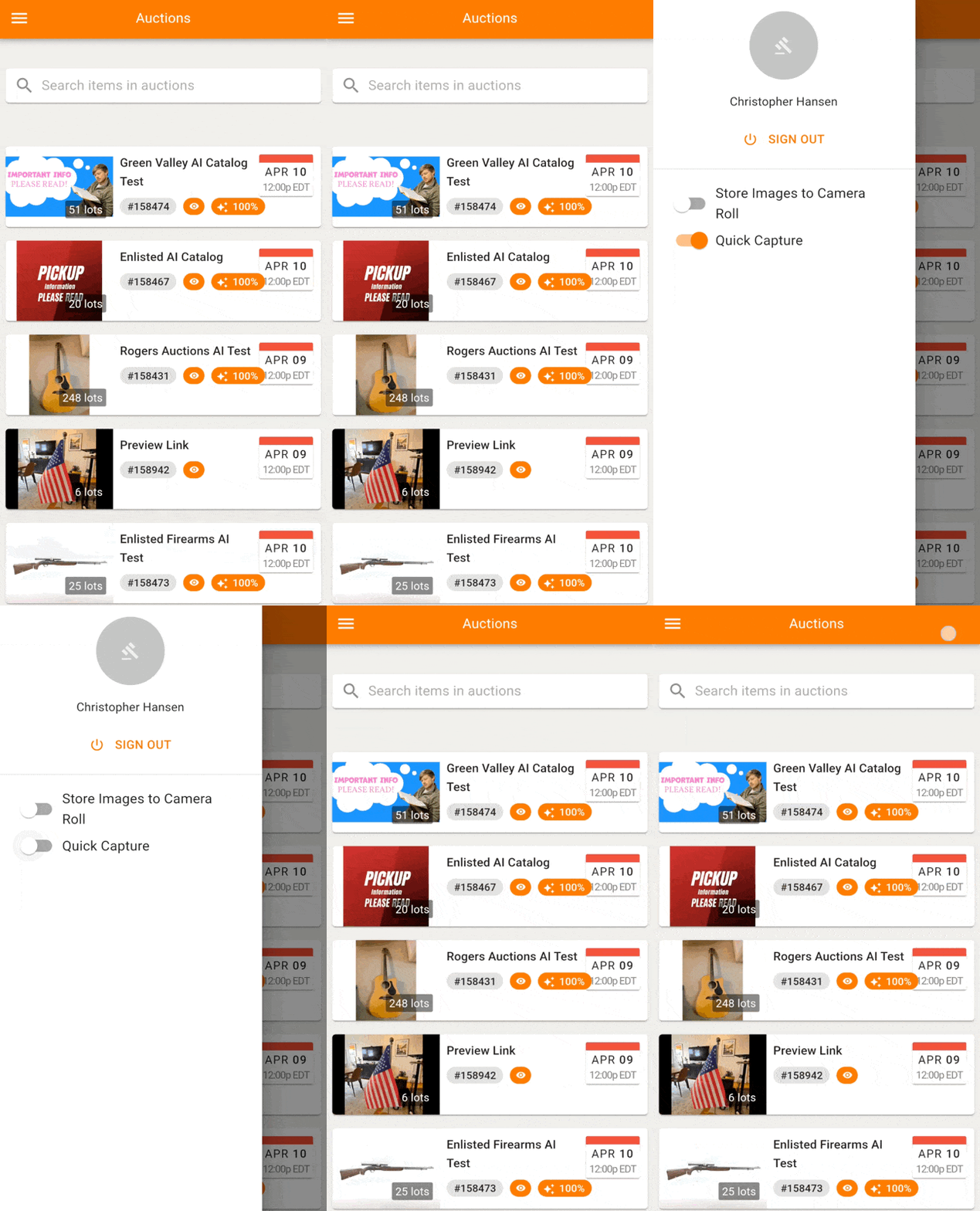
How to Turn Quick Capture On or Off
Open the BW Catalog App
Tap the menu button (top-left corner of the main screen)
Locate the Quick Capture toggle
Switch it:
On → Faster photo capture (skips cropping)
Off → Enables cropping after each photo
Does Quick Capture Affect Image Size?
Quick Capture does not allow you to set a specific file size limit (such as 3MB). However:
With Quick Capture enabled, images are saved immediately after capture
With Quick Capture disabled, images go through the cropping tool, where they are slightly compressed
This can result in smaller file sizes while maintaining quality
Pro Tip
Even if you keep Quick Capture enabled for speed, you can always edit your images later:
Go to the Review screen in your auction settings within the Admin Portal
Make adjustments after all photos have been captured
If you have any further questions, feel free to reach out to helpdesk@bidwrangler.com