
How Do I Add a Sign-Up Link or Other Hyperlink to My Invoices?
How to add a sign-up link, scheduling link, or any hyperlink to BidWrangler invoices using the Invoice Settings Header, Note, and Footer fields.
You can add a sign-up link, or any other hyperlink, to your BidWrangler invoices through the text fields in Invoice Settings: the Header, Note, and Footer. Highlight the text you want to turn into a link, click the link button, and paste in the URL. If the link changes from sale to sale, for example a per-auction pickup sign-up page, store it in the auction's Pickup Scheduling URL field instead and let a variable insert the right link automatically.
Where Links Can Appear on an Invoice
Hyperlinks are supported in the Invoice Settings Header, Note, and Footer fields, and in the matching Settlement Settings fields. These fields use the same basic text formatting tools available for auction descriptions, so anything you can link in a description you can link on an invoice. Common uses include a sign-up link for your next auction, a SignUpGenius pickup scheduling link, a shipping request form, or your terms and conditions.
Before You Add the Link
You will need an Invoice Settings profile already created under the INVOICING AND PAYMENTS menu in the Admin Portal, and the full URL of the page you want to link to, including the https:// prefix.
How to Add a Hyperlink to Your Invoice Settings
In the Admin Portal, open Invoice Settings under the INVOICING AND PAYMENTS menu and select the settings profile you want to edit.
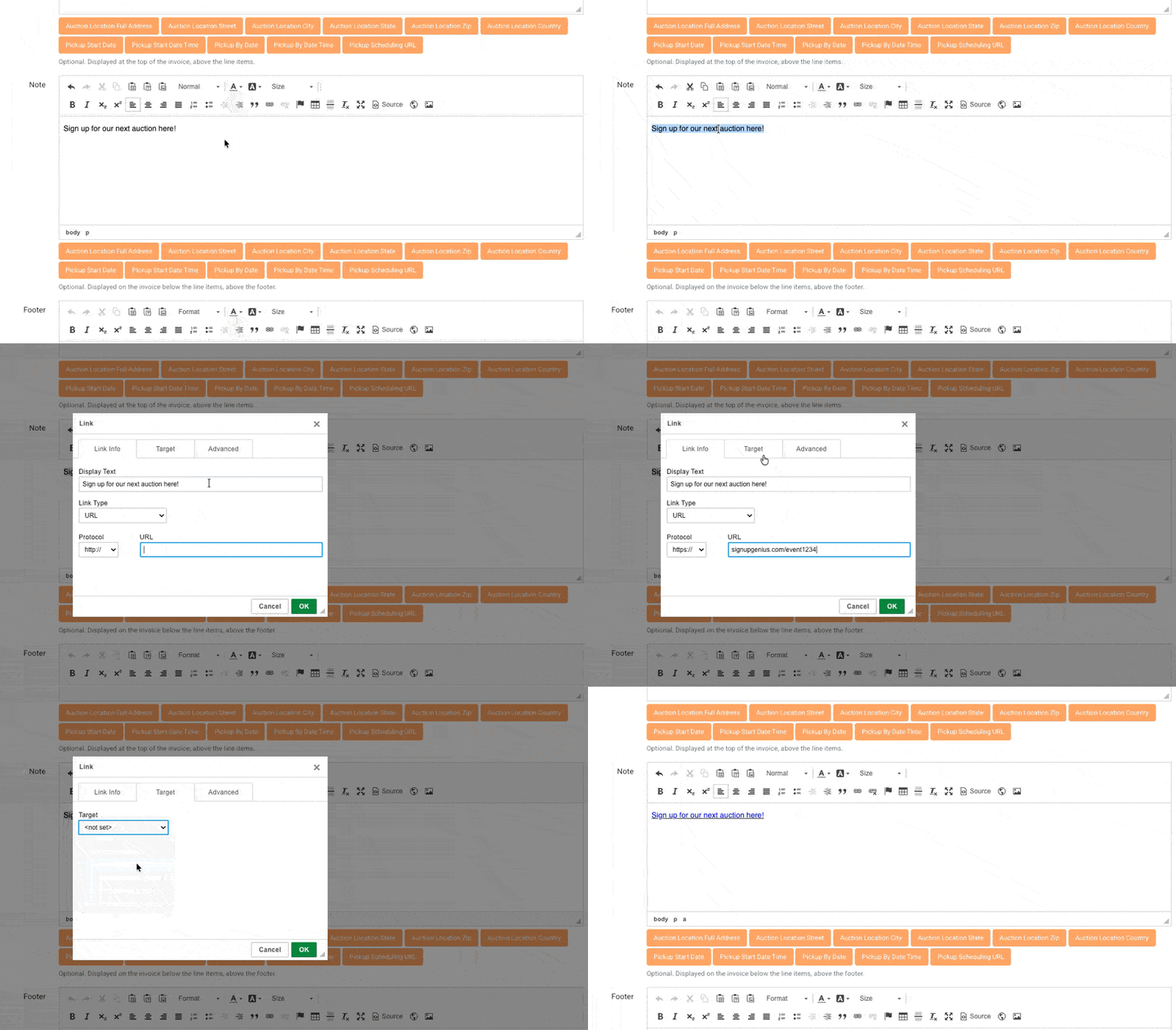
In the Header, Note, or Footer field, type the text you want to make clickable, for example "Sign up for our next auction here."
Highlight the text, then click the link button, which looks like a link of chain.
In the popup window, paste the full URL into the URL box. The Protocol box updates automatically.
Optional: select the Target tab and choose New Window so the reader is not navigated away.
Click OK, then save your Invoice Settings.
To remove a link later, place your cursor anywhere in the link text and click the Unlink button. You can also simply delete all of the text.
Using a Different Link for Each Auction
If the link is auction-specific, such as a per-auction sign-up or pickup scheduling page, use the auction's Pickup Scheduling URL field instead of directly adding this to the invoice settings:
Open the auction's settings and go to the Dates section.
Enter the link, including https://, in the Pickup Scheduling URL field and save.
In Invoice Settings, place your cursor where the link should appear and insert the Pickup Scheduling URL variable.
The invoice then pulls the correct link for each auction, so one Invoice Settings profile can serve every sale. If an auction has no URL entered, the spot simply displays blank.
FAQ
Can I add a sign-up link for bidder registration or my mailing list?
Yes. The hyperlink tools in the Header, Note, and Footer fields accept any URL, so you can link to your registration page, a SignUpGenius sign-up, or a mailing list form. SignUpGenius links are typically created per auction, so consider the Pickup Scheduling URL variable if the link changes each sale. To include a link for registering for your next auction, you can use the URL for that auction from the bidding platform.
Why is my link not showing on the invoice?
If you used the Pickup Scheduling URL variable, the invoice displays blank in that spot when the auction has no URL entered. Check the auction's Dates section and confirm the URL was saved with the https:// prefix.
Will the link appear in the invoice email as well?
The Email Paid and Email Unpaid fields in Invoice Settings control the body of invoice emails, and the Email Unpaid field can include the invoice link variable so bidders can reach their invoice and pay online. If you want a sign-up link in the email itself, add it to those email fields rather than the invoice Header or Footer.
Can I make the link open in a new window?
Yes. When the link popup is open, select the Target tab and choose New Window from the dropdown. This keeps the bidder's invoice open while the sign-up page loads in a separate tab.
Related Articles
If you have a question this article does not cover, reach out to helpdesk@bidwrangler.com and our team will be happy to help.