How Do I Enable the 'Pay Now' Button on Bidder Invoices?
The 'Pay Now' button allows bidders to view and pay their own invoices via an email link. This feature can be enabled in the admin panel under Invoicing and Payment > Invoice Settings. Once there, edit existing settings via the pencil or create new settings by clicking the "+ Create" tab.
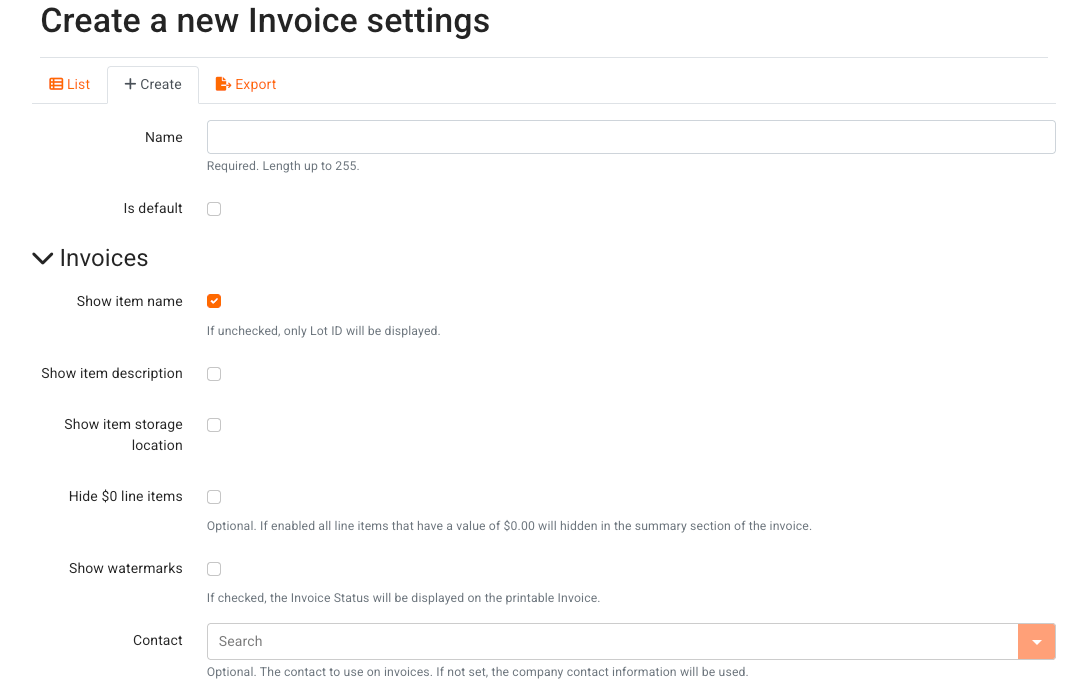
For further information regarding Invoice Settings, click here.
Enabling Pay Now
To enable the Pay Now Button in your invoice settings, click on the checkbox next to "Enable Pay Now button." This will make it possible for bidders to initiate payment for invoices with these settings applied {via the applicable auction's settings}.
For bidders to find and navigate to that invoice, we need to either add a link to that invoice via the Email Unpaid or Paid fields {below}, and/or make their invoices accessible via their Account. Click here to learn more about making all bidder invoices accessible to them here.
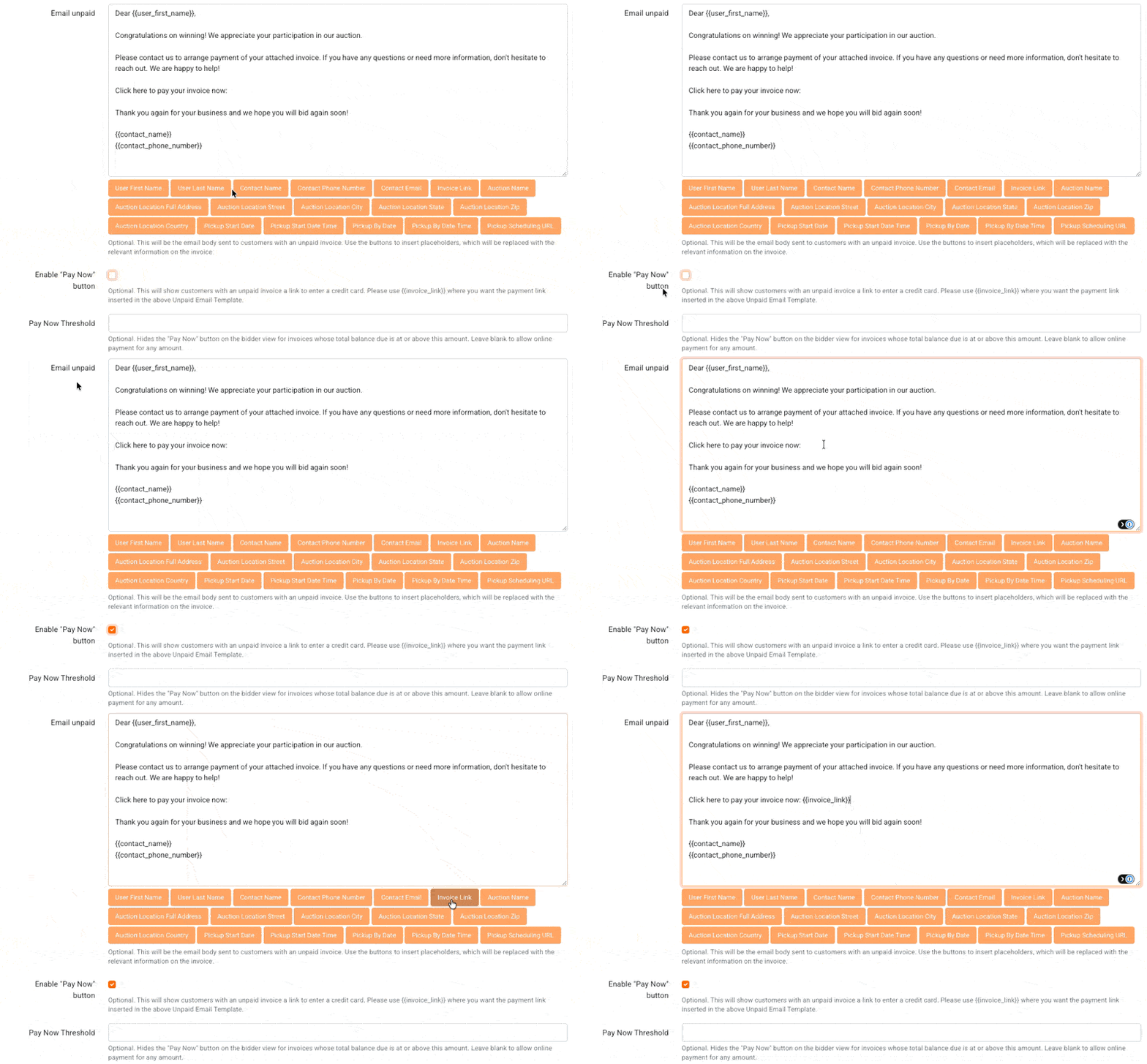
Add the invoice link {highlighted below} by placing your cursor in the "Email unpaid" field, then click the "Invoice Link" button to place that variable. This will place a URL for the bidder's specific invoice on this email when sent.
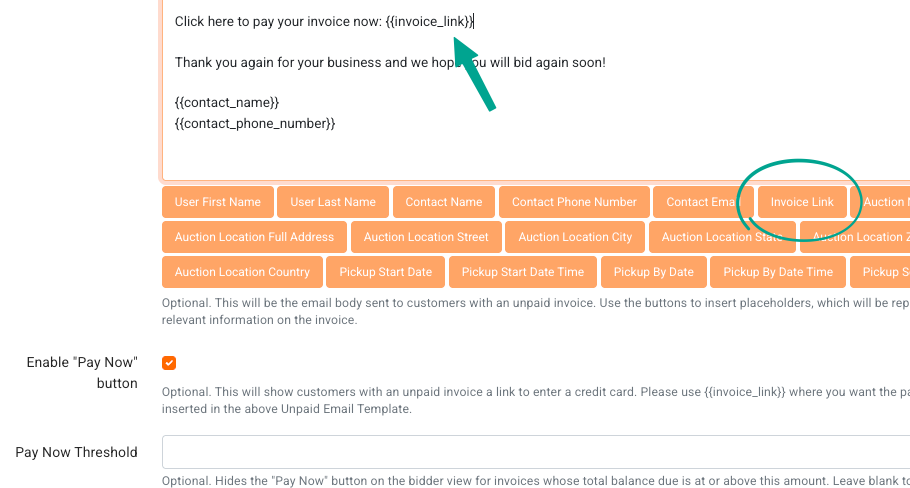
The 'Enable 'Pay Now' button' checkbox can be found at the bottom of the page. Checking this checkbox will allow bidders pay for the invoice the URL takes them to.
Adding a Threshold
You can also set a Pay Now Threshold. The 'Pay Now' button turns off on invoices that meet or exceed that dollar amount. For more information on this, please see this article.
Associate with Auction Settings
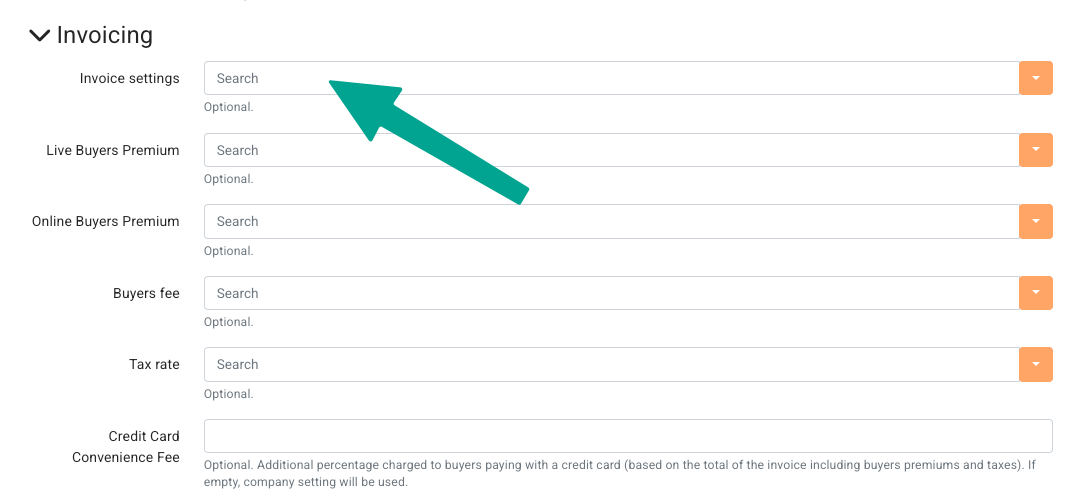
Please note that these invoice Settings will need to be attached to the auction for which you'd like to enable this feature. Invoice Settings can be attached in the auction creation/editing area under the 'Invoicing' heading: