
Managing Sellers, Commissions, and Seller Settlements in BidWrangler
Managing sellers and consignors in BidWrangler follows five steps: create the seller record, set their commission and tax rates, assign the seller to their lots, generate a seller settlement after the auction closes, and pay the seller by printing a check or recording a manual payment. Every step is handled from the Admin Portal, and settlement totals calculate automatically from the rates you've assigned.
Sellers and consignors make it possible for auction companies to attract buyers, earn revenue, manage risk, and keep the business running long-term. BidWrangler's bidding platform includes a full set of consignment tools, such as seller records, commission and tax rates, settlements, checks, and post-auction reports, so you can reconcile a sale from end to end without leaving the platform.
How do I create a seller in BidWrangler?
Auction consignors, called sellers in BidWrangler, can be assigned to any lot in your auction either individually or in bulk. Sellers behave much like users: the email address in seller settings is the unique identifier, which prevents duplicate records from being created.
Open your BidWrangler Admin Portal.
Select Seller from the left menu under Company.
On the Administer Sellers page, click + Create.
Fill in the seller's details. The only required fields are First Name, Last Name, and Email Address.
Scroll down to configure any remaining settings, such as commission rate, tax rate, or expenses.
Click Save.
Seller accounts are for internal platform functions and record keeping only - the sellers themselves have no access to these accounts, so they are not assigned a password.
The Administer Sellers page lists every seller in ascending order by seller number, and sellers can be filtered, edited, or exported from that same screen.
Tip: Sellers can also be created and assigned on the fly from any lot creation or editing screen.
How are seller numbers assigned?
You can assign a permanent seller number manually when creating the seller. If you leave the field blank, BidWrangler generates a number automatically based on your company settings.
Which settings take precedence?
Commission and tax rates chosen directly on the seller's record override any values set at the auction or item level. Only assign a commission in seller settings if that rate will always apply to every one of that seller's items. If the rate may vary between their lots, leave it blank and assign the commission at the auction or item level instead.
Individual expenses can be added to individual items and will populate on settlements. Expenses can also be added directly to the auction settings, but be aware that an expense added this way is applied to each of that seller's items on the settlement, and is not typically recommended.
What are the best practices for managing sellers?
There's no single correct approach since auction companies run very different business models, and your workflow should match yours. That said, these habits prevent the most common reconciliation headaches:
Best Practice | Why it matters |
|---|---|
Keep seller creation with the Admin team | Catalogers generally shouldn't create seller records; centralizing this prevents duplicates and numbering conflicts. |
Confirm seller numbers and emails before cataloging | Knowing which seller numbers or email addresses apply to a given auction avoids misaligned lots. |
Assign in bulk when possible | Use Lot Bulk Actions or Item Imports rather than editing lots one at a time. |
Only set a commission on the seller record if it's universal across all auctions | If the rate varies by item or by auction, assign it at the item/auction level so the settlement calculates correctly. |
How do I set up seller tax rates?
In some regions, consignors pay sales tax on a per-item basis rather than buyers. Seller tax rates are configured separately from buyer tax settings.
Open your BidWrangler Admin Portal.
Click Seller Tax Rates from the left menu under Seller Settlement.
Click + Create.
Enter a Name and a Base rate as a percentage (leave out the
%sign).Check Default if this rate should apply to all seller settlements. Otherwise, assign it through individual sellers' settings.
Click Save.
Saved tax rates appear in the list, where they can be edited, exported to a .csv file, or deleted.
What is a seller commission?
Auction companies and online platforms earn revenue by charging a fee on an item's purchase price to the winning bidder, the seller, or both. The fee deducted from a seller's proceeds is the seller commission, and it covers the cost of running the auction - marketing, staffing, and other operational expenses.
BidWrangler charges seller commission as a percentage of each item's selling price on a per-item basis. Commissions can be set as a company default, at the auction level, at the item level, or directly on a seller's record.
How do I create a seller commission rate?
Open your BidWrangler Admin Portal.
Click Seller Commissions from the left menu under Seller Settlement.
Click + Create.
Fill in the fields for the commission rate, including the Tiered charges table.
Click Save.
Saved commission rates appear in the list and can be edited, exported to .csv, or deleted.
How do I set a simple flat commission?
Use a single row in the Tiered charges table. For example, one row set to 20% applies a flat 20% commission to the hammer price of every item that seller consigns.
How does a tiered commission work?
Adding multiple rows to the Tiered charges table creates a tiered structure. BidWrangler looks at where each lot's hammer price falls and applies that tier's single rate to the entire hammer price.
Example. Given a tiered structure of 20% / 15% / 12% for every $500 in hammer price, a seller with three lots selling at $100, $750, and $1,200 would owe $276.50 total:
Lot hammer price | Applicable tier | Commission |
|---|---|---|
$100 | 20% | $20.00 |
$750 | 15% | $112.50 |
$1,200 | 12% | $144.00 |
Total | $276.50 |
How does a progressive commission work?
Progressive is an optional setting for tiered commissions, enabled with the Calculate as progressive? checkbox on the setup page. Instead of applying one rate to the full hammer price, a progressive commission calculates each tier separately and adds the results together — the same way graduated tax brackets work.
Example: Commission tiers of $0–$1,000 at 10% and $1,001–$5,000 at 8%, on an item that sells for $1,100:
Calculation method | Math | Commission |
|---|---|---|
Tiered (standard) | $1,100 × 0.08 | $88.00 |
Progressive | ($1,000 × 0.10) + ($100 × 0.08) | $108.00 |
What other commission settings are available?
Beyond the rate itself, each commission can include:
Minimum or maximum percentages charged per tier
An additional flat amount per lot
A total minimum or maximum per lot
A total minimum or maximum across all lots in the auction
The option to apply the rate to no-sale items
The option to mark the commission as your company default
How do I assign sellers to auctions and lots?
Settlements can only calculate what your company owes a consignor if their lots are correctly assigned to them. BidWrangler offers several ways to do this.
At the auction level
Most common for estate and single-seller auctions. Add a seller in the auction's settings using the Seller dropdown in the Seller Settlement section. This can also be combined with the methods below when most, but not all, items belong to one consignor.
For single-seller auctions, it is also possible to grant permissions to the seller and allow them to manage certain aspects of the sale, see our full guide for more details.
At the item level
Best for companies cataloging one item at a time. You can set the seller from:
Admin Portal → Administer Item settings
The Auction Review screen
The BW Catalog App, in either mobile or desktop view
In bulk. Fastest for large catalogs:
CSV Items Import
Lot Bulk Actions
See our full guide on adding sellers to lots for detailed examples of each method.
How do I set up settlement settings?
Settlement settings control the appearance of your settlement PDFs and the text of your settlement emails. You must create these before you can generate PDFs or email seller invoices.
From the Admin Portal, navigate to Settlement Settings.
Click the Create tab.
Customize the layout using the Header, Note, and Footer fields.
Customize the message using the Email seller field.
Click Save.
After saving, you'll return to the Settlement Settings page, where you can export your settings or mark one set as your default.
Important: If you don't mark a set of settlement settings as default, you'll need to edit each auction and select the settings you want from the dropdown in the Seller Settlement section.
How do I generate seller settlements?
Seller settlements are created after an auction has completed.
Open your BidWrangler Admin Portal.
Select Settlements from the left menu under Seller Settlement.
Click + Create settlements.
Choose the auction from the dropdown.
Choose the appropriate settlement settings from the dropdown.
Click Generate.
Generated settlements appear in the list, where they can be edited, exported to .csv, or printed. Use the Filter by Auction dropdown to narrow the list to a single sale.
How do I edit and reconcile a seller settlement?
Open your BidWrangler Admin Portal.
Select Settlements from the left menu under Seller Settlement.
Click the settlement you want to edit under the Number column.
From the settlement page you can:
Edit individual items within the settlement, along with their commissions, taxes, and bid amounts
Add expenses or payments
Email the settlement or generate it as a PDF using the actions at the top of the page
Mark the settlement as paid using the status dropdown once payment is complete
How do I add expenses and credits to a settlement?
Expenses and credits are flat-dollar adjustments applied directly to a seller's settlement. They're mirror images of one another: an expense reduces what the seller is owed, and a credit increases it. Neither one affects the settlement's Subtotal, and neither one triggers commission.
Expense | Credit | |
|---|---|---|
Effect on Grand Total | Subtracted | Added |
Effect on Subtotal | None | None |
Triggers commission? | No | No |
Common uses | Hauling, cleaning, advertising, repairs, storage | Referral bonuses, adjustments, special arrangements |
Location on settlement page | Expenses section | Credits section |
How is the Grand Total calculated?
Grand Total = Subtotal − Commissions − Expenses + Credits
Because expenses and credits sit outside the subtotal, adding either one will never change the commission a seller owes.
How do I add an expense or a credit?
Both use the identical workflow:
Open your BidWrangler Admin Portal.
Select Settlements from the left menu under Seller Settlement.
Click the settlement under the Number column.
Scroll to the Expenses section or the Credits section, depending on which you're adding.
Add the line item with its description and flat dollar amount.
Save your change.
Existing expenses and credits can be edited or deleted from the same sections at any time before the settlement is finalized.
Where do expenses and credits appear?
Both are shown as their own line items on the printable settlement PDF and in the summary box at the bottom of the settlement, so consignors can see exactly what was deducted from or added to their payout.
Important: Expenses can also be applied in the auction settings, or by assigning it on the seller's record. An expense added that way is applied to each of that seller's items on the settlement, not just once. Add the expense directly on the settlement page instead if you only intend to charge it a single time.
How do I add an expense to multiple settlements?
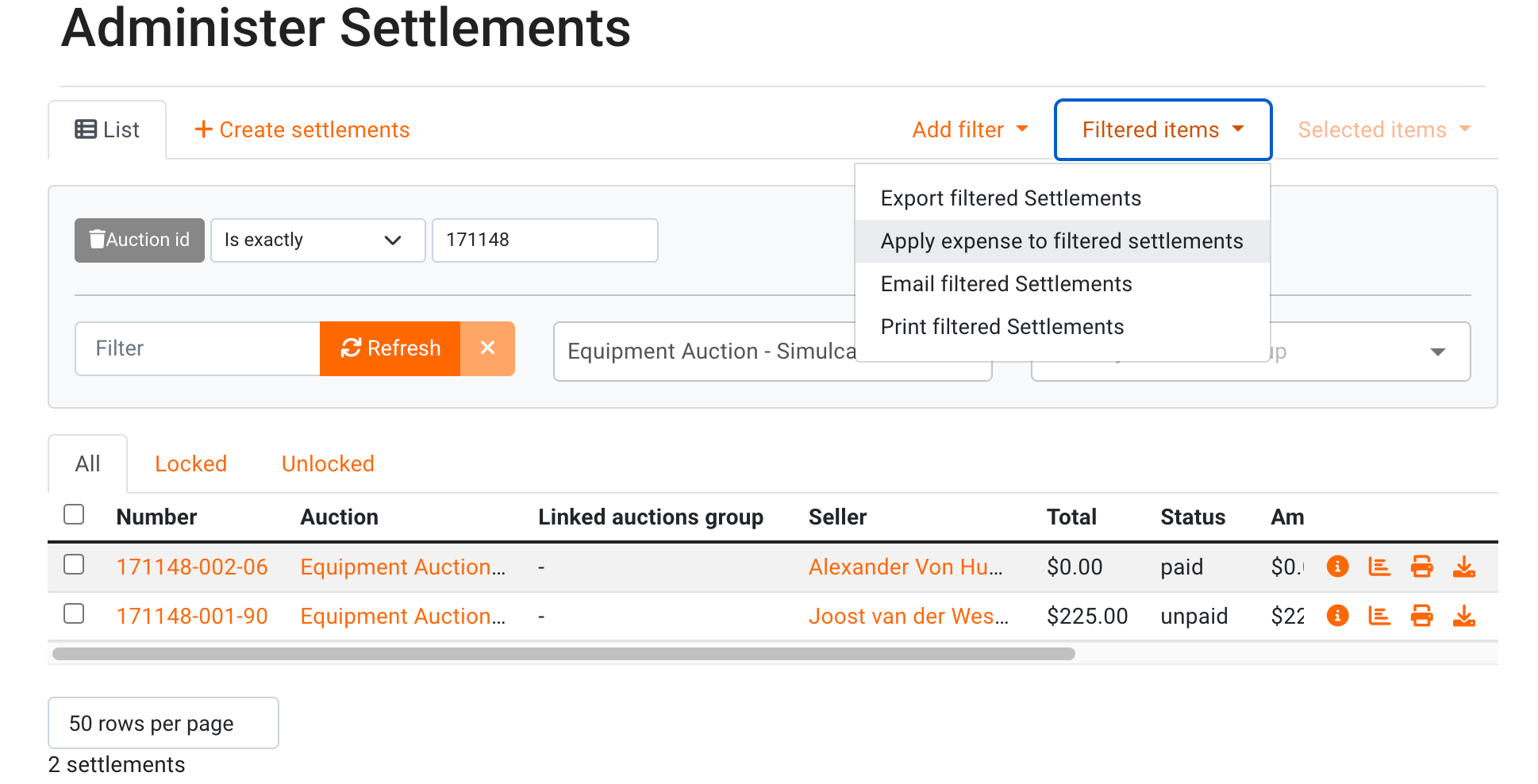
You can apply an expense to settlements in bulk via the Filtered or Selected Items options.
From the Administer Settlements screen, apply filters and then choose Filtered Items, alternatively, use the checkbox to mark specific settlements and choose Selected Items.
Under either option, you will see 'Add expense to filtered/selected invoices'
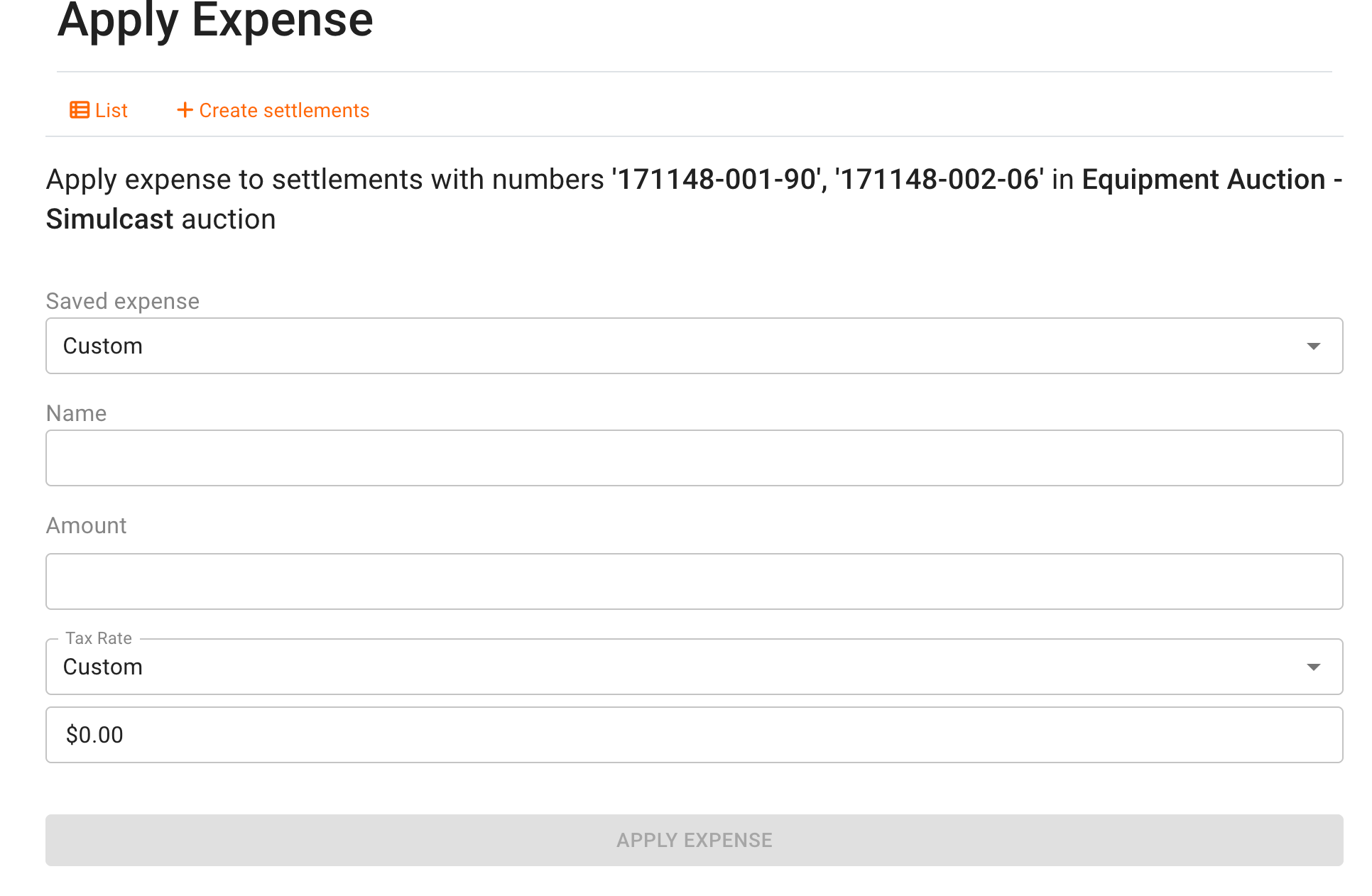
In the next screen, you can use the drop-down to choose a pre-made expense, or create a custom expense. Enter the details then Apply Expense and Confirm.
What if a Seller wins their own items?
If you anticipate that sellers will buy bid on and win their own items, it is possible to have these items display as $0 on their settlements, or include a 'buy-back fee' on these items by linking their bidding account with their sellers account.
We have a detailed guide on Managing Seller Buy-Backs here.
How do I pay sellers and print seller checks?
Once an auction is complete and settlements are generated, there are two ways to apply payment and close out a settlement.
1. Printing seller checks (automatic payment)
BidWrangler can print checks for your sellers directly from the Admin Portal. The advantage of this method is that printing a seller check automatically applies the payment to the settlement, zeroing out the seller's balance for you.
In bulk: Navigate to the Reports screen within the auction, select Seller Summary, and click Print Seller Checks. From there you can generate checks for all sellers or only selected sellers with generated settlements.
Individually: Open the seller's settlement, click Settlement Actions, and select Print Seller Check.
2. Adding a manual payment
If you pay sellers outside of BidWrangler by wire transfer, cash, or hand-written check, you can record the payment clerically. Open the settlement, select Add Payment, and choose a payment form such as Cash, Check, Wire Transfer, or Custom to zero out the balance.
Locking and Unlocking Settlements
To prevent unintentional altering of settlements, they now lock when a payment has been made. You can manually lock or unlock an individual settlement from the settlement View screen.
When a settlement is locked, only a payment can be added. To update a locked settlement, you may either unlock and make the necessary changes, or make the changes, then unlock after the fact for the changes automatically show up on the settlement.
Sometimes, numerous locked settlements need to be unlocked for corrections to be made. BidWrangler now supports unlocking settlements in bulk - for more information, please check out this support article: How to Bulk Unlock Invoices and Settlements in BidWrangler
How do I format seller checks and create mailing labels?
If you plan to print and mail physical checks, BidWrangler includes tools for formatting checks and exporting seller address data.
Formatting seller checks
Before printing checks from the system, you must create a Check Layout. Upload a scanned image of your blank check stock and map exactly where each settlement field should print on the page. For complete instructions on formatting and testing your layouts, read our full guide: How do I print Seller Checks?
Creating mailing labels
Export a CSV of your seller data for use with external label software. Navigate to Settlements, apply your auction filters, then select Filtered Items → Export Settlements to download seller names and addresses. You can then merge that CSV into Microsoft Word (Mail Merge) or the free Avery Design & Print Online platform. For step-by-step instructions, view our article: How to Create Seller Mailing Labels for Auction Settlements in BidWrangler.
What other seller reports are available?
Individual settlements are the primary tool for calculating and managing payouts, but BidWrangler includes two additional reports for tracking overall seller performance.
Report | What it shows | Where to find it |
|---|---|---|
Seller Summary | Total sales generated by each seller for one specific auction | Open the auction → Reports |
Seller Summary (Multi-Auction) | Seller data across multiple auctions, filterable by date range, useful for tracking a month, season, or year | Main left-hand menu of the Admin Portal |
Frequently Asked Questions
What are the required fields for creating a seller in BidWrangler? Only three: First Name, Last Name, and Email Address. Every other field, including the seller number, is optional. The email address serves as the seller's unique identifier and prevents duplicate records.
Which commission rate wins if I've set one in multiple places? The most specific setting takes precedence. A commission assigned directly in a seller's settings overrides rates set at the auction or item level. For that reason, only set a commission on the seller record when it applies to all of that seller's items.
What's the difference between a tiered and a progressive commission? A tiered commission applies one rate to the entire hammer price based on the range the price falls into. A progressive commission calculates each tier separately and adds them together. On a $1,100 item with tiers of $0–$1,000 at 10% and $1,001–$5,000 at 8%, a tiered commission is $88 while a progressive commission is $108.
Can I charge commission on items that didn't sell? Yes. Seller commission settings include an option to apply the rate to no-sale items.
Why can't I generate a settlement PDF or email a seller invoice? You most likely haven't created settlement settings yet, or haven't attached them to the auction. Create a set under Settlement Settings, then either mark it as your default or select it in the auction's Seller Settlement settings.
Do I have to mark a settlement as paid manually? Not if you print the check through BidWrangler. Printing a seller check automatically applies the payment and zeroes out the balance. If you pay outside the platform, open the settlement, use Add Payment, and select the payment form to close it out.
Can I assign sellers to lots in bulk? Yes. Use a CSV Items Import or Lot Bulk Actions to assign sellers to many lots at once. For single-seller or estate auctions, you can also assign one seller to the entire auction from the Seller dropdown in the auction's Seller Settlement settings.
How do I track seller sales across more than one auction? Use the Seller Summary (Multi-Auction) report, found on the main left-hand menu of the Admin Portal. It can be filtered by date range to review seller activity over a month, season, or year.
Can consignors pay the sales tax instead of buyers? Yes. In regions where this is customary, create a rate under Seller Tax Rates and either mark it as the default for all settlements or assign it through individual sellers' settings.
How can I print a list of my Seller's Items? There are several different methods depending on what information you wish to include - see this article for details.
Have questions about managing consignors or reconciling your seller settlements? Contact the BidWrangler support team at helpdesk@bidwrangler.com.