How can I print a list of my Seller's Items?
Depending on what information you are looking to show, there are several ways you can provide your sellers with a list of their items from a single auction.
Create Settlements
For a simple list of items and their Lot IDs, it is possible to generate the seller settlements before the auction starts or closes.
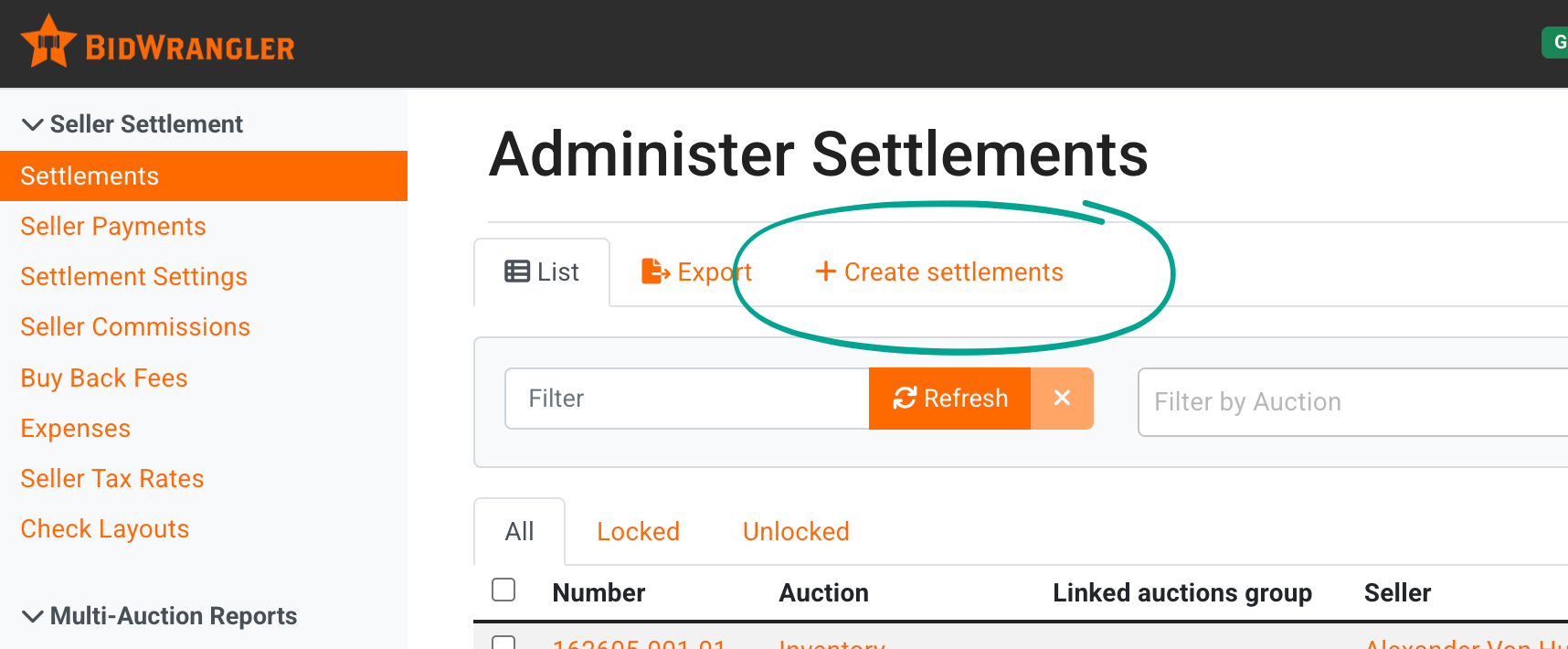
Under Settlements, click +Create Settlements
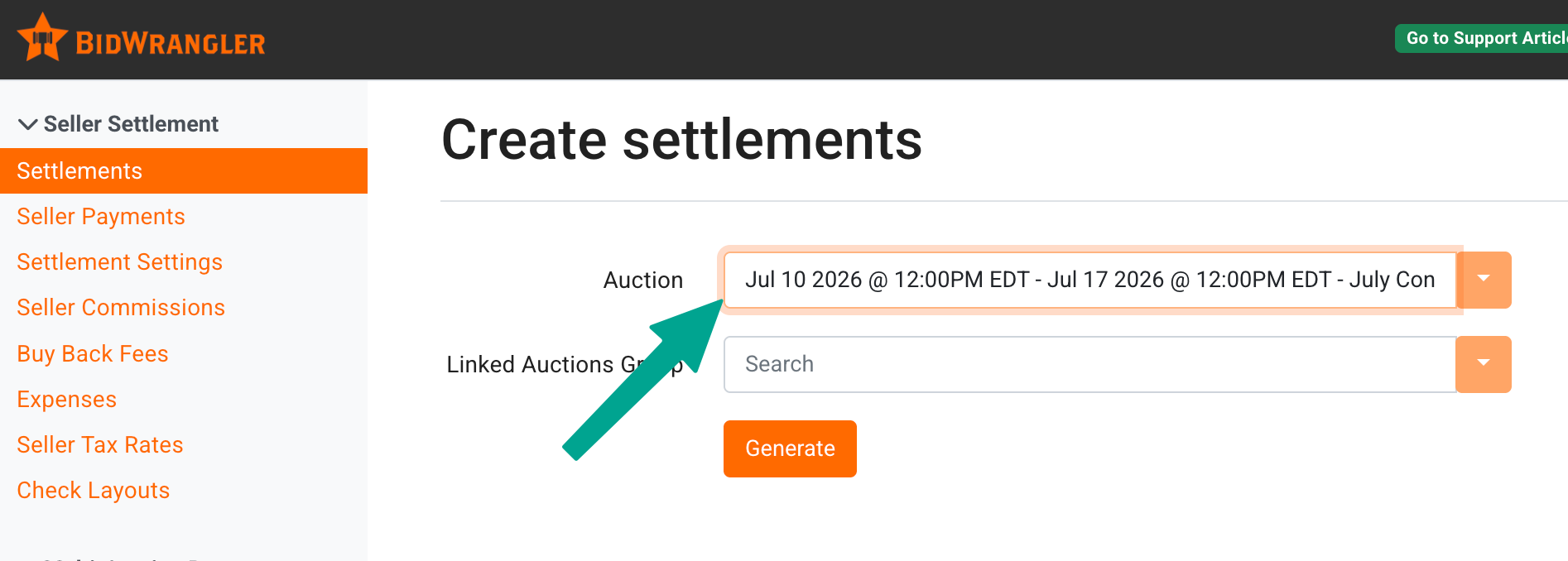
Select the auction from the drop-down list and click Generate
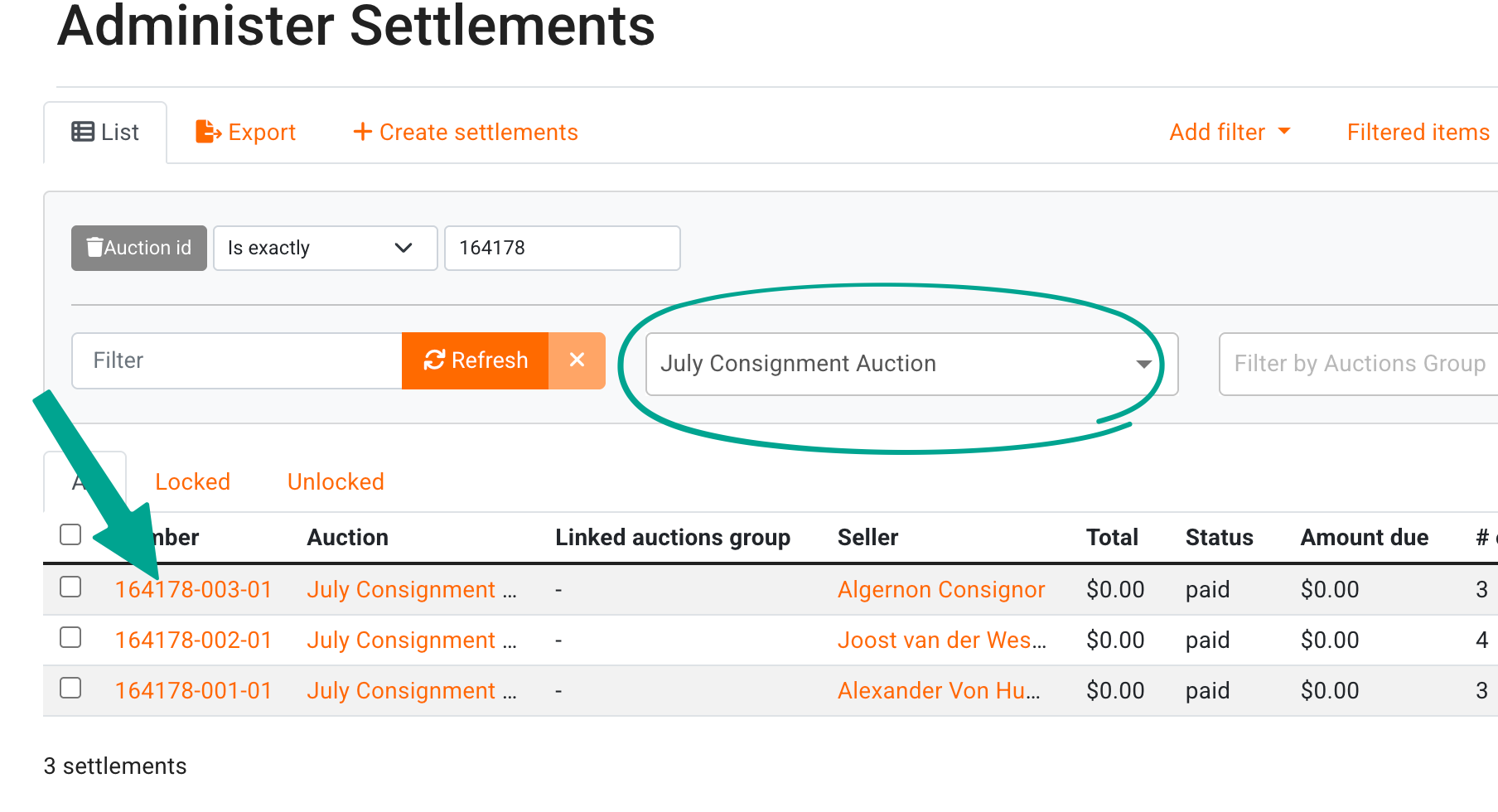
You may want to use the Filter by Auction drop-down to only display settlements from that auction.
Click on the Settlement number to view the settlement.
When settlements are created before the auction closes, items associated with the seller will display with "(pending)" at the end of each item name. The bid and commission amounts will also display as $0.00 until the corresponding items are updated to sold/no sale as the auction closes.
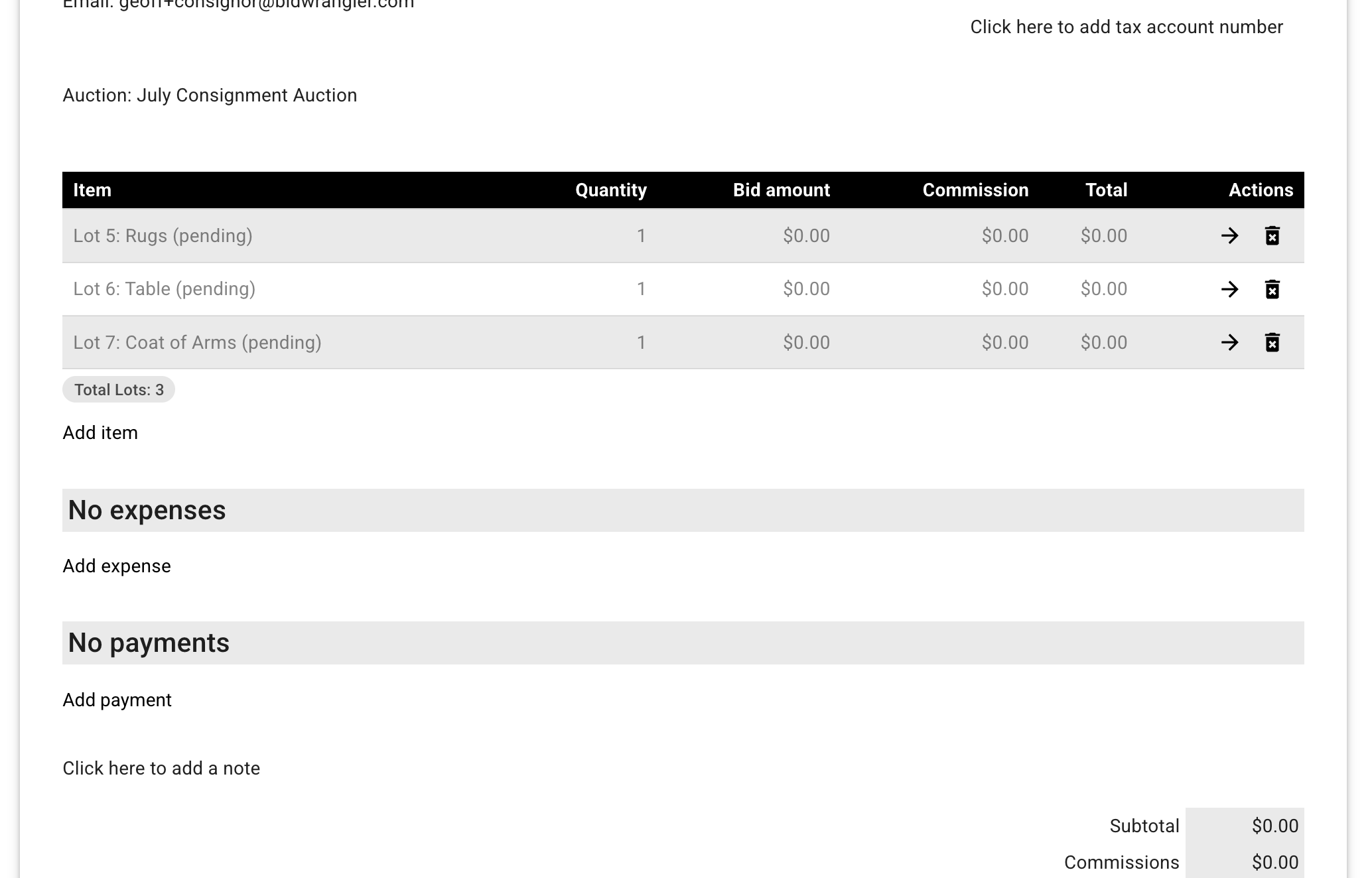
You may also include the item description on the settlements by managing this via Settlement Settings and associating those settings with the auction.
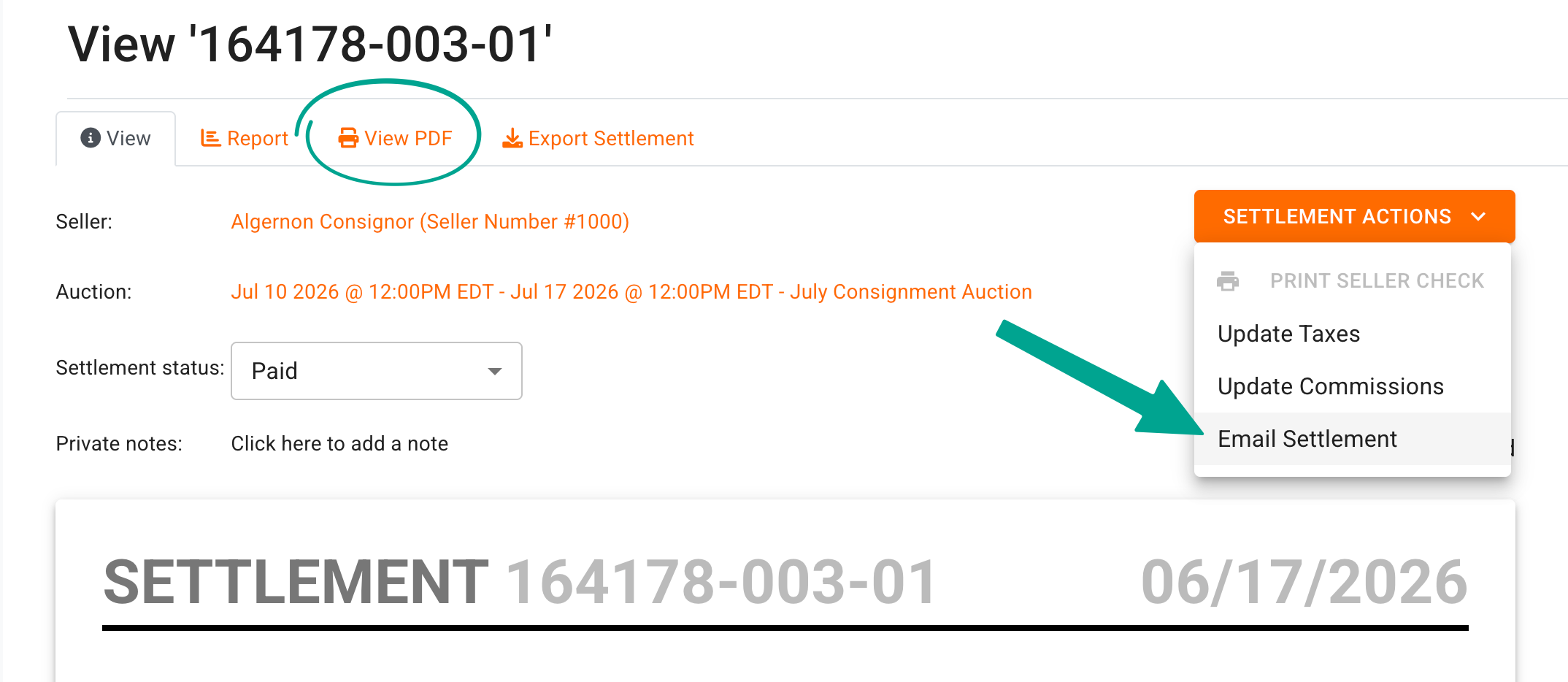
You can print this settlement using the 'View PDF' tab at the top of the screen. You can also email this settlement to your seller using the 'Email Settlement' option under the Settlement Actions button.
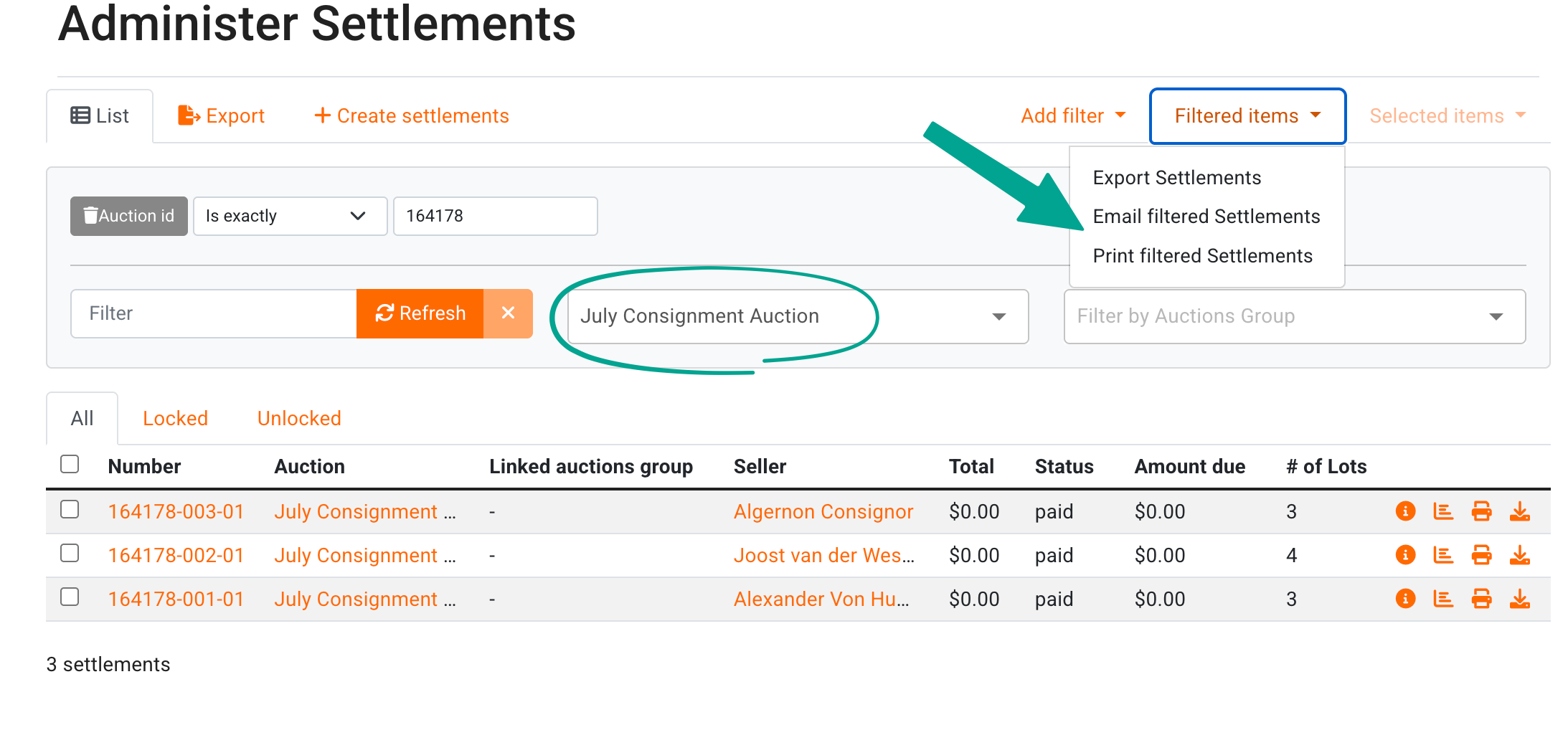
You can print or email Settlements in bulk from the Administer Settlements screen. Choose the auction from the Filter by Auction drop-down first, then choose the option from the Filtered Items drop-down in the top-right.
You can also print or email selected settlements using the checkbox next to each settlement and choosing the appropriate action under Selected Items.
For more information on managing and editing settlements, click here.
Export Items
You can use the Administer Items screen to search for items associated with a particular seller by using filters.
From the administer items screen, you can use the Filter by Auction drop-down to see items from a specific auction, and then use the Add Filter drop-down to include a filter for the Seller number.
When the filter is added, select 'Is Exactly' and then enter the seller number into the blank field. Clicking Refresh will update the search results and display the appropriate items.
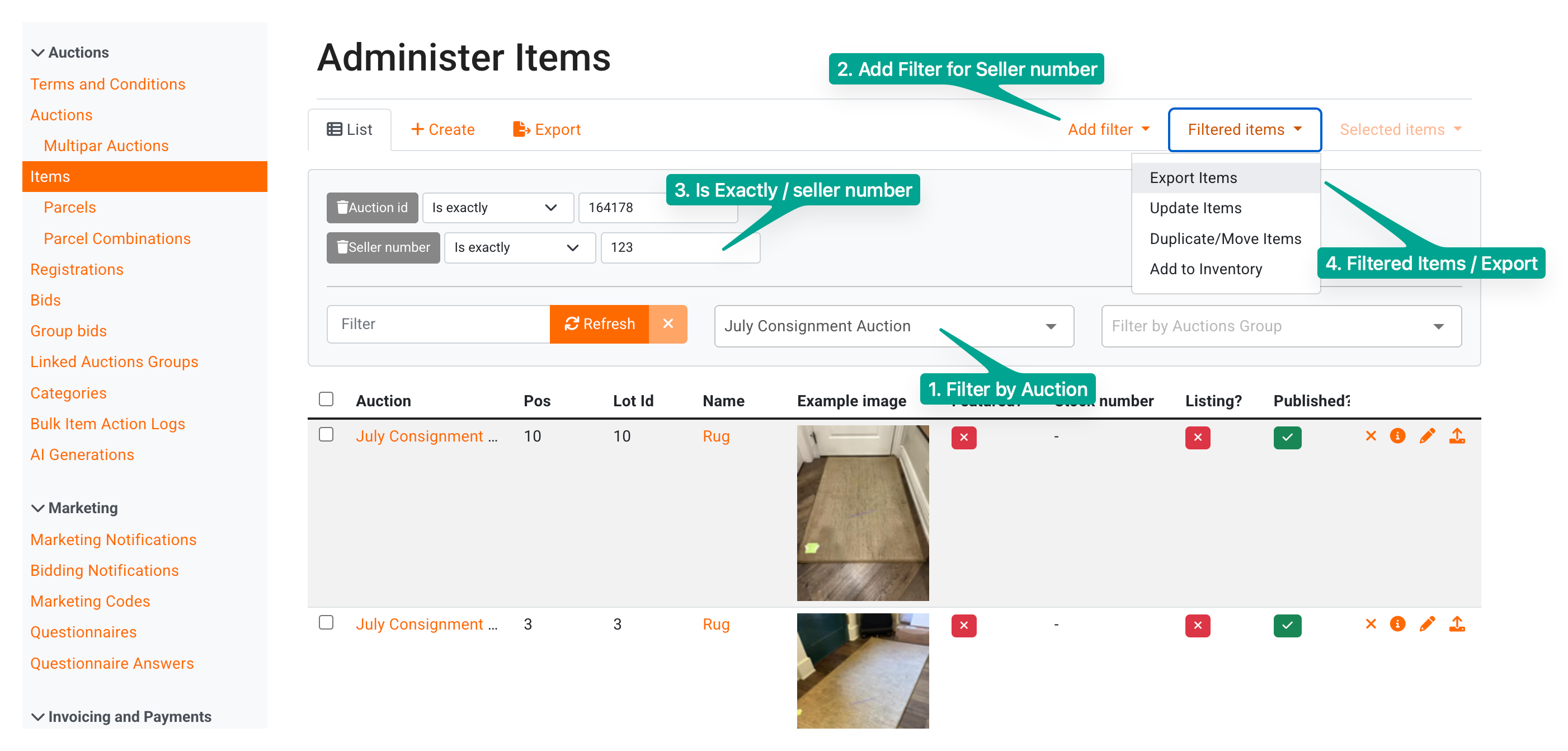
Once your search is refined, you can use the option in the Filtered Items drop-down to export these results to a .csv file, for sharing and printing.
After you click Export Items, you'll be able to choose what information to include on the report before you export to a .csv file.
Inventory Summary
If you would like to provide more details on the items - including information about starting bids, reserves, category etc. then you can use the Inventory Summary report.
This report can be generated from your auction's Report tab:
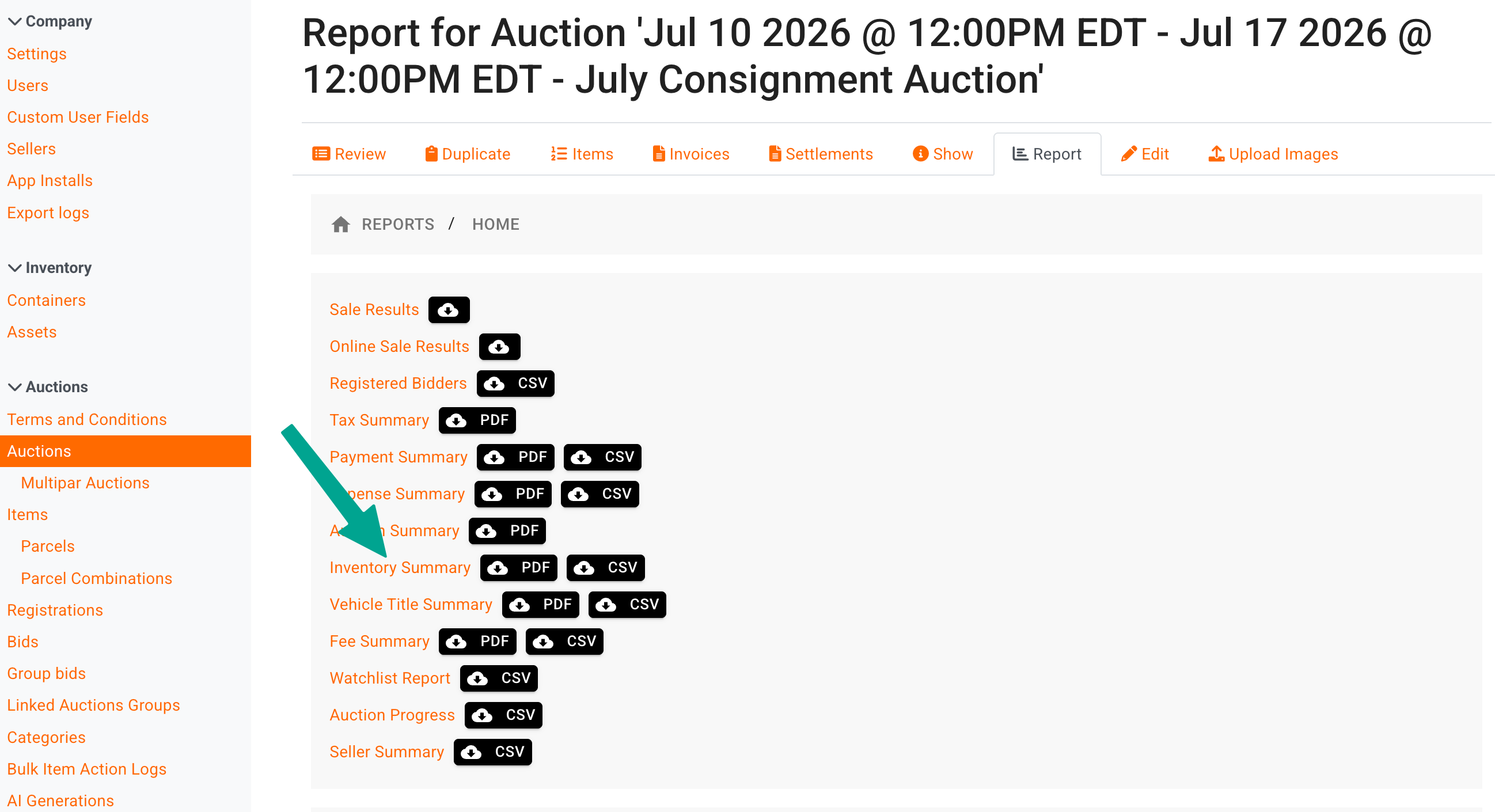
The inventory summary report is available both as a PDF document and as a .csv file.
You can manage what information to display on the PDF report using the Columns button at the top-right of the report.
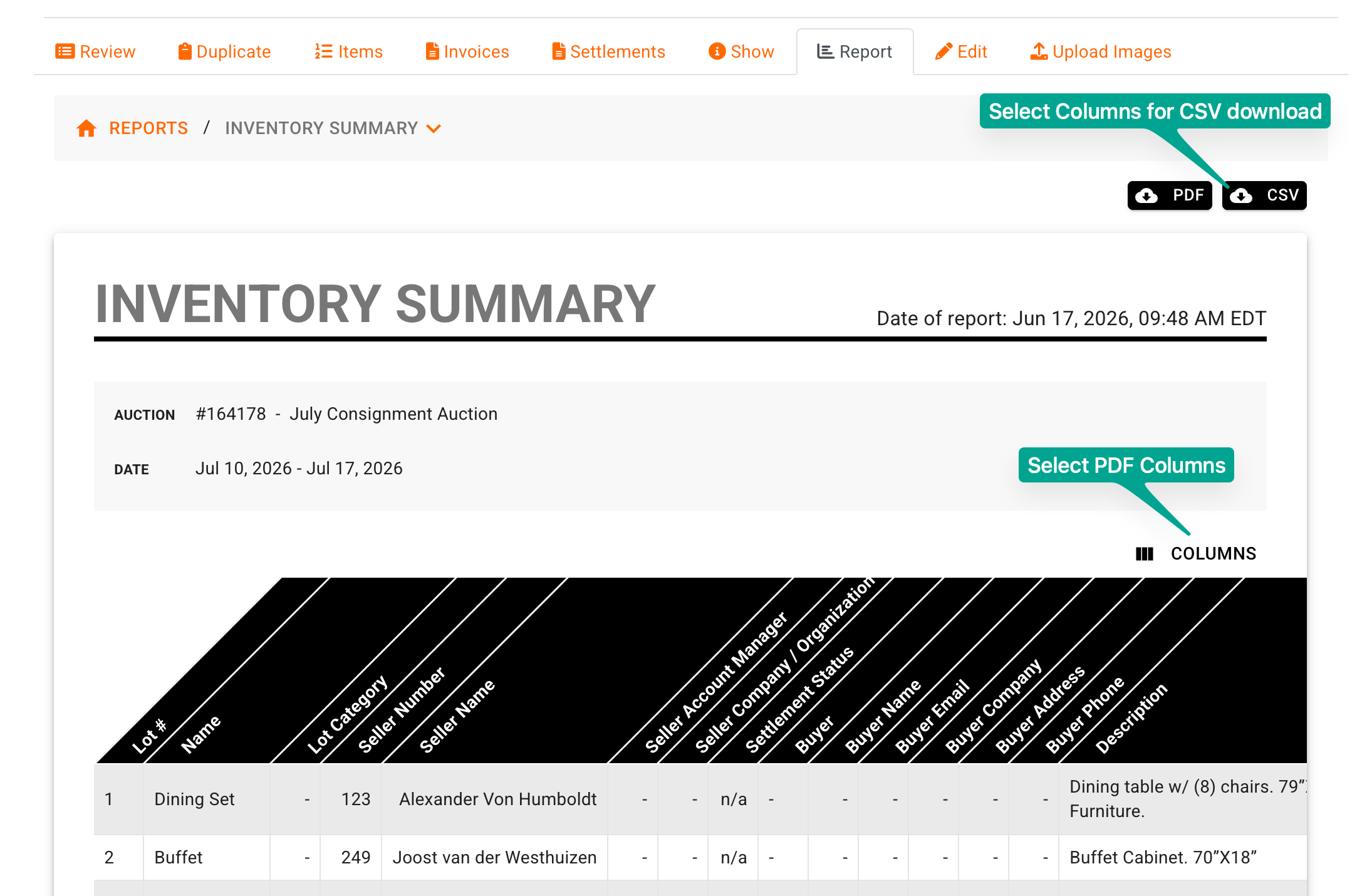
The report can be downloaded using the PDF/CSV buttons above the report. In both cases, you will have the opportunity to select what information to include before downloading.
If you are looking to provide item lists for each seller, this report will need to be exported to a .csv file, and then sorted or filtered by seller name.
Buyer's Guide
If your auction is for a single seller then the creating a Buyer's Guide may also be an appealing way of providing your seller with a list of their items - this is the only way to generate a report that can include item images.
For information about creating a buyer's guide, click here.
Items From Multiple Auctions
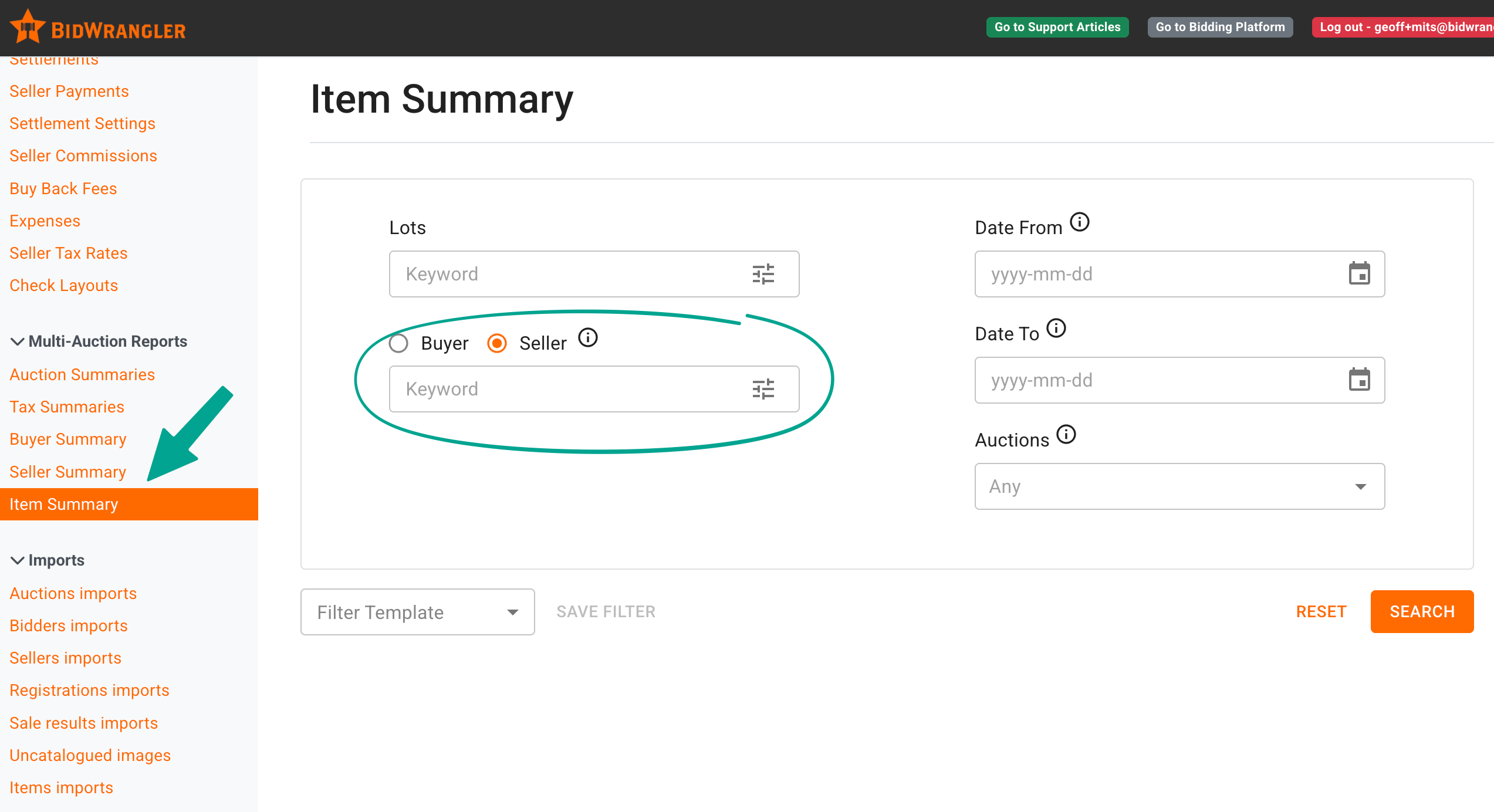
If you want to create a report that shows a seller's items across multiple auctions, you can do so using the Item Summary found under Multi-Auction Reports.
If you click the Seller radio button, and enter their name into the keyword search you can find their items across multiple auctions.
You can use additional date filters to narrow the results.