
How to Bulk Unlock Invoices and Settlements in BidWrangler
In the fast-paced world of auctions, setup mistakes — an incorrect Buyer's Premium, the wrong tax rate, a misconfigured invoice setting — are sometimes only caught after invoices and settlements have already been charged and locked. Historically, correcting those errors meant unlocking each document manually, one by one, which was slow and impractical at any real scale.
The bulk Unlock action in the BidWrangler Admin Portal solves that. Full Admins can now unlock multiple invoices and settlements simultaneously, then apply their corrections and move on.
What is bulk unlock in BidWrangler?
Bulk unlock is an Admin Portal action that returns multiple invoices or settlements to an unlocked, editable state in a single step. It's built for post-charge corrections — the moments when a rate or setting was wrong across an entire auction and every affected statement needs to be reopened before it can be fixed.
Because unlocking whole runs of statements carries financial implications, the action is deliberately gated: it's available only to Full Admins, only after you've filtered to a specific Auction or Linked Auction Group (LAG), and only when the parent Auction or LAG is itself unlocked.
How does bulk unlock work?
The bulk action runs securely and efficiently behind the scenes, with several safeguards built in:
Behavior | What it means |
|---|---|
Background processing | The system processes the unlock request in the background, so you can continue working in the Admin Portal |
Skips unlocked records | Any invoice or settlement already in an unlocked state is automatically skipped during the run |
Auction & LAG restrictions | The system blocks the bulk unlock if the related Auction or Linked Auction Group (LAG) is locked |
Privileged access | The bulk unlock action is restricted to Full Admins only |
How do I bulk unlock invoices or settlements?
Follow these four steps in the Admin Portal:
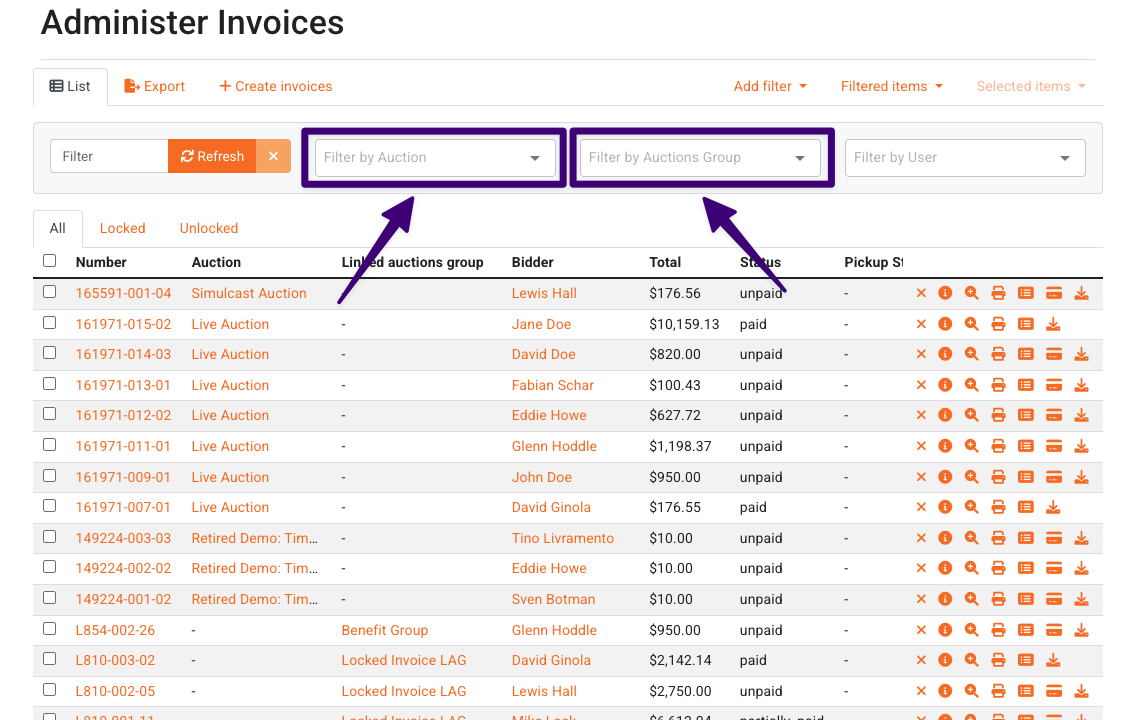
Filter your view. Navigate to either the Invoices or Settlements screen and filter by a specific Auction or Linked Auction Group (LAG). The bulk unlock option will not appear and cannot be selected until an auction or LAG filter is applied.
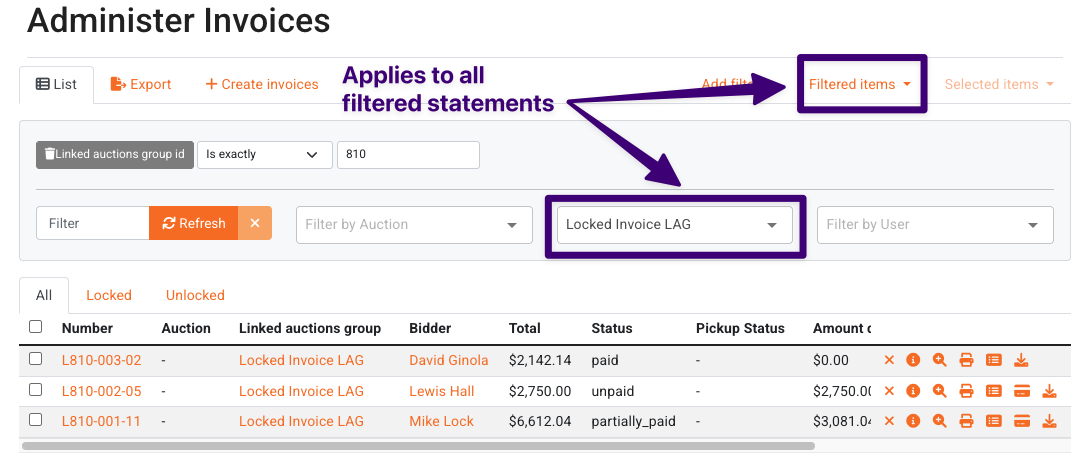
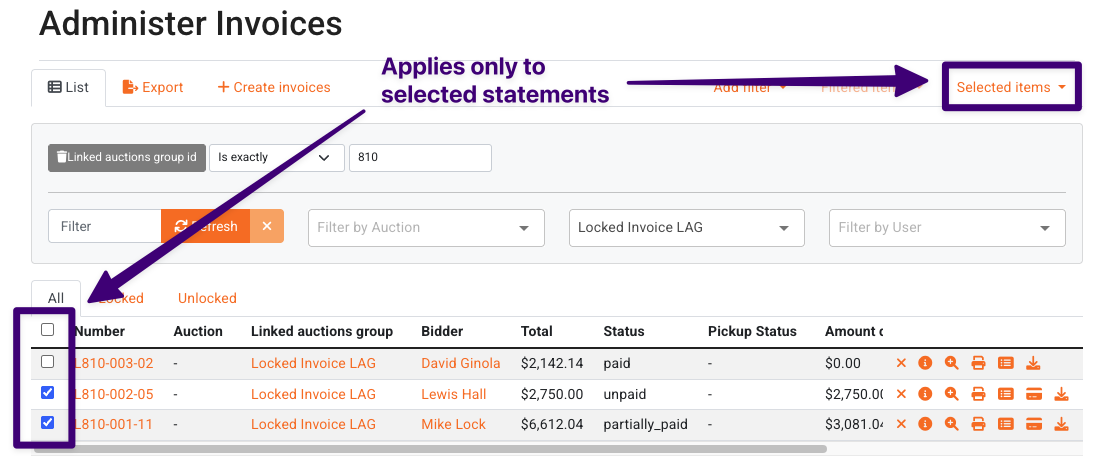
Open the bulk menu. Once filtered, click the Filtered menu to act on every matching item, or check specific boxes and click the Selected menu.
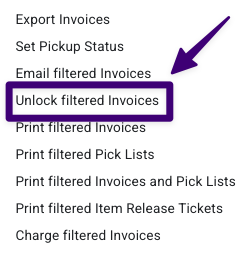
Choose Unlock. Click Unlock Invoices or Unlock Settlements, depending on which screen you're on.
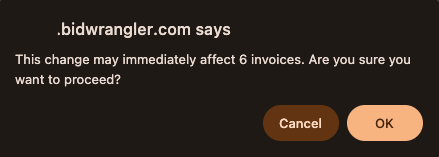
Confirm the action. A safety warning modal appears — the same style of warning shown when unlocking an individual statement. Review the details and confirm to start the background process.
Why is bulk unlock hidden behind a filter?
Unlocking an entire run of statements is a financially significant action, so BidWrangler intentionally restricts it behind search parameters to prevent accidental triggers. Requiring an Auction or LAG filter forces you to scope the action to a defined set of records before the option is even visible, which makes an unintentional platform-wide unlock effectively impossible.
Can I bulk lock invoices and settlements?
Locking is still handled statement by statement for now - adding a bulk locking feature is on our radar, and is something we hope to release sometime in the future.
Frequently Asked Questions
Why can't I see the "Unlock Invoices" or "Unlock Settlements" option in my Filtered or Selected menus? Two conditions must both be met. First, you need to have actively filtered the screen by a specific Auction or LAG — the option stays hidden until you do. Second, your account needs the necessary security clearance, since this action is restricted to Full Admins only. If you've applied a filter and still don't see the option, your account likely doesn't have access.
What happens if the related auction itself is locked? The bulk unlock action will be blocked. If the individual auction or the Linked Auction Group (LAG) is locked, you'll need to unlock the overall auction or LAG first, then bulk unlock the underlying invoices or settlements.
Do I need to wait for the bulk unlock to finish before navigating away? No. The unlock runs as a background process, so you can safely navigate to other screens or perform other admin tasks while the system finishes updating records.
Can I bulk unlock across multiple auctions at once? No - bulk unlock requires a filter on a specific Auction or Linked Auction Group. If your auctions are grouped into a LAG, filtering by that LAG lets you act across all of its auctions in one run.
What's the difference between the Filtered menu and the Selected menu? The Filtered menu applies the unlock to every item matching your current filter. The Selected menu applies it only to the specific records whose checkboxes you've ticked. Use Selected when you need to reopen a subset rather than the full run.
When would I need to bulk unlock invoices or settlements? The most common cases are setup errors discovered after charging — an incorrect Buyer's Premium, a wrong tax rate, or incorrect invoice settings applied across an auction. Unlocking the affected statements in bulk lets you correct the underlying configuration without reopening each document individually.
Have questions about bulk unlocking invoices or settlements? Contact the BidWrangler support team at helpdesk@bidwrangler.com.