
What is "Explicit End Time" for Items?
Explicit End Time is a per-item setting that closes an individual item at its own specific time instead of the auction's normal closing time. It is designed for closing one-off lots, or a relatively small number of lots, outside the rest of the sale, without creating a separate auction for them.
Note: It is not intended for splitting a large catalog into groups that close on different days; a Linked Auction Group is the right tool for that.
When to Use an Explicit End Time on an Item
Use Explicit End Time when a small number of lots need their own closing moment. A common example: you are selling an estate that includes one standout classic car, and you want to advertise and close the car as its own event on a different night. Setting an Explicit End Time on that lot lets you do that inside the same auction, with the rest of the catalog closing on the normal schedule.
If you are trying to close large, catalog-sized groups of lots at different times, for example 300 lots on Saturday evening and 300 more on Sunday morning, do not do it with per-item Explicit End Times. Set up each group as its own auction and connect them with a Linked Auction Group so bidders get combined invoicing.
Before You Set an Explicit End Time
The item must already exist in your auction catalog.
Know the exact date and time you want the item to close, in your platform's time zone.
If the rest of your timed auction uses a closing speed to stagger lots, remember that the Explicit End Time applies only to the items where you set it. Other items keep the auction's normal schedule.
How to Set an Explicit End Time on an Item
In the admin portal, open your auction's settings and go to the Review tab.
Click the Edit pencil beside the item you want to change.
In the item's settings under the Timed Auctions section, set the Explicit End Time to the date and time you want that item to close.
Save the item.
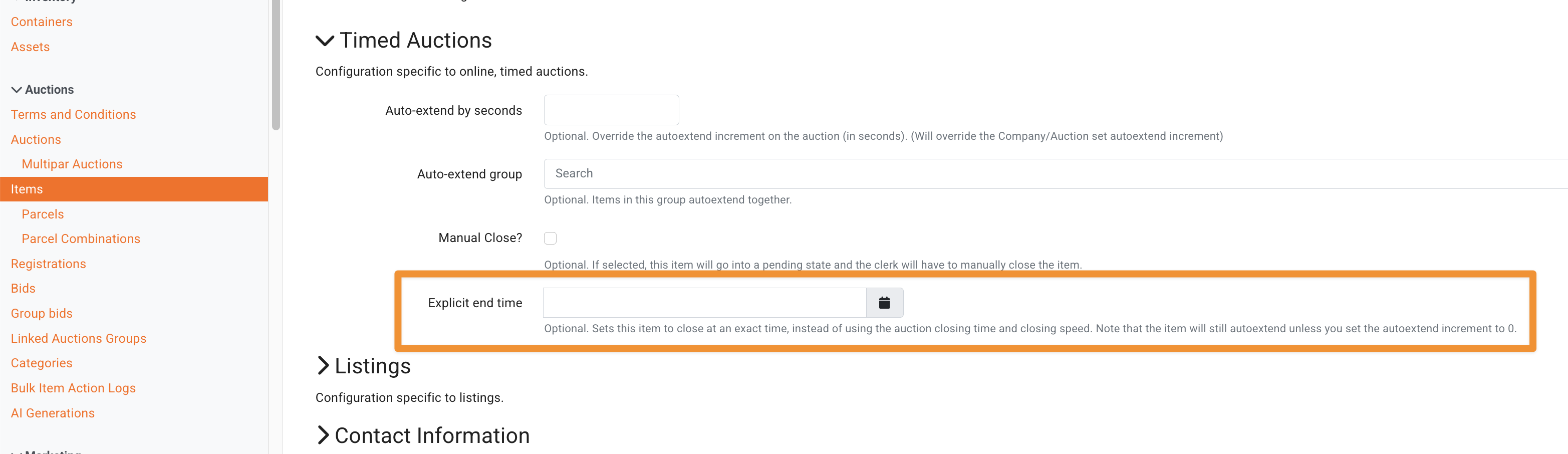
To update a range of lots, the quickest confirmed method is to click the Edit pencil on a portion of lots at a time so each item's settings open in their own browser tabs, set the Explicit End Time in each, save, and close the tabs as you finish. If you need explicit end times across a very large number of lots, contact helpdesk@bidwrangler.com to talk through the best approach before you start.
Frequently Asked Questions
Can I close one special lot on a different night than the rest of my auction?
Yes. That is exactly what Explicit End Time is for. Set the Explicit End Time on that lot from the item's edit screen, and the lot closes at that time while the rest of the catalog follows the auction's normal closing schedule.
Can I use Explicit End Time to close half my catalog Saturday and half Sunday?
That is not what the feature is intended for. For closing catalog-sized groups of lots at different times, create separate auctions and connect them with a Linked Auction Group, which also gives your bidders combined invoicing across the sales.
What is the fastest way to set Explicit End Times on a range of lots?
From the auction's Review tab, click the Edit pencil on a batch of lots to open each item's settings in a new browser tab, set the Explicit End Time in each, then save and close the tabs. Repeat in batches until the range is done.
Can I set Explicit End Times through the Items Import CSV?
We recommend confirming with our support team before planning an import around this. Email helpdesk@bidwrangler.com with the auction and the schedule you want, and we will help you set it up the right way.
Related Articles
Questions about scheduling a split close? Email helpdesk@bidwrangler.com and we are happy to help you plan it.