
How Do I Message All My Bidders?
While it's not possible to send custom emails to all users or registered bidders directly from the platform, you are able to send short custom messages via notifications, or collect their contact information to message via a third party platform.
Administer Notifications
For details on how to send these, please refer to this article.
Marketing or Bidding Notifications are sent to bidders in potentially three different ways:
(Always) As a message in the bidder's Message Center, found from their account once logged into either the app or a browser.
(Potentially) As a push notification to their mobile device if;
They are using the bidding app
They have notifications enabled
(Potentially) As an email if;
they have 'Receive bidding notifications by email' turned on in their user account settings (Bidding Notifications Only)
Below is an example of the notifications in the message center. When received, new notifications also show as a pop-up in that top-right corner:
From the same area, they can access 'My account' to toggle the option to receive these by email.
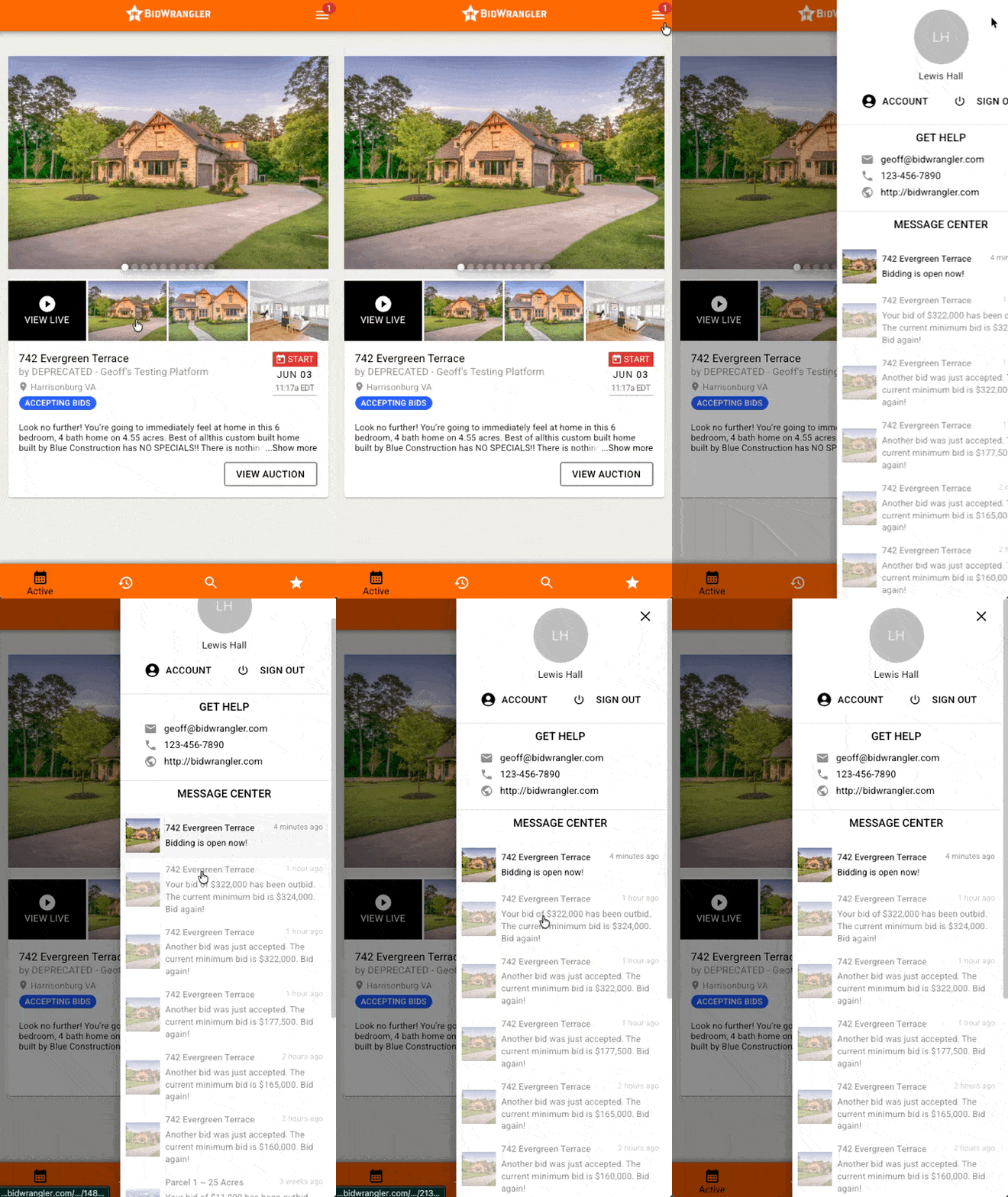
Automated notifications include when a user is outbid, if their maxbid has expired, if they win an item, if an item from their saved items closes, or if they set a reminder for an item via 'My Items'.
Export Email Addresses
To send custom emails to your bidders in bulk, you will need to use your existing email service, or a 3rd party marketing service such as MailChimp or Constant Contact for this.
You can obtain the contact information from your bidders by exporting your registrations, and then either importing the .csv file to a 3rd party, or copy/pasting the email column to your email's BCC line.
If sending from your own email service, be sure to use the 'BCC' line (Blind Carbon-Copy) to avoid sharing your bidder's email addresses and preventing potentially hundreds of additional emails if someone uses 'Reply all'.