
How do I administer notifications?
This article describes how to send notifications in the bidding platform, if you are looking for details on other ways to reach out to your bidders, please review this article.
Sending Notifications from the Admin Portal
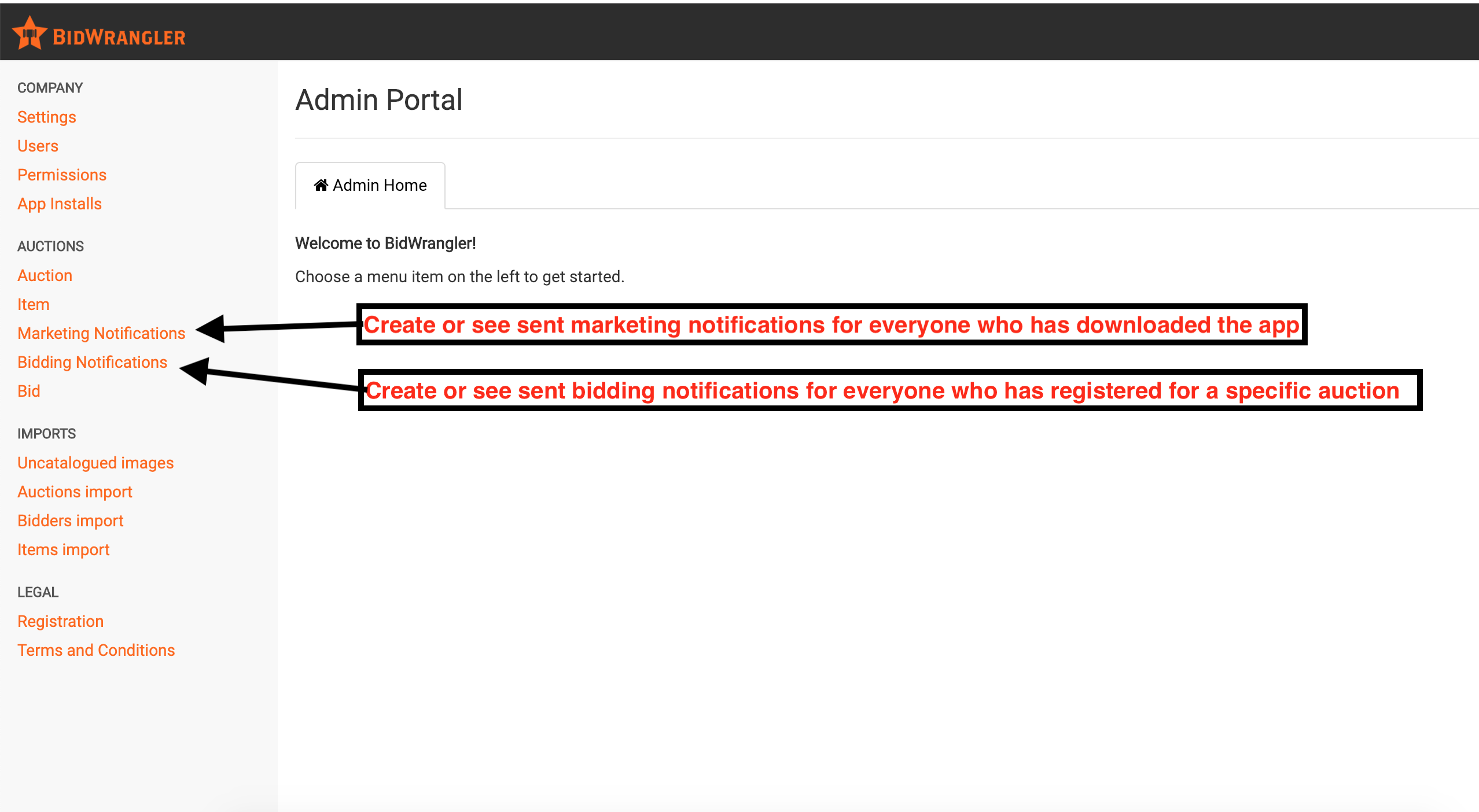
Push notifications can be created and viewed within the admin portal of your platform. There are two different options within the Admin Portal: Marketing or Bidding Notifications.
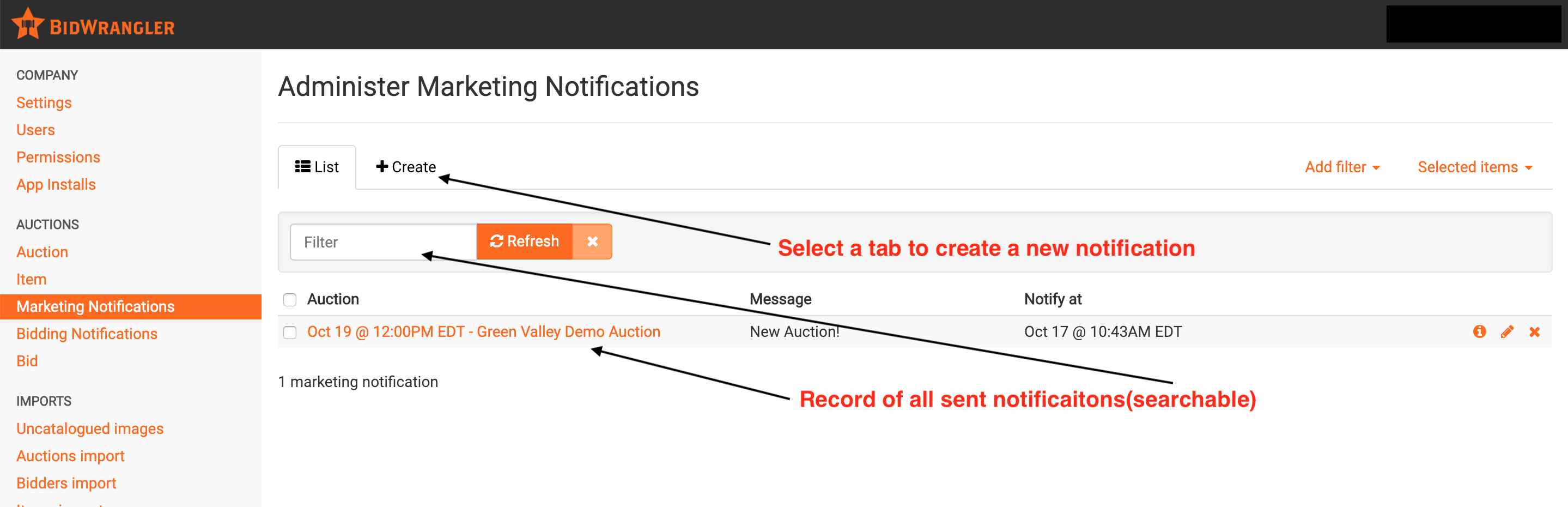
Marketing Notifications
Goes to every user with a registered account in the bidding platform
Shows up as a push notification and in the bidding platform’s message center
NOT in email [“Receive bidding notifications via email” button is only for Bidding Notifications]
When clicked on, Notification will send user to auction specified during notification creation
Notification “Notify at” time IS REQUIRED
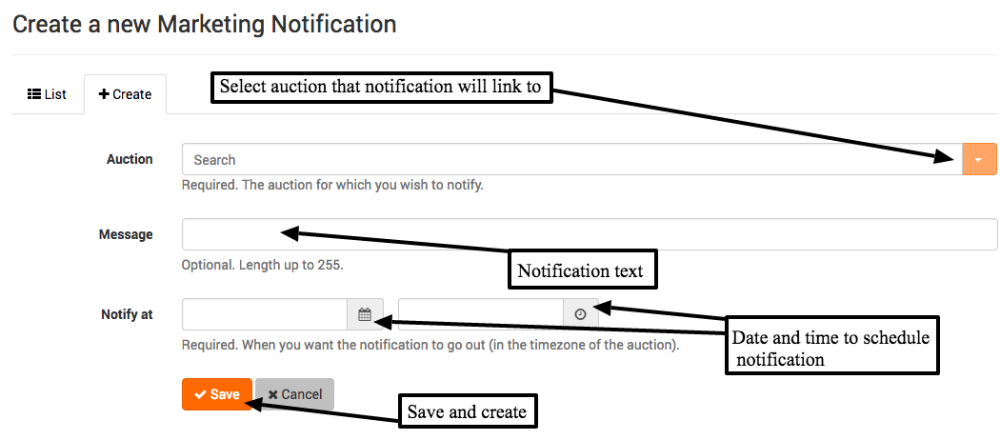
Bidding Notifications
Only goes to [all] users registered in the specified auction
Shows up as push notification, message center, and email IF user has “Receive bidding notifications via email” button selected (under Account)
Notification also directs user to the specified auction
“Notify at” is NOT required and will send notifications instantly if left blank and hit “Save” to send
Option to send to winners only
Clerking Notifications
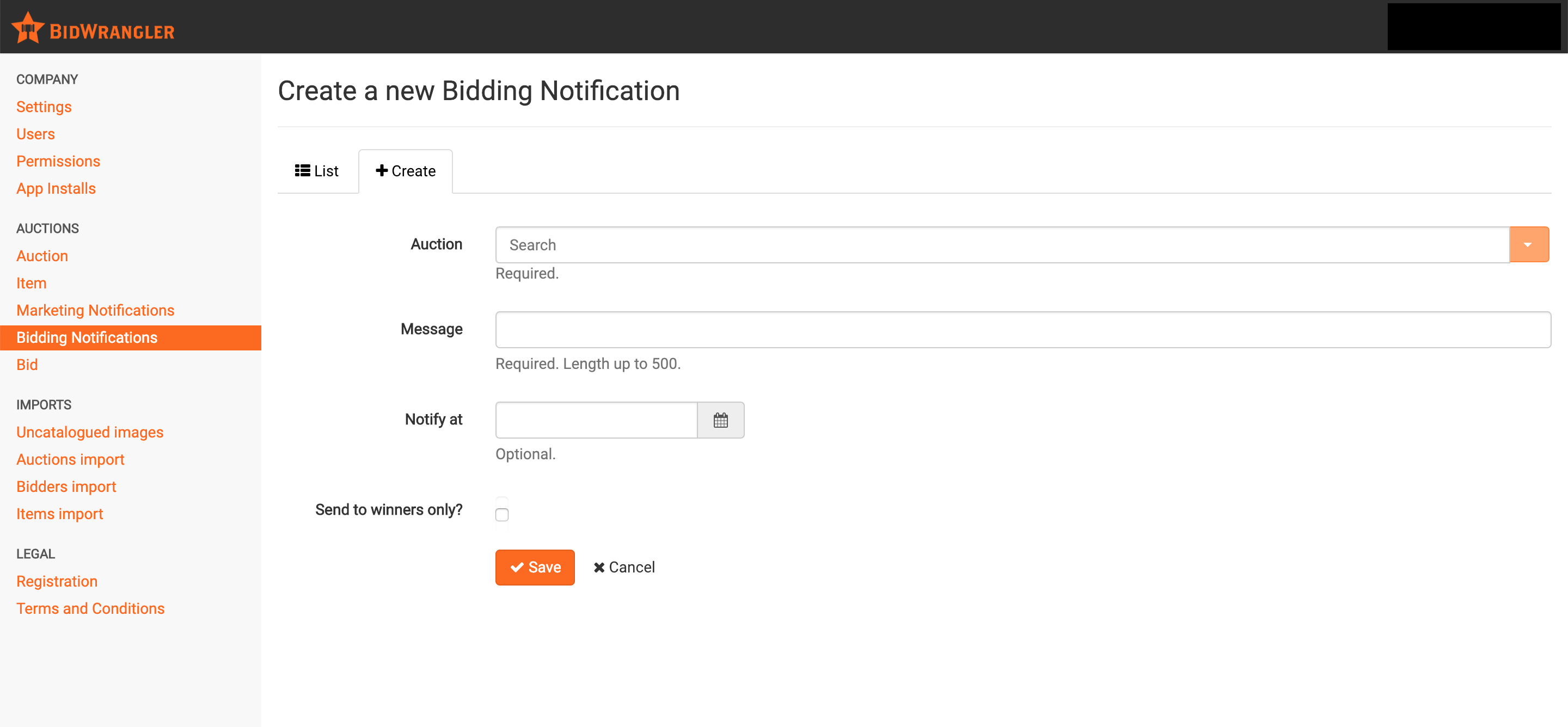
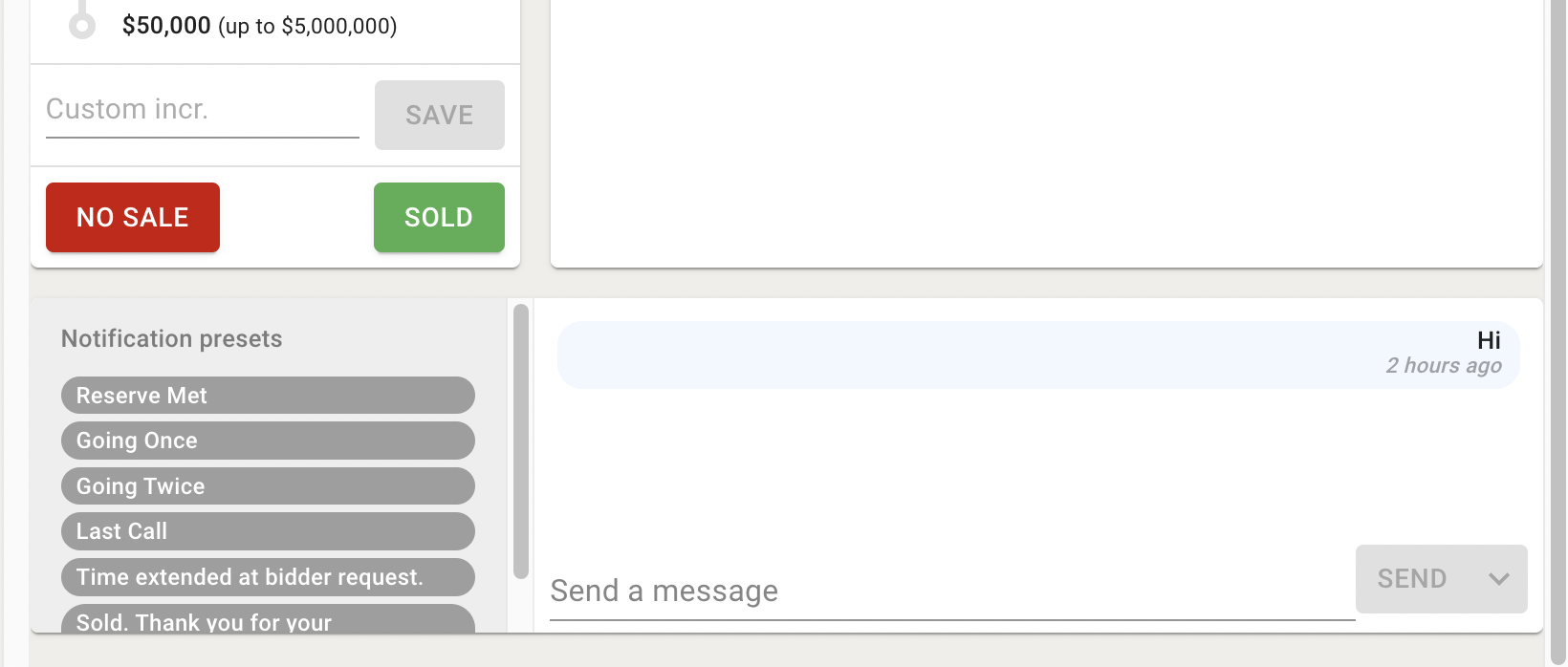
Separate from Admin Portal notifications, Clerking notifications are preset and custom messages sent from the Clerking Panel as shown below. Preset messages can be customized within your Company Settings under Bidding Configuration.
Clerking Notification Characteristics:
Sends to all registered bidders within the auction
Send as banner-only messages [only visible if bidder is actively viewing the bidding platform]
Messages DO NOT SAVE within a bidder's Message Center
Sends as emails IF bidders have elected to receive bidding notifications via email
Bidder's Perspective
Both Marketing and Bidding Notifications will also appear as a Push Notification on mobile devices, as long as the bidder has push notifications enabled for the app.
More information about the bidder's Message Center can be found here.
To see examples of how these messages appear when sent via Email - please refer to this article.
Note:
If a notification is scheduled to go out before the auction is published, it will hold and not appear in the recipient's Message Center or send as a push notification until the auction is published - at which point it appears as sent at its originally scheduled time. (For Bidding Notifications, the email itself still sends on schedule if the recipient has "Receive Emails" enabled, even while the auction is unpublished.)
Notifications that have already been sent cannot be reused.
FAQ
Where do I check to see when a notification went out or will go out?
Click on Bidding Notifications or Marketing Notifications to view the list of notifications - this shows both scheduled (not yet sent) and already-sent notifications.
Is there a way to check if a notification was opened/read by bidders?
No, there is currently no read-receipt or open-tracking feature for notifications.
Can I edit or cancel a scheduled notification before it sends?
Yes. Before it's scheduled to go out, click the edit pencil on the notification to change it. To delete one, click the "x" on it, or select multiple and use Selected Items > Delete Bidding/Marketing Notifications.
Can I delete a notification after it's already been sent?
Yes. This removes the message from users' Message Center. (Bidding Notification emails will not be deleted if already sent out)
What happens if I set "Notify at" to a time before the auction publishes?
The notification holds - it won't appear in the recipient's Message Center or send as a push notification - until the auction is published. Once published, it appears as sent at its originally scheduled time. For Bidding Notifications specifically, the email still sends on schedule even while the auction is unpublished, as long as the recipient has "Receive Emails" enabled.
Can I send a test notification to myself before sending it live?
Not in a real auction. You can only do this in a test auction environment - see How to Set Up a Test Auction in BidWrangler.