
BidWrangler Auction Staging: How do I Publish or Unpublish Items in my Auction Catalog?
What is BidWrangler Auction Staging?
It is now possible to keep items unpublished, then publish them only when the lot is ready, been reviewed, etc., by an auction company. This allows the ability to temporarily hide items within an auction by marking them as unpublished. With this feature, it is also possible to catalog items to an auction as hidden, and then publish them all at a later date once ready.
Note that you must have at least one published item for your auction to display on the bidding platform.
Enabling Auction Staging
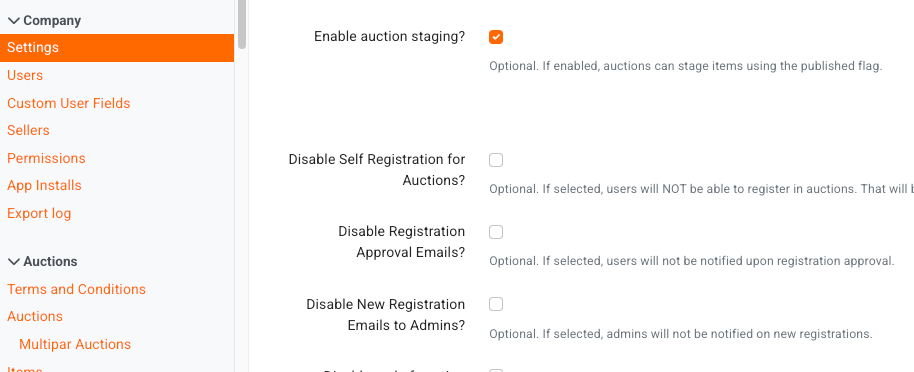
To enable this feature, navigate to your Company settings and under the Customization options to find Enable Auction Staging?
Check the box and save settings to turn this feature on.
Publishing and Unpublishing Items in a BidWrangler Auction
With this feature saved, you will find the ability to publish and unpublish items individually in Admin Portal Item Settings, BW Catalog App, the Admin Portal Auction Review Screen, and Administer Items page. Multiple items can be updated to published or unpublished in bulk via a Bulk Item Update within the platform or CSV via Items Import.
Admin Portal Item Settings
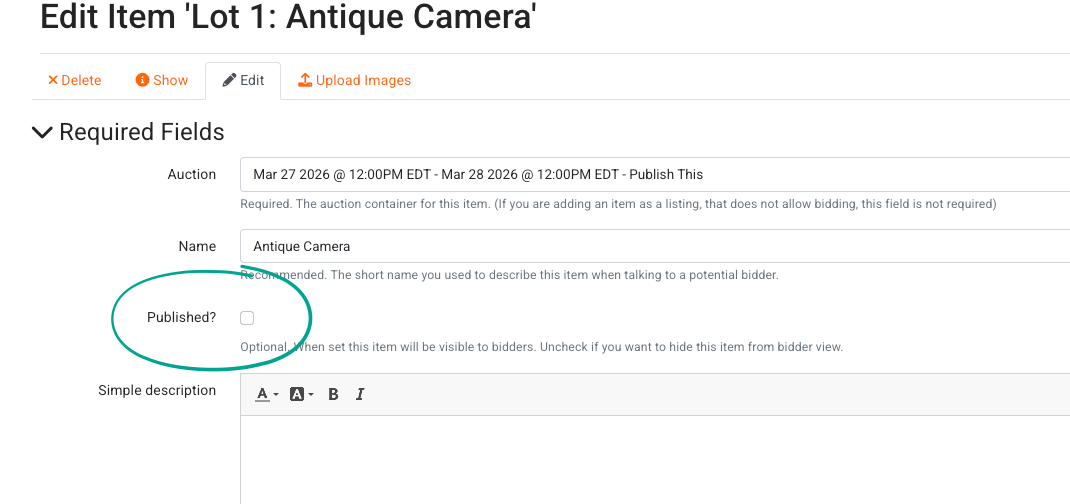
The Published? checkbox is available in the item settings under the name field and above the simple description.
With this box unchecked the item is unpublished, with it checked the items is published.
BW Catalog App
With Auction Staging Enabled, the catalog app now contains a 'Published?' checkbox. By default, this will be un-checked, so you can catalog your auction as normal and all of your items will be added to the auction unpublished.
You can check the 'Published?' box to publish individual items if needed:
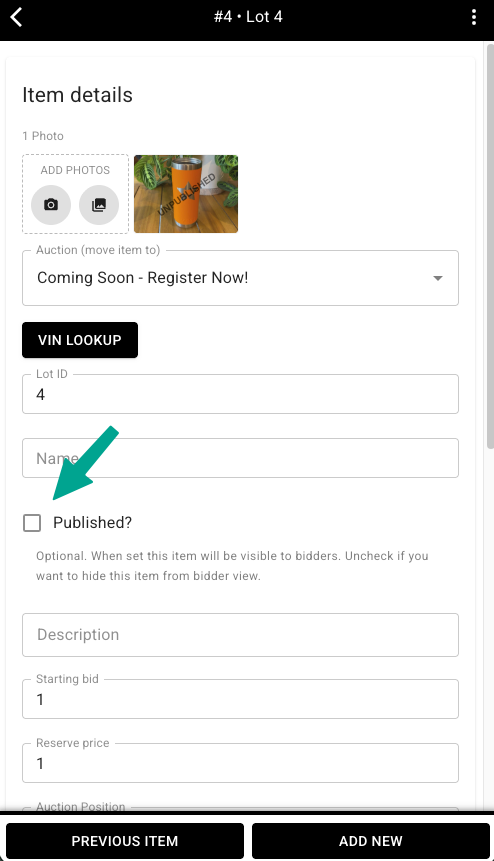
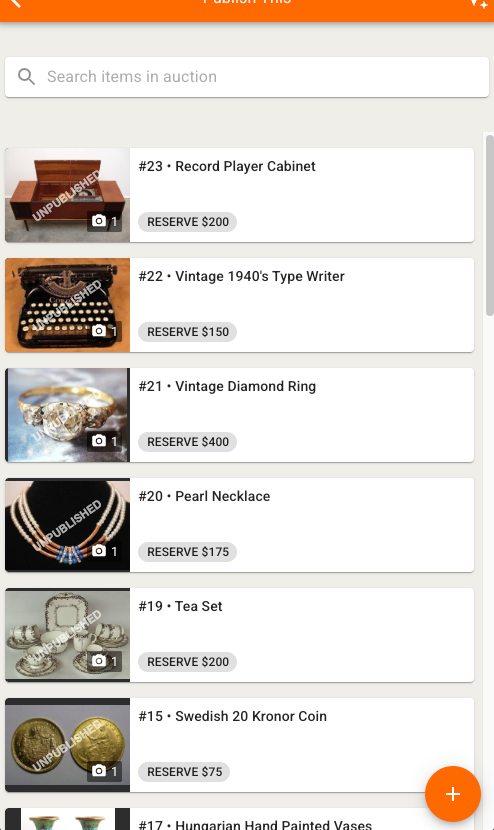
Unpublished items will display the UNPUBLISHED watermark on the images:
Review Screen
To quickly publish all unpublished items in an auction, navigate to that auction's Review tab:
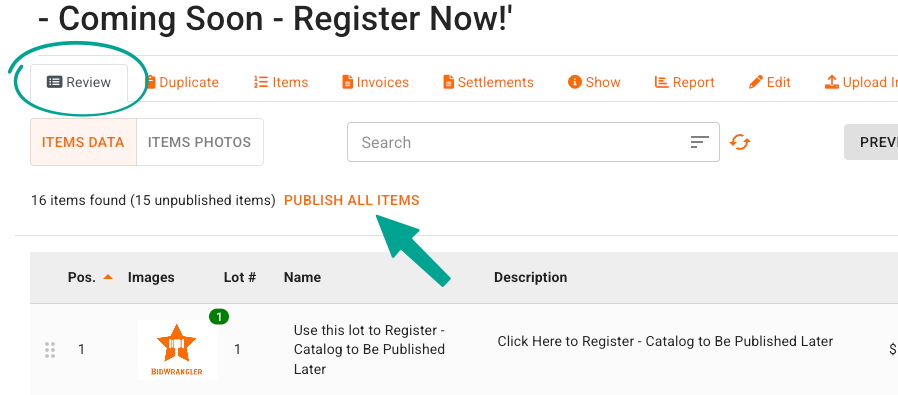
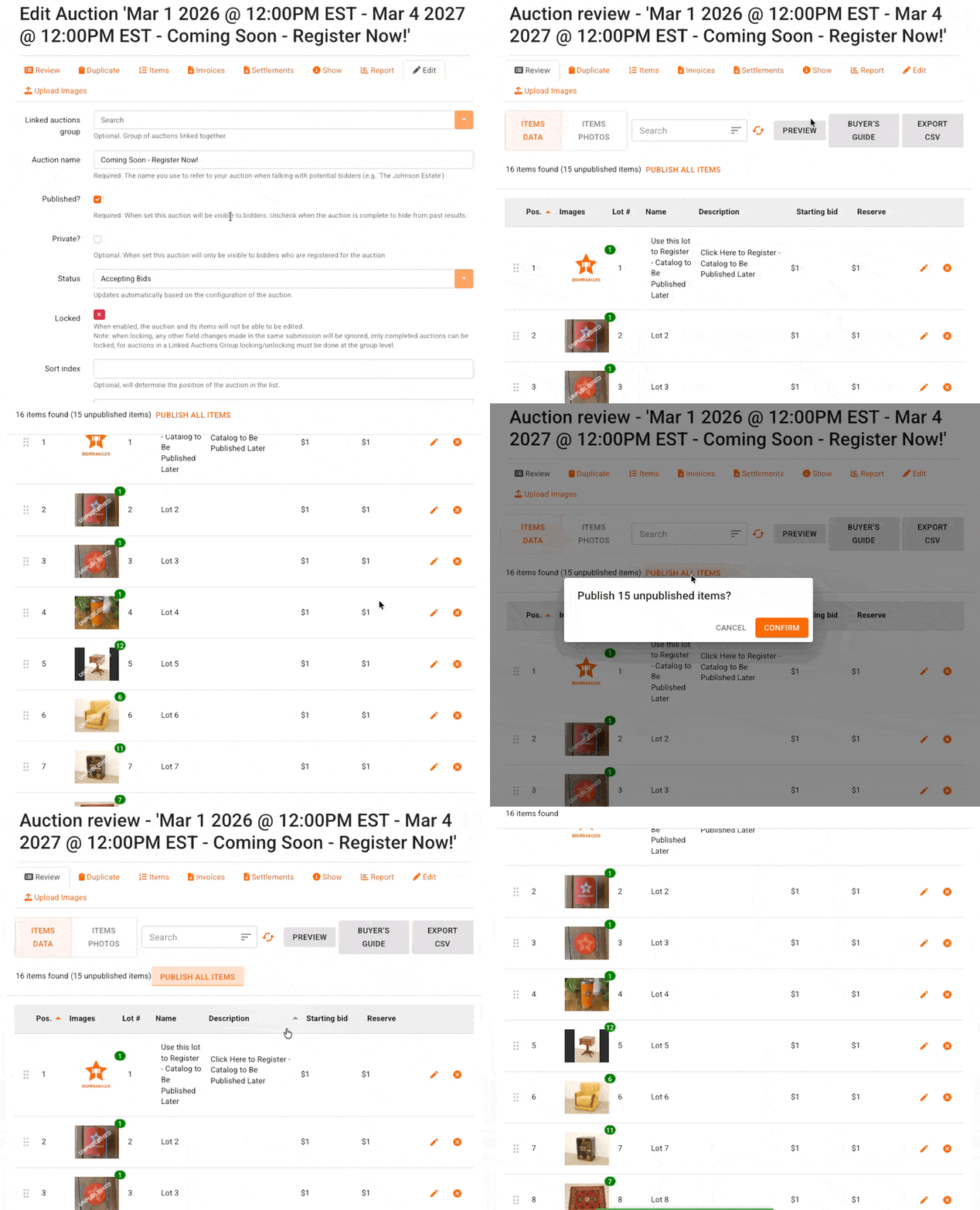
You'll see a count of all of the unpublished items, and will have the option to PUBLISH ALL ITEMS. When clicked, you'll get a pop-up to confirm the action, then all of the items will be published and have the watermark removed.
Administer Items
From the Administer Items screen, you'll now see a Published? flag next to each item.
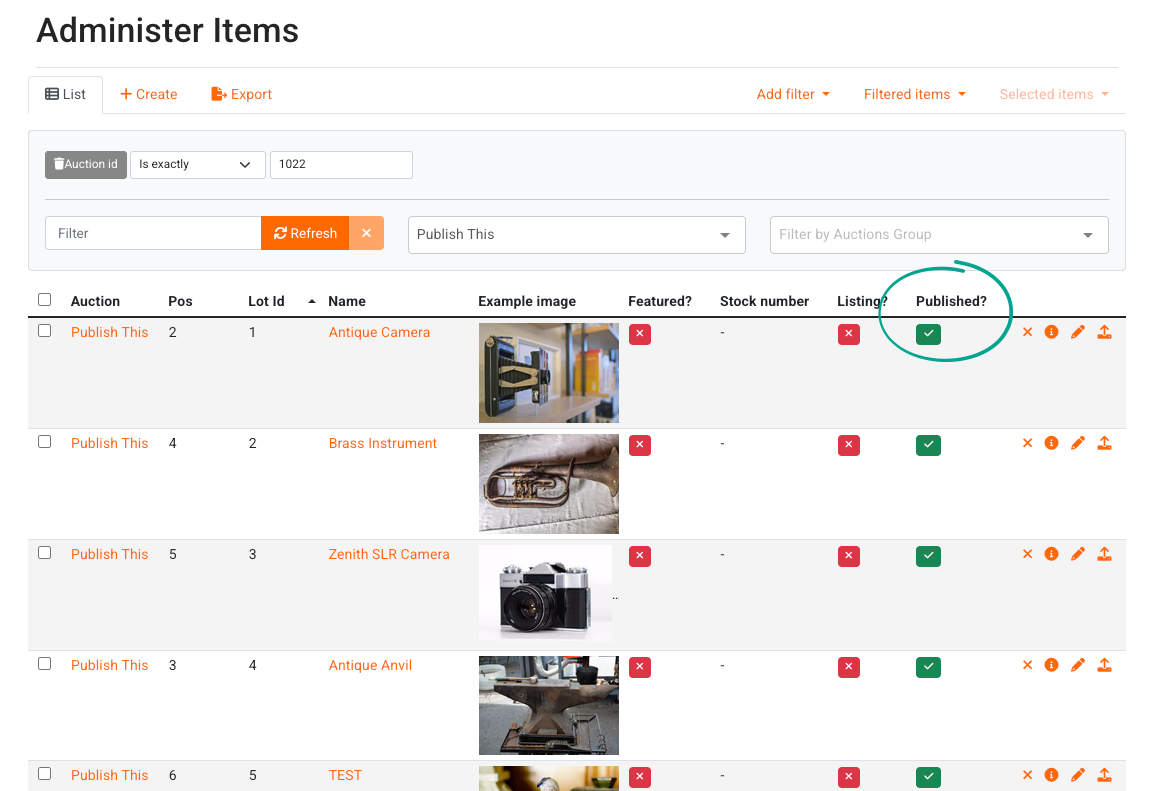
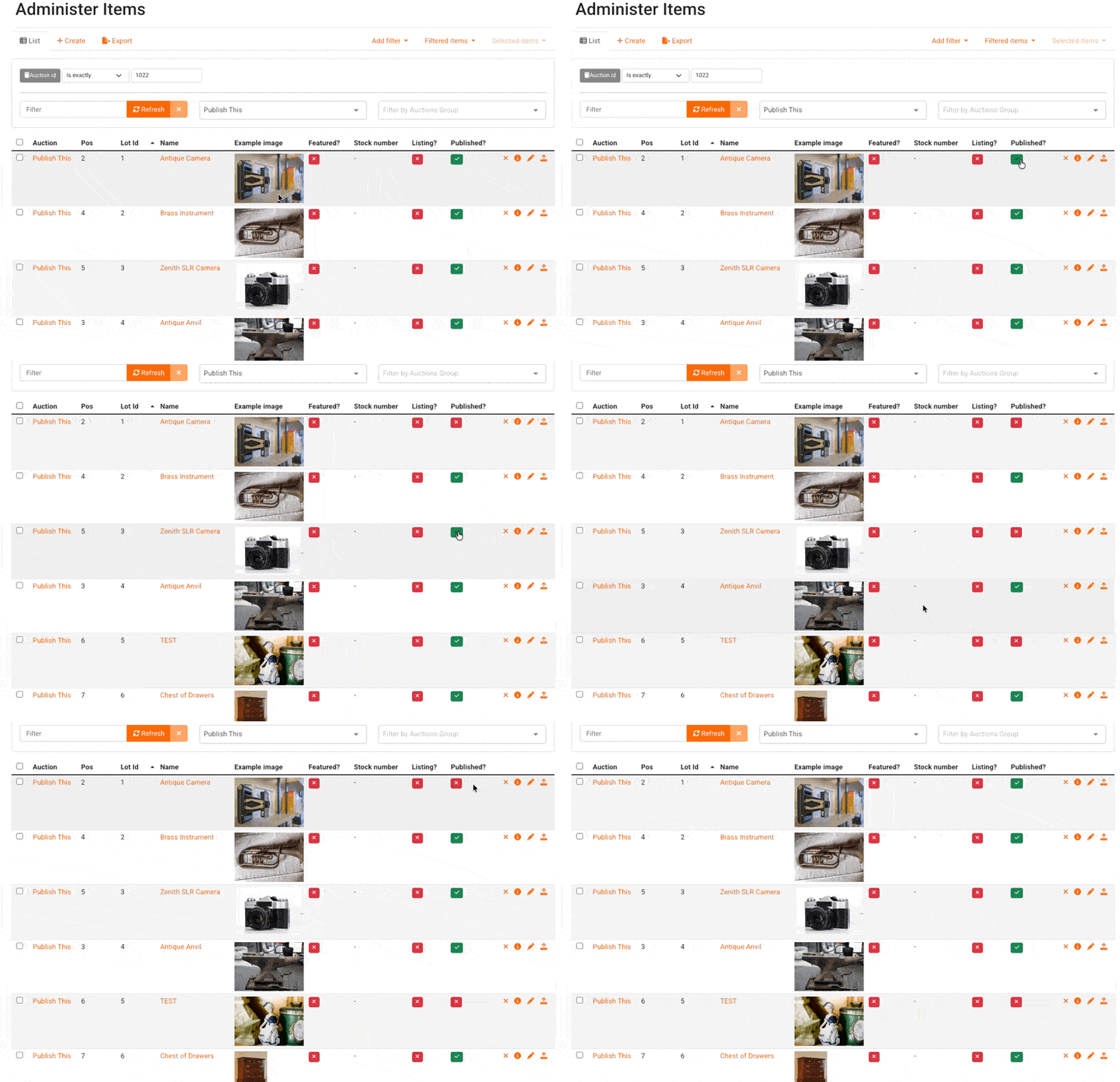
Specific items can have their published status toggled by clicking this checkbox:
Update Multiple Items with a Bulk Item Update
You can update the published status in bulk using Bulk Item Updates.
To update all items in the auction:
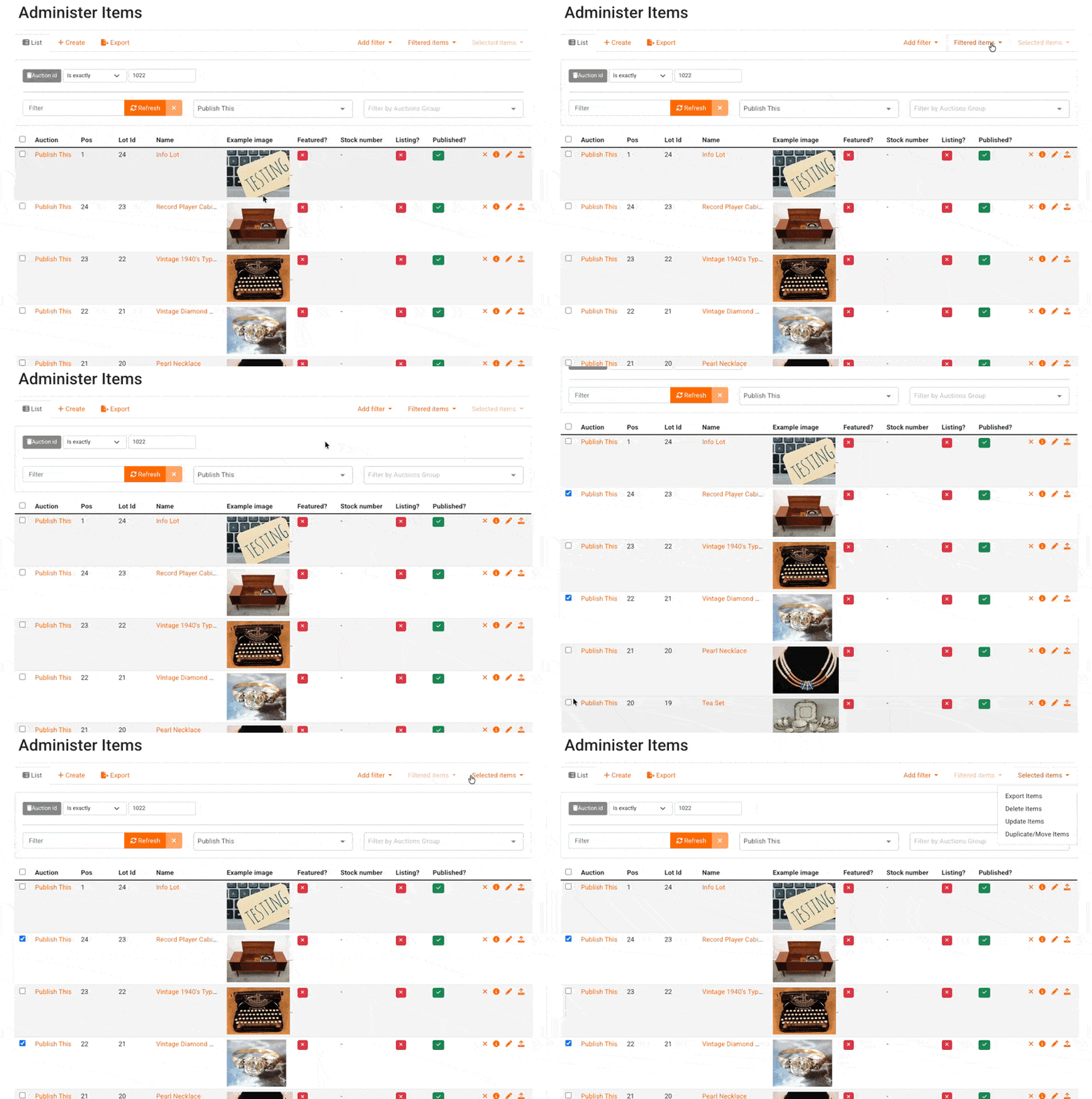
From Administer Items, filter your items by auction and go to Filtered Items - Update Items.
To update specific items in the auction:
From Administer Items, filter your items by auction and use the check box next to each item to select specific items, then go to Selected Items - Update Items.
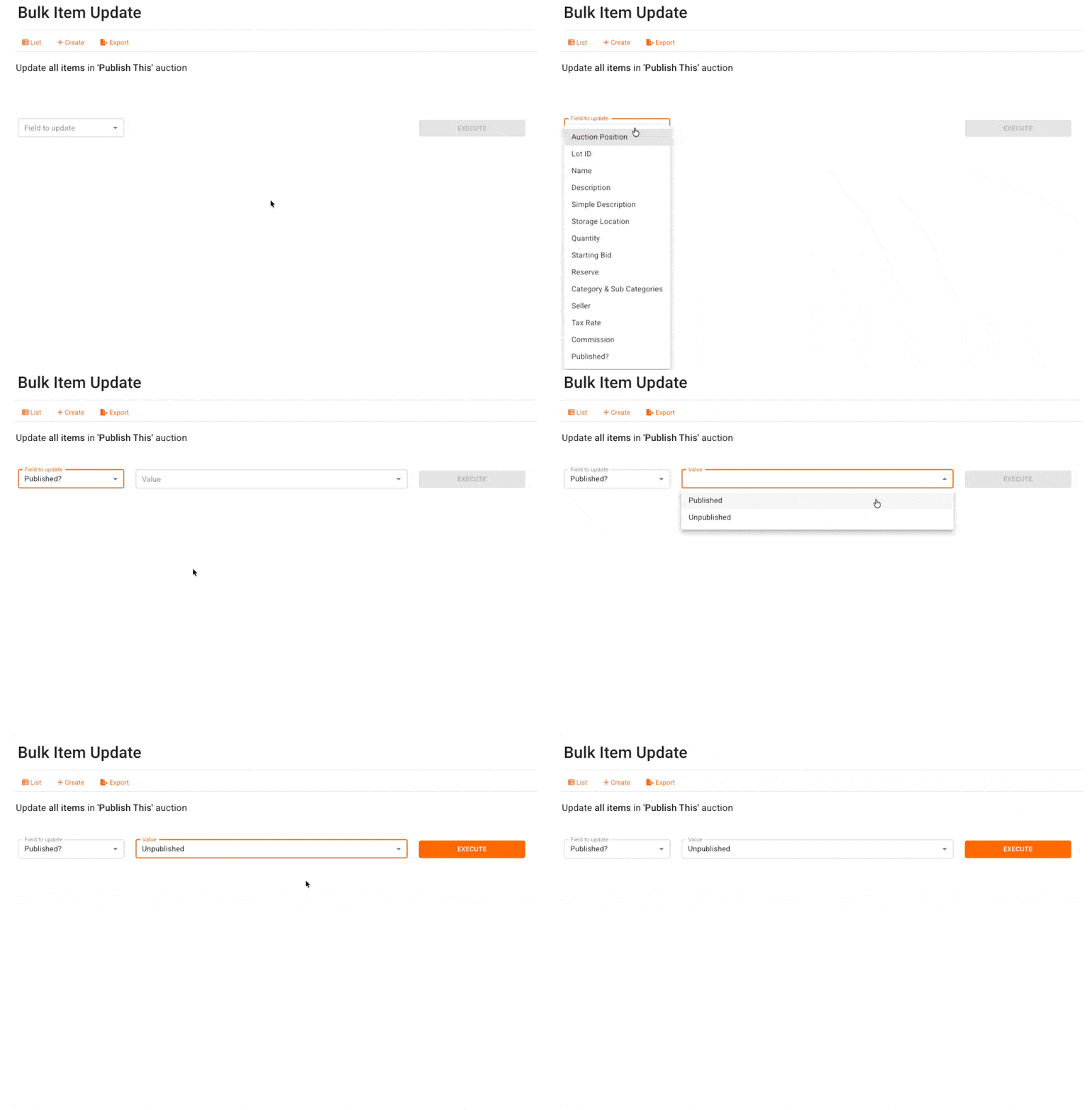
In the next screen, choose Published? from the Field to Update drop-down, then from the Value drop-down choose whether you would like your items Published or Unpublished.
Click Execute to
Updating Published Status on Many Lots via CSV Items Import
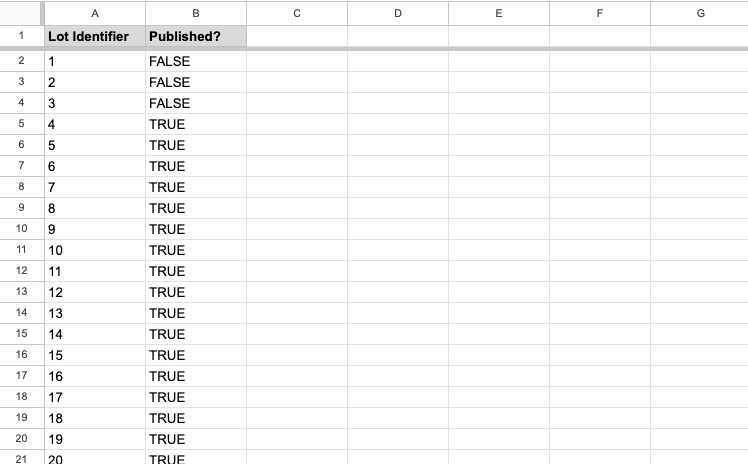
If you typically load your auctions via the items importer, you can include a column for Published? using the values FALSE for unpublished, and TRUE for published.
You can also use the items import to update the Published? status using a .csv file.
To update this way, make sure your spreadsheet has a column for both Lot Identifier and Published?
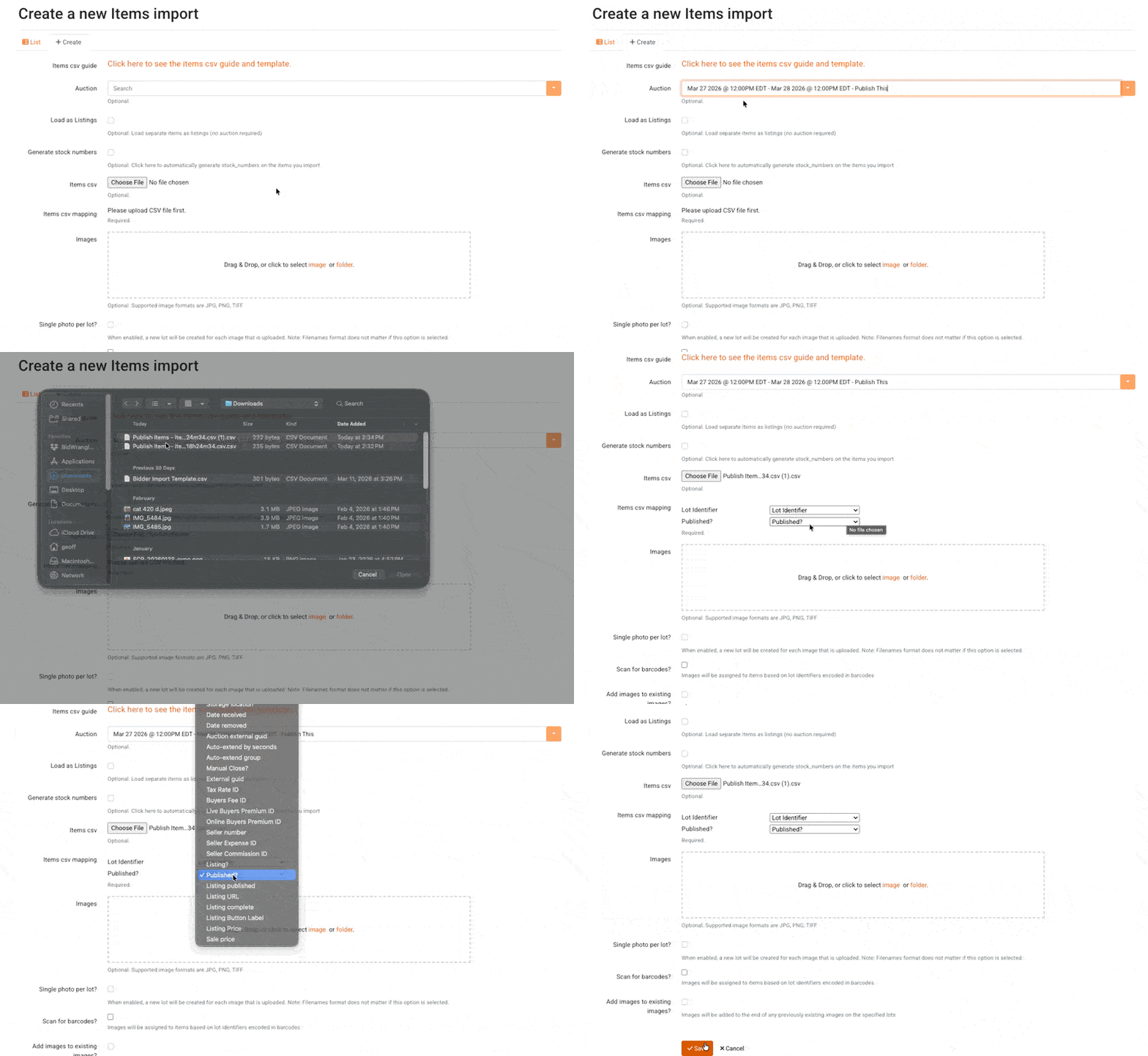
Create a new items import and select your auction.
From Items csv, select your .csv file saved locally.
If your column headers are "Lot Identifier" and "Published?" the fields will map automatically, otherwise you can select the appropriate fields for mapping from each drop-down.
Click Save to start the import
Potential Workflow for Publishing Items with Auction Staging
Create your upcoming auction with the appropriate dates for start and end time, and any other settings as needed
Be sure to set your Terms and Conditions
Create a single item to add to your auction and mark it as Published
Call this item "Coming Soon" or "Register Now" or similar
Include information in the item details about using this item to register now to stay updated
Add images to the item - either some featured items or a company logo
Publish your auction
Send a Marketing Notification to let your users know about the upcoming auction
Start cataloging your auction
When finished cataloging and ready to publish, head to the auction Review tab and publish your items
Send a Bidding Notification to let your registered bidders know that the catalog is now open for bidding