
BidWrangler AI Cataloging: How to Automatically Create Item Names & Descriptions Using BidWrangler's AI Cataloging
AI Cataloging in BidWrangler: How to Automatically Generate Item Titles and Descriptions
BidWrangler AI Cataloging is a powerful tool built directly into the BW Catalog App and Admin Portal that uses advanced image recognition to automatically generate titles and descriptions for auction items. Because it lives inside the platform you already use, there are no exports, third-party integrations, or extra logins required.
You control the "voice", review every result before it publishes, and can refine descriptions with text or audio prompts.
You are in control
AI Cataloging is designed to assist your cataloging process, not replace your judgment. You have complete control over the content that is generated and published.
With AI Cataloging, you can:
Give specific instructions: Tell the AI exactly how you want your content written, including tone, length, formatting, terminology, and what information to include or exclude.
Provide additional context: Add information that cannot be determined from photographs, such as measurements, dimensions, provenance, or other important details.
Review before publishing: AI-generated content is presented for review before it is finalized. You can edit the content, apply it to the item, or run the generation again with different instructions.
Maintain your company’s style: Custom prompts allow you to establish a consistent voice and formatting style across your auctions.
Refine descriptions with voice or manual editing: Once content has been generated and applied, you can make changes using the Hold to Refine voice feature or by manually editing the description field.
AI Cataloging handles much of the writing work so you can spend more time managing your sale and less time manually writing item descriptions.
Prerequisites and Setup
AI Cataloging is guarded by a feature flag and must be enabled by a Super User in the Admin Portal before it can be used.
Please contact helpdesk@bidwrangler.com if you are interested in adding this feature.
Once enabled, administrators and catalogers can manage AI Cataloging settings directly from the BW Catalog App. This includes creating and managing prompts that control the style, tone, formatting, and other instructions used when generating content.
Getting Started with AI Cataloging
If you’re using AI Cataloging for the first time, we recommend testing it on 5–10 diverse lots with 5 or more photos each before running it on the entire auction.
This gives you an opportunity to review the results and refine your prompts without processing the entire catalog multiple times. Once you’re happy with the results, you can run AI Cataloging on the rest of the auction.
Before you start, read your signed AI Cataloging addendum. The addendum states how AI Cataloging runs are counted and billed for your account. Some addendums bill each run on an auction, so know your terms before you run, review, and run again.
Understanding the AI Prompts
AI Cataloging uses two primary prompts:
Auction Prompt provides context about the auction, such as the type of auction and terminology the AI should use.
Formatting Instructions tell the AI how you want the output written, including tone, length, formatting, whether to mention condition, and other preferences.
When getting started, we recommend leaving the Auction Prompt at its default and focusing on the Formatting Instructions to refine your results.
You can create multiple prompts for different types of lots, such as equipment, real estate, personal property, or collectibles. Alternatively, you can create one comprehensive prompt that instructs the AI to determine the type of item and handle each type accordingly.
The more specific your instructions are, the more refined and consistent your results can be. You can also provide examples of existing descriptions for the AI to use as a reference for the style you want.
How do I generate AI content for an individual item?
There are two ways to generate AI content for an individual lot: while viewing the item, or while moving through new items during cataloging.
Generate AI content while viewing an item
Use this workflow when you want to generate or regenerate content for a specific lot:
Open the item in the Catalog App and use the AI controls to start generation.
If the item contains information the AI cannot determine from its photos, enter that information in the AI Context field before running the generation.
AI Context is always included when generating AI cataloging for that lot. It can be used for details such as dimensions, measurements, provenance, or other important information that cannot be reliably determined from the photos.
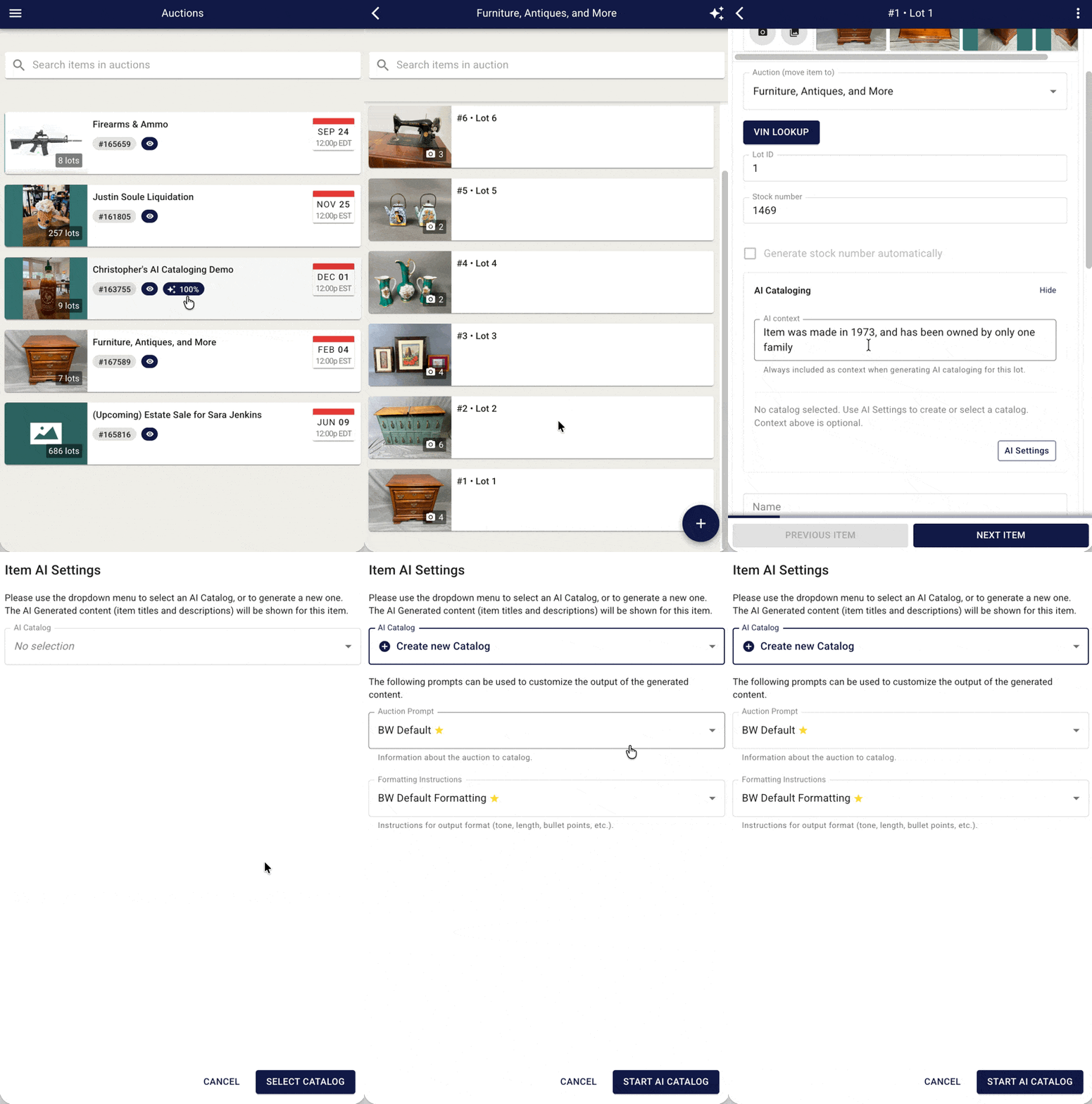
Once generation is complete, review the suggested title and description before applying it.
Generate AI content while cataloging new items
Use this workflow when you are cataloging on-the-fly and want a description generated for each item as you move to the next one.
After selecting Add New on the last lot, tap AI Settings and confirm that Generate AI Catalog for new items is enabled.
Add your photos to the item as you normally would.
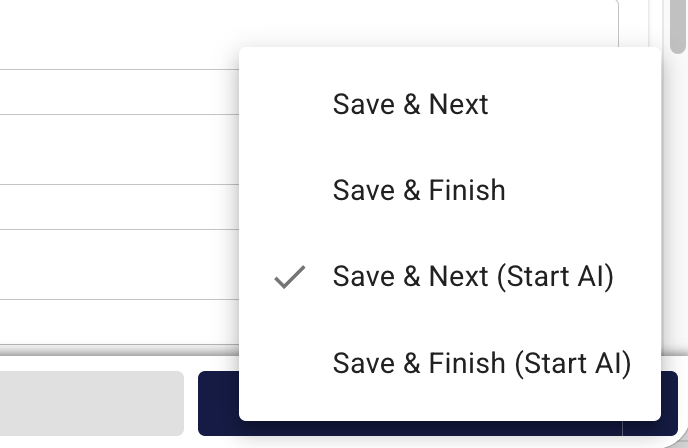
Tap the down arrow next to Save & Next and choose Save & Next (Start AI).
Review the Item AI Settings, then tap Save.
Continue to the next item. The AI stars icon will appear on the Save & Next button, indicating generation is running on the previous lot.
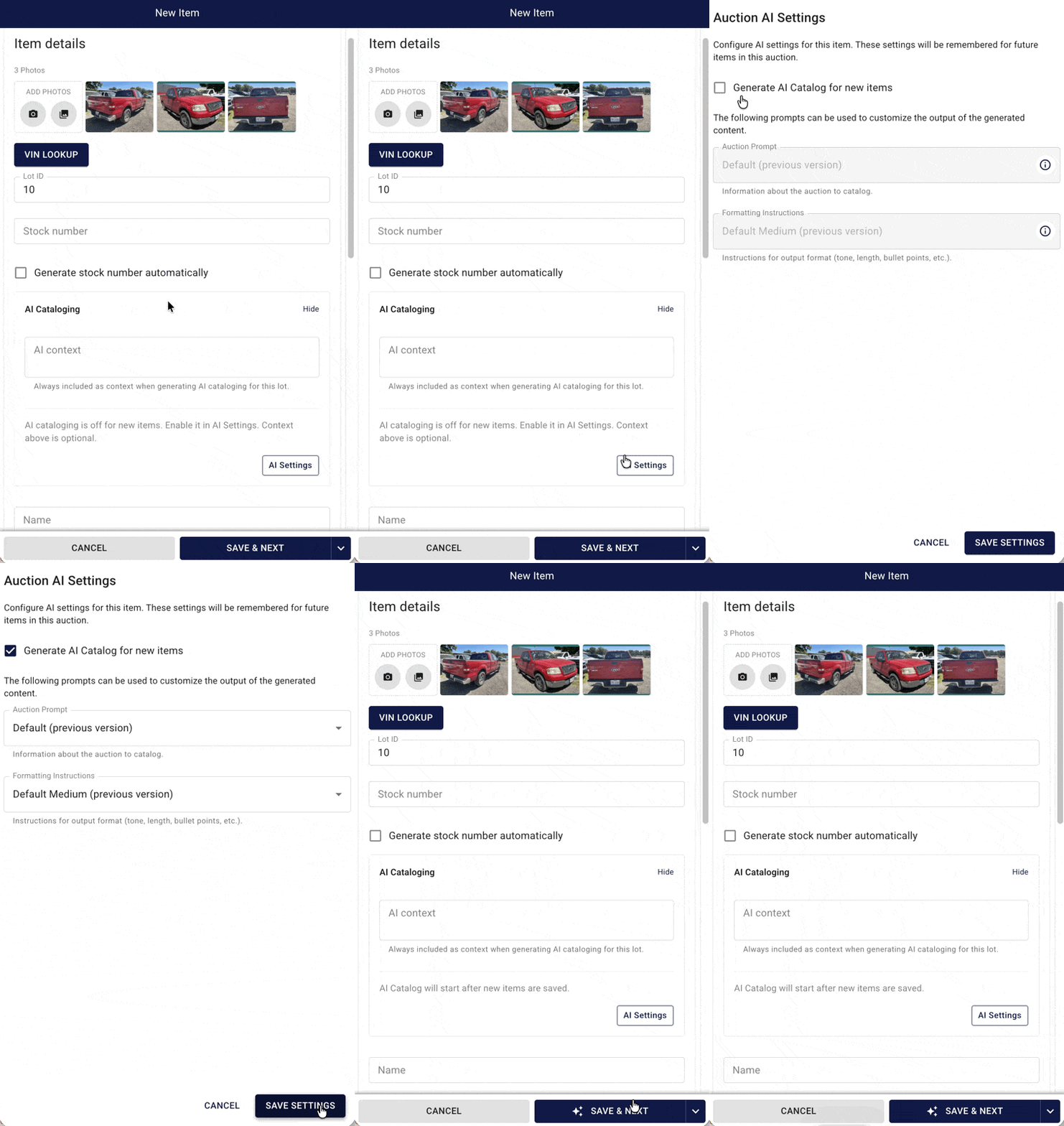
Each item’s generated content becomes available for review as you continue working through the auction.
Additional Save & Next options
The drop-down next to Save & Next provides four options:
Save & Next
Save & Finish
Save & Next (Start AI)
Save & Finish (Start AI)
The Save & Next (Start AI) is an alternative way to activate the "Generate AI Catalog for new items" function to continue cataloging the next item while AI generates content for the previous one.
How do I generate AI content for an entire auction?
Use this workflow when your lots and photos are already in place and you want the AI to write descriptions in bulk.
Open the BW Catalog App and select the auction you want to catalog.
Tap the AI settings icon in the top-right corner.
From the dropdown, select New AI Catalog. The app pre-loads starter prompts for both auction context and formatting.
Adjust the prompts if needed, then tap Start AI Catalog at the bottom.
Return to the item list to monitor the progress bar at the top of the screen.
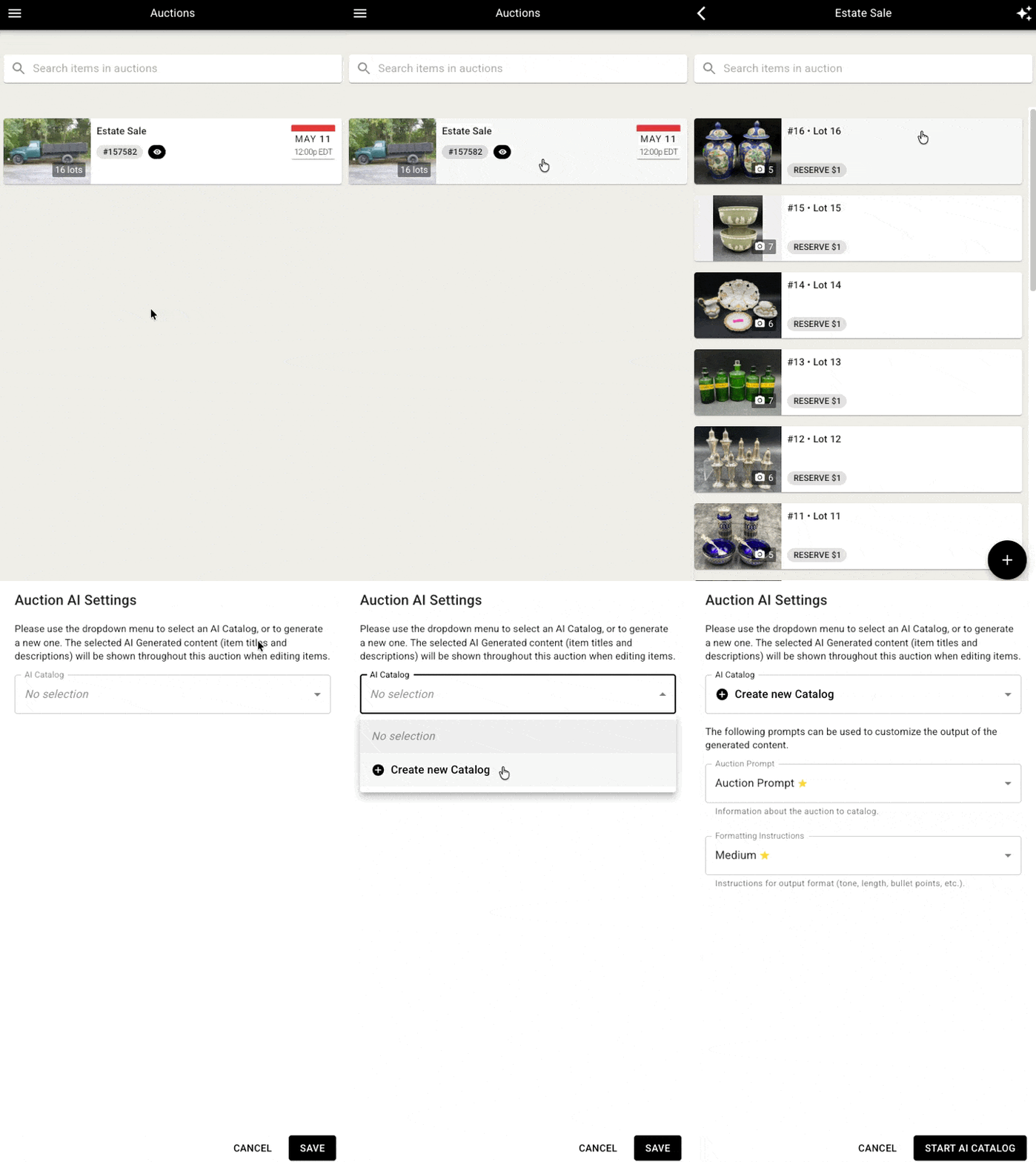
You can also track progress in the Auctions view of the Catalog App or in the AI Generations area of the Admin Portal, which shows status for specific auctions, items, and images.
This could take several minutes depending on the number of photos being analyzed. The progress will also be displayed in the auctions view:
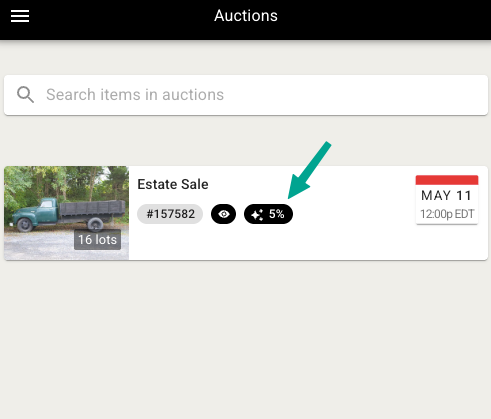
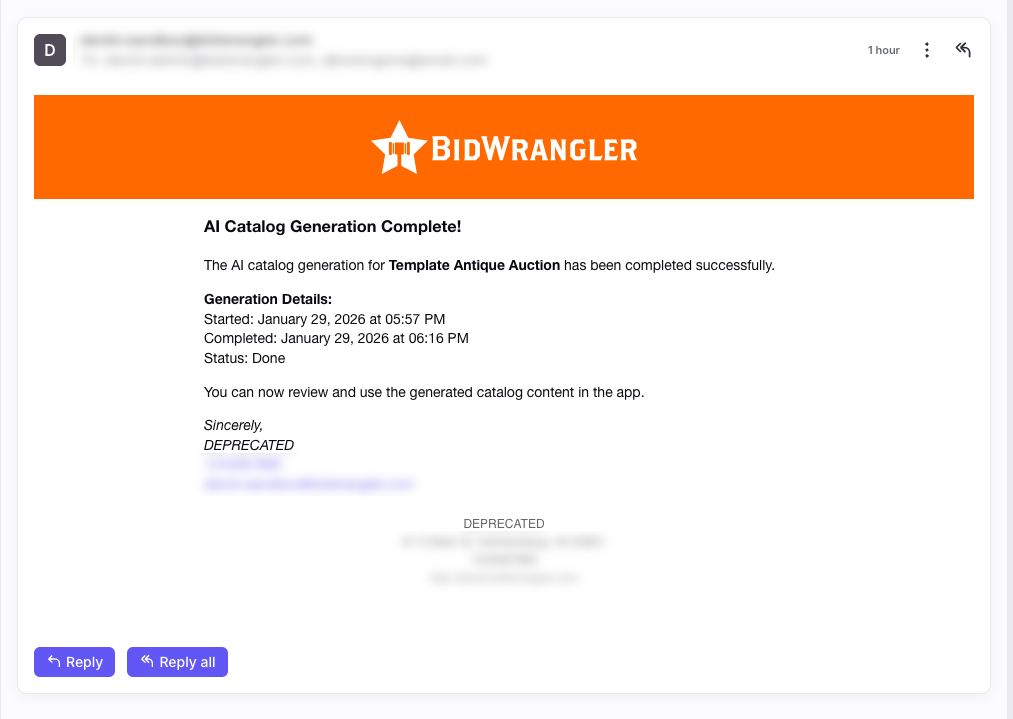
If enabled, an email notification is sent to the catalog owner when a full-catalog AI Cataloging job is complete. Email notifications are not sent for individual-item generations.
Example of the Email Notification
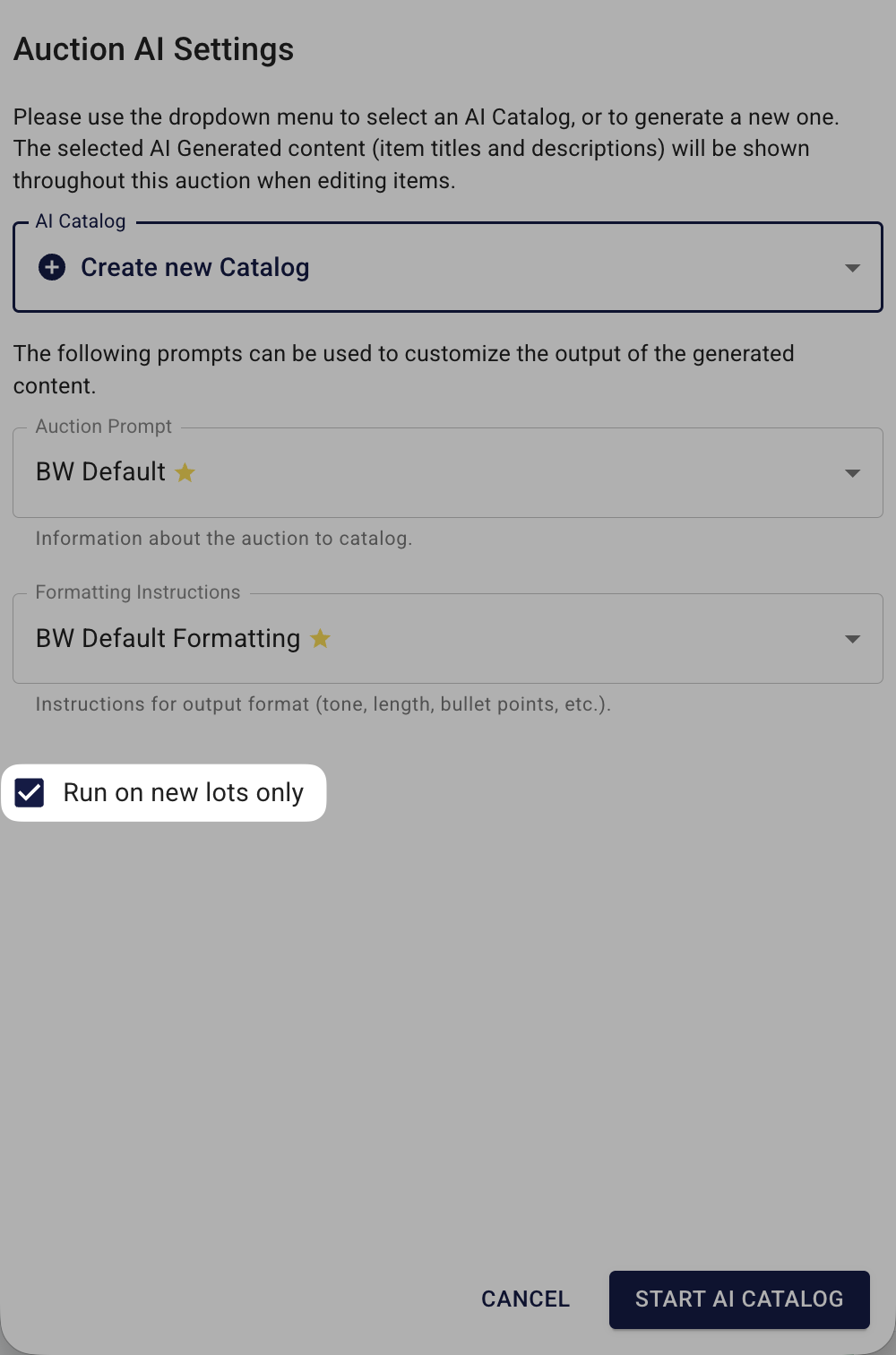
Running AI on new lots only
If you’ve already run AI Cataloging on an auction and later add more lots with photos, you don’t need to process the entire catalog again.
When starting a full-catalog AI Cataloging job, check Run on new lots only. This limits the generation to lots that have been added since the previous run.
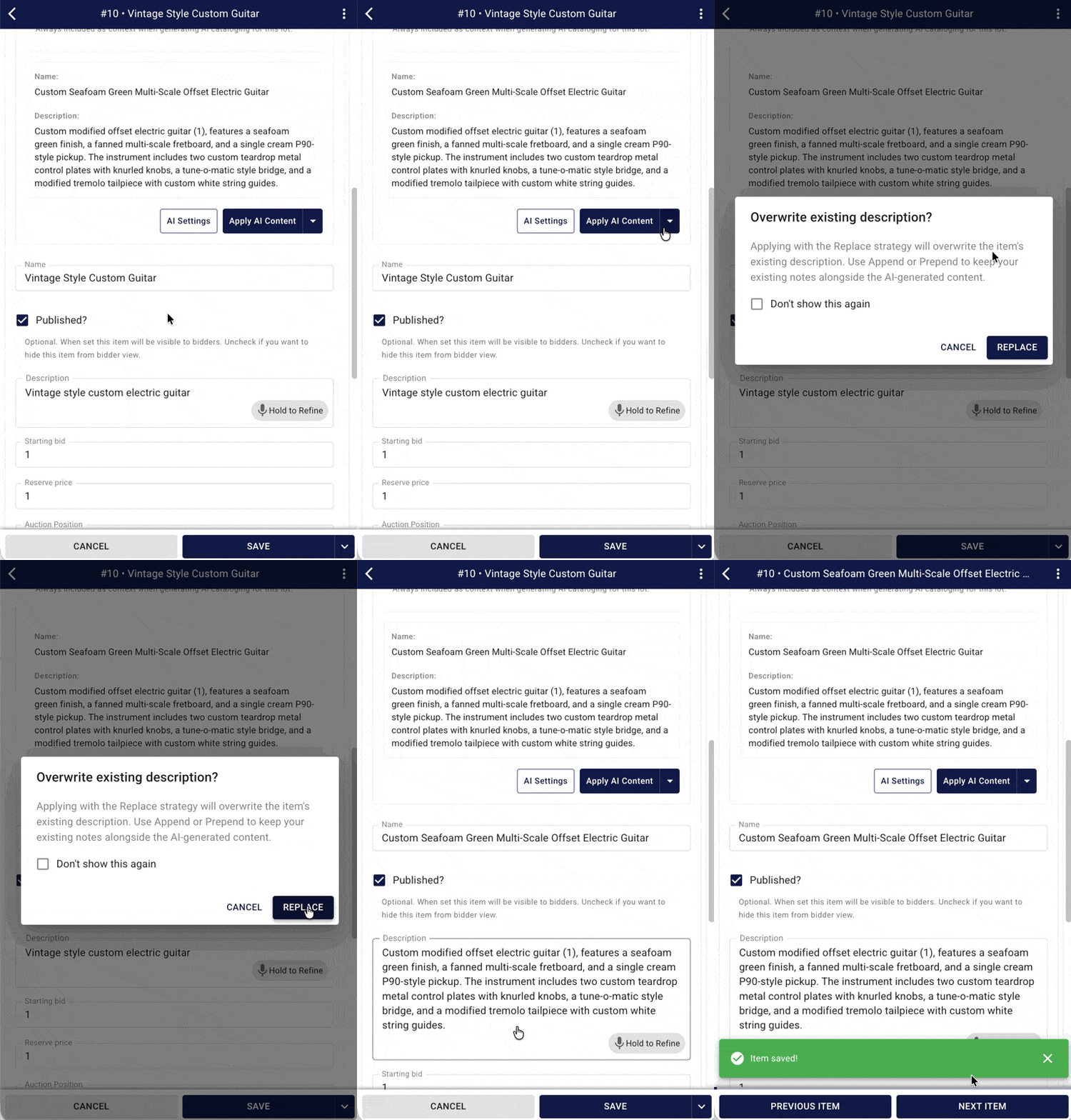
How do I review and apply AI-generated content?
The system requires human review before AI content is finalized on any item.
Open the item form for a lot that has completed generation.
Tap the AI preview to see the suggested title and description.
Choose one of the following:
Apply to replace or append/prepend the generated content to the existing fields
Rerun to regenerate with updated AI settings or prompts
If the item already has a description, use the dropdown next to Apply AI Content to choose whether to replace, append, or prepend the AI-generated content.
After applying, edit the name and description fields directly if minor changes are needed.
How do I refine an AI description with audio?
The audio prompt feature lets you make quick corrections without typing. Use it to change formatting, add context, highlight features, remove text, or fix mistakes.
Open the item description in the Catalog App.
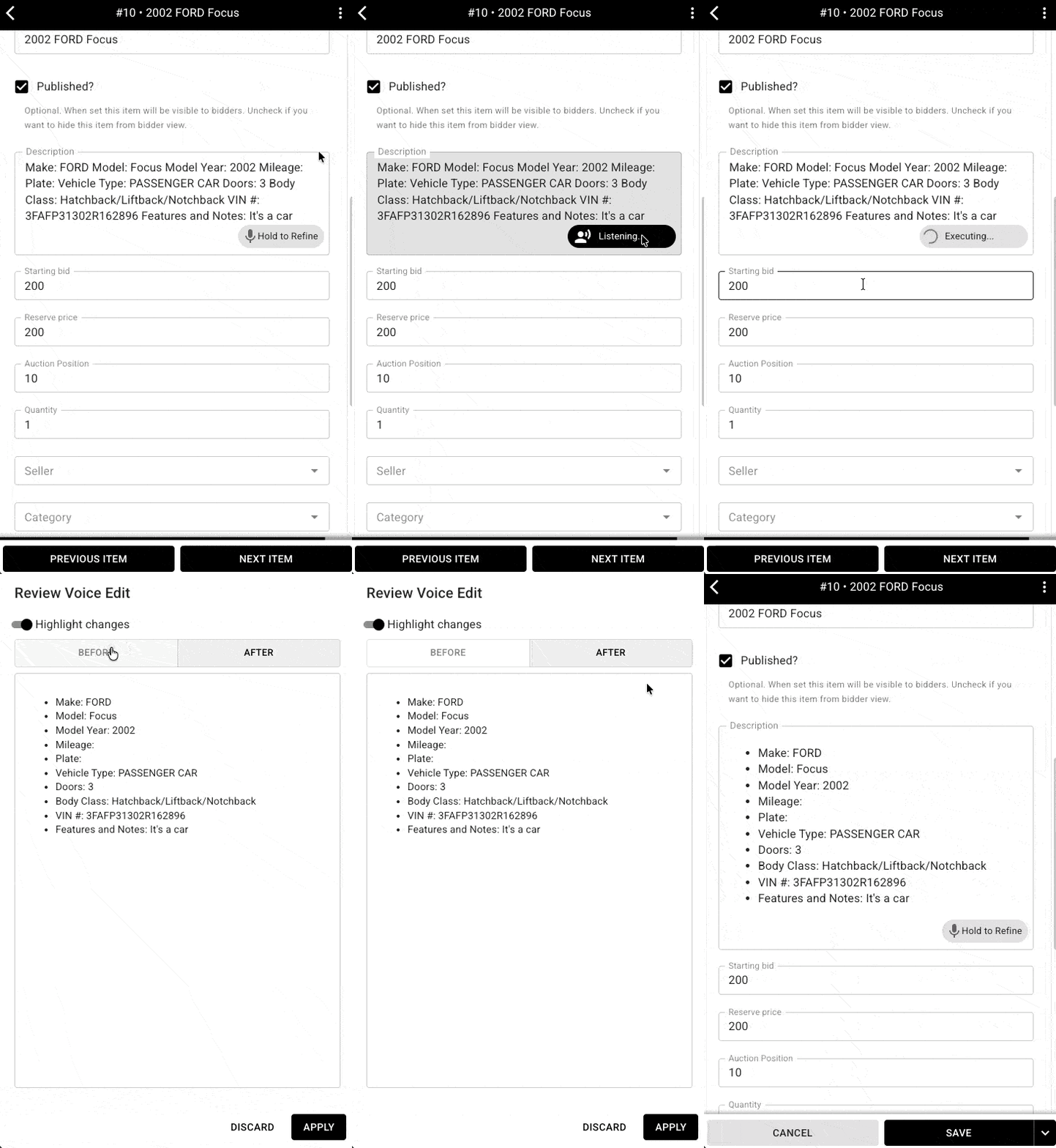
Press and hold the Hold to Refine button.
Describe the change out loud (for example, "Use bullet points" or "Add that the serial number is on the back").
Release the button to stop recording and generate a preview.
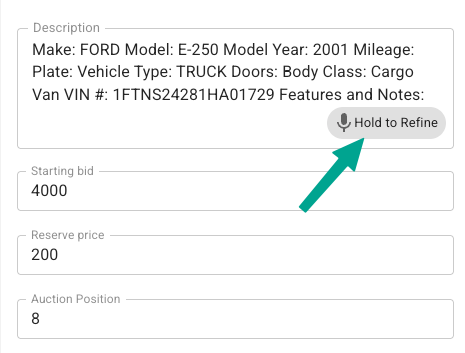
Review the Before and After tabs, then apply or discard the change.
You can also edit the description manually by clicking into the description field and typing normally.
Please note - the first time you use this feature on your device, you will likely be prompted to grant permissions for the app to be able to access you microphone. You must allow microphone access to be able to use the feature.
Where can I use the BW Catalog App?
The Catalog App is available on iOS, Android, and in your browser.
To use the browser version, log into your bidding platform and add /catalog to the end of your URL, for example:
clientname.bidwrangler.com/catalog
The browser catalog does not work with custom subdomains such as bid.clientname.com. Use the full clientname.bidwrangler.com/catalog format instead.
Best practices for accurate AI descriptions
Review every description before publishing. AI is efficient, but it can miss fine details, markings, or condition information that a human cataloger would catch.
Prioritize photo quality. Clear, well-lit images of labels, serial numbers, maker’s marks, and multiple angles produce the strongest results.
Prioritize your first 20 photos. AI Cataloging analyzes only the first 20 photos of each lot. If a lot has more than 20 photos, make sure the most important images are among those first 20.
Refine your prompts before running the entire catalog. Testing 5–10 diverse lots first can help you achieve the desired style without repeatedly processing the entire auction.
Use AI Context when needed. Add measurements, provenance, or other information that cannot be determined from photos alone.
Use audio refinement for quick changes. Hold to Refine is useful for correcting or adjusting individual descriptions without rewriting them from scratch.
How does AI Cataloging pricing work?
AI Cataloging is a paid add-on. The fee, and the way AI Cataloging runs are counted and billed, are set in the AI Cataloging addendum that your company signs before the feature is enabled. Addendum terms are not the same for every company, so your signed addendum is the document that states how your account is billed.
Before you run AI Cataloging on an auction, read your signed addendum for three points: the fee for an auction, whether a second run on the same auction is billed again, and the number of items the fee covers.
If you cannot find your addendum, or a term in it is not clear, email helpdesk@bidwrangler.com. We will send you a copy and explain how it applies to your account.
Frequently Asked Questions
How much does BidWrangler AI Cataloging cost?
AI Cataloging pricing is set for each company in the signed AI Cataloging addendum, and it usually depends on the average number of lots the company catalogs per auction. AI Cataloging is opt-in for each auction, so the fee applies only to auctions where you run it. Auctions you catalog manually are not billed.
Does AI Cataloging publish descriptions automatically?
No. Every AI-generated title and description is created as a preview. A cataloger or admin must review and apply the content before it is saved to the item.
Do I need to export my catalog to use AI Cataloging?
No. AI Cataloging runs inside the BW Catalog App and Admin Portal. Your items, photos, and generated content stay in BidWrangler.
Can I customize how the AI writes descriptions?
Yes. You can customize prompts for tone, style, formatting, length, terminology, and other preferences. Prompts can be created for different types of lots or used as a comprehensive set of instructions for an entire auction.
Can I provide information that isn’t visible in the photos?
Yes. The AI Context field lets you provide additional information such as dimensions, measurements, provenance, or other important details. This information is included whenever AI Cataloging generates content for that lot.
How many photos does AI Cataloging analyze?
AI Cataloging analyzes the first 20 photos of each lot. If you have more than 20 photos, prioritize the most important images.
How long does an AI Catalog job take?
Job length depends on the number of items and photos being analyzed. Progress is visible in the Catalog App and in the AI Generations area of the Admin Portal.
What happens if the AI gets a description wrong?
You can rerun generation with updated prompts, edit the fields directly, or use Hold to Refine to correct the result before applying it.
Can I include AI context in my items import spreadsheet?
The AI Context field is not currently available as a column in the items import template. AI context is entered in the cataloging workflow rather than through a bulk import.
Can I run AI Cataloging again after I’ve already run it?
Yes. The BW Catalog App lets you run AI Cataloging on an auction again, and you can use Rerun on a single item at any time. Whether a second run is billed depends on your signed AI Cataloging addendum. Some addendums include a fee for each run on an auction, so read your addendum before you run an auction again, or email helpdesk@bidwrangler.com and we will confirm your terms.
If you’ve added new lots to an auction that has already been processed, use Run on new lots only to generate content for the new lots without processing the existing ones again.
Is AI Cataloging available to all BidWrangler customers?
AI Cataloging is an opt-in feature that requires a signed addendum and a brief 15–20 minute virtual demonstration before activation. To get started, email helpdesk@bidwrangler.com. We’ll provide the addendum, schedule the demonstration, and confirm once the feature has been enabled on your account.