
How Do I Reorder Items in my Catalog?
BidWrangler gives you three ways to reorder the items in your auction catalog: Use a bulk item update to re-sequence many lots or all lots at one time; use drag and drop in the Auction Review Screen to move a small number of lots; or use an Items Import CSV file to set an exact position for each lot. Each method changes the Auction Position of your lots, not the lot numbers.
Which reorder method fits your situation?
Bulk item update: the fastest method when many lots or all lots are out of order. A specific strategy sets every auction position in one action.
Drag and drop in the Auction Review Screen: the best method when only a few lots must move.
Items Import with a CSV file: the best method when you want to set an exact, custom position for each lot in a spreadsheet.
Bulk Item Update
If you are not sure which strategy to use, send an email to helpdesk@bidwrangler.com before you start. Bulk item actions are irreversible.
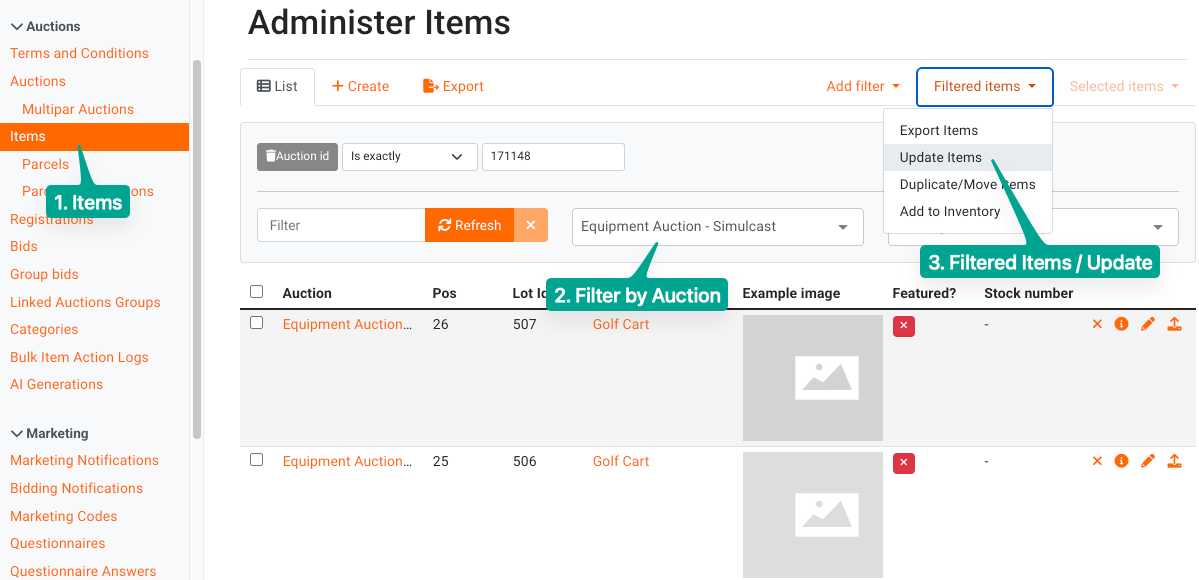
Navigate to the "items" menu on the left-hand side of the admin portal
Apply the "filter by recent auction" filter. Use the dropdown menu, or type the name of the auction
Before you continue, make sure that the filter shows the correct auction
Click "filtered items" in the top right corner. Then click "update items"
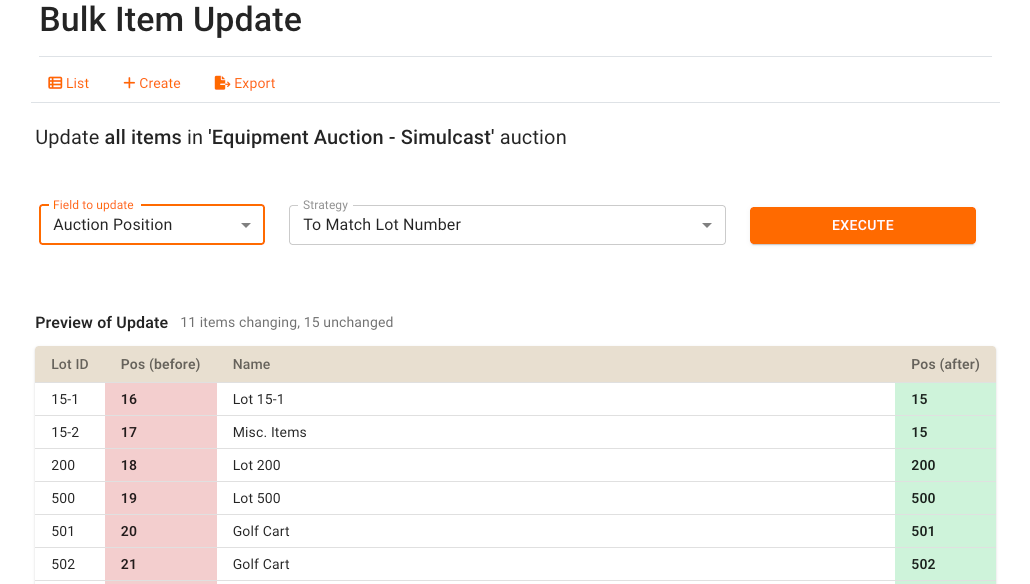
From the "field to update" menu, choose Auction Position. Do not select Lot ID.
Select the strategy that you want to use (see below for details on each)
Once a field and strategy have been selected, use the Preview of Update feature to review these changes. It will show you a before and after.
To confirm the changes, click "execute." Then click "confirm" to start the re-sequence
After confirming, you'll be taken to the Bulk Item Action Logs screen which will display the progress of your update. Refresh the screen periodically to check on the progress, but most updates will complete within a minute.
Which reorder strategy should I choose?
The reorder strategies accept lots with letter suffixes such as 1A, 1B, and 1C. Use "Reorder by Lot Number" to keep these lots in the correct sequence.
"Reorder by Lot Number": This strategy sets your auction positions to the numerical sequence of your lot numbers. It does not change the lot numbers themselves, and it keeps letter-suffix lots in order. This is the most commonly used strategy.
"To Match Lot Number": This strategy sets each auction position to match its lot number. This is the second most commonly used strategy. If your catalog has letter-suffix lots, use "Reorder by Lot Number" instead.
"Reorder by Creation Date": This strategy sequences your lots in the order in which they were created.
"Eliminate Number Gaps": This strategy removes number gaps in your auction positions. Run it after a re-sequence if your lot numbers have large jumps, for example 200 to 1000. Gaps can delay closing times for later lots when "To Match Lot Number" was used.
Drag and Drop
The Auction Review Screen now makes it possible to reorder any item via drag and drop.
Log in to the Admin Portal
Navigate to Auctions in the left-hand menu
Click on the title of the auction you’d like to update to access the edit tab
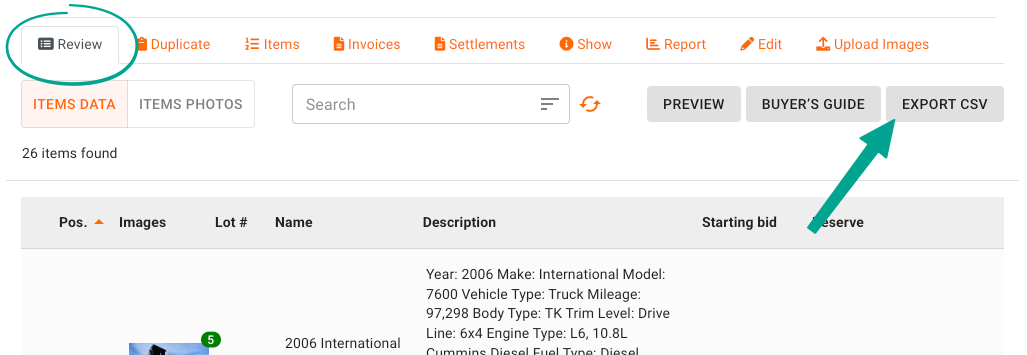
Click the Review tab located at the top left
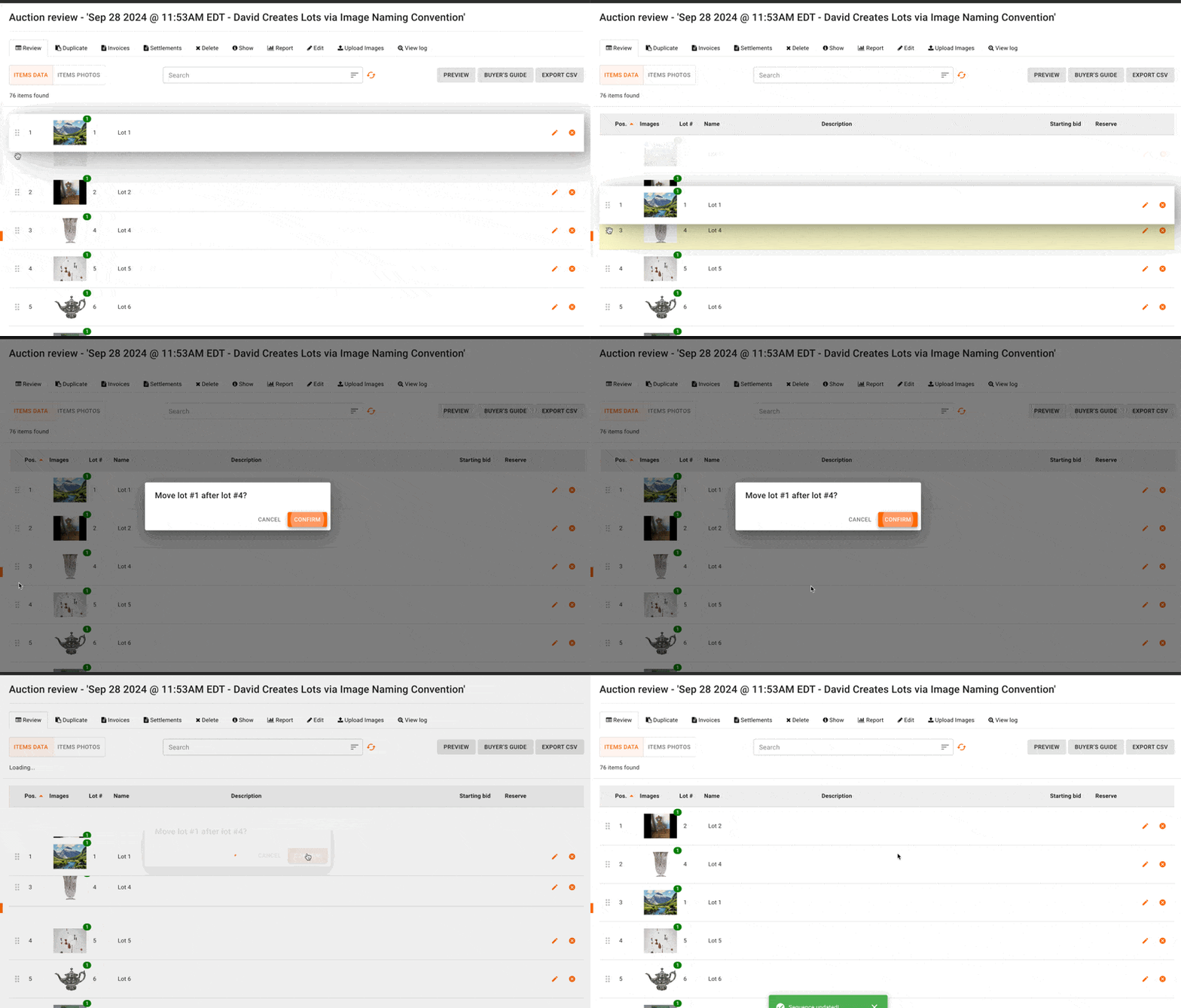
You will find a "handle" icon on the left-hand side of any item row. Click on this icon, then drag your cursor in the direction you would like to move the item to. Items will highlight below as the item is being moved; the item will be moved to the position of the highlighted item when released. A popup will ask you to confirm if this move is correct. Once confirmed, the position for each lot in the auction will update sequentially.
Please note that this feature behaves like other item updates in the Auction Review Screen; the edit will be instant once confirmed.
⚠️ Please note: Once you reorder items, the changes will not reflect immediately on the public-facing auction page. The system needs time to update — typically within a few minutes. We recommend refreshing the public auction page after a short while to confirm the new order is displayed.
How to set exact lot positions with an Items Import CSV
An Items Import cannot be undone. Check your file before you upload it.
Open the auction's review screen and start a CSV export
In the export options, clear all fields. Then select only the lot identifier, name, and auction position fields
Be sure to export the Lot Identifier, field not the Item ID
Export the file
Alternatively, you can start by creating a blank CSV file, and adding a column for Lot ID and Auction Position, then manually enter the existing Lot IDs and desired auction position
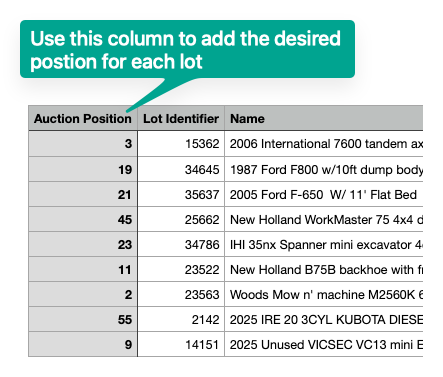
Open the CSV file in a spreadsheet program. Change the auction position values to set the new order. Do not update the Lot Identifiers.
You spreadsheet should look something like the below:
Save the file in CSV format
In the Admin Portal, open the Items Import screen and click "Create"
Select the auction that you want to reorder
Upload the edited CSV file and save the import
Wait for the import to complete. Then open the review screen to confirm the new order
Frequently Asked Questions
Do 1A, 1B, and 1C lots work when I reorder my catalog? | Yes. The reorder tools accept lots with letter suffixes. Use the "Reorder by Lot Number" strategy in a bulk item update to keep the letter sequence in order. The strategy changes the auction positions only, so the lot numbers do not change. |
Does reordering change my lot numbers? | No. All three methods change the Auction Position of each lot. In a bulk item update, always choose Auction Position in the "field to update" menu. Do not select Lot ID. |
Can I undo a bulk item update or an Items Import? | No. Bulk item actions and Items Imports are irreversible. Before you execute, make sure that the filter shows the correct auction. If you are not sure, send an email to helpdesk@bidwrangler.com first. |
Why isn't my new lot order showing on the auction page? | The public auction page can take some minutes to show the new order. The change is instant in the Auction Review Screen. Refresh the public page after a short wait. |
What's the fastest way to move just one or two lots? | Use drag and drop in the Auction Review Screen. It moves one item at a time, and it updates every auction position in sequence after you confirm the move. |
Related Articles
If you have questions about which method fits your sale, send an email to helpdesk@bidwrangler.com.