
How to Use the Checkout Page in BidWrangler to Record Item Pickup
The Checkout page in the BidWrangler Admin Portal records the status of each item on a buyer's invoice when the buyer leaves your facility. Type or scan the invoice number to load the items. Then mark each item as picked up, shipped, or with a different status. With a barcode scanner, you can scan the barcodes on an invoice pick list to load the invoice and select each item.
Using the Checkout Page at Pickup
The Checkout page records the location of each item that a bidder wins. For each item on an invoice, you can show if the item is on site or off site. A typical checkout at an auction facility has three stages:
The bidder pays the invoice.
The bidder collects the items.
When the bidder leaves the facility, a staff member compares the items to the printed invoice or pick list. The staff member then records the status of each item on the Checkout page.
After checkout, you have a record for each item. The record shows if the item was picked up or shipped, the carrier, or a different status.
How to Load an Invoice on the Checkout Page
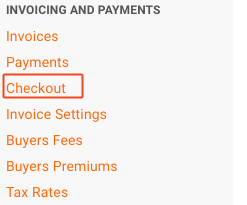
In the Admin Portal, click Checkout on the left side menu.
Click the invoice number field.
Type the invoice number and press Enter. (You do not need to include the version number, which is the last two digits) If you have a pick list, scan the barcode at the top of the pick list to autofill the invoice number.
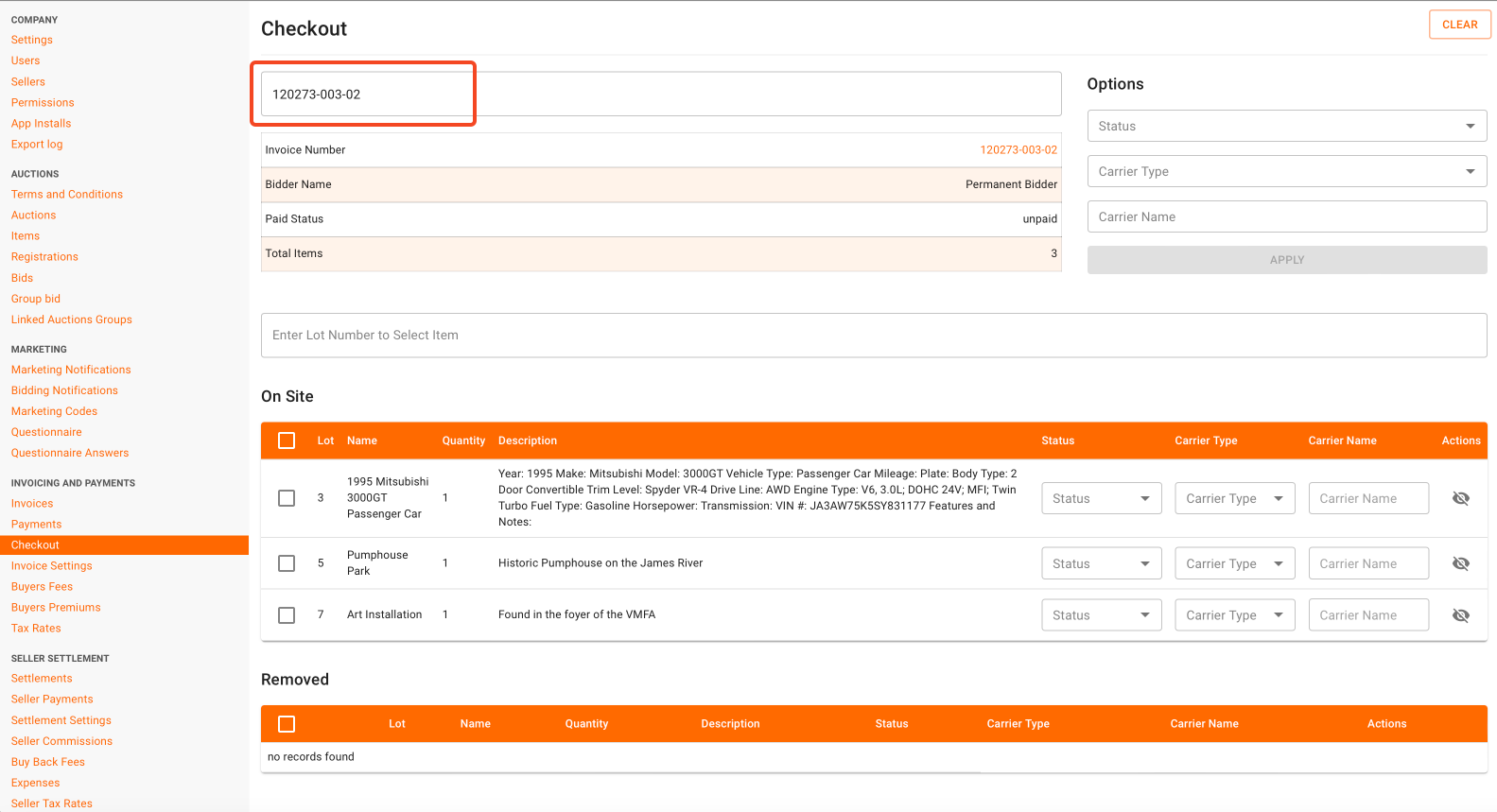
Examine the item list. By default, the Checkout page shows all items on the invoice in the "On Site" list.
How to Update Item Statuses in Bulk on the Checkout Page
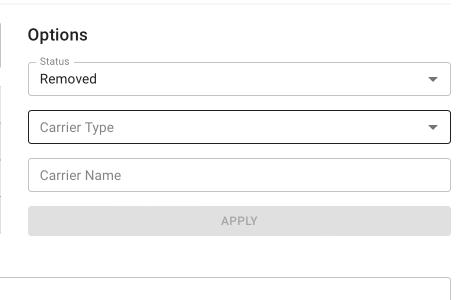
Under Options, choose a status. You must choose a status.
Optional: choose a carrier type and a carrier name.
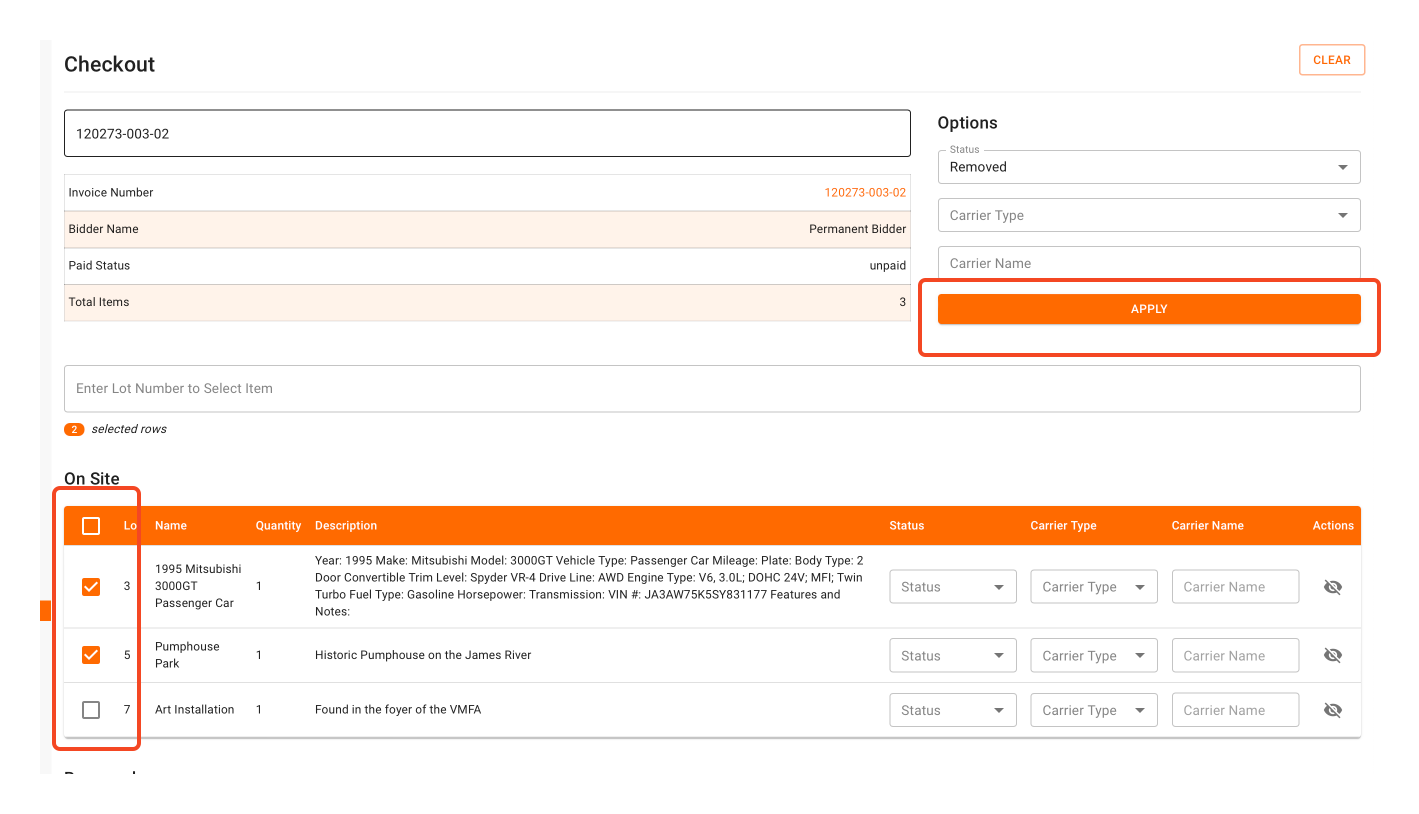
Select the checkbox of each item that gets this status. You can also scan the item barcodes to select the items.
Click Apply.
How to Update One Item's Status on the Checkout Page
Find the item in the "On Site" list.
Choose a drop-down menu next to the item and update it as needed.
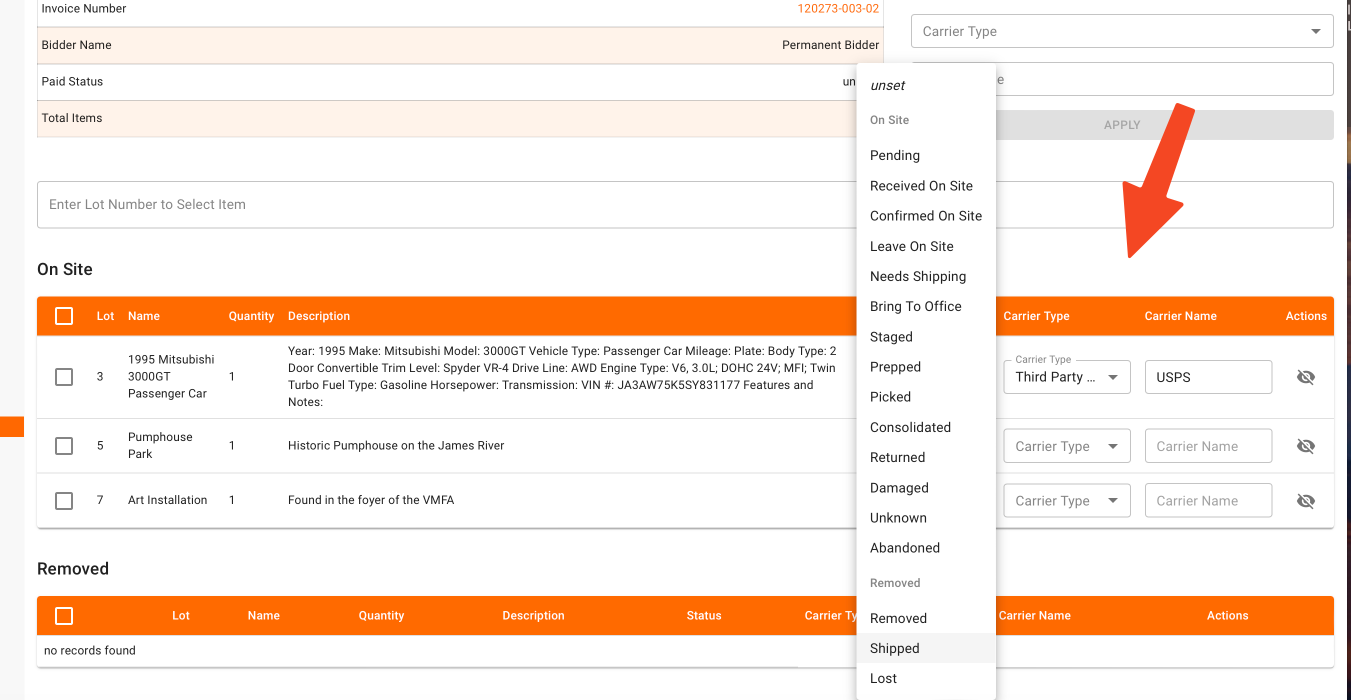
Changes made to items on the Checkout page updates them immediately. Updating the status for items that have left your possession will automatically move the item to the "Removed" list.
How to Scan Pick List Barcodes on the Checkout Page
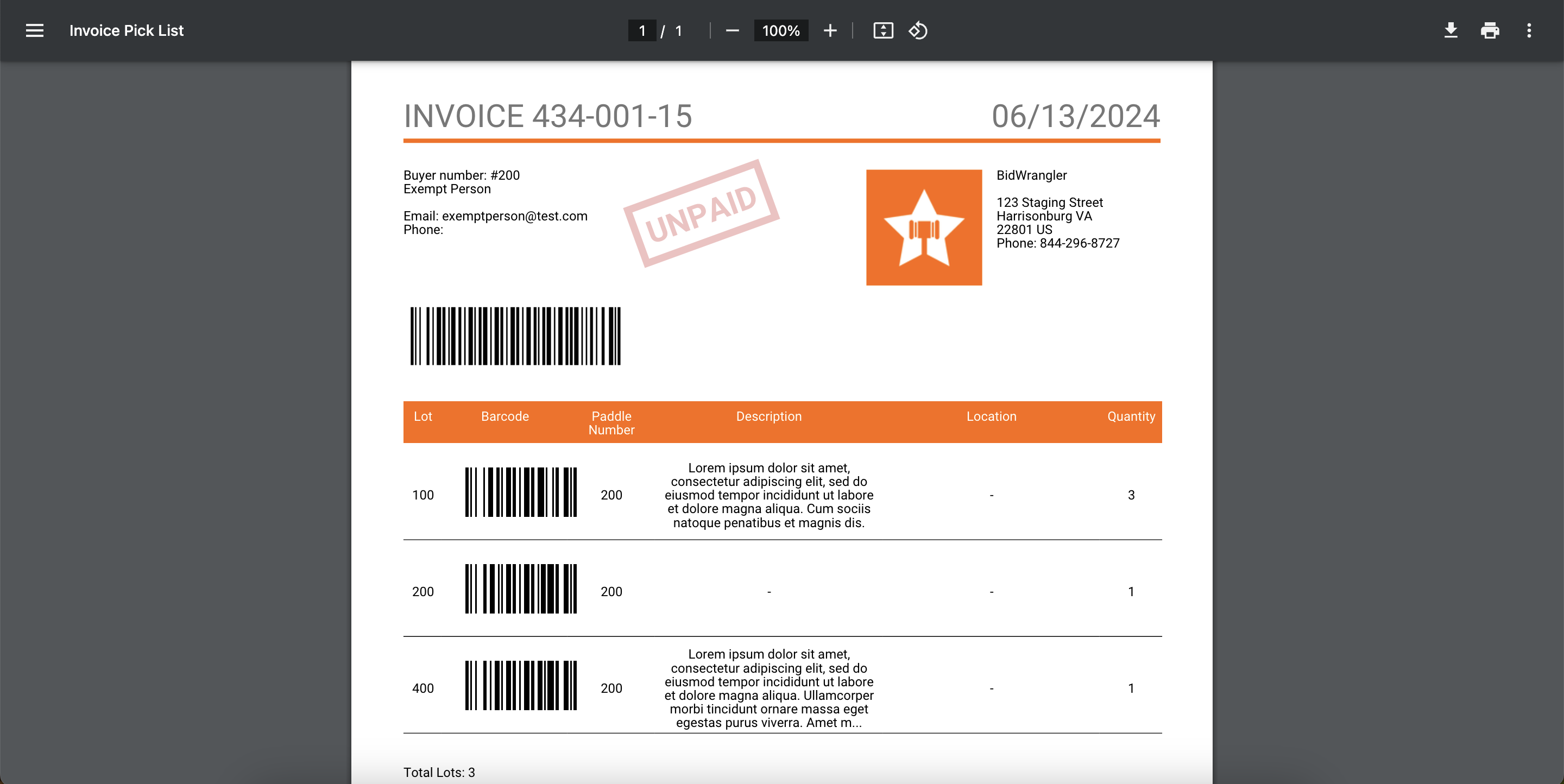
Each pick list has two types of barcode. The barcode at the top of the pick list loads the full invoice on the Checkout page. Each item on the pick list also has its own barcode. When you scan an item barcode, the Checkout page selects that item.
Connect the barcode scanner to your computer.
On the Checkout page, click the invoice number field.
Scan the barcode at the top of the pick list. The Checkout page loads the items on that invoice.
Click the Lot Number field. The helper text in the field reads "Enter Lot Number or Scan Barcode to Select Item."
Scan the barcode of each item that leaves the facility. The Checkout page selects each scanned item.
Under status, carrier type, and carrier name as needed.
Click Apply.
NOTE: A scan only selects an item. A scan does not change the status of the item. The status changes when you click Apply.
You can also type a lot number in the Lot Number field to select an item without a scanner.
FAQ
Can I scan barcodes on the BidWrangler Checkout page? Yes. The Checkout page accepts scans from a barcode scanner that is connected to your computer. Scan the barcode at the top of an invoice pick list to load the invoice. Then scan the item barcodes on the pick list to select the items.
What happens when I scan the barcode at the top of a pick list? The Checkout page loads that invoice and shows all of its items. The invoice number field must be the active field when you scan. If you click a different field first, the scan does not load the invoice.
Does scanning an item barcode mark the item as picked up? No. A scan of an item barcode only selects that item on the Checkout page. To record the status, choose a status under Options and click Apply.
Why didn't my scan load the invoice? The invoice number field was not the active field when you scanned. Click the invoice number field on the Checkout page, then scan the barcode at the top of the pick list again.
Do I need to include the version number when I type an invoice number? No. Type the invoice number without the version number, which is the last two digits of the invoice number. Then press Enter to load the invoice.
Where do I get the barcodes to scan at checkout? The barcodes are on the invoice pick list. You can print a pick list from the invoice row on the Invoice screen or from the invoice page. For more information, see How do I create and use an invoice pick list?
Can I use the Checkout page without a barcode scanner? Yes. Type the invoice number in the invoice number field and press Enter. Then select items with the checkboxes, type a lot number in the Lot Number field, or use the status drop-down menu next to each item.
Related Articles
If you have questions about the Checkout page, contact us at helpdesk@bidwrangler.com. We are glad to help.