
How can I make a QR Code for bidders to register for my auction?
A QR code is a quick way to send bidders straight to your registration page: they point their phone's camera at it, tap the link that appears, and they're on your site. There's no app to download and nothing to type.
A QR code is simply a web link stored as a pattern. Whatever link you put into it is where it takes people, so the same steps work whether you want it to open your website, your bidding platform, or one specific auction. You can make one for free in a couple of minutes, and you don't need anything from BidWrangler to do it.
Choose where the QR code should go
Before you make the code, decide which page you want bidders to land on. Open that page in your browser, since the QR code is made from the page you're on.
Best for | Example link |
|---|---|
General marketing, signs, business cards | yourcompany.com |
Bidders who should browse all your auctions and register | yourcompany.bidwrangler.com |
Flyers, mailers or signs for one sale | yourcompany.bidwrangler.com/ui/auctions/123456 |
If the goal is registration, pointing to your bidding platform or a specific auction gets bidders there in the fewest steps. To find an auction's link, open it on your bidding platform and copy the address from your browser's address bar.
Quick option: create a QR code in Google Chrome
Google Chrome can make a QR code for any page you visit, with no extra tools needed. The only concern here is that QR codes generated by Chrome always include a small dinosaur icon in the center. If you need something more professional-looking, another 3rd party tool may be a better option.
Open Google Chrome and go to the page you want the QR code to open.
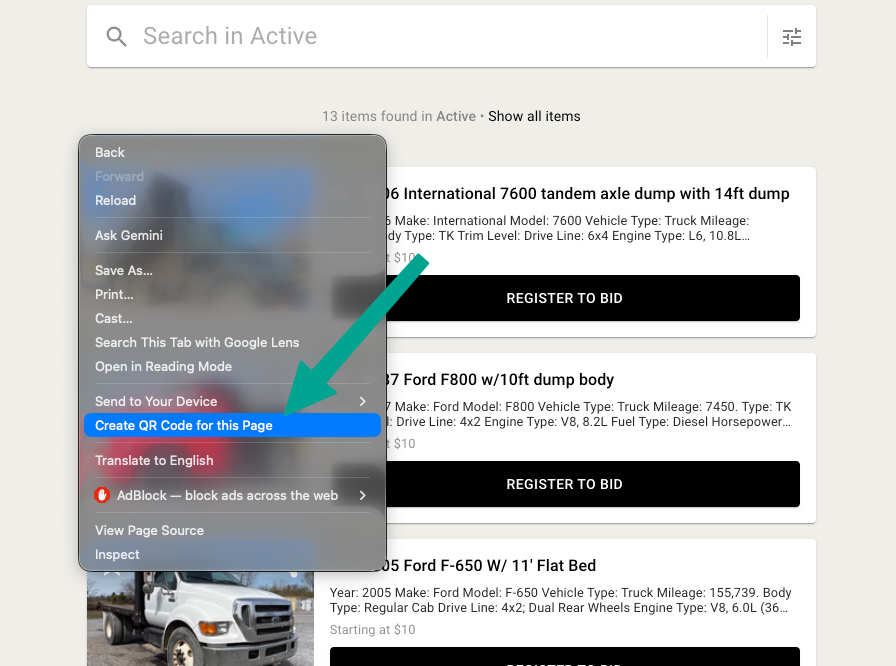
Right-click anywhere on a blank part of the page.
Select Create QR code for this page.
Click Download to save the QR code as an image, or Copy to paste it straight into a document or flyer.
More design control: use a third-party tool
If you'd like to add your logo, change the colors, or place the QR code straight into a flyer or sign, a design tool like QRFY or Canva can create one for you. Paste in the link to your website, bidding platform or auction, and the tool builds the code.
Whichever tool you use, check that it makes a standard (static) QR code. Some free generators create a code that runs through their own service and stops working after a trial period, which you'd only find out once your flyers are printed.
Use a QR code for live auction check-in
A QR code can shorten your registration line on sale day. Point it to the auction's page, and bidders can register on their phone while they wait in line. This is a good workflow if you also want to capture credit card details for your in-person bidders.
Create a QR code that points to your live auction's page.
Print it on a sign and place it where bidders line up, such as the entrance or the registration table.
Bidders scan the code and complete their registration online while they wait.
When they reach the front, your staff confirm their registration and assign them a live paddle number.
Tips for using your QR code
Test it before you print. Scan the code with your own phone and make sure it opens the right page.
Include the link too. Bidders viewing your auction on their phone can't scan a code on the same screen, so put the written link next to the QR code wherever it appears online.
Add it like any other image. A QR code can go in your auction description, an item description, a page on your website, a flyer or a sign.
Give it its own spot in the catalog. To make the QR code easy to find in an auction, add it as an informational lot, with the QR code as the image and the registration link in the description. Our article How do I create an informational lot? walks through the steps.