
How to Open Admin Portal Pages in a New Tab (and Why Your Last Search or Filters Aren't Saved)
Every page in the BidWrangler Admin Portal is a standard web page with its own address. You can open any link in a new browser tab, keep several pages open at once, and bookmark the pages that you use most. The Admin Portal does not save your last search or your applied filters. Keep a filtered list open in its own tab while you work in another tab.
When a second tab makes Admin Portal work faster
A second tab helps when you compare two lists, when you edit items while a filtered Items list stays open, or when you clerk in one window and look up a bidder in another. It also prevents lost work. If you move away from a filtered list in the same tab, you must apply the filters again when you return.
How to open an Admin Portal page in a new tab
Point to the link that you want to open, for example specific invoices from a filtered search
Right-click the link
Select "Open link in new tab" from the browser menu
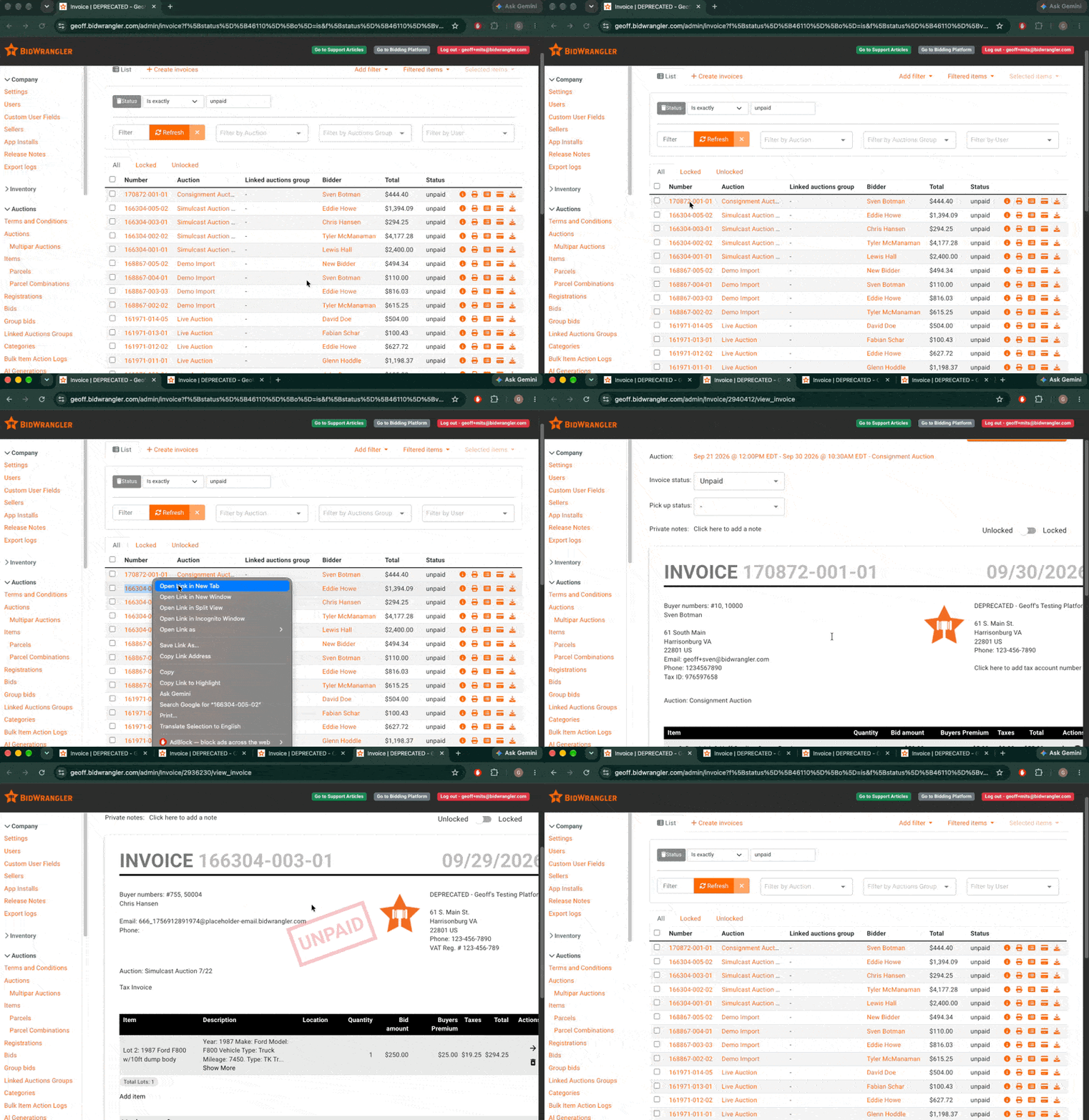
Keyboard shortcuts do the same thing. On Windows, hold Ctrl and click the link. On Mac, hold Cmd and click the link. To copy the page that you are on, right-click the browser tab and select "Duplicate". These are standard browser commands, and they work the same in Chrome, Edge, Firefox, and Safari.
Why your last search and filters aren't saved
The Admin Portal does not include a saved-search or saved-filter feature. Filters apply to the list in front of you. When you go to a different page and come back, apply the filters again through the 'Add Filter?' tab on that list. The fastest way to narrow a list again is the "filter by recent auction" bar, which is available in the Item, Bid, and Registration menus. Select the auction there to show only that auction's records.
How to keep your place while you work
Keep the filtered list open in one tab. Open each record that you want to work on in a new tab, and close those tabs when you finish. Your filtered list stays on screen, unchanged.
Bookmark the pages that you open every day. Each auction and item page has its own stable address. The auction ID is the five-digit number in the auction URL, and the item ID is the seven-digit number in the item URL.
CAUTION: Refresh a tab before you act on its data. A tab shows the data from the time the page loaded, so changes made in another tab do not appear until you refresh.
FAQ
Can I have more than one Admin Portal page open at the same time? | Yes. The Admin Portal is a website, so each browser tab holds its own page. You can keep an auction, a filtered Items list, and a bidder record open at the same time. |
Why do my filters disappear when I leave the page? | The Admin Portal does not save applied filters. When you leave a filtered list and return, apply the filters again. To avoid this, keep the filtered list open in its own tab and do other work in a second tab. |
Can I save a search to use again later? | No. The Admin Portal does not include a saved-search feature today. Bookmark the page and apply your filters again after it opens, or use the "filter by recent auction" bar to narrow the list quickly. |
Does a bookmark keep my filters? | A bookmark returns you to the page. Apply your filters again after the page opens. The 'Add Filter?' tab is in the upper right of each list under the Auctions category. |
Will a change I make in one tab show up in my other open tabs? | Not until you refresh them. Each tab shows the data from the time its page loaded. Refresh the other tabs after you make a change. |
Can BidWrangler add saved searches or saved filters? | We track feature requests. If saved filters help your workflow, send an email to helpdesk@bidwrangler.com and tell us how you use them, so we can log the request. |
Related articles
If you have a question at any step, send an email to helpdesk@bidwrangler.com. We are glad to help.