
How can I create a paper clerking sheet?
Option 1 - Buyer's Guide
You can utilize the Buyer's Guide to create a clerking sheet - this method is the only one allows the inclusion of item images.
Open your auction's Review tab
Click BUYER'S GUIDE
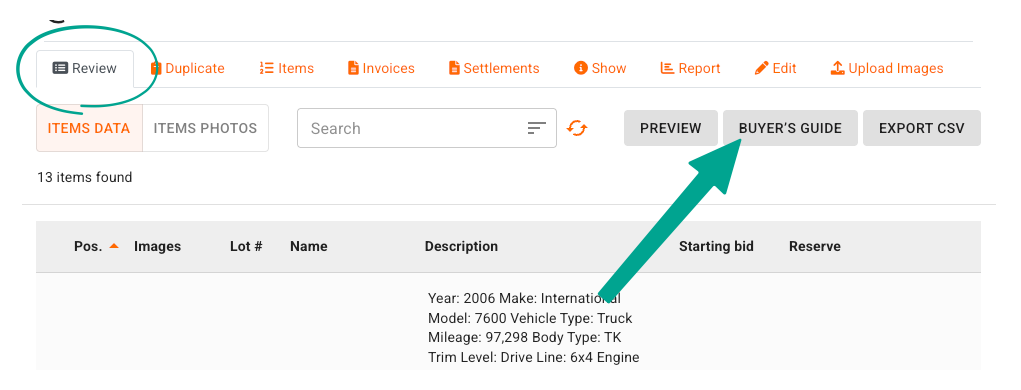
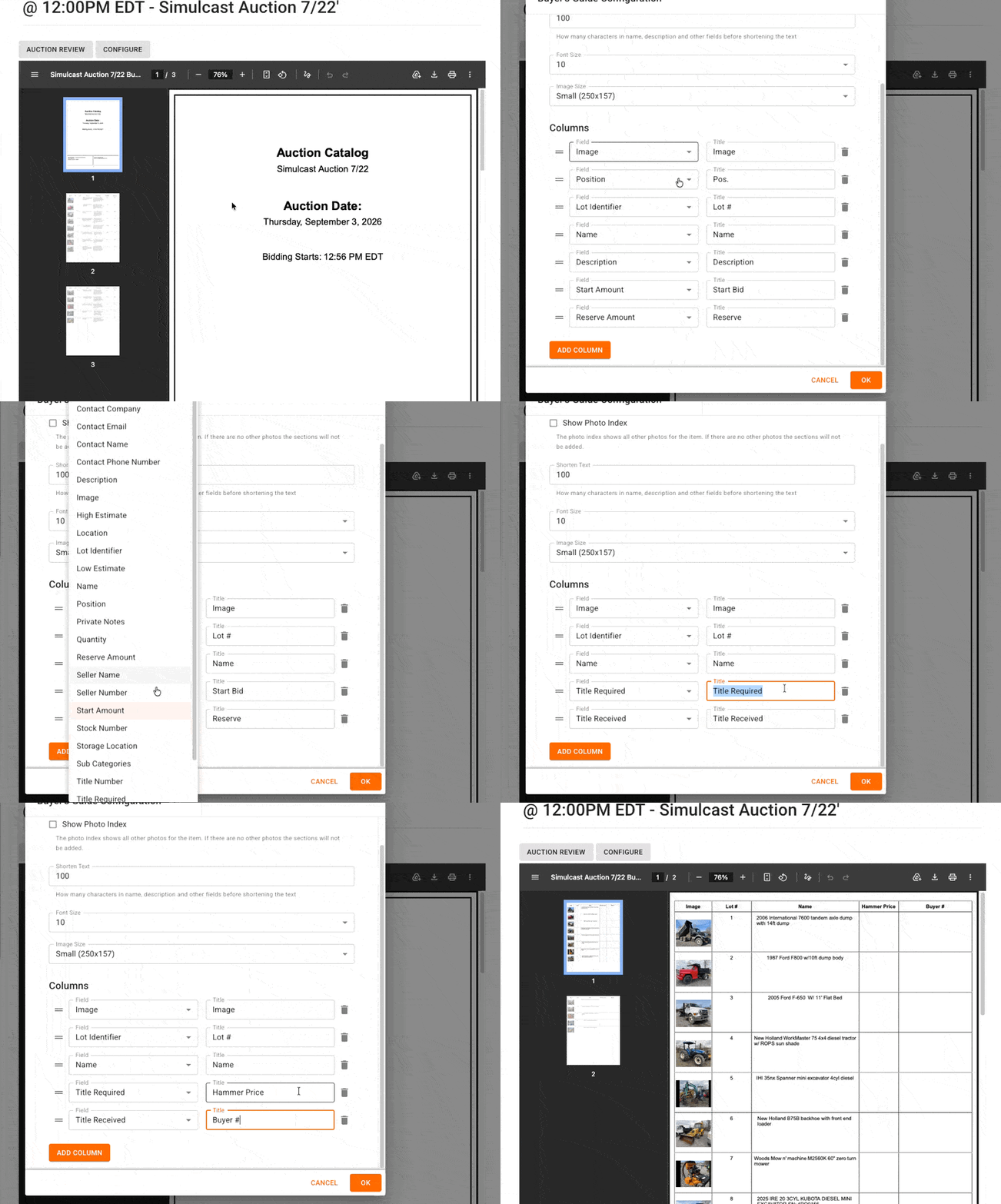
Click CONFIGURE
Add or delete columns as needed, then select two rows that you are otherwise not using
Retitle these unused fields to reflect one for the price and the other for paddle number
Click OK
Print
Option 2 - Inventory Summary
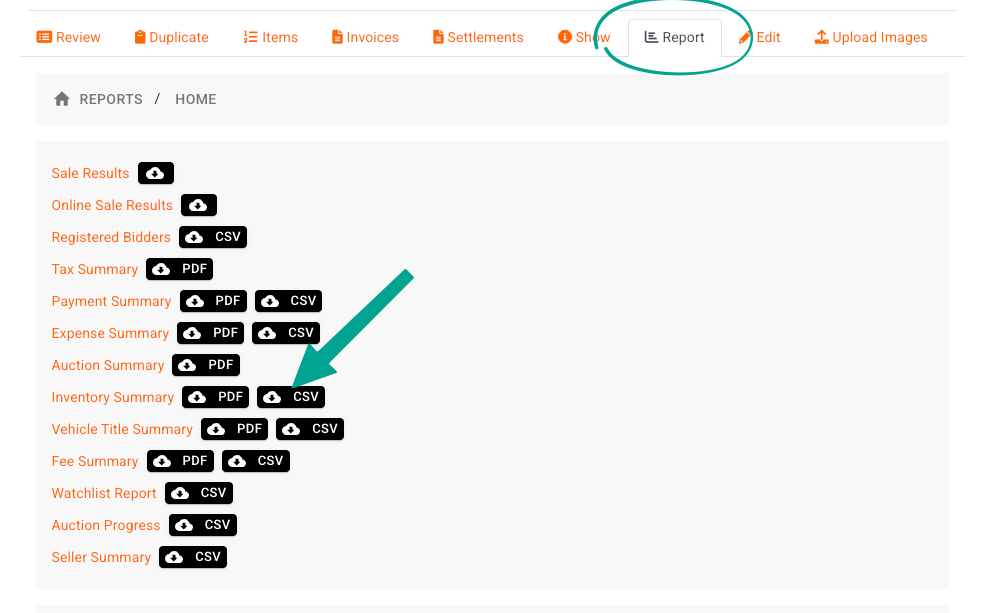
Open your auction's Reports tab
Click the CSV button next to the Inventory Summary report
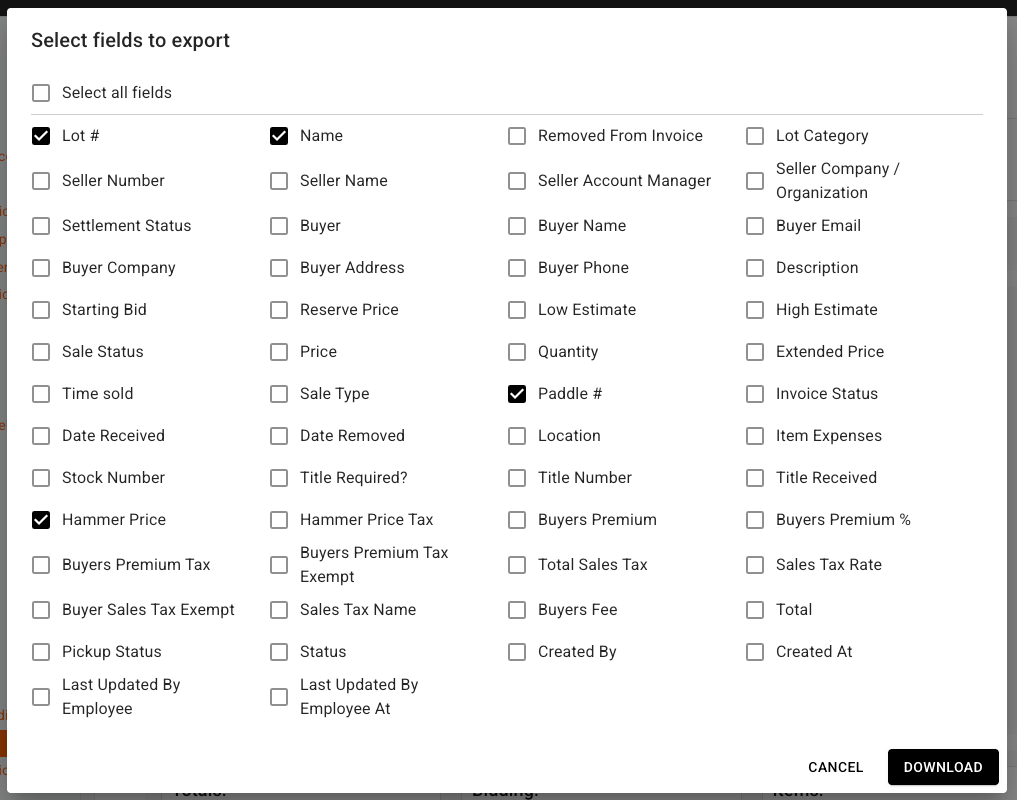
Check the Lot #, Name, Paddle #, and Hammer Price fields (and any other fields as needed)
Click DOWNLOAD
Option 3 - Export CSV
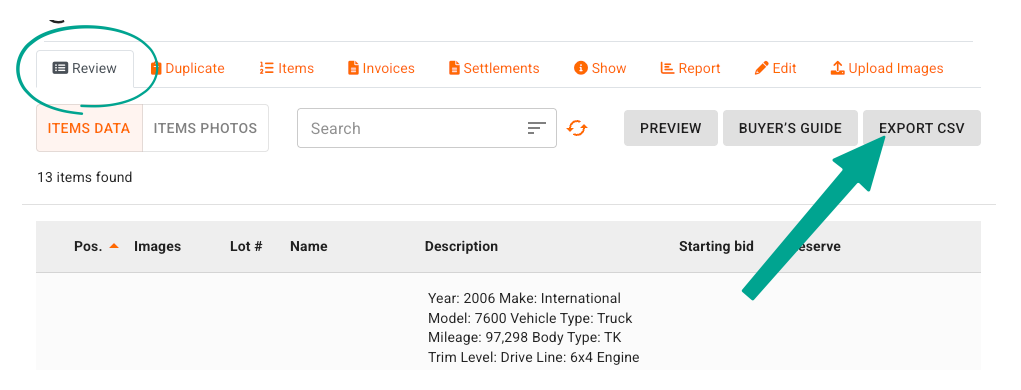
Open your auction's Review tab
Click EXPORT CSV
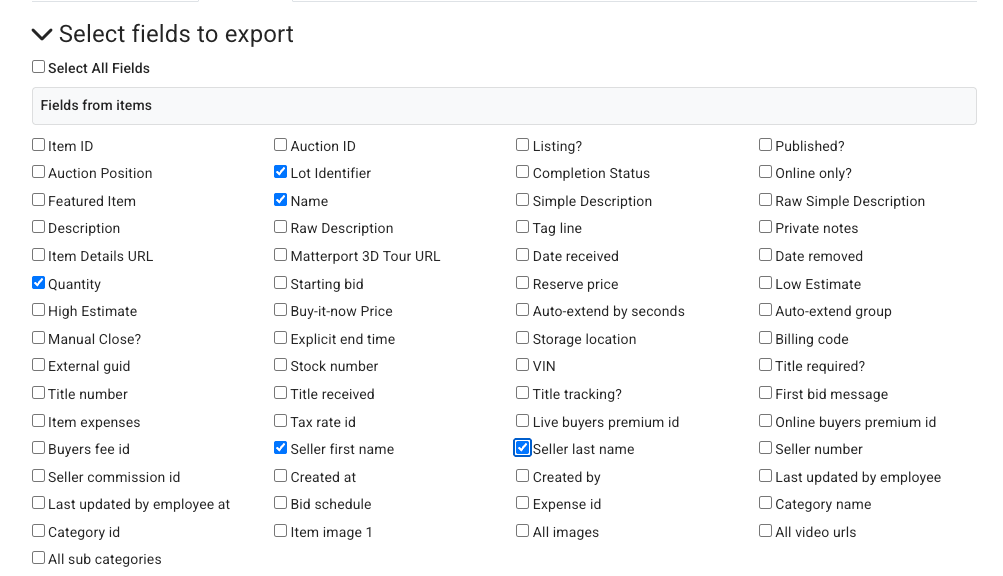
Click Select all fields to uncheck everything
Check each field you want to include, such as Lot Identifier, Name, Quantity, etc.
Scroll to the bottom of the page and click ✓ Export to CSV
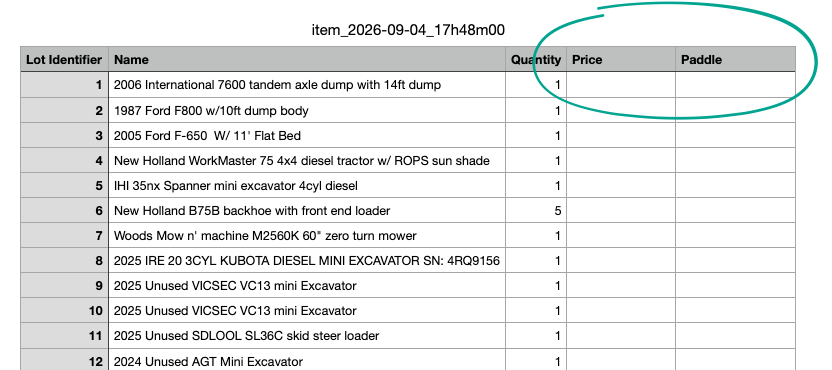
Open your downloaded document, and add two columns for Price and Paddle Number:
Blank Template
If you're clerking on the fly, and just need a blank template you can also use the attached PDF below: