
Inventory Management: Complete Guide
What is BidWrangler Inventory Management?
What Is Inventory Management?
Inventory Management lets you track and organize items outside of an active auction, in dedicated containers, before, between, or after auctions. Every item added to Inventory becomes an asset with a status of In Inventory, In Auction, Sold or Unsold, and assets are organized into Inventory Containers (for example, "Warehouse A"). This is useful for consignment tracking, staging items ahead of a sale, and managing unsold items between auctions, since items can be moved into an auction, imported in bulk, and automatically returned to Inventory if they go unsold.
How to Enable Inventory for Your Company
Inventory is turned off by default. Please reach out to BidWrangler Customer Success at helpdesk@bidwrangler.com to enable it for your team to use it.
Once enabled, the Inventory → Containers and Inventory → Assets sections appear in Admin for users with access.
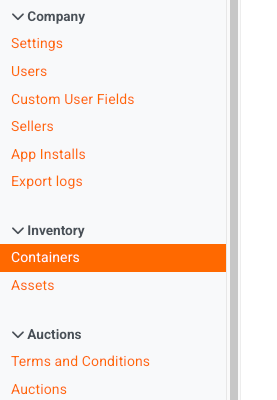
Enabling Inventory is required before any of the workflows below become available.
Who Can Access Inventory Management?
Access to Inventory is restricted by role:
Role | Access |
|---|---|
Full Admin | Full access |
Admin (with Cataloging permission) | Full access |
Admin (without Cataloging permission) | No access |
Catalogers | No access |
Consignors | No access |
Clerk | No Access |
Catalogers and Consignors will not see the Add to Inventory action and cannot open Inventory admin pages. If your team needs a Cataloger or Consignor to work with Inventory, they will need Admin or Admin with Cataloging permissions instead.
How to Add Items to Inventory
There are two ways to bring items into Inventory.
Add Existing Auction Items to Inventory
Go to Admin → Items.
Select the items you want to add (filtered items or individually selected items both work).
Choose the Add to Inventory action.
Adding to inventory via Filtered Items:
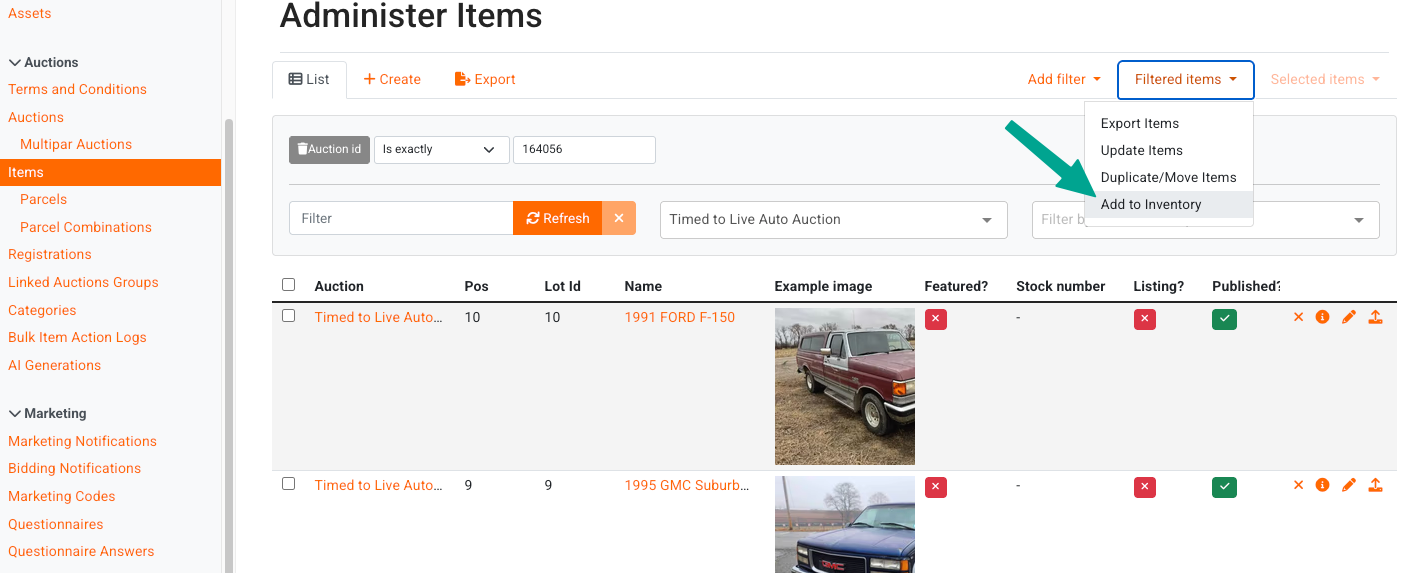
Assigning a container at this step is recommended for keeping items organized, but not required.
Import Items Directly Into Inventory
The .CSV import flow also supports importing straight into Inventory instead of an auction.
Start a .CSV import as you normally would.
Select either an auction or an Inventory Container as the destination. You cannot import into both at once.
If you do not have stock numbers assigned already on your sheet, you can use the checkbox to generate stock numbers. The starting stock number can be set in your company settings in the customization options.
Complete the import.
Lot identifiers can be left blank when importing into a container, since stock numbers are used to identify items in Inventory instead. Note that stock numbers, if used, must be unique to every inventory asset, since assets do not need to be associated with an auction or an inventory container.
Generating Stock Numbers during the import:
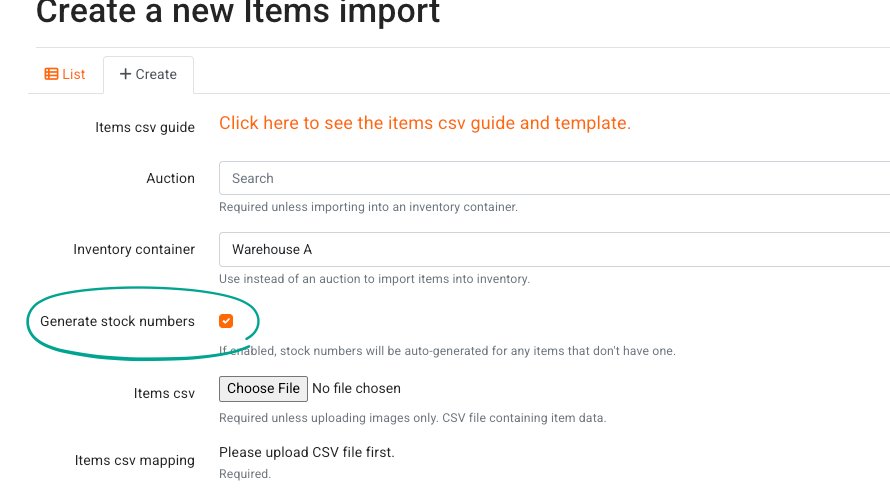
Importing items directly into an auction will also automatically create the matching asset in Inventory, so you do not need to add those items separately.
What Happens to Unsold Auction Items?
When an auction closes, any unsold items linked to an Inventory container automatically return to that container. The asset's status updates to Unsold, including for items marked no-sale after the auction closes.
How to Review Assets
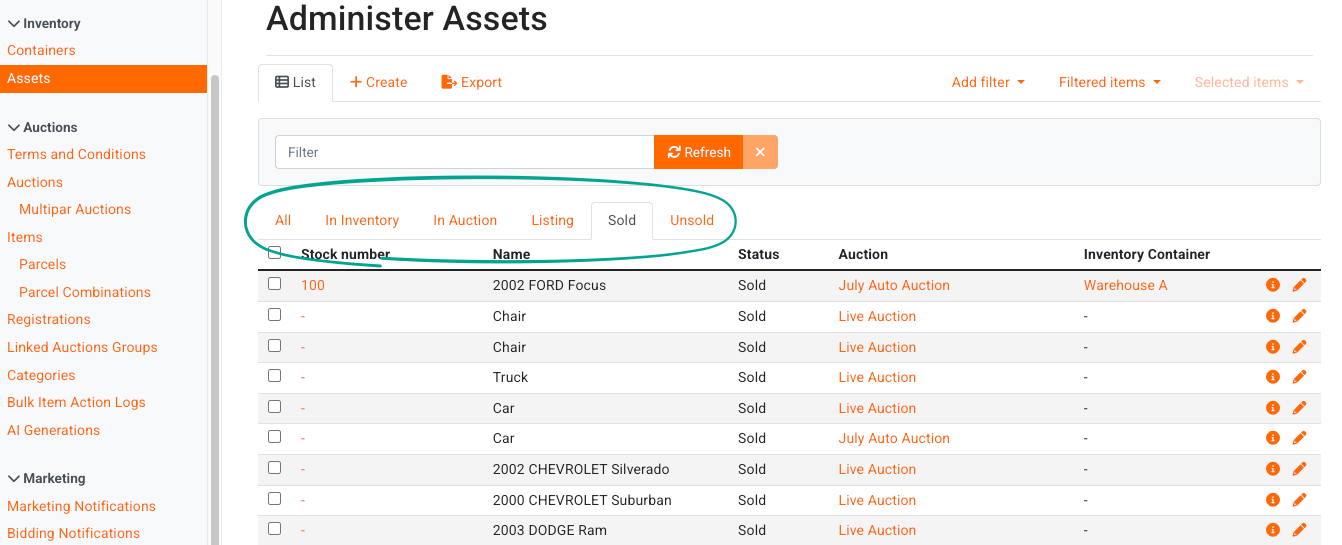
All assets can be reviewed from the Inventory → Assets option in the left-hand menu. This will display the Stock Number, Asset Name, Status, Auction, and Inventory Container.
You can view Assets by status using the corresponding tab for In Inventory, In Auction, Listing, Sold, and Unsold.
How to Review an Inventory Container
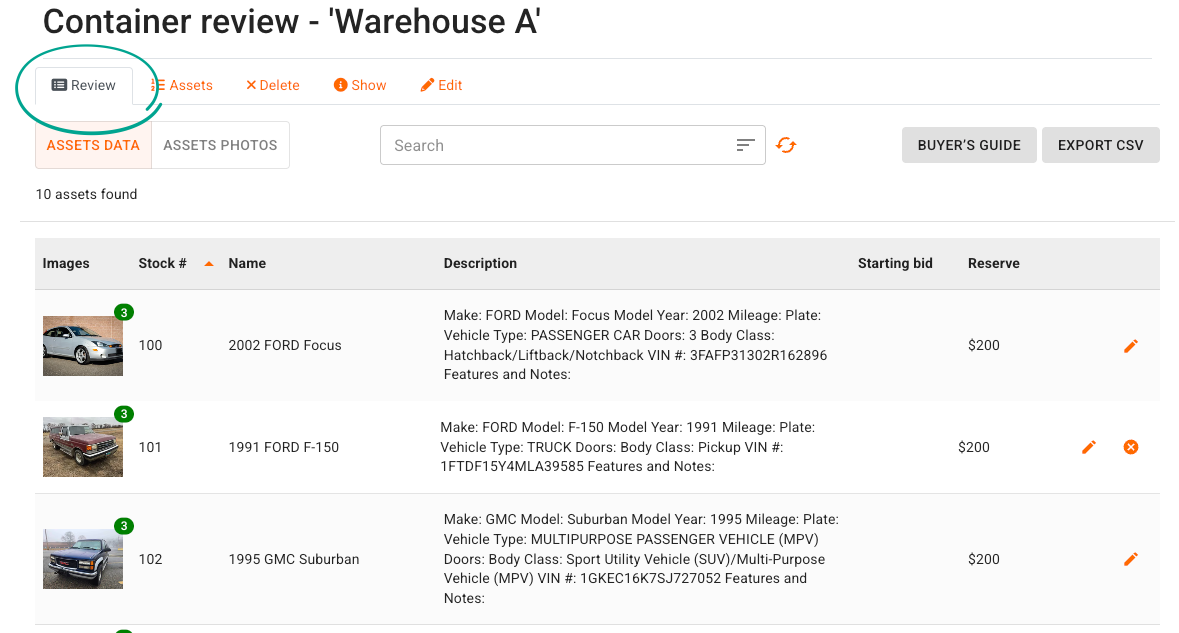
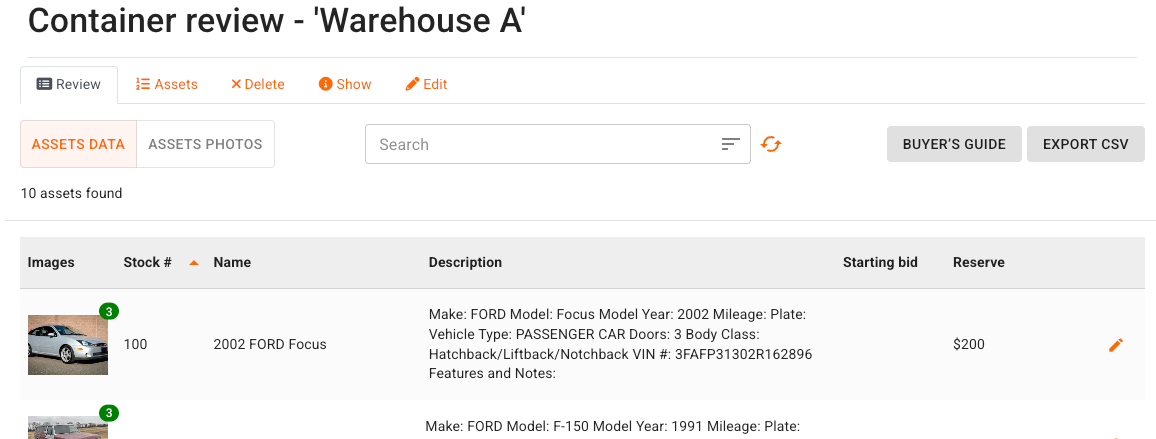
Each Inventory Container has a full review screen, similar to the auction review screen. From the container review screen you can:
Search and sort items
Manage and edit asset photos
Export assets to .CSV and photos to a zipped folder
How to Generate a Buyer's Guide for an Inventory Container
The Buyer's Guide PDF is available for Inventory Containers, not just auctions. This is useful for internal walkthroughs and appraisals.
A few things to know:
Buyer's Guide settings for 'inventory' Containers are saved separately from your 'auction' Buyer's Guide settings.
By default, the container Buyer's Guide shows Stock Number instead of Position/Lot ID.
How to Manage Item Photos in Container Review
From the Assets Photos view on the container review screen, you can select multiple photos and:
Delete them
Copy them to another item (by stock number)
Move them to another item (by stock number)
Cancel your selection
Uncatalogued photos, photos not yet assigned to an item, appear in a dedicated gallery view on the container review screen, matching how uncatalogued photos work on the auction review screen.
How to Move Inventory Items to an Auction
Single asset: Go to Admin → Inventory → Assets, edit the asset, and reassign it to the auction.
Multiple assets: Export a CSV from the Inventory Container review screen, then re-import that CSV into the target auction. Items are matched by stock number.
Full Inventory Workflow, Start to Finish
Reach out to BidWrangler Customer Success to have Inventory enabled for your company.
An Admin creates Inventory Containers (for example, "Warehouse A").
"Assets" are added individually to an Inventory "Container" via Assets or in bulk through a ".csv" file Items Import into an "Inventory container"
Items are moved to an auction through single-asset edit or CSV export and re-import.
Unsold items automatically return to Inventory after the auction closes.
Containers are reviewed through the Container Review Screen: search and sort items, manage photos, and generate a Buyer's Guide PDF.
Frequently Asked Questions
Is Inventory Management turned on by default? No. It is off by default and must be enabled by a Superuser through your company's Admin settings.
Can Catalogers or Consignors access Inventory? No. Inventory access is limited to Full Admins and Admins with Cataloging permission.
Do I need to assign a container when adding items to Inventory? No. Assigning a container is optional but recommended for keeping items organized.
Can lot numbers be blank when importing into Inventory? Yes. Lot identifiers can be left blank when importing into a container, since stock numbers are used instead.
What happens to unsold items after an auction closes? Unsold items linked to an Inventory asset are automatically duplicated back into Inventory, with their status reset to Unsold.
Can I move multiple items to an auction at once? Not yet as a single bulk action. Export a CSV from the container review screen and re-import it into the target auction, matched by stock number.