
How do I re-clerk an item?
Overview
In some cases, you may need to change the winning bid on an item after the auction has closed. A basic example of when this would occur is if you need to sell to a backup bidder.
There are three ways to re-clerk an item:
Invoice Screen (Quickest for individual items)
Online Clerking Panel (Best for reopening bidding or removing bids)
Live Clerking Panel (Best for live events OR silent re-clerking without reopening the auction)
Re-clerking via the Invoice Screen
Move the Item
Open the invoice currently containing the item.
Locate the item and click the Move (arrow) icon.
In the dropdown/search box, select the registered bidder you wish to move the item to.
Note: The new bidder must already be registered in the auction to appear in the search list. Please visit this article if you need help registering a bidder.
Click Move Item.
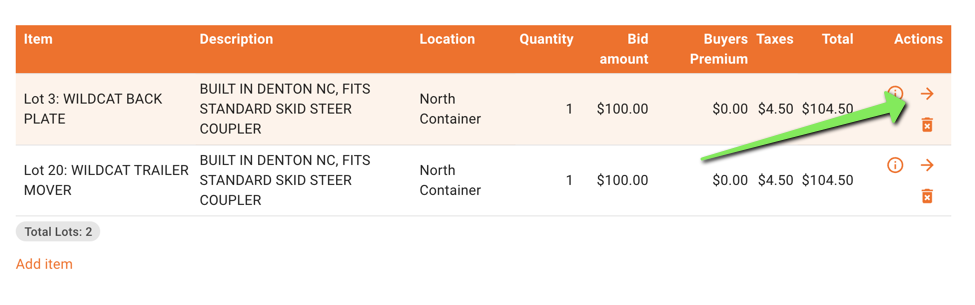
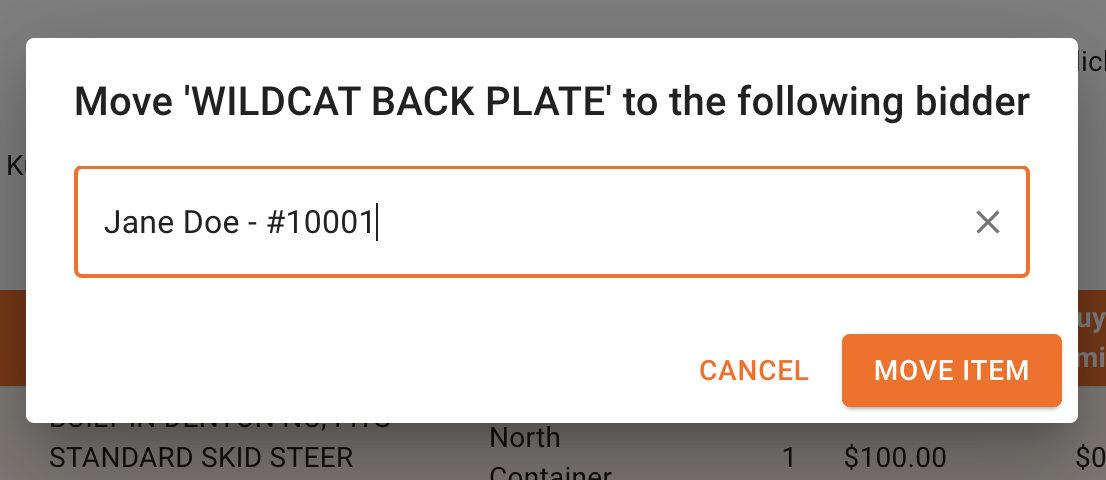
Note on Invoices: If the new bidder did not previously have an invoice in this auction and automatic invoice generation is disabled, you will need to regenerate invoices for the new invoice to appear.
Adjust the Bid Amount (Optional)
If the bid amount also needs to be changed:
Navigate to the appropriate invoice.
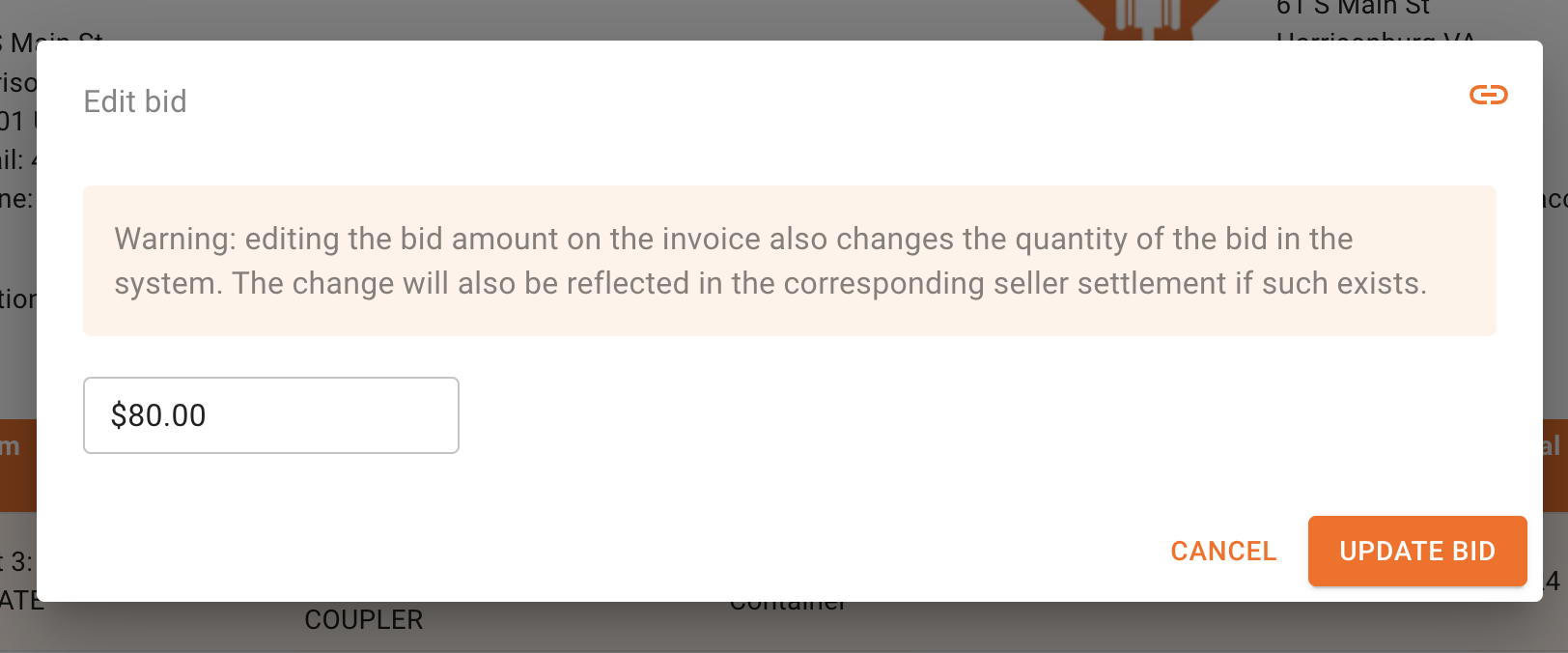
Click directly on the bid amount to edit it.
Enter the new amount and click Update Bid.
Re-clerking via the Online Clerking Panel
IMPORTANT: Check Company Settings First!
Before reopening an item in the Online Clerking Panel, verify that "Disable end of auction emails" is checked in your settings. If this setting is off, reopening and re-closing an item will trigger end-of-auction emails to all registered bidders in the auction. For companies that send out invoices at the end of sale, we often recommend that this feature be disabled.
To verify/update this setting:
Go to Settings and click the Pencil icon to edit company settings.
Scroll down to the Customization section.
Check the box for "Disable end of auction emails".
Scroll to the bottom and click Save.

Steps to Re-clerk
Navigate to the Online Clerking Panel. (If you need help navigating to this panel, please visit this article).
Locate and select the item from the Items Catalog.
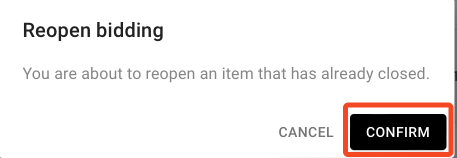
Click the Reopen button, then click Confirm (as shown below).
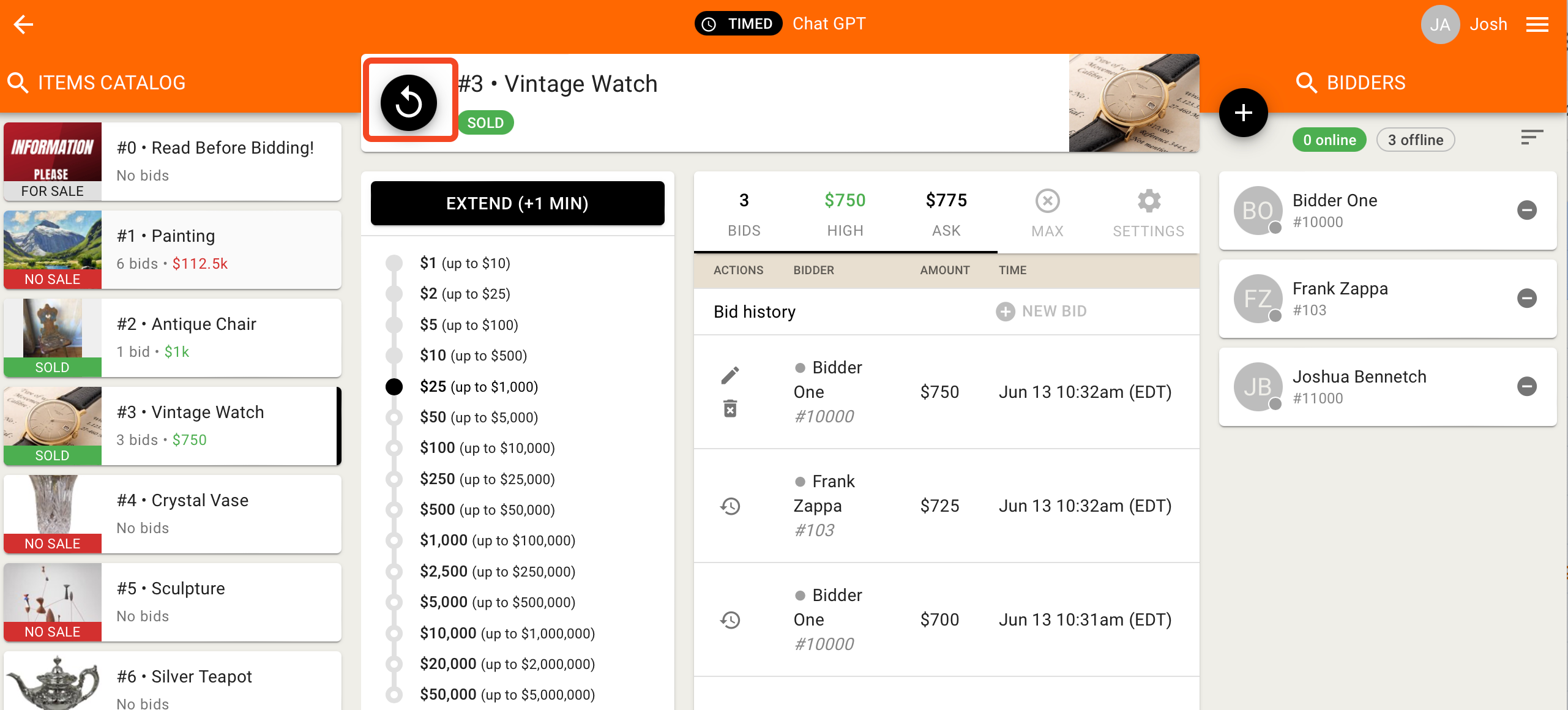
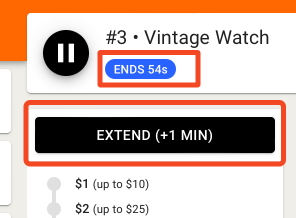
⏱️ Important: Once reopened, the item immediately begins its standard closing countdown. Click the Extend button right away if you need extra time to make changes before it closes automatically.
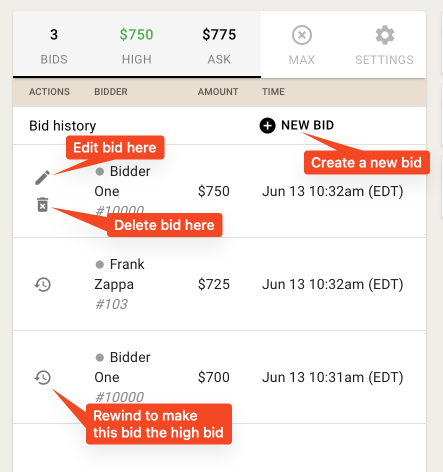
Perform your updates:
To sell to a backup bidder: Click the Trashcan icon to delete the top bid, then place a new bid or sell to the remaining top bidder.
To place a new bid: Manually enter the new bid details.
Click Sold (or No Sale, if applicable).
Once saved, generated invoices will automatically reflect the updated winning bidder and lot information.
Re-clerking via the Live Clerking Panel
The Live Clerking Panel allows you to re-clerk items without re-opening the auction or sending updates to online bidders.
PREREQUISITE: Live Tools must be enabled!
Accessing the Live Clerking Panel requires Live Tools Training and Live Tools to be enabled on your account. If you need access or training, please email us at helpdesk@bidwrangler.com.
Silent Re-clerking for Online Auctions
While primarily used for live auctions, you can also access the Live Clerking Panel for Online Auctions directly via your browser's address bar. This is useful when you need to "silently" re-clerk an item without:
Reopening the auction to online bidders
Triggering end-of-auction notifications
Altering the order of your Completed Auctions
How to access via URL:
Replace the end of your platform URL with /ui/live_clerk/{auction_id}.
Example URL:
https://bid.yourcompany.com/ui/live_clerk/159249
Steps to Re-clerk
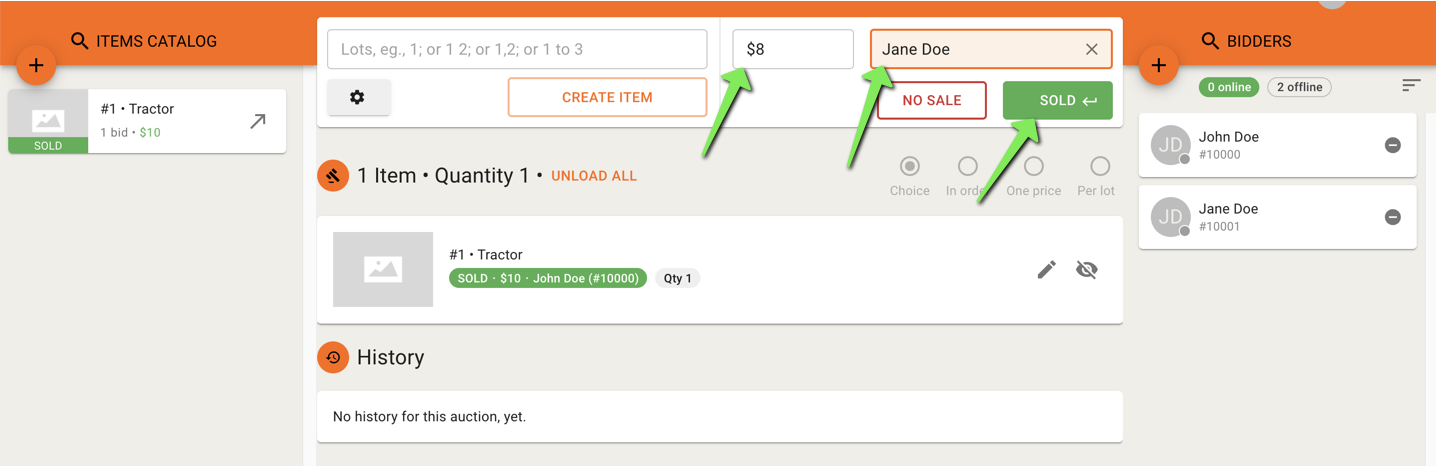
Open the Live Clerking Panel (via menu or direct URL).
Enter the lot number and click Load Item (or press
Enter).Enter the desired bid amount.
Search for and select the target registered bidder.
If the bidder is not yet registered, click the Plus (+) icon under Bidders on the right side of the screen to register them.
Click Sold (or press
Enter).
Note: If the bidder was not previously registered or had no prior wins, regenerate invoices to display their updated statement.
Frequently Asked Questions (FAQ)
Q: Why didn't a new invoice generate after I moved an item to a new bidder?
A: If the new winning bidder did not win any other items in the auction and automatic invoice generation is disabled, an invoice will not generate automatically. You will need to manually regenerate invoices for the auction to produce their updated statement.
Q: Why can't I find a bidder in the search or dropdown list when trying to move an item?
A: A bidder must be registered for that specific auction to appear in the search results. If they do not appear, verify that they are registered first. If you are using the Live or Online Clerking Panel, you can quickly register them by clicking the Plus (+) icon in the Bidders section on the right side of the screen.
Q: Will re-clerking an item send an email notification to all bidders in the auction?
A: If you re-clerk via the Online Clerking Panel and "Disable end of auction emails" is unchecked in your settings, re-closing the item will send end-of-sale emails to all registered bidders. To prevent this, always verify that "Disable end of auction emails" is checked in Company Settings > Customization, or re-clerk silently via the Invoice Screen or Live Clerking Panel.
Q: Why did an older completed auction jump to the top of my "Completed Auctions" list?
A: Reopening an item in the Online Clerking Panel temporarily resets the auction's status from Completed to Accepting Bids. When you mark the item as sold again, the system updates the auction's finalized_at timestamp to the current time, placing it at the top of the Completed tab as if it just finished.
Q: How can I re-clerk an item silently without changing the order of my Completed Auctions list?
A: To re-clerk an item without updating the auction's finalized_at timestamp or triggering public updates, perform the re-clerk directly on the Invoice Screen or access the Live Clerking Panel using the direct URL format /ui/live_clerk/{auction_id}.
If you have any questions about reclerking an item, please contact us at helpdesk@bidwrangler.com.