
How do I create a Questionnaire?
Auction Registration Questionnaires
A custom questionnaire can be created and attached to an auction for bidders to answer during registration.
Up to five questions can be configured into a group on the Questionnaire admin screen
Questions can be Optional or Required
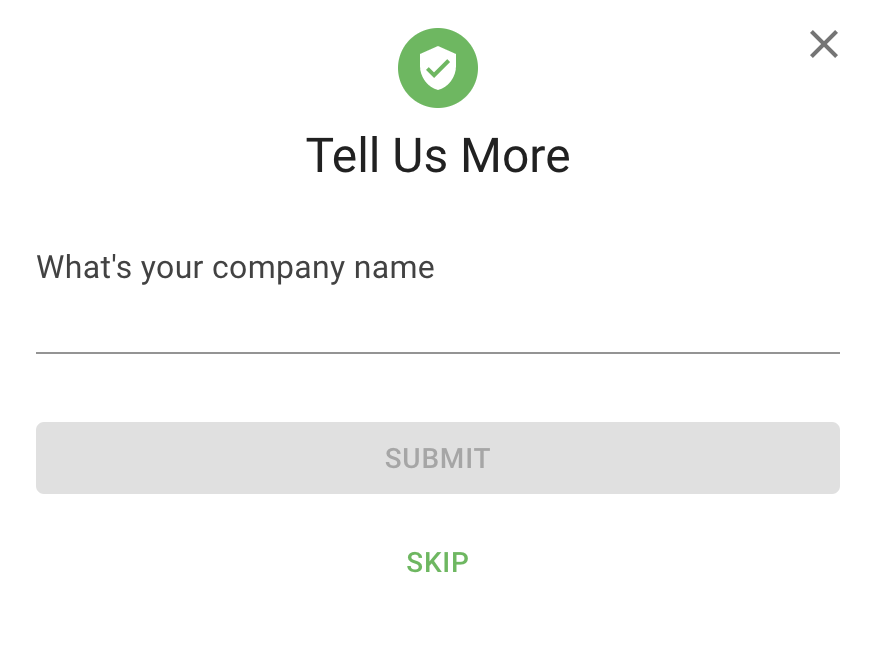
Questions will be shown to registrants on a "Tell Us More" popup dialog following registration
You can store multiple sets of questions to be used for different auctions
A default question set can be enabled in the Admin Portal Company Settings
Questionnaire answers can be exported in a CSV, or be viewed in the Admin Portal in "Questionnaire Answers"
NOTE: You must have the New Bidding UI enabled to utilize this feature
How do I create an Auction Registration Questionnaire?
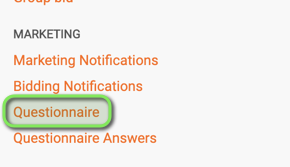
First, navigate to the BidWrangler Admin Portal, and click "Questionnaire" in the "Marketing" Tab -
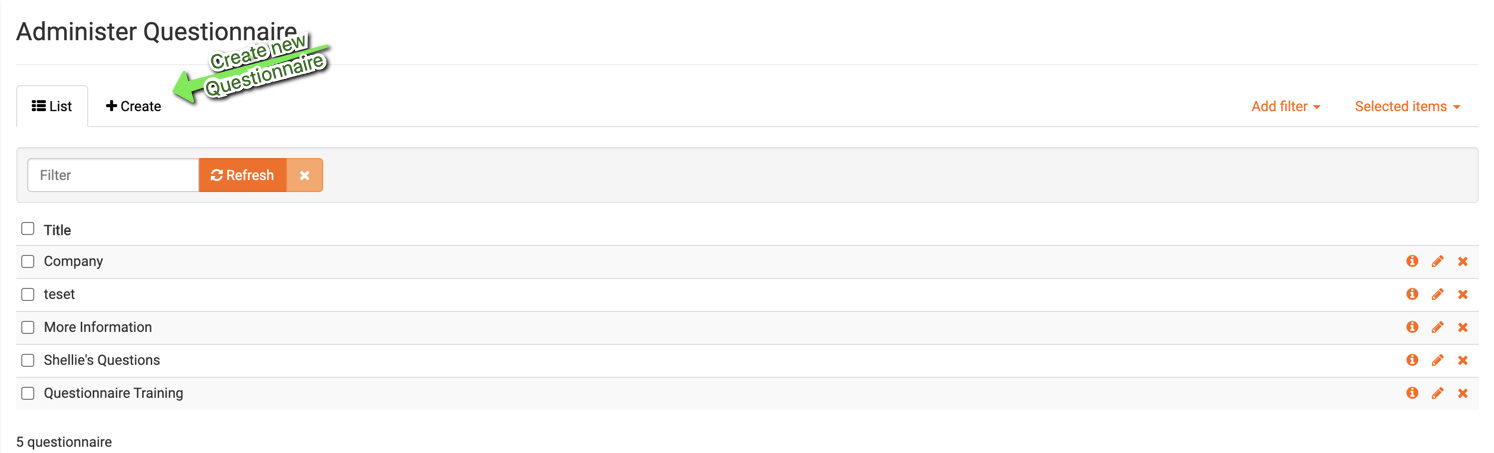
Next, click "Create" -
Once in the "Create a new Questionnaire" screen.
Add a "Title"
Create more than one field for the Questionnaire,
Require bidder to answer before registration or leave optional
Field is what the bidder will see as the Question
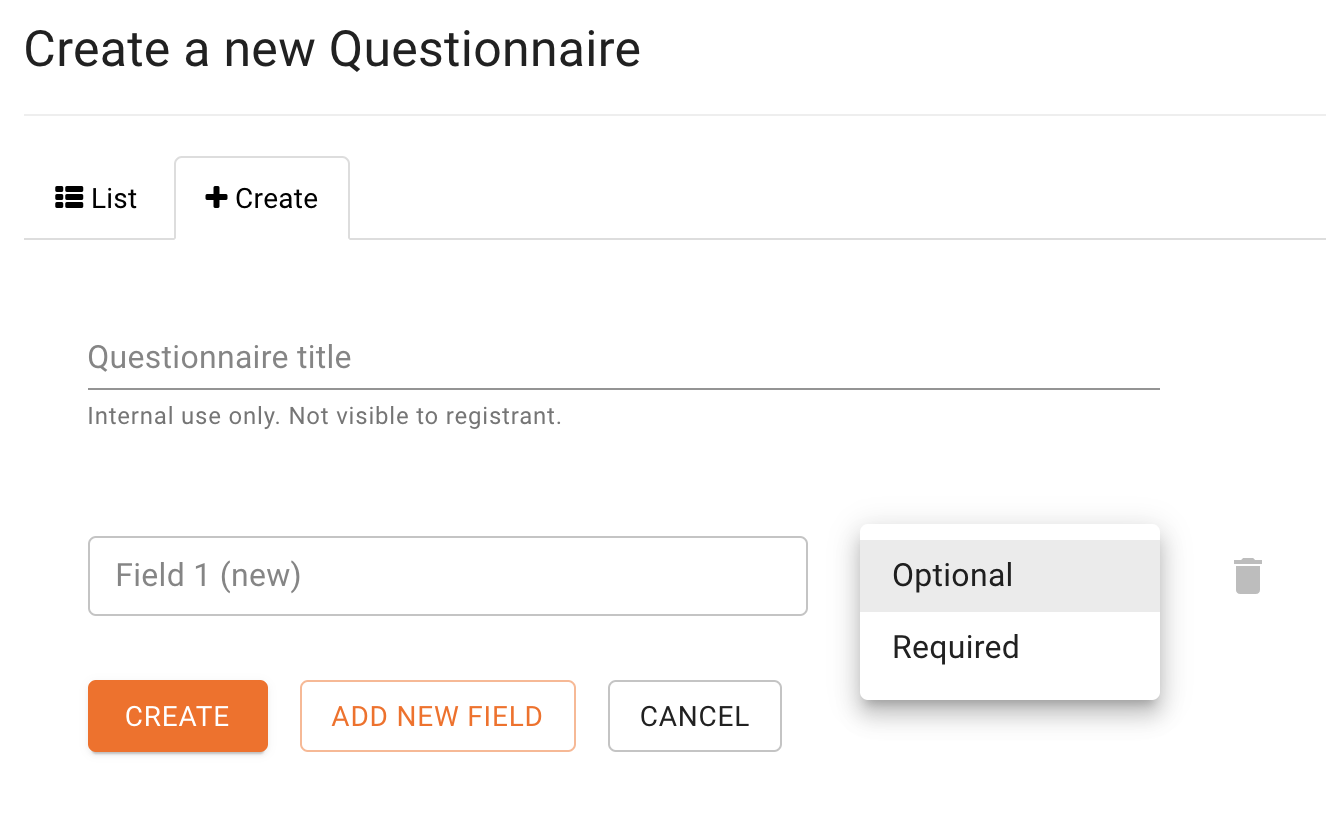
When you are finished creating your Questionnaire, click "create" to save -
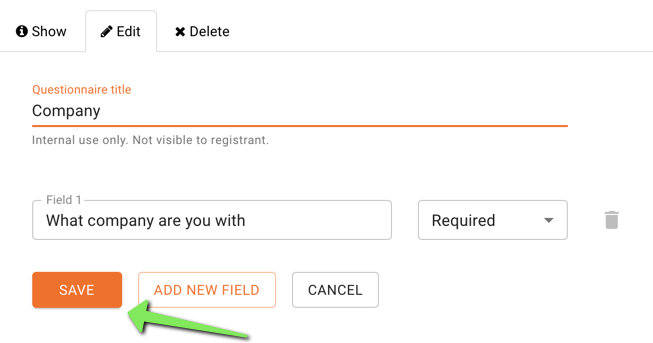
Attaching the Questionnaire to an auction
To attach the questionnaire you have just created to a specific auction, navigate to the edit auction screen -
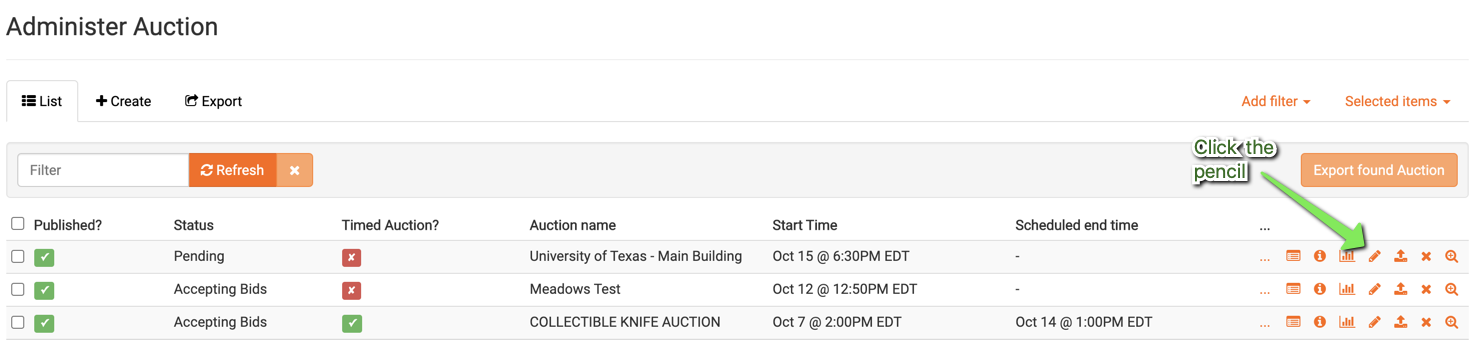
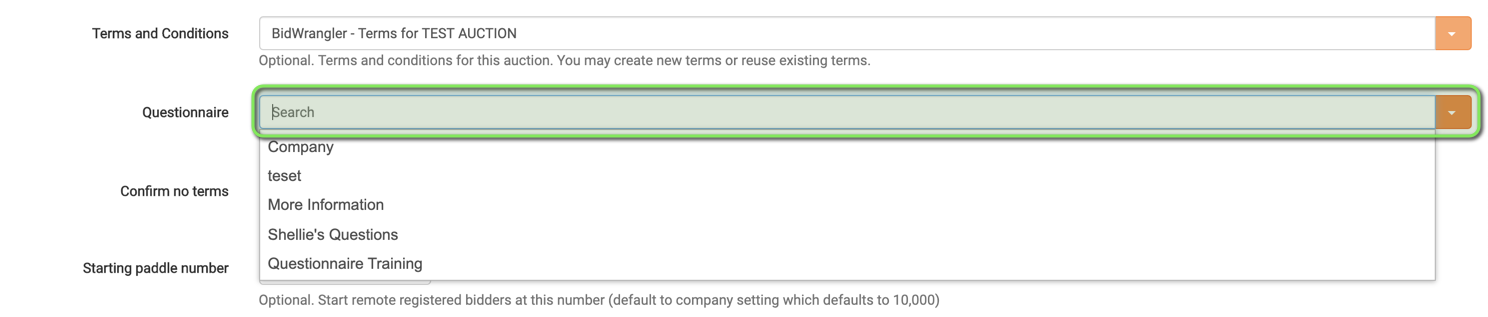
Once in the "Edit Auction" screen, scroll down to the questionnaire drop box, and select the title of the Questionnaire you would like to attach to this auction and click "SAVE"-
Questionnaire will now appear to bidders upon auction registration -
Viewing Questionnaire Answers
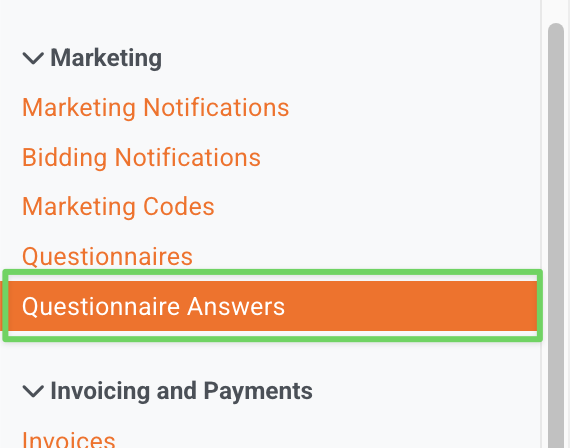
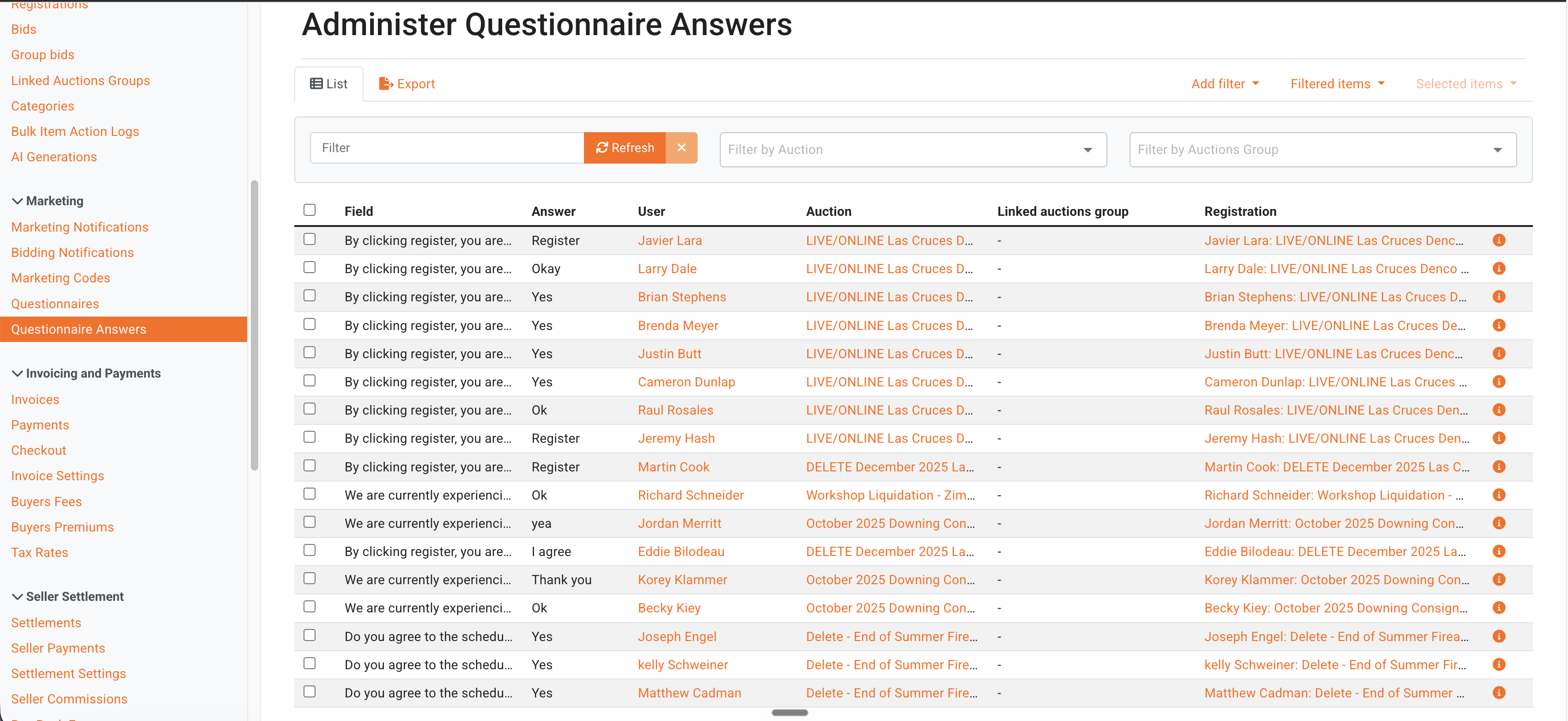
The answers that users submit can be found under the Marketing section on the lefthand side of the Admin Portal at Questionnaire Answers -
The Answers will be displayed in this page, along with the Question, User, Auction (or Linked Auctions Group), and the Registration associated with the answer:
The Answers and their associated fields can also be exported as a CSV by:
Clicking the Export button (which exports the entire Answer history)
After adding filters and clicking Filtered Items > Export Questionnaire Answers
Selecting individual Answers, clicking Selected Items > Export Questionnaire Answers
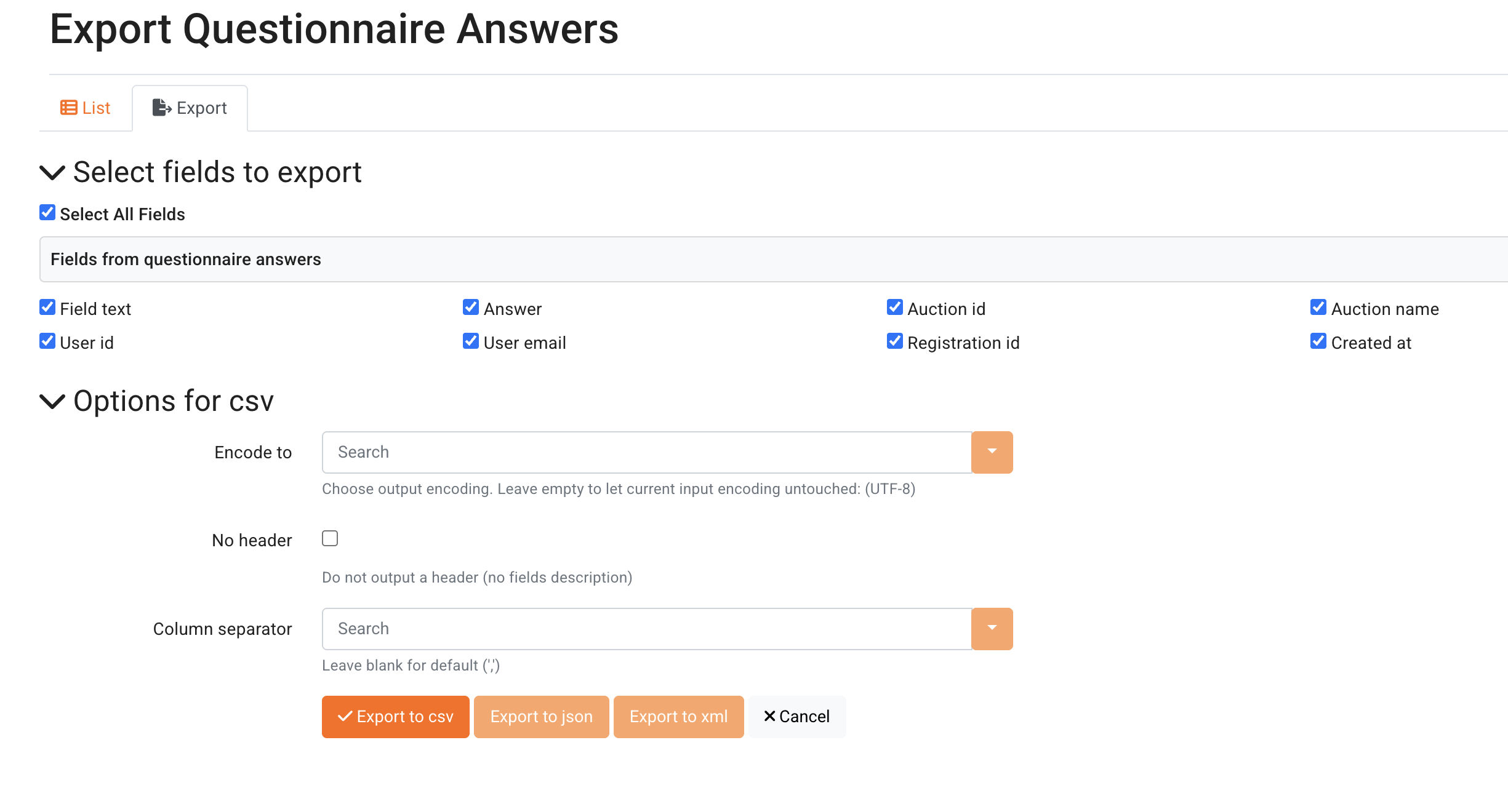
From the Export Questionnaire Answers screen, you can check or uncheck the desired fields to be exported in the CSV, then Export to CSV to download.
Have any questions about Questionnaires? Email helpdesk@bidwrangler.com and we are happy to help!