
Adding Videos to Lots in BidWrangler
Videos can be uploaded to YouTube and added to individual items/lots in the BidWrangler admin portal. When complete, videos will display embedded in the photo carousel.
Embed a Video on an Item
Upload the Video to YouTube
For help uploading a video to YouTube, click here
Copy the YouTube Embed Link from the YouTube Video
(Directions for YouTube shorts at the bottom of the page)
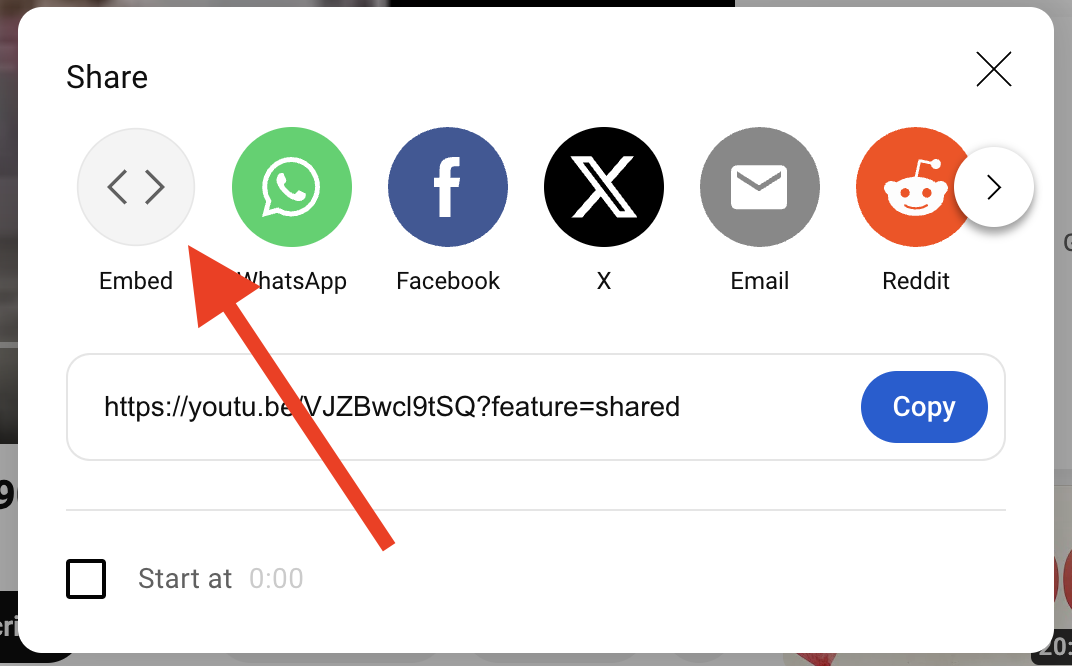
Go to the video's page, and click the share button below -

Then, click the Embed button
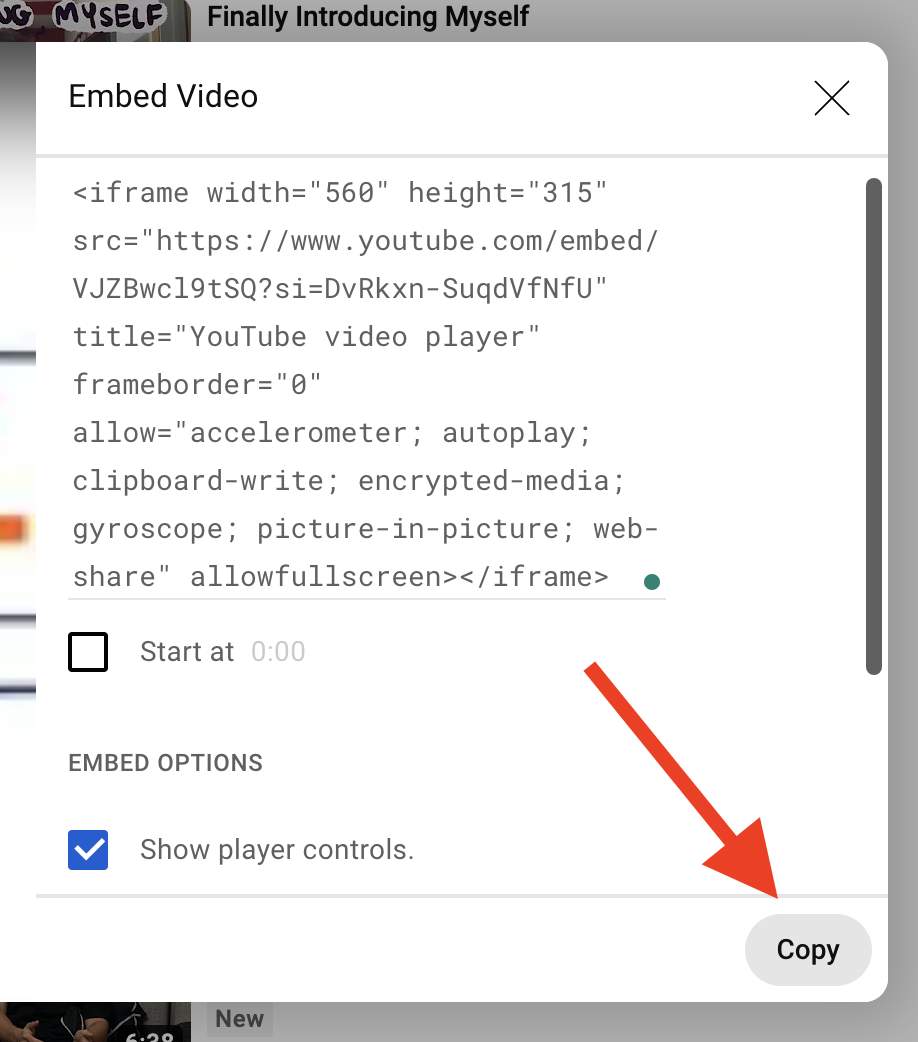
Lastly, click on "Copy" to save the URL in your clipboard
Add the URL Embed Link
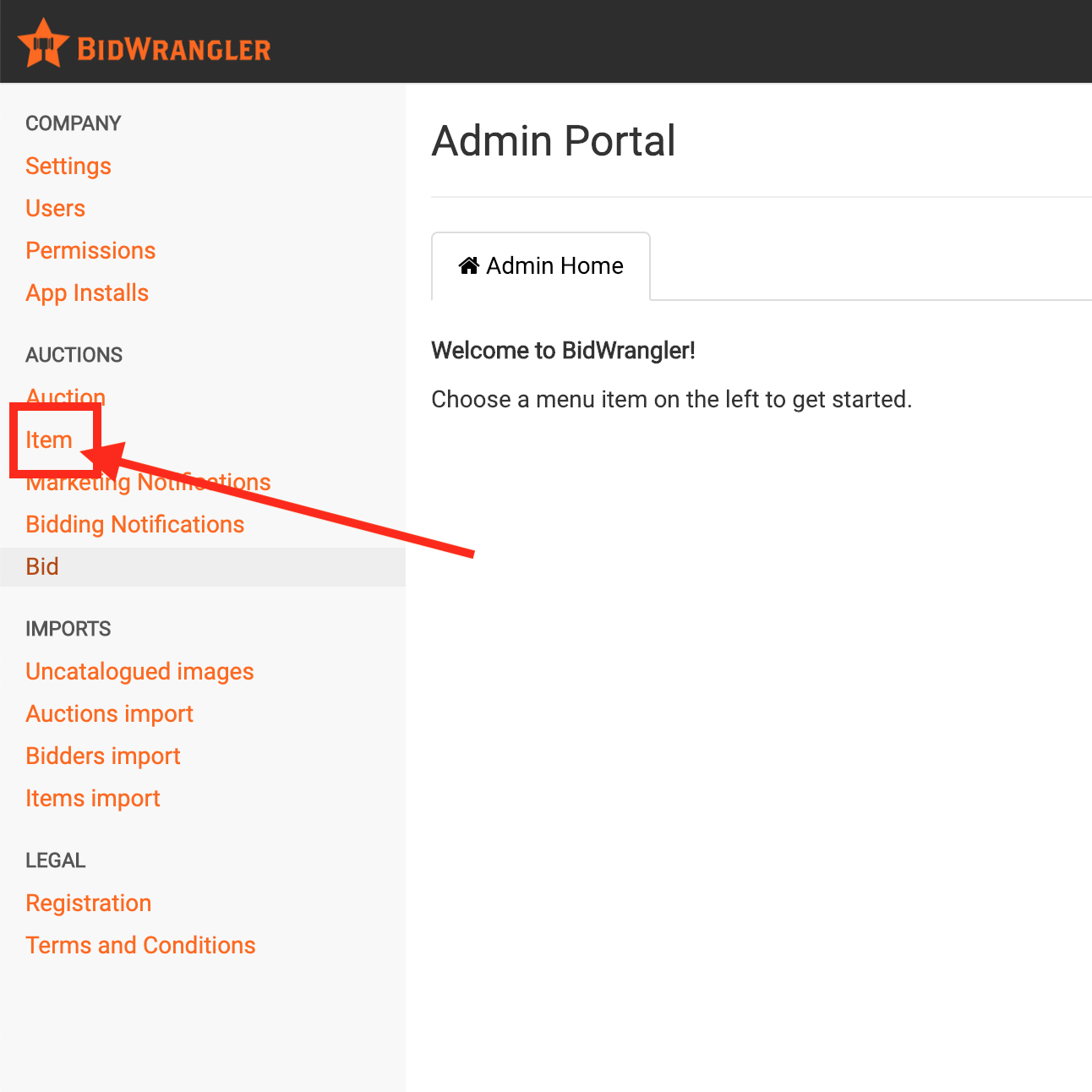
Once the link has been copied, navigate to the BidWrangler admin portal, and click 'Item' from the left menu -
Next, find the item you wish to put the video in and click the pencil to edit -

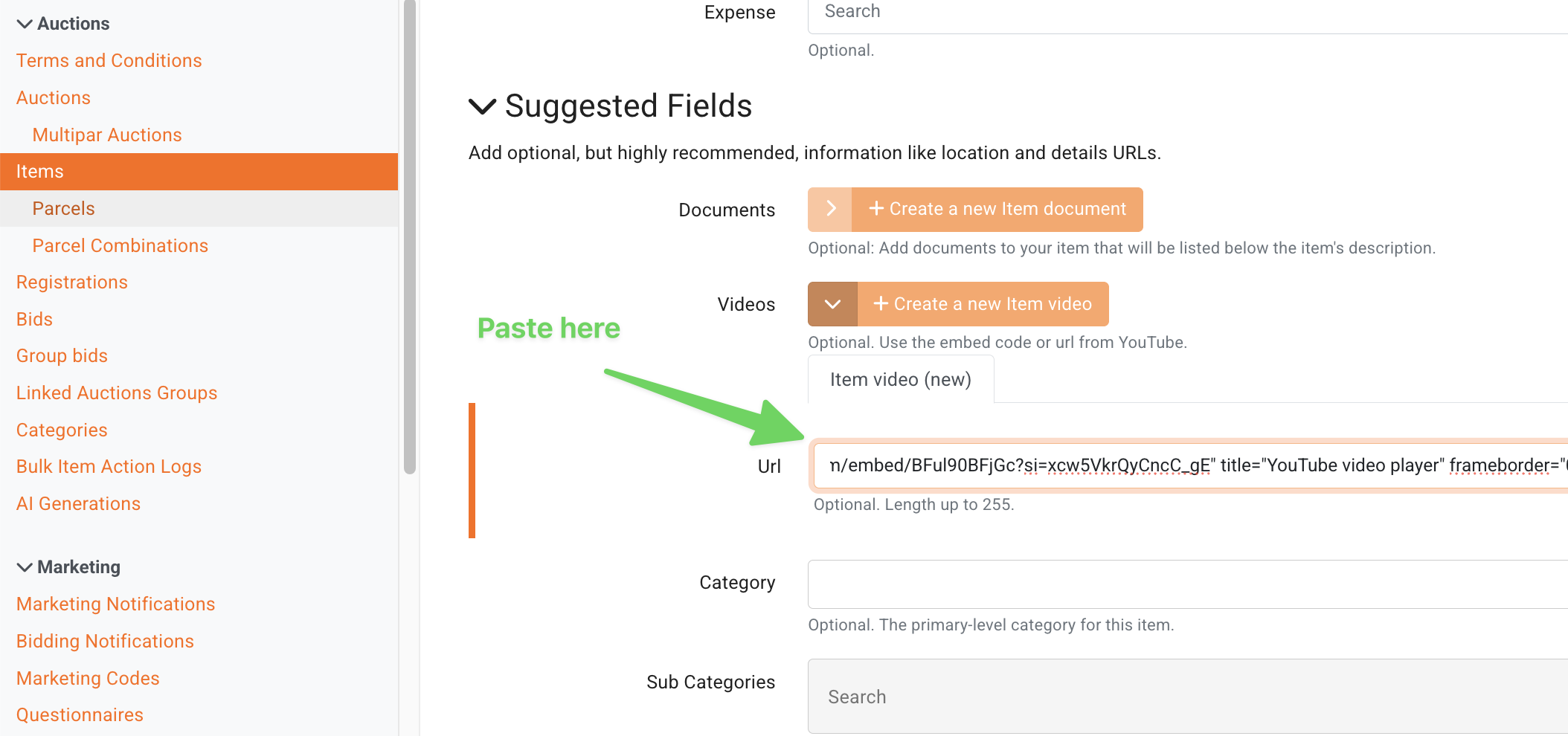
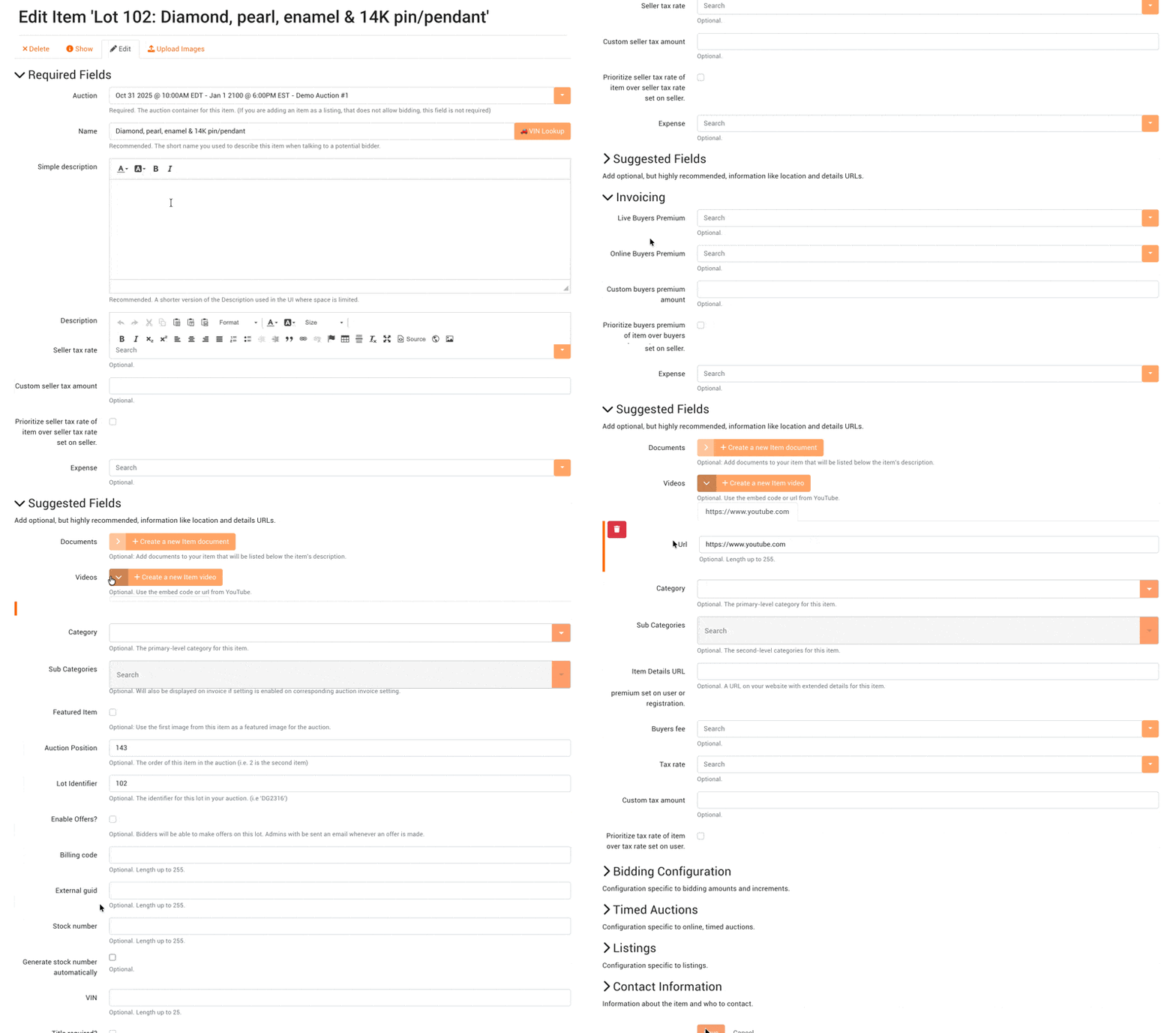
Scroll down to the "Suggested Fields", and click "+Create a new Item video" to add a new item video. Paste the link from your clipboard into the field, scroll to the end of the page and hit Save.

The video will now display in the image carousel for that item/lot.
Embedding a YouTube Short
Why won't my YouTube Short video work in BidWrangler?
YouTube does not support embedding shorts, so there are a few extra steps if you are embedding a YouTube short.
Go to the video's page, and click the share button below -
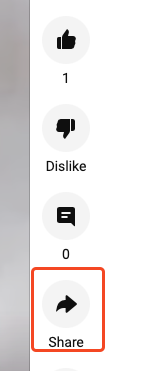
Copy the link from the dialog box.
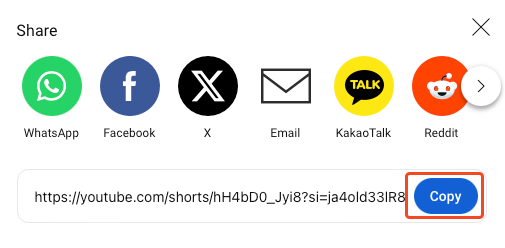
Once the link has been copied, navigate to the BidWrangler admin portal, and click 'Item' from the left menu -
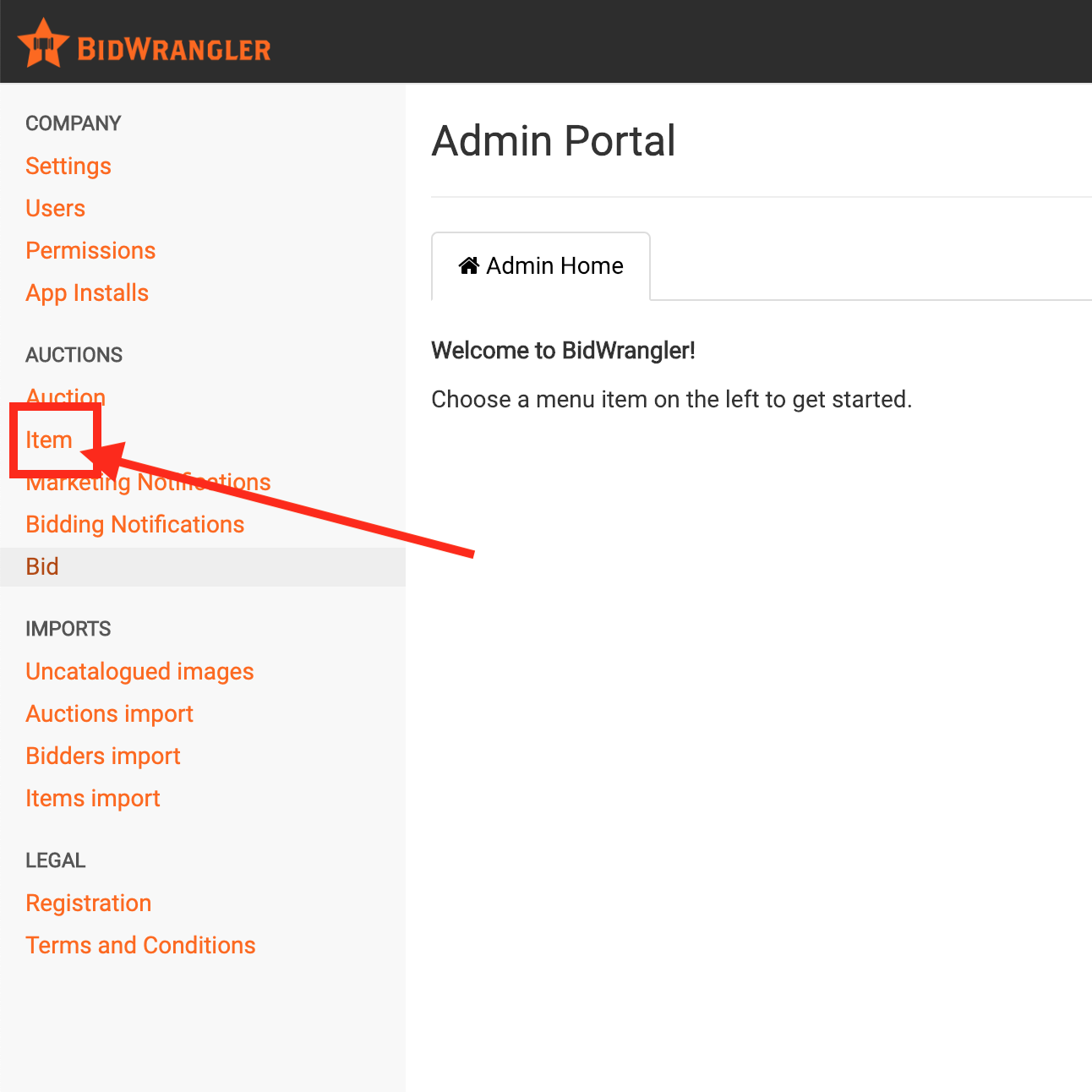
Next, find the item you wish to put the video in and click the pencil to edit -

Scroll down to the "Suggested Fields", and click the button to add a new item video. Paste the link from your clipboard into the field -
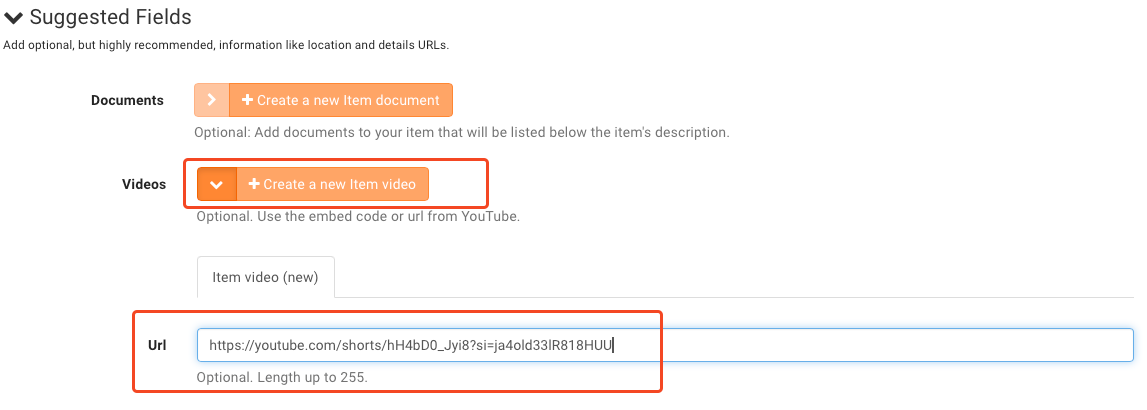
Before saving, remove "shorts" and replace it with "embed".
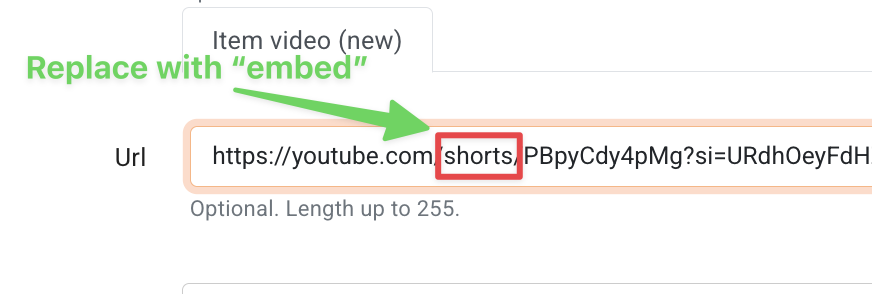
In the case of the link above, the updated link would look like this:
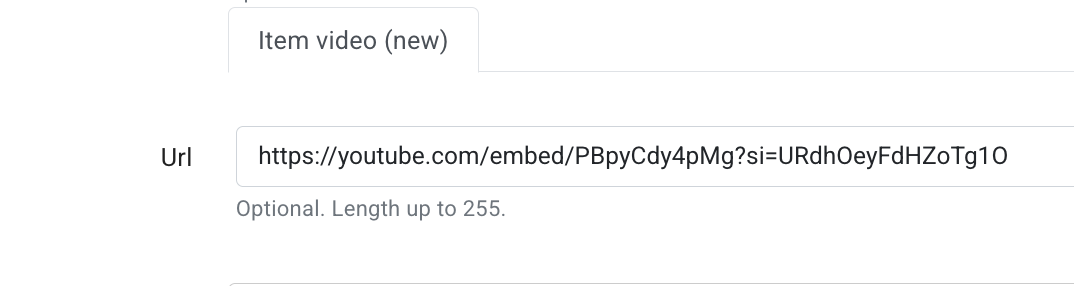
Finally, scroll to the bottom, and click to save -

The video will now display in the image carousel for that item/lot.
Deleting Videos from Lots
How do I remove a video from a lot or item in BidWrangler?
Via item settings, videos can be removed from lots similar to how they were added. First, navigate to the the item settings for the particular lot, and then find the "Videos" field under the "Suggested Fields" category of settings. Choose the appropriate YouTube link via the tab selection, then hover over the URL field so that a red trashcan icon appears. Click on this icon to delete the video URL, and then Save.
Adding 3D Matterport Tours for Real Estate
If you have a Real Estate sale, and wish to add a 3D Matterport Tour, you can also add the Matterport link to the Matterport 3D Tour URL field. More details can be found in this article.