
Why Are Some Max Bid Arrows Red and Some Green in the Online Clerking Panel?
Learn what the max bid arrows are and why some show red or green in the BidWrangler online clerking panel, what each color says about a lot's reserve status, and what to check when the color looks wrong.
In the BidWrangler online clerking panel, an arrow appears next to a lot when there is a max bid on that lot that has not been used all the way, meaning there is still a pending amount sitting behind the current bid. The arrow shows green when the accepted high bid is at or above the reserve, and red when the accepted high bid is below the reserve or when no bid has been accepted yet. The color reflects the accepted high bid only, not the full amount of the max bid sitting behind it.
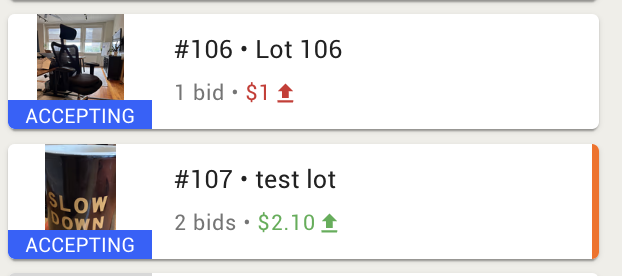
What the Red and Green Max Bid Arrows Mean
The arrow is a reserve indicator, not a bid amount indicator. It answers one question for the clerk: based on what has actually been accepted so far, is this lot currently in a position to sell?
Green arrow: the accepted high bid on the lot is at or above the reserve.
Red arrow: the accepted high bid is below the reserve, or there is no accepted high bid on the lot at all.
If a lot has no max bid remaining, or the max bid has already been used in full, no arrow displays at all.
Why a Lot Can Show a Green Arrow With No Bids Accepted
If a lot displays a green arrow but shows no accepted bids, check the lot's start price and reserve on the clerking panel. When both values have been cleared out, there is no reserve for the accepted high bid to fall short of, so the lot evaluates as at or above reserve and the arrow displays green. Restoring the intended start price and reserve on the lot corrects the display.
What to Check When an Arrow Color Looks Wrong
Open the online clerking panel for the auction and load the lot in question.
Confirm whether a bid has actually been accepted on the lot. The arrow color is driven by the accepted high bid, not by the size of the max bid behind it.
Verify that the lot has both a start price and a reserve amount entered. Blank values will cause the lot to evaluate as reserve met.
Confirm the reserve amount on the lot is the amount you intended, since a reserve is only active when it is greater than the starting bid.
Re-check the arrow after the next accepted bid to confirm it updates as expected.
Frequently Asked Questions
Does a red arrow mean the lot will not sell?
No. A red arrow means the accepted high bid on that lot is currently below the reserve, or that no bid has been accepted yet. It reflects the lot's status at that moment, not the final outcome.
Why does a lot with a large max bid still show a red arrow?
The arrow color is based on the accepted high bid, not on the total amount of the max bid. A lot can carry a max bid well above its reserve and still show red if no bid has been accepted on that lot yet, or if the accepted high bid is still below the reserve.
When does the arrow update?
The arrow reflects the current state of the lot, so it changes as bids are accepted and as reserve or start price values are edited on the clerking panel.
Why does a lot with no bids show a green arrow?
That usually means the start price and reserve were cleared out on the lot in the clerking panel. With no reserve set, the lot evaluates as at or above reserve. Re-entering the correct start price and reserve amount will restore the expected display.
Why do some lots show no arrow at all?
The arrow only appears when there is a max bid on the lot that still has a pending amount behind the current bid. Lots with no max bid, or with a max bid that has already been used in full, will not display an arrow.
Does the arrow tell bidders anything?
No. The red and green arrows appear in the online clerking panel for auction staff. What bidders see about reserve status is controlled separately by the Show Reserve Met and Show Reserve Not Met options in your auction settings.
Related Articles
If you have questions about how a specific lot is displaying in your clerking panel, reach out to us at helpdesk@bidwrangler.com and we will take a look with you.