How do I edit Website Sliders?
Learn how to create and edit BidWrangler website slider images.
What is a Slider?
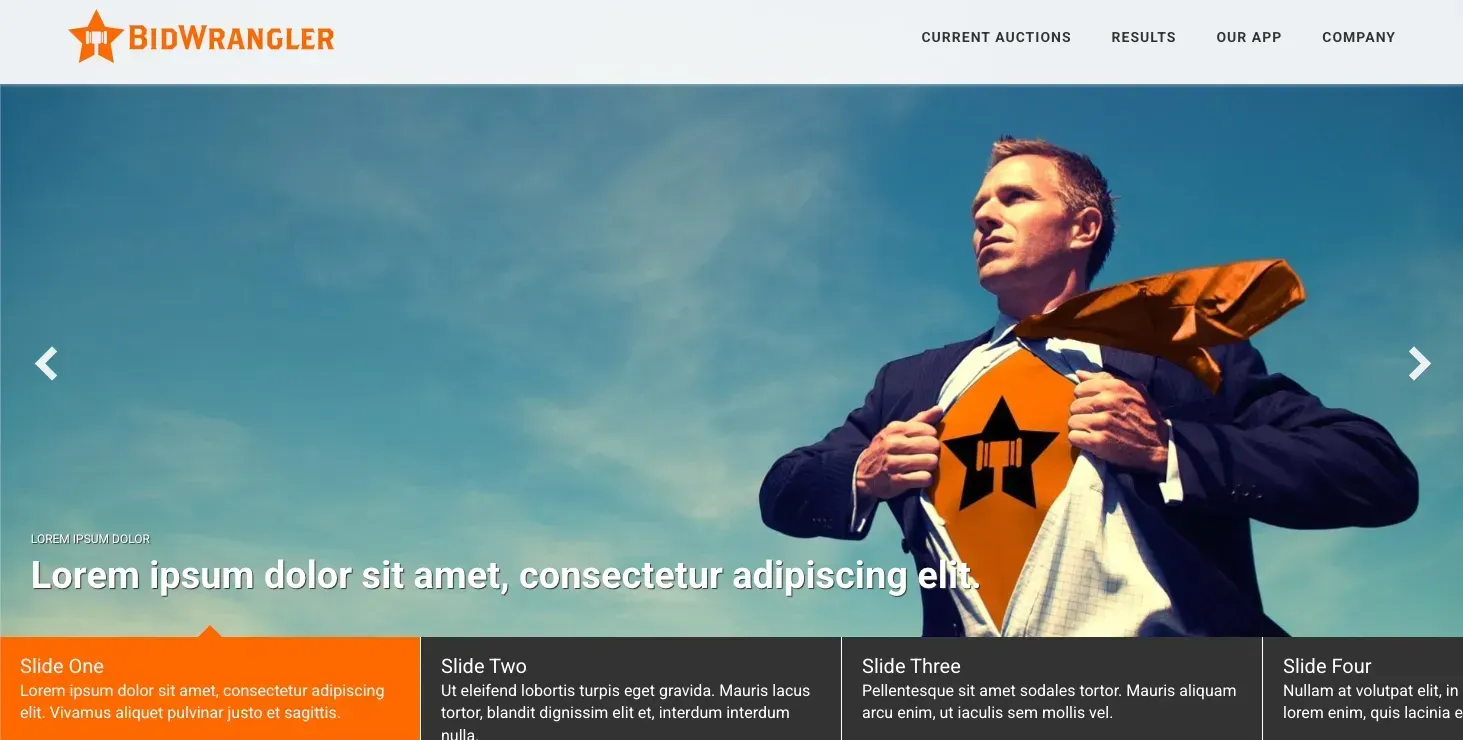
Slider images vary according to your website template, but are generally included on your homepage, and will cycle automatically through a gallery of 4-5 images. Once logged into the admin side of your website, sliders can be managed through Content Manager.
Add a new Slider
If you are looking to create a new slider, it may be useful to know what size your slider images should be:
Most of our template's slider images are cropped to a 16:9 aspect ratio (i.e., 1920p x1080p dimensions/Full HD). The aspect ratio is important because the size/dimensions of the image will change depending on the screen size, but will stick to the aspect ratio.
Please note that there are variations between every website and templates. If you are unsure of the size or behavior of your BidWrangler site, please send us an email at helpdesk@bidwrangler.com and we will be happy to help.
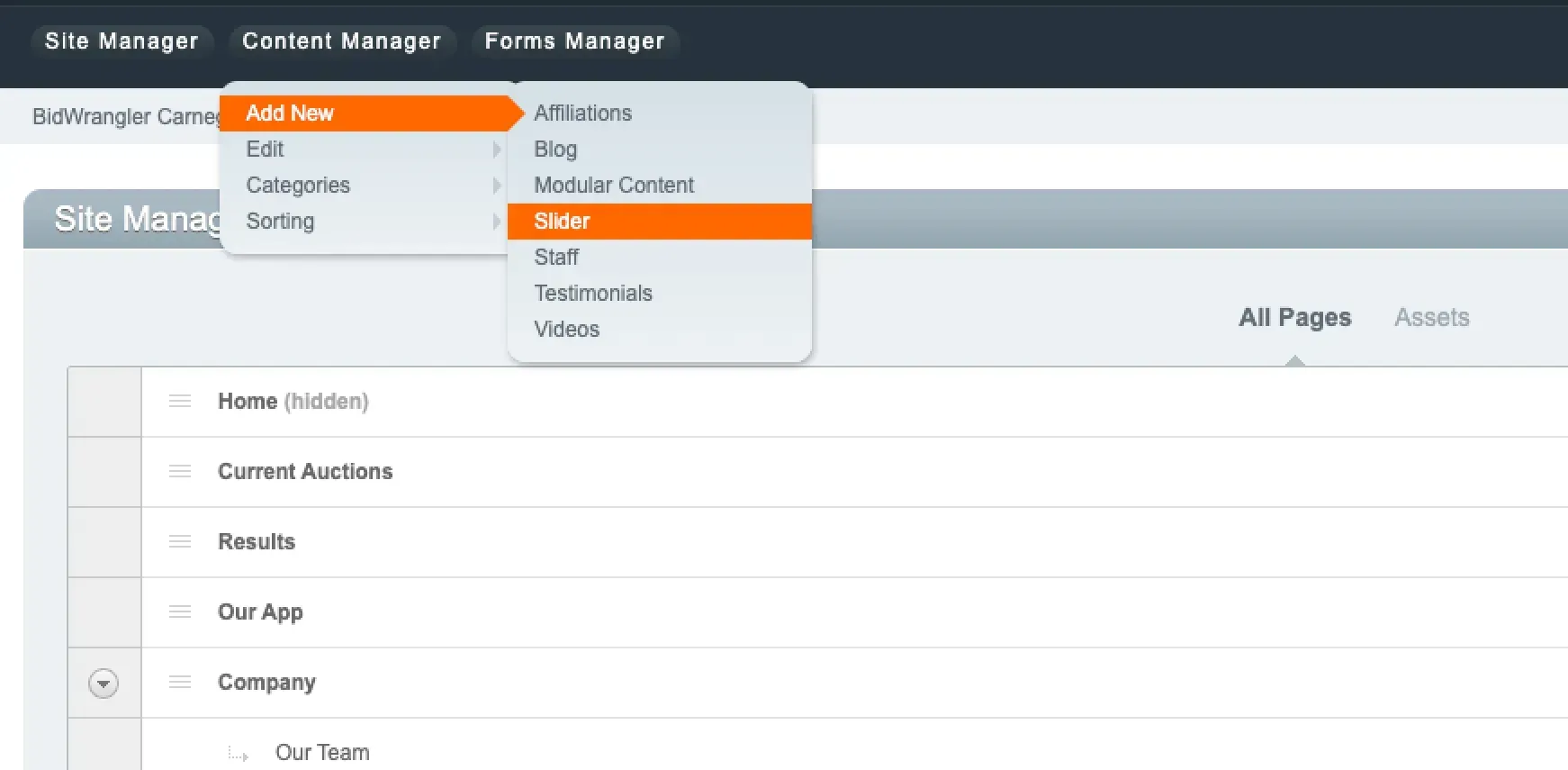
To create a new slider, navigate to Content Manager - Add New - Slider
Give your slide a Title, and then either choose the image either from your Stored Images, or Upload from your computer. Click Submit to save.
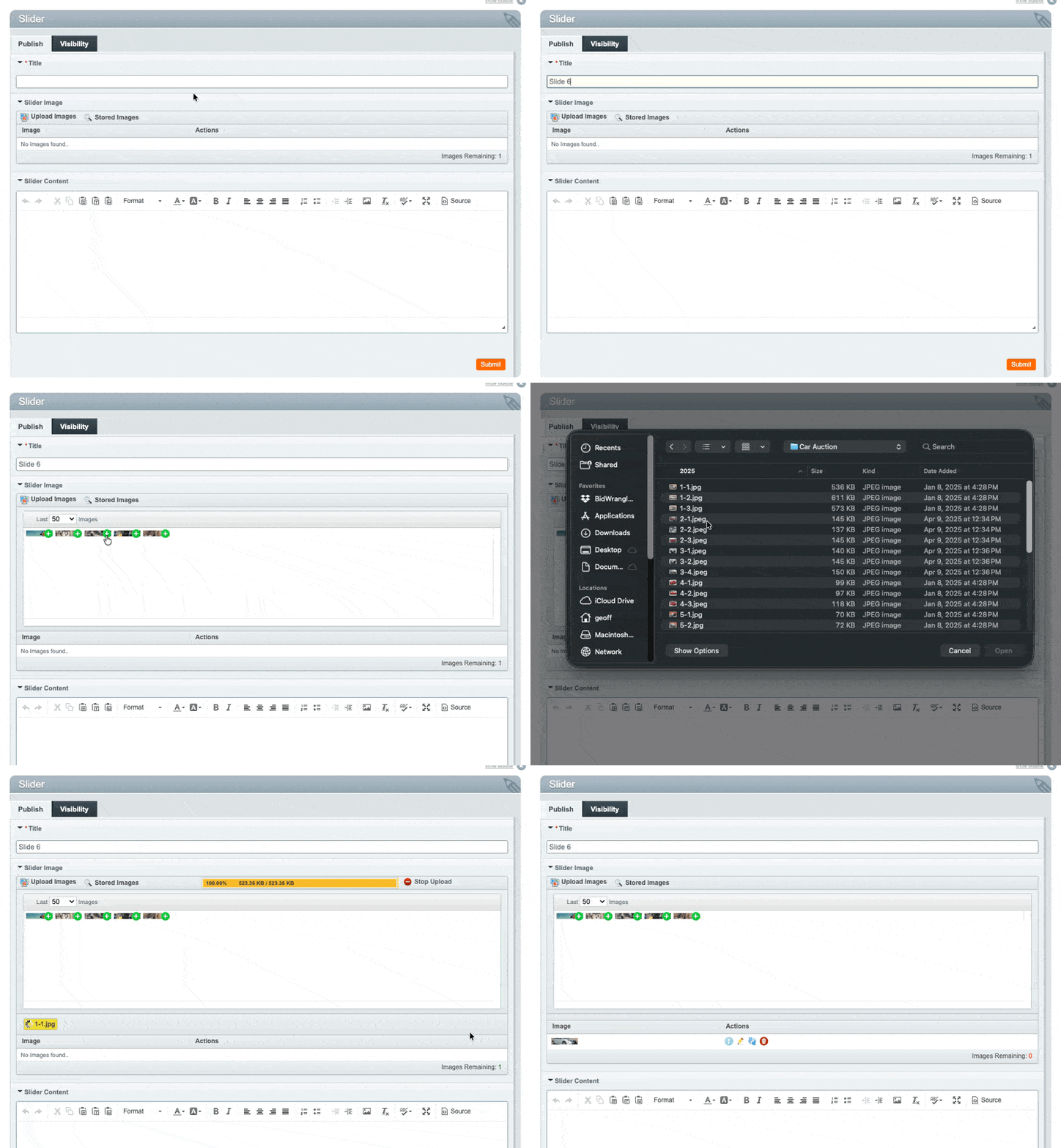
Once uploaded, you have options to Edit, Replace, or Delete the image.
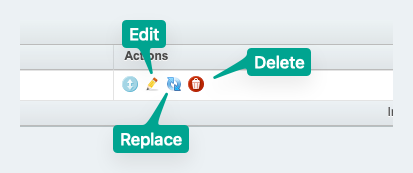
Edit Sliders
To view and edit your existing sliders, navigate to Content Manager - Edit - Slider
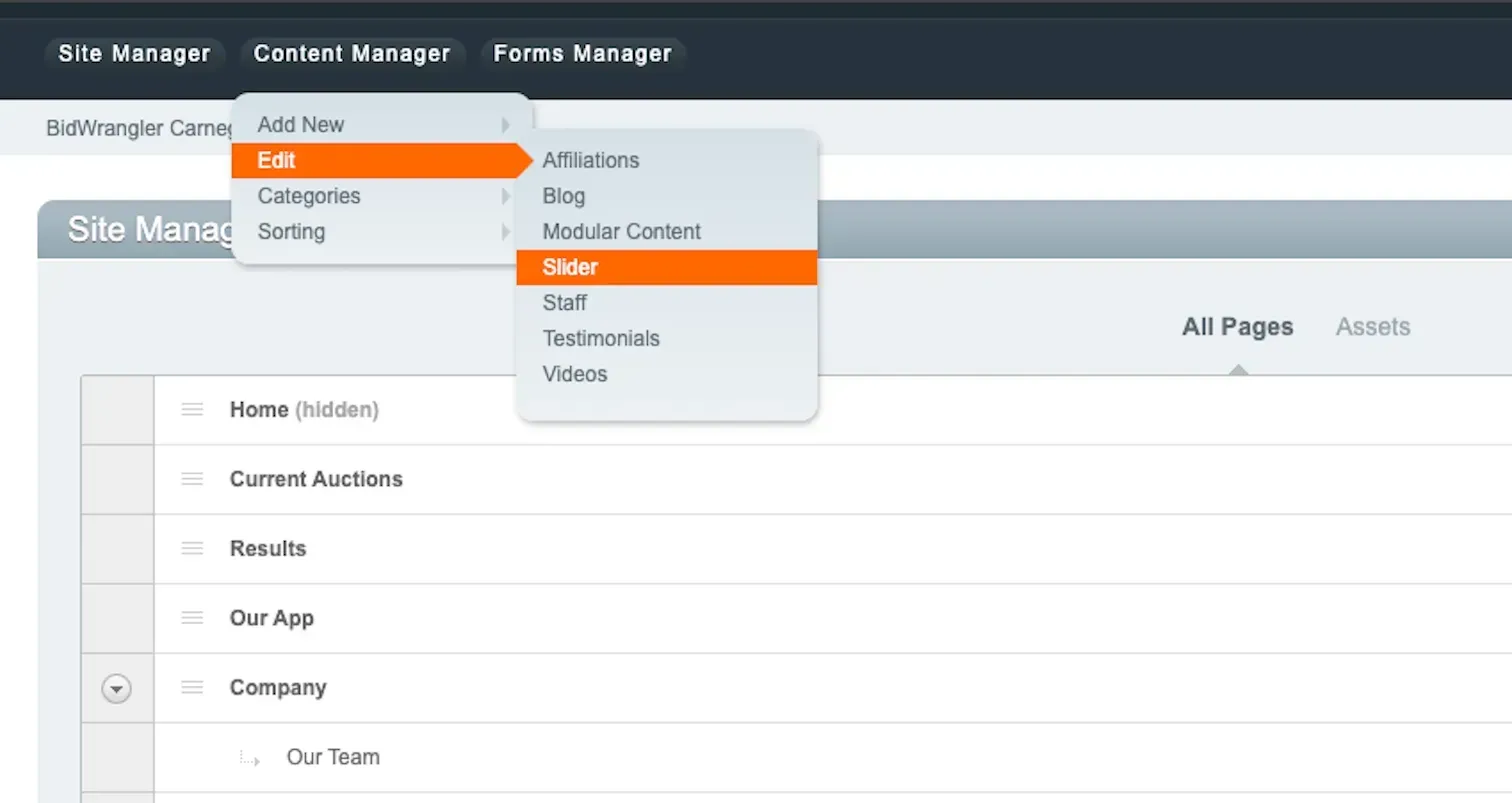
Click on a slide's title to access the edit options.
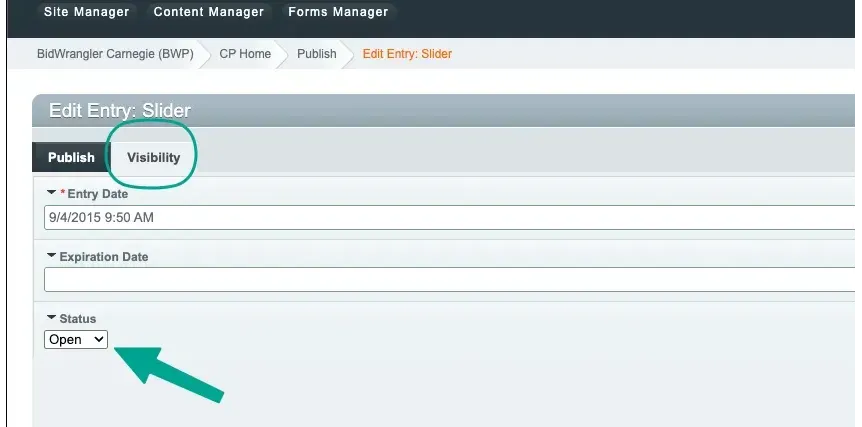
You can manage the status of a slider from the Visibility tab, using the Status dropdown to choose Open (visible on the site) or Closed (hidden on the site).
You can also set a specific time for the slider to close, or visibility window using the Entry and Expiration dates. The slider will only be published to the site between these dates - useful if you are using sliders to promote limited-time offers or events.
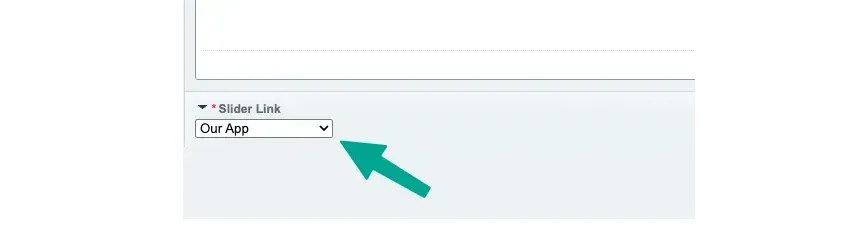
You can also have your slider title text link to another page within your website using the Slider Link drop-down in the bottom-left corner. Just select the desired page from the list and save.
Delete a Slider
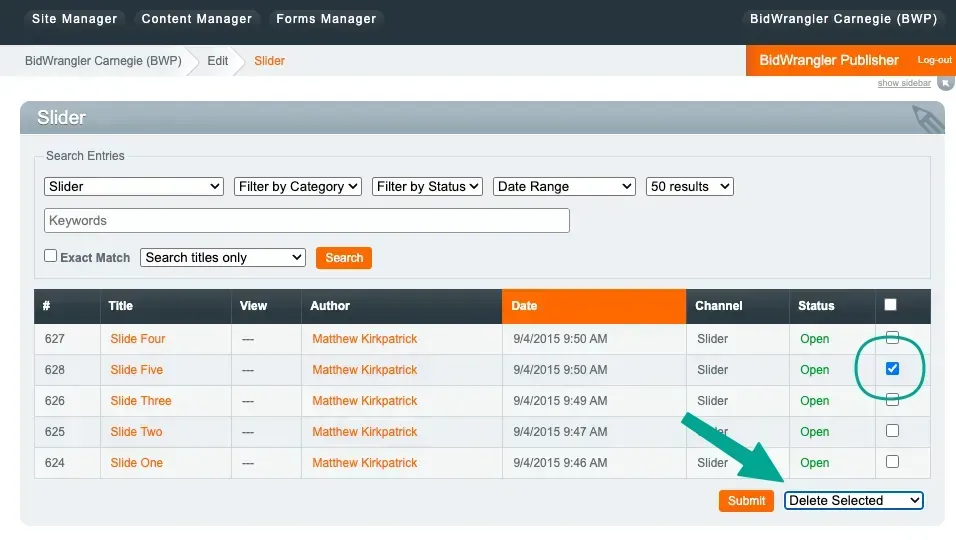
To delete a slider, select the desired slider using the checkbox on the right hand side, then use the drop-down box to choose 'Delete Selected' as the action to take. Click Submit to confirm.