
How to Add App Store & Google Play Download Links to Your Website
When setting up app promo sections on your website (as shown below), you need to ensure the "Download on the App Store" and "Get it on Google Play" badge images directly link users to your official mobile app listings.
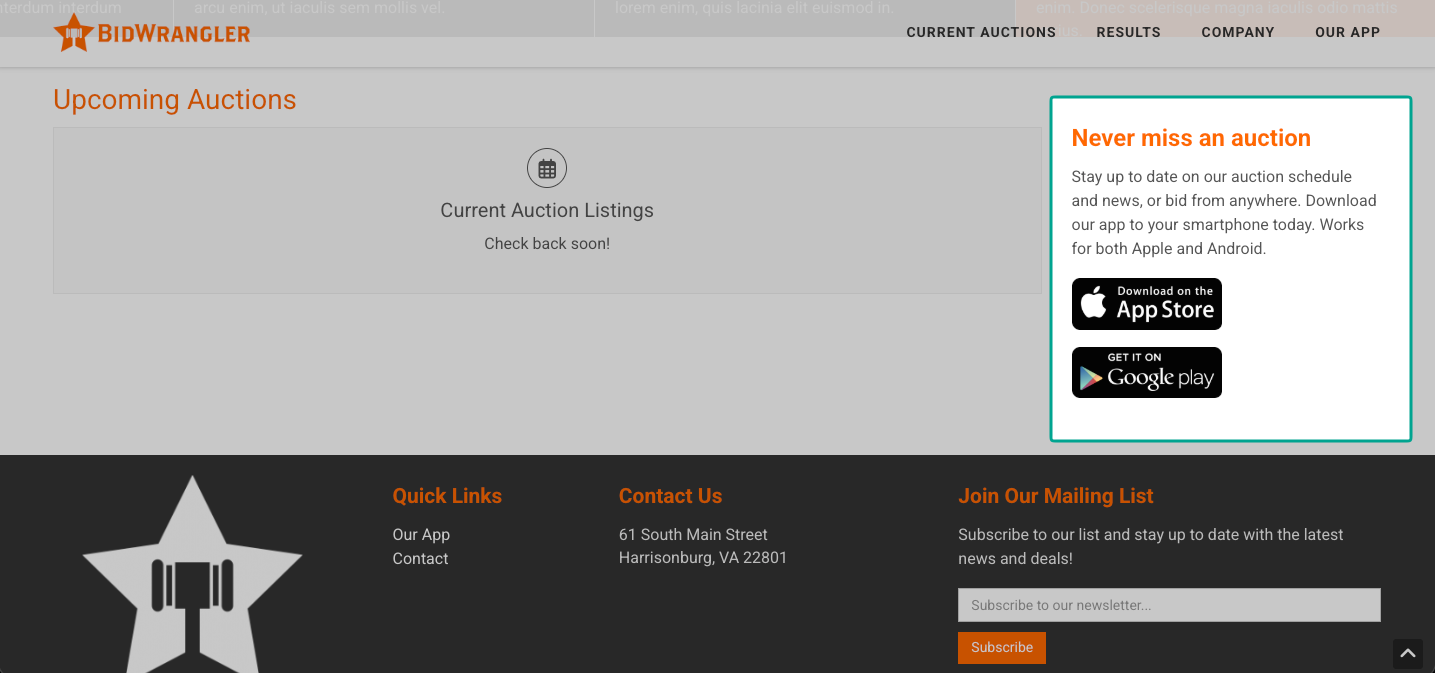
Follow these steps to configure your app download buttons in the Control Panel.
Step-by-Step Instructions
1. Open the Modular Content Entry
Log in to your Control Panel. (Need help with logging in? Check out: How do I log in to my BidWrangler website?)
Navigate to Content Manager > Edit > Modular Content.
Select the entry for your app page or promo section (e.g., "Mobile Bidding App Page Content").
2. Add Links to the App Badges
Locate the Download on the App Store or Get it on Google Play badge image in the rich text editor.
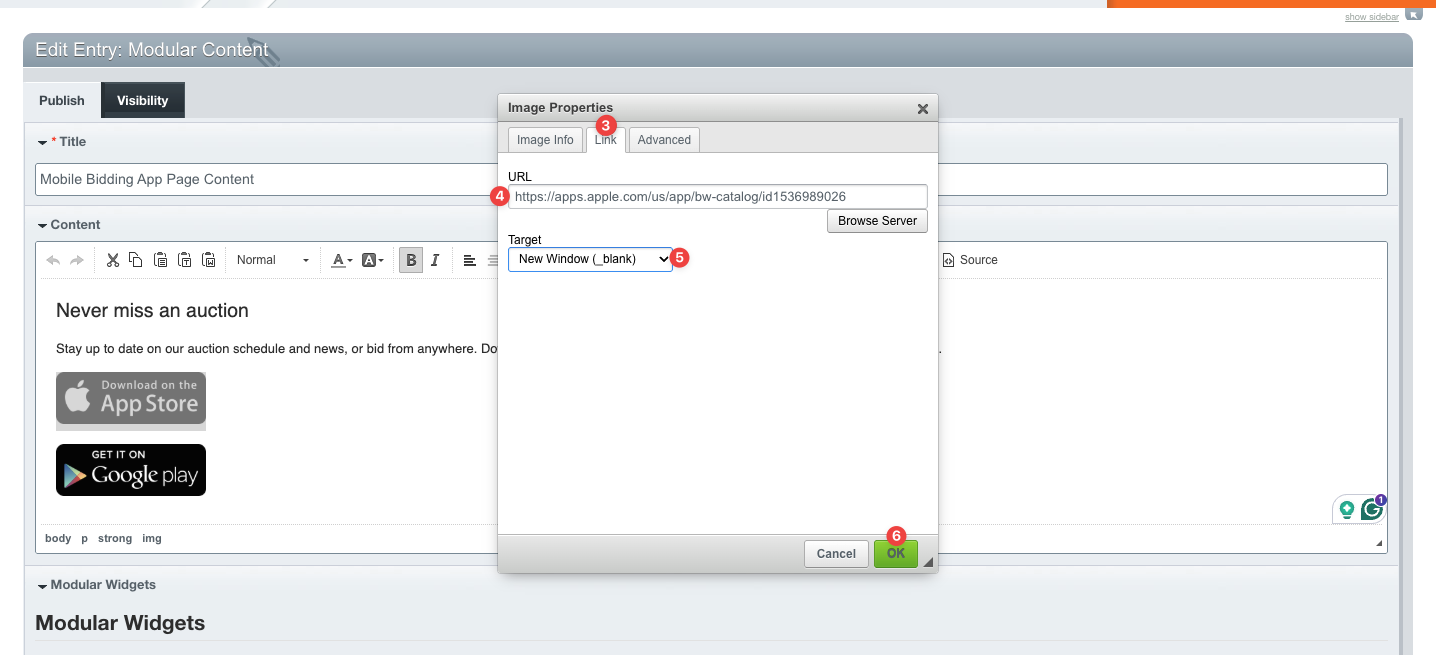
Double-click the badge image you wish to link. This will open the Image Properties window.
Select the Link tab.
Paste the direct URL to your app listing on the respective app store into the URL field
Change the Target dropdown setting to "New Window (_blank)".
Note: Setting the target to a new tab keeps users active on your website while directing them to the store listing.
Click OK to save the image link settings.
Repeat these steps for the other app store badge image.
Steps 3-6 have been labeled in this screenshot:
3. Save Changes
Scroll down to the bottom of the page and click Submit.
Visit your live website to test both store buttons and verify that they open the correct store page in a new tab.
Frequently Asked Questions (FAQ)
Q: Where do I find the modular content block for my app download buttons?
A: In your Control Panel, navigate to Content Manager > Edit > Modular Content. Depending on your site setup, look for entries named Mobile Bidding App Page Content, App Promo, or similar content blocks.
Q: Why should I set the link target to "New Window (_blank)"?
A: Setting the target to open in a new window/tab ensures that users aren't navigated away from your website when they click to view your app. They can easily download the app without losing their spot on your site.
Q: Why are my App Store or Google Play buttons not working on the live site?
A: If clicking the badge image does nothing, the image is likely missing its link URL. Double-click the image in the editor, ensure the store link is pasted into the Link tab, and remember to scroll to the bottom and click Submit to save your changes.
Q: Where can I find the exact store URLs for my app?
A: You can copy these directly from the browser address bar while viewing your app's official listing page on the Apple App Store or Google Play Store. The BidWrangler onboarding or support team can also help provide these links to you.
Q: What if the App Store or Google Play badges aren't showing up in the editor?
A: If the badge graphics are missing frsom your editor, contact the support team to have the standard store badge graphics re-added or uploaded into your media library.
Please don't hesitate to contact the support team at helpdesk@bidwrangler.com or (844) 296-8727 if you have any questions or concerns.