
How to Block a Bidder in BidWrangler
Blocking a bidder in BidWrangler stops that user from registering for your auctions or placing any new bids going forward. Blocking does not delete bids the user has already placed, and it does not automatically cancel registrations they already hold in active auctions. To fully remove a bidder from an auction that is already running, block the user, revoke their existing registration, and delete their existing bids manually.
What does blocking a bidder actually do?
Blocking changes the user's status at the account level. Once a user is blocked:
They cannot register for any of your upcoming auctions.
Their previously placed bids remain in the auction until you remove them.
Their existing approved registrations and ability to bid in active auctions remain active until you revoke them.
This distinction matters most during a live or in progress auction. A blocked user who is already approved in that auction still holds their standing bids, so blocking alone will not clear them from the leaderboard.
How do I block a bidder in BidWrangler?
This is the required step. Everything else depends on your situation.
Go to Admin Portal > Users.
Locate the user's profile.
Change their registration status to Blocked.
Save.
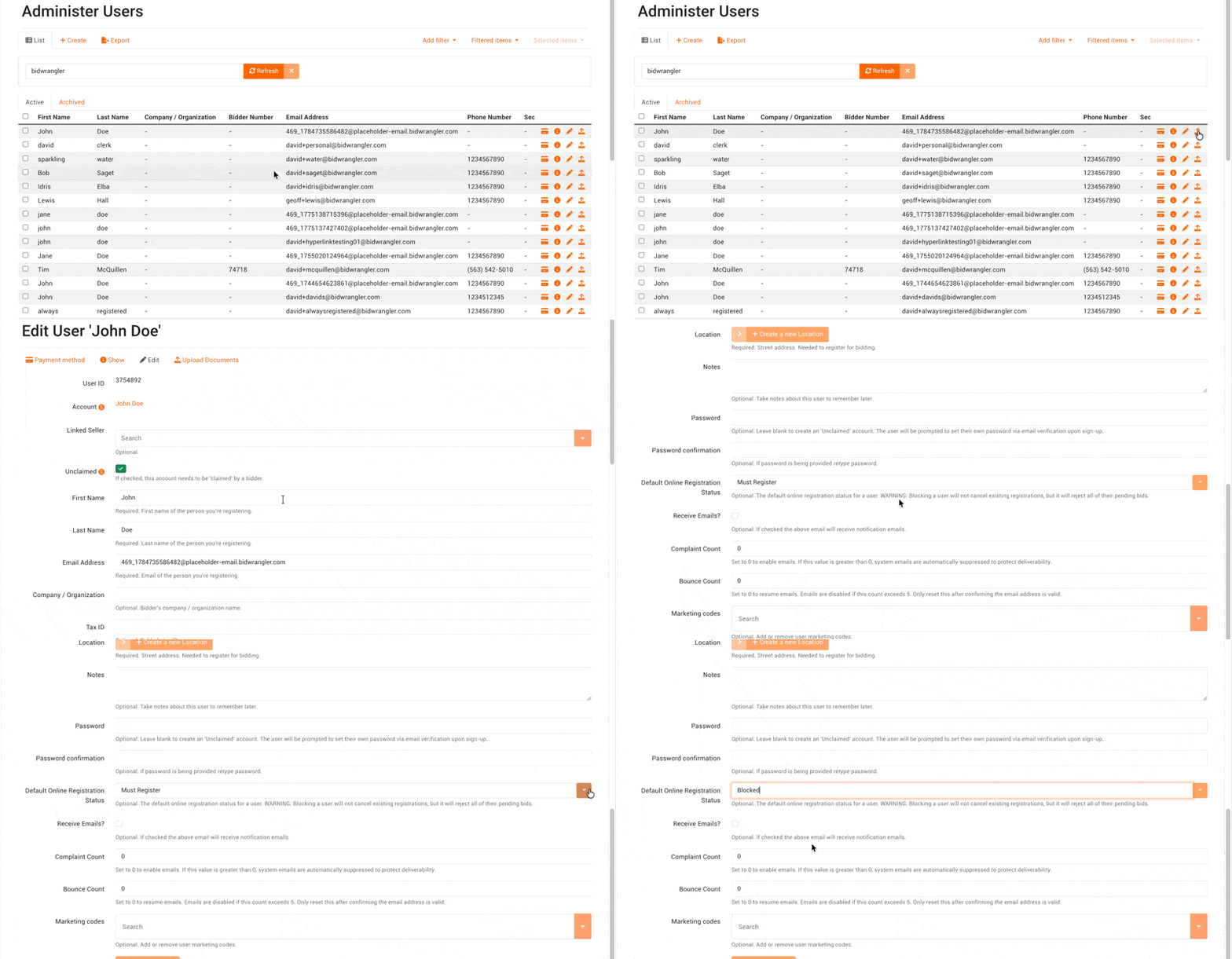
The user is now prevented from registering for future auctions and from placing new bids.
How do I cancel a blocked bidder's active registrations?
Complete this step if the user is currently registered for an auction that is still open.
Navigate to Admin Portal > Registration.
Search for any active registrations under that user.
Open each registration and uncheck the Approved box, or click on the green checkbox.
Save.
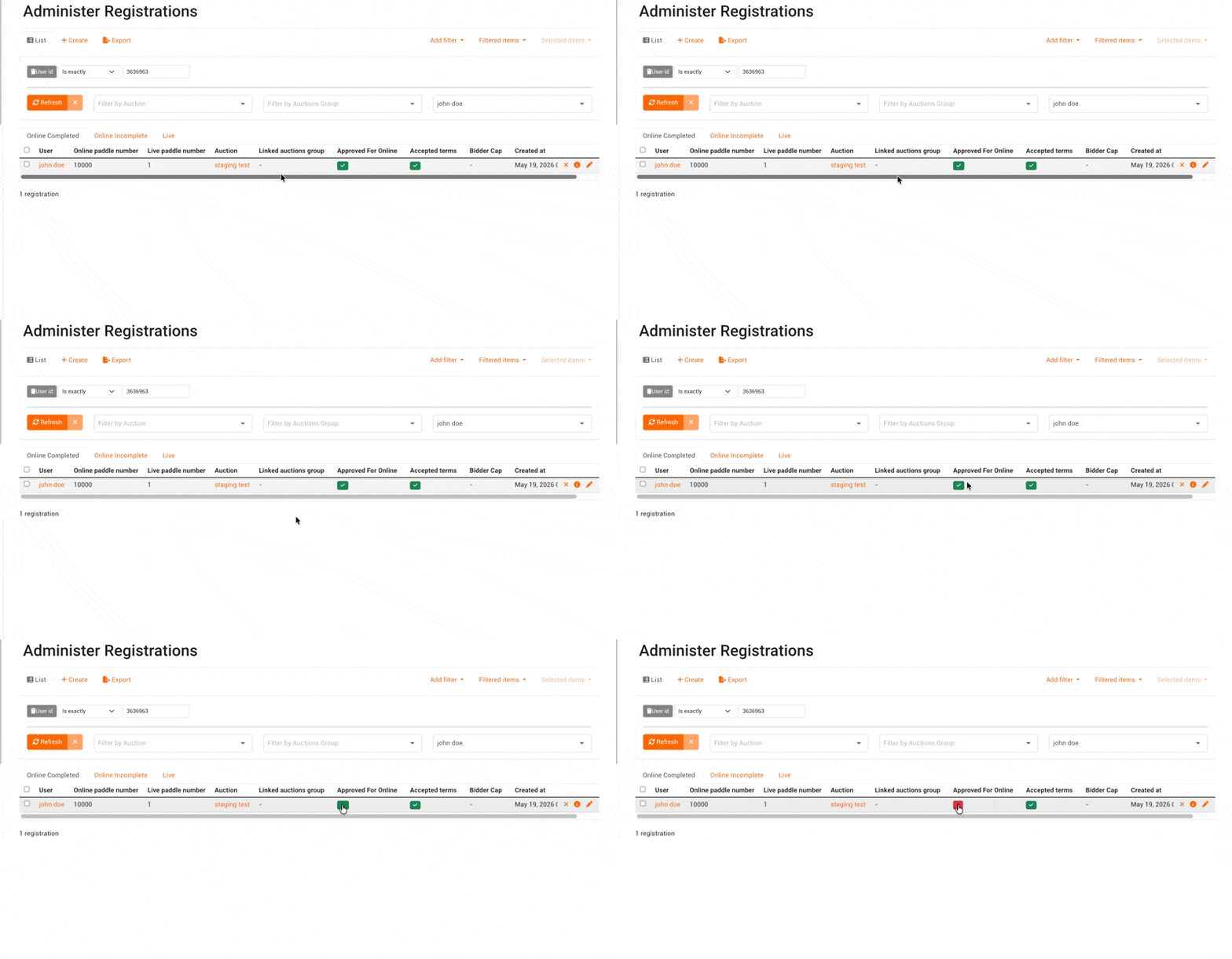
Revoking approval disables the user's bidding privileges in that ongoing auction. It does not remove bids they have already placed.
How do I remove a blocked bidder's existing bids?
This step is optional and is left to the discretion of your auction company. Some companies prefer to leave prior bids in place for record keeping, and others clear them so the lot reflects a clean bid history.
Access Admin Portal > Bid, or use the clerking panel.
Find the user's bids within the relevant auction.
Delete each bid individually.
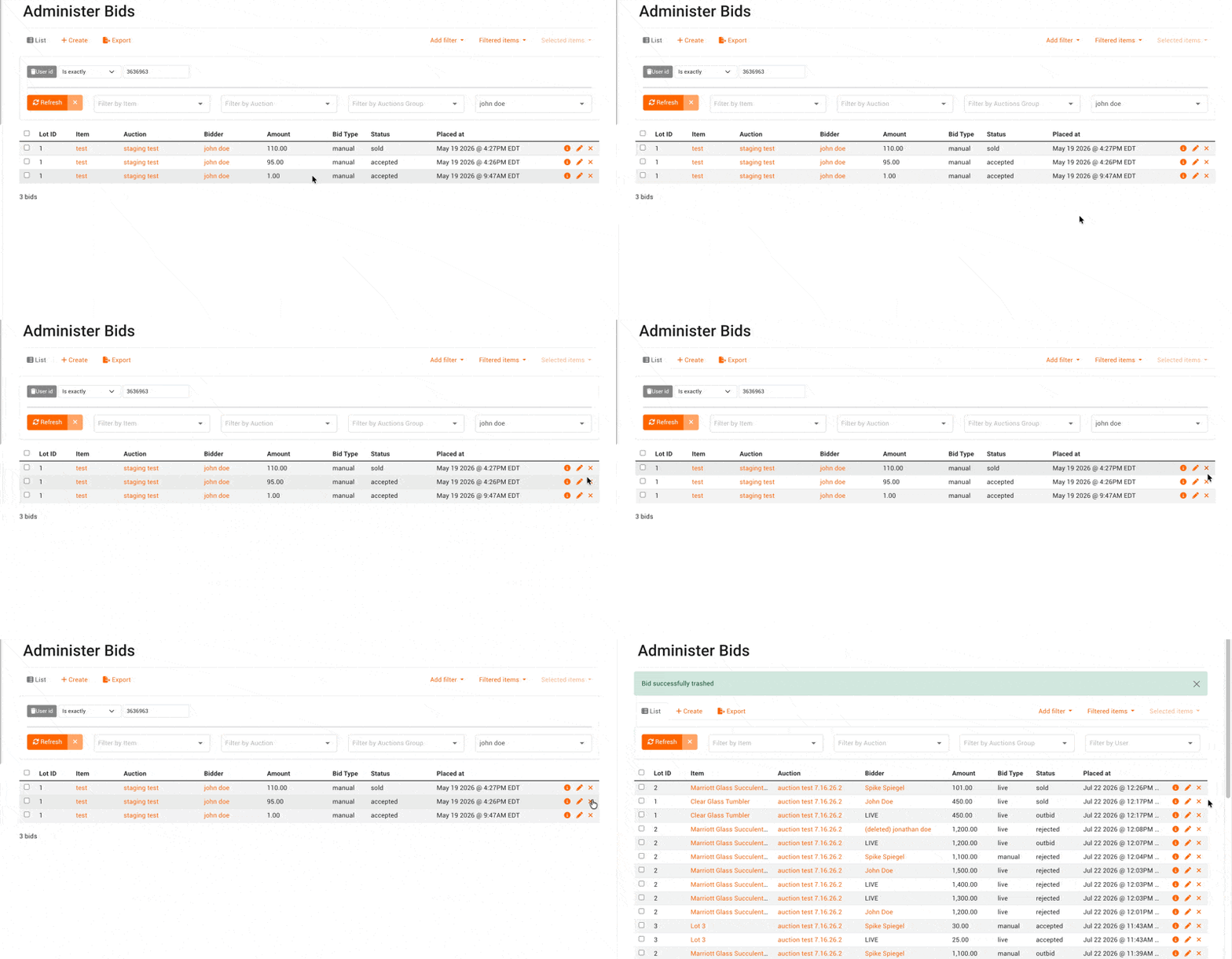
Bids must be removed one at a time. Neither blocking the user nor revoking their registration clears existing bids automatically.
How do I stop a blocked bidder from creating a new account?
Enabling this setting is recommended any time you block a bidder for conduct reasons, since it addresses re-registration under an alternate email address.
Go to Company Settings > Customization.
Enable the Block Threshold feature by setting the amount to "80."
Reduce the amount by 5 if you want the feature to be more restrictive. Reach out to support if you need help or information behind adjusting the amount.
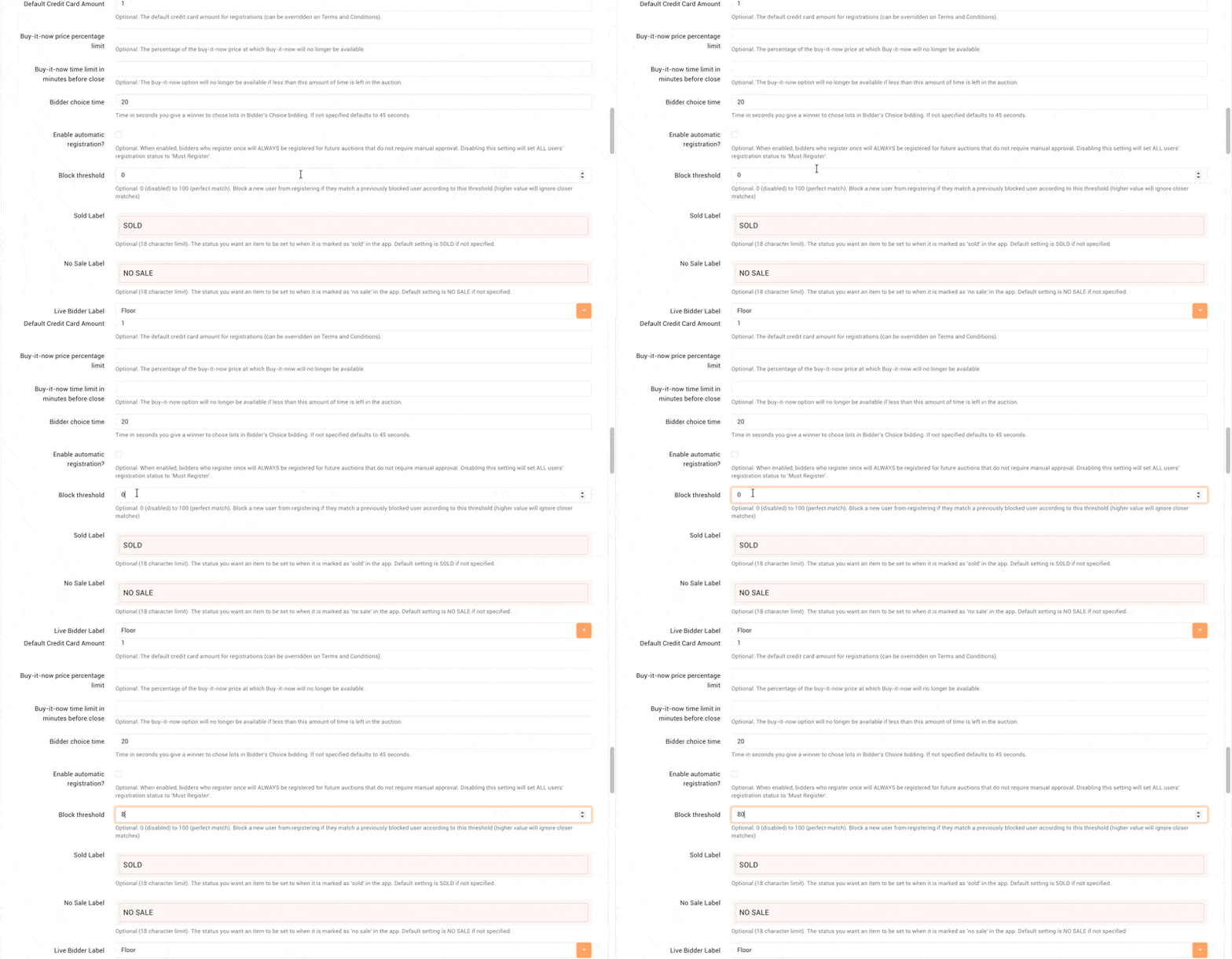
Block Threshold compares each new registration against your list of blocked users and automatically blocks any new registration that meets the threshold criteria.
Which steps are required and which are optional?
Step | Location | Required? |
|---|---|---|
Block the user | Admin Portal > Users | Required |
Cancel active registrations | Admin Portal > Registration | Required only if the user is registered in an open auction |
Remove existing bids | Admin Portal > Bid or clerking panel | Optional, at your discretion |
Enable Block Threshold | Company Settings > Customization | Recommended |
Workflow for Blocking a Bidder
Block the user/future registrations:
Go to Admin Portal > Users.
Locate the user’s profile.
Change their status to “Blocked” and save. This will stop them from registering for upcoming auctions.
Cancel current registrations (as needed):
Navigate to Admin Portal > Registration.
Search for any active registrations under that user.
Edit each registration by unchecking the “Approved” box and saving. This disables their bidding privileges in ongoing auctions.
Remove existing bids (as needed and optional/up to the auction company):
Access Admin Portal > Bid.
Find the user’s bids within the relevant auctions.
Manually delete these bids if necessary, since blocking or revoking registration does not automatically remove previously placed bids.
Prevent re-registration under new accounts:
Enable the Block Threshold feature found in Company Settings > Customization.
This setting compares new registrations to blocked users and automatically blocks matches that meet the threshold criteria.
Frequently asked questions
Does blocking a bidder remove their previous bids? No. Blocking prevents new bids only. Existing bids stay in the auction until you delete them individually through Admin Portal > Bid or the online clerking panel.
Does blocking a bidder cancel their current registration? No. Blocking does not cancel registrations the user already holds. Uncheck the Approved box on each active registration under Admin Portal > Registration to disable their bidding in an ongoing auction.
Can a blocked bidder register again with a different email address? They can attempt to, which is why the Block Threshold feature exists. When enabled under Company Settings > Customization > setting Block Threshold to "80", it compares new registrations against blocked users and automatically blocks matches that meet the threshold criteria.
Can I block a bidder while an auction is live? Yes. Blocking takes effect immediately and prevents further registrations, but you will still need to revoke their registration and remove any bids they have already placed if you want them fully out of any auction.
Can I remove multiple bids at once? No. Bid removal is a manual, one at a time action in the Bid section or clerking panel.
Can I unblock a bidder later? Yes. Return to Admin Portal > Users, locate the profile, and change the status back. If you also revoked a registration, you will need to re-approve that registration separately.