
Real-Time Auction Support Chat: How to Connect with Bidders
BidWrangler's Real-Time Auction Support Chat lets bidders message your auction support staff directly during live and timed auctions. Bidders get a dedicated chat button on the auction page, while your team receives and answers questions from a centralized Chat Inbox. This guide explains how the feature works for bidders and admins, and how to enable it for your auctions.
What is Real-Time Auction Support Chat?
Real-Time Auction Support Chat is a built-in messaging tool that connects bidders with your support team in real time. When enabled, bidders can ask questions and get instant replies without leaving the auction page—helping you resolve issues, answer bidding questions, and keep your sales running smoothly.
The Bidder Experience
When the chat feature is enabled, a chat button appears directly on the auction page for bidders.
Instant messaging: Bidders click the button, type a message, and send it instantly to your team.
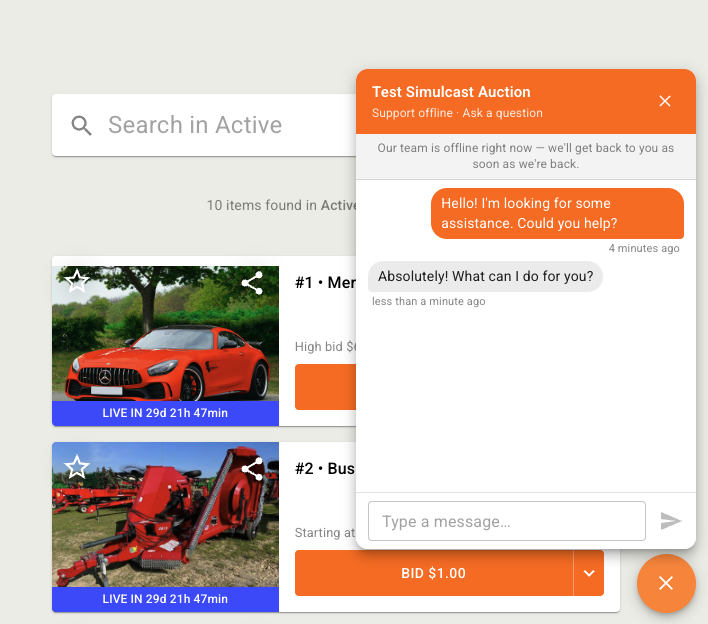
Online/offline status: The chat widget shows whether your support staff is currently online or offline. If no staff members have the Chat Inbox open, bidders see a "Support offline" message.
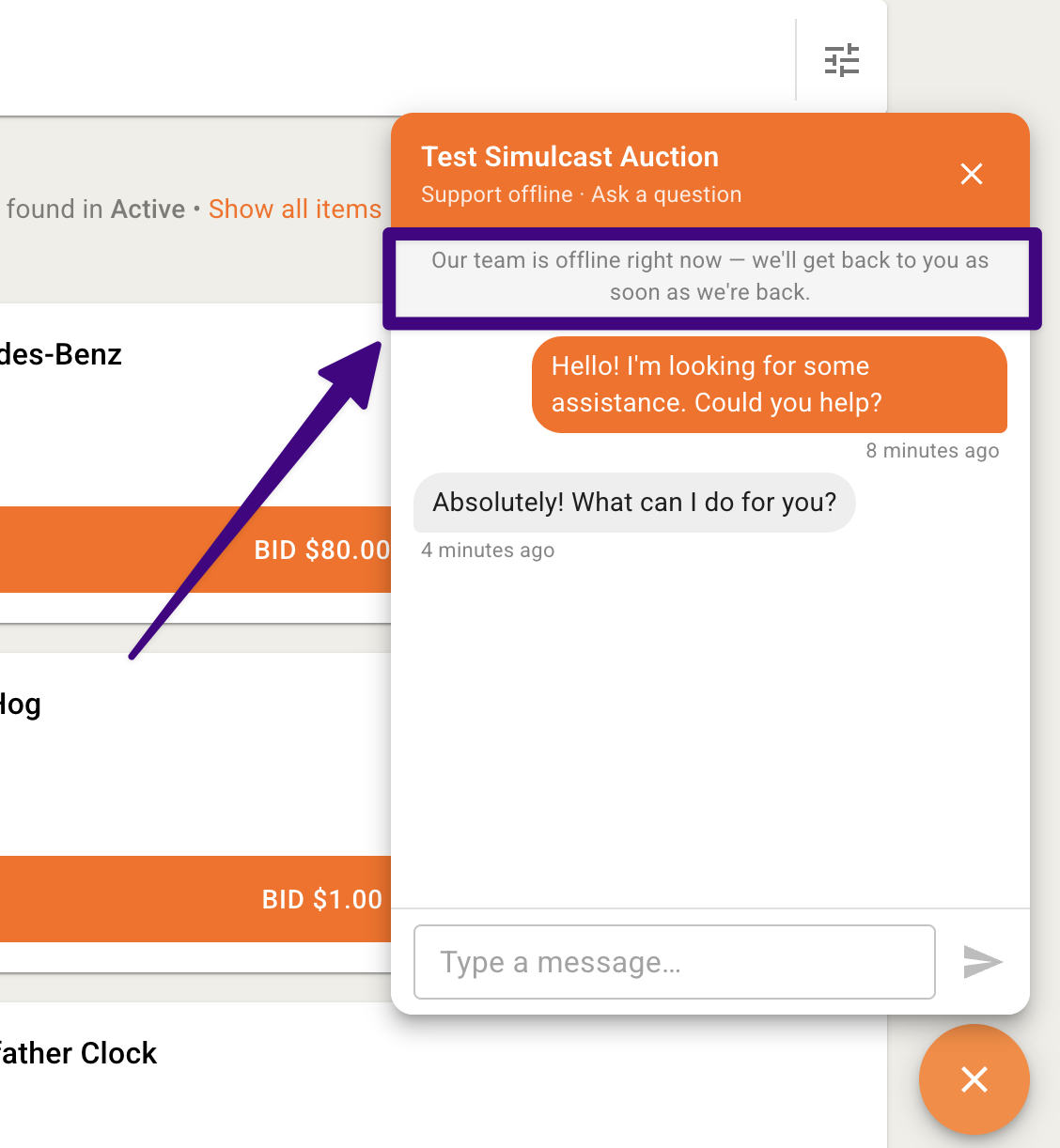
Preserved chat history: If a bidder closes and reopens the chat widget, their conversation history is saved.
Access restrictions: Auction companies can restrict chat access so that only registered and approved bidders can use the feature.
The Admin Experience
For auction staff and administrators, incoming chats are managed through the Admin Portal.
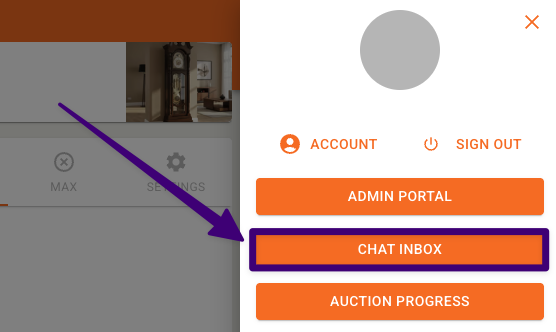
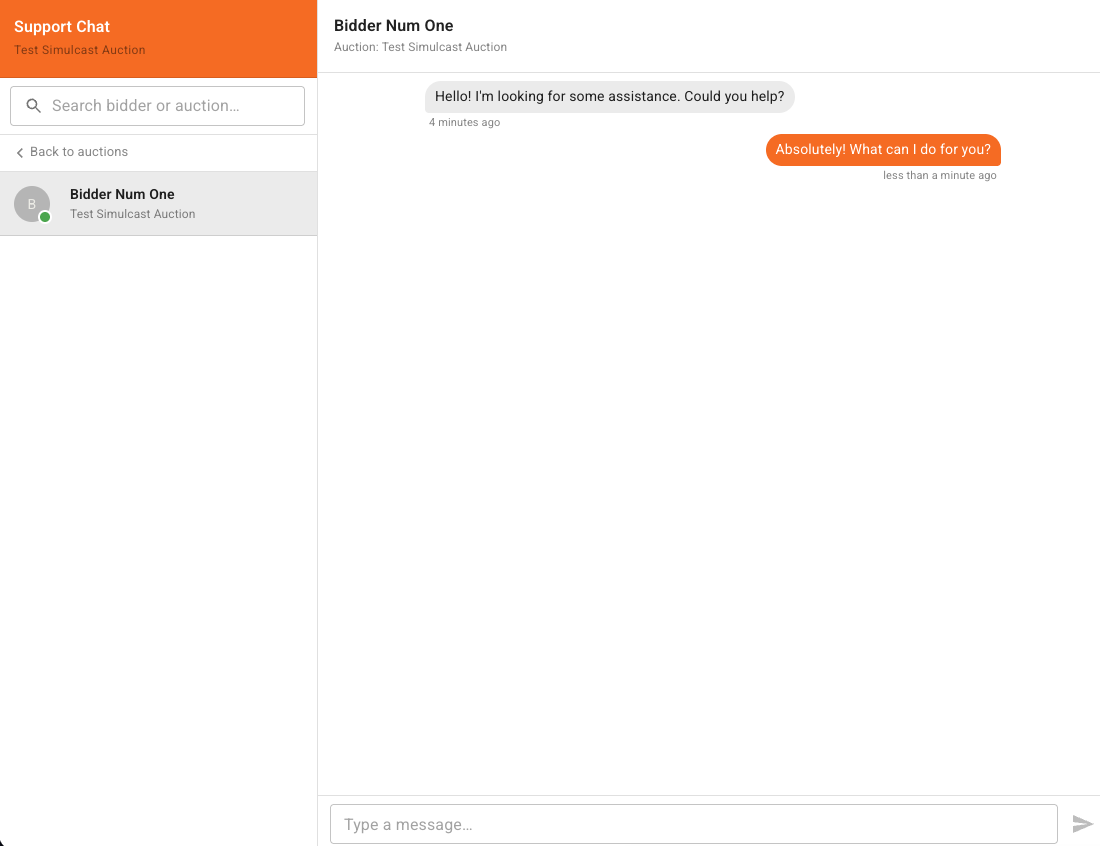
The Chat Inbox: Staff access the Chat Inbox directly from the side hamburger menu when logged in.
Conversations organized by auction: All conversations are grouped by auction, so your team can quickly see which bidders are reaching out about which sale.
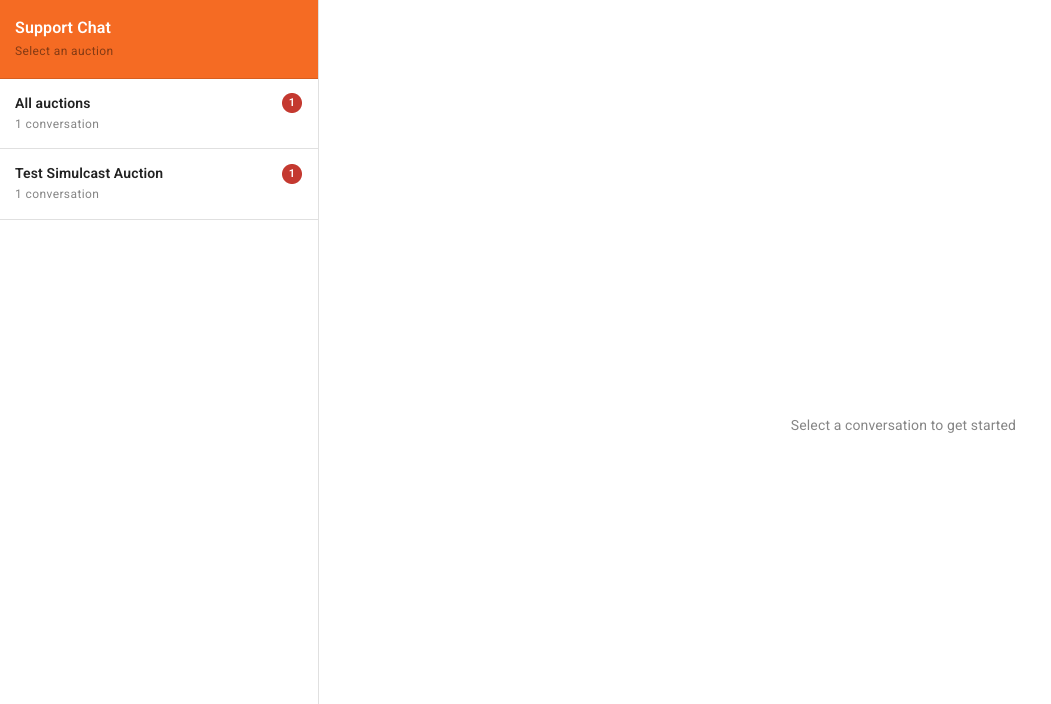
Notifications: Unread message counts appear as badges within the inbox and on your browser tab, so no bidder question slips through the cracks.
Real-time presence: Admins can see when a bidder is online and active, allowing for seamless, real-time replies.
How to Set Up and Configure Auction Support Chat
The support chat does not appear automatically and must be manually configured before use.
Company Settings
Configure the following options at the company level:
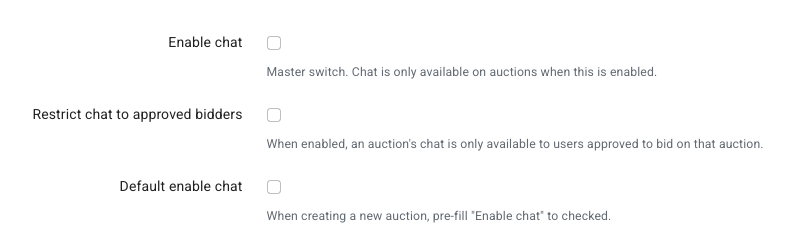
Enable Chat: Allows chat to be turned on for auctions on your platform.
Restrict Chat to Approved Bidders: Hides the chat icon from users who are not yet signed in or registered for the auction.
Default Enable Chat: Automatically enables the chat feature when you create new auctions.
Configuration Steps
Enable the feature: Chat must be turned on in Company Settings before enabling for each auction within the Auction Settings. To include chat on new auctions automatically, turn on Default Enable Chat.
Customize the widget: To help the chat button stand out from the primary bid button, we can customize the chat button's color on your behalf.
FAQ and Troubleshooting
Why is the chat widget showing a "Support offline" message to bidders?
The chat widget shows "Support offline" when no administrative staff currently have the Chat Inbox open on their device. To appear online, make sure at least one team member has the Chat Inbox actively open during the auction.
Why isn't the chat button appearing to bidders?
When chat is restricted to approved bidders (using the Restrict Chat to Approved Bidders setting), users who are not signed in or registered will not see or interact with the chat feature.
Can I change what the chat button looks like?
Yes. The chat button color can be customized so that it visually contrasts with your bid buttons. Contact BidWrangler Support if you'd like to request a color change.
How do I enable Real-Time Auction Support Chat?
Enable chat at both the company and auction level in your Admin Portal. To turn it on automatically for every new auction, enable the Default Enable Chat setting.
Who can access the Chat Inbox?
The Chat Inbox is restricted to Full Admins, Admins, and Clerks. Catalogers and Consignors do not have access.
Have questions about configuring Real-Time Auction Support Chat for your auction? Contact the BidWrangler support team at helpdesk@bidwrangler.com.