How to Add High and Low Estimates to Auction Items in BidWrangler
The BidWrangler platform allows you to assign estimated values to auction items for internal reference or for display to bidders. Estimates can be entered as a range by adding both a low and high value, giving you greater flexibility and more accurate pricing guidance. You also have full control over whether these estimates are visible to prospective buyers or kept hidden for internal use only.
Assigning Estimates to Items within the Admin Portal
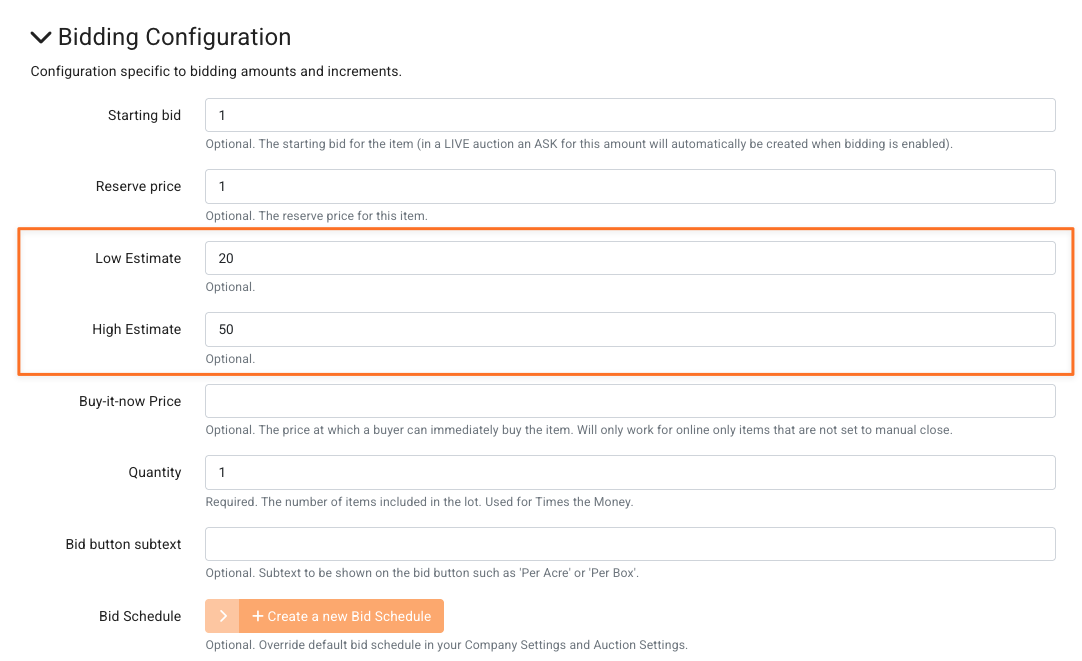
Estimates can be added to individual items directly within the BidWrangler Admin Portal. To do this, navigate to the Items tab and select the item you want to edit. Within the item settings, locate the Bidding Configuration section, where you can enter both the low and high estimate values.
Assigning Estimates to Multiple Items in Bulk with an Items Import
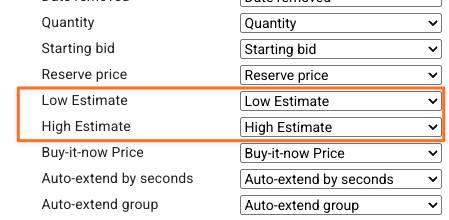
If you need to assign estimates to multiple items or in bulk at once, this can be done through an Items Import. The low and high estimates populate separate columns within your CSV file. Once the file is uploaded, the columns can be mapped appropriately on the import screen.
Controlling Estimate Visibility
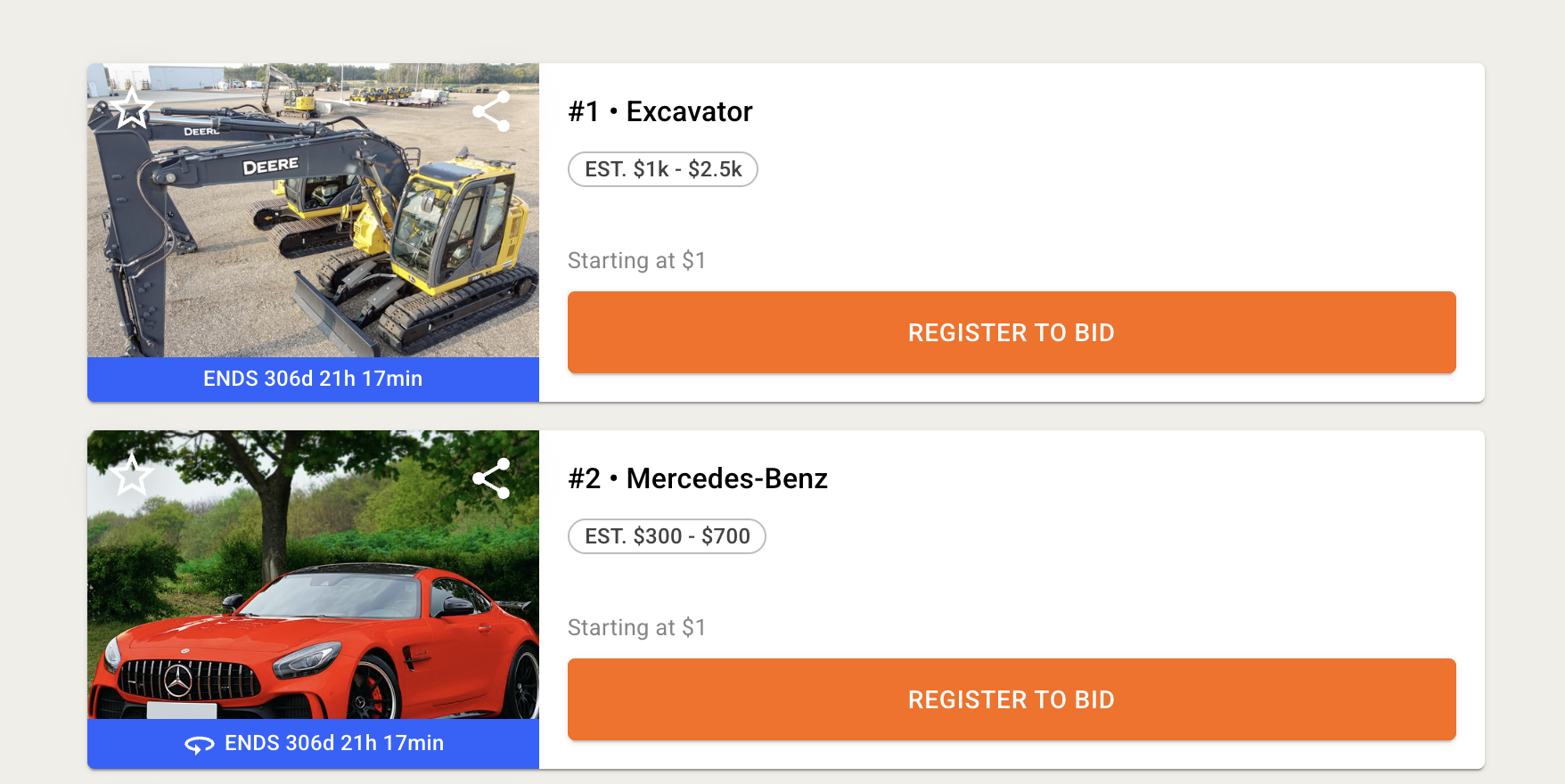
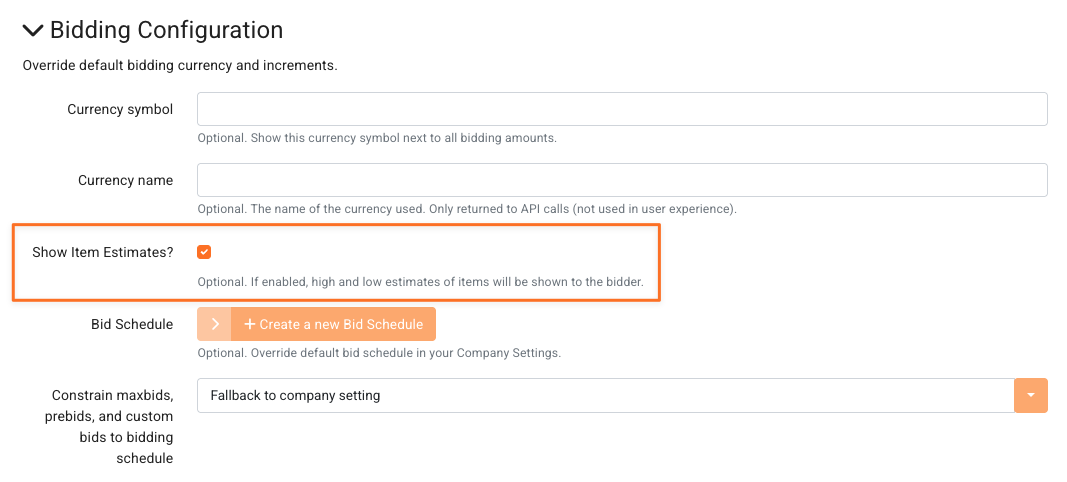
While estimates are used for internal valuation purposes, some auction companies may choose to display the estimates to bidders. To make estimates visible, navigate to Auction Settings and enable the display option within the Bidding Configuration section. When this setting is enabled, bidders will see the full estimated value range on applicable items.
Here's an example of items without visible estimates:
Here's an example of items without visible estimates:
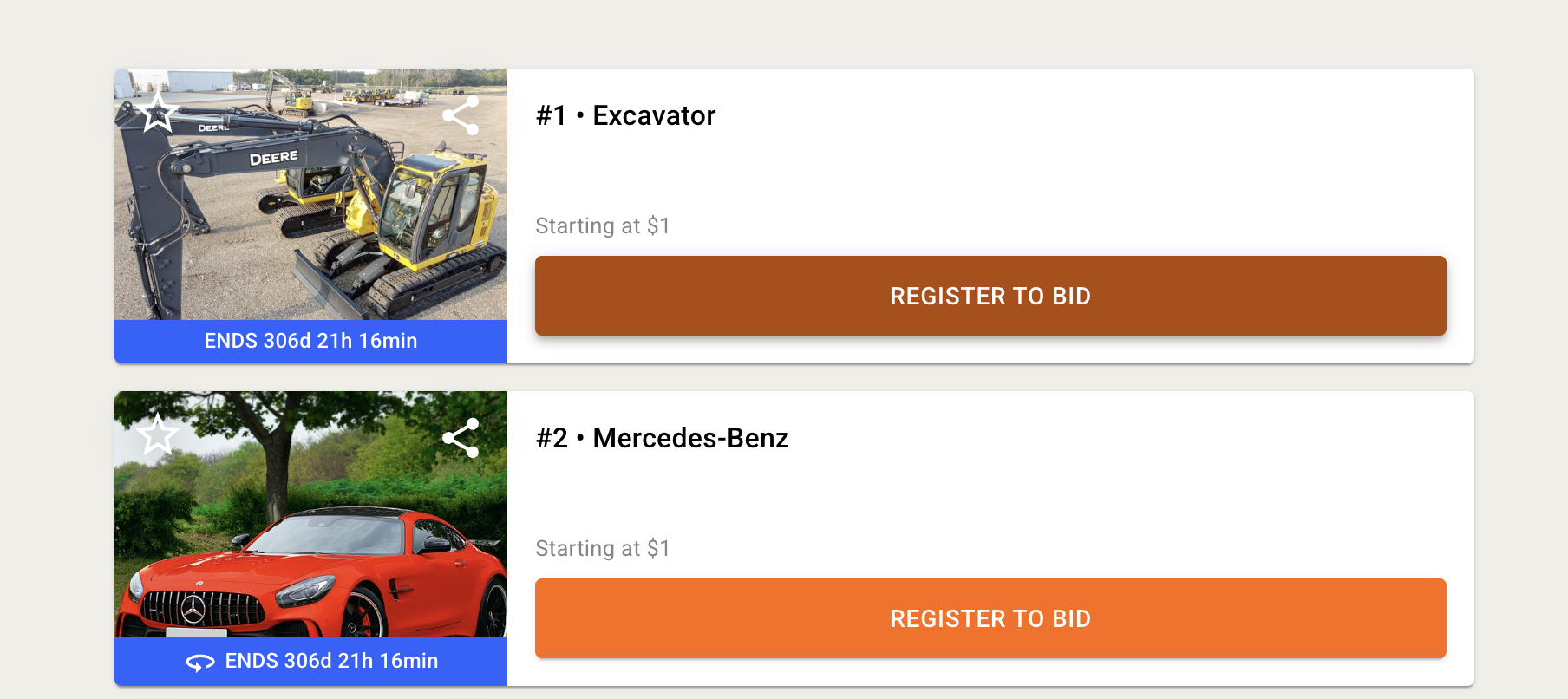
And these same items with high and low estimates enabled: