
How to Create, Manage, and Apply Flat-Rate Buyer's Fees to Items, Auctions, and Invoices in BidWrangler
Buyer's fees in BidWrangler are flat-rate charges you can add to individual items, entire auctions, or directly to winning bidder invoices. They're designed for fixed additional costs tied to specific items or sales, such as handling, administrative, or title transfer fees. Percentage-based fees are not supported by this feature.
This guide explains how to create a buyer's fee in the Admin Portal and covers every method for applying one, so you can choose the right approach for your auction.
What Is a Buyer's Fee?
A buyer's fee is a flat-rate charge—entered as a dollar amount—that appears on a winning bidder's invoice. Because these fees are fixed rather than percentage-based, they're best suited to predictable, per-item or per-sale costs like a firearms transfer fee, a vehicle title fee, or a missed-pickup charge.
How to Create, Manage, and Edit a Buyer's Fee
Before a buyer's fee can be applied to an item or auction, it must first be created in the Admin Portal.
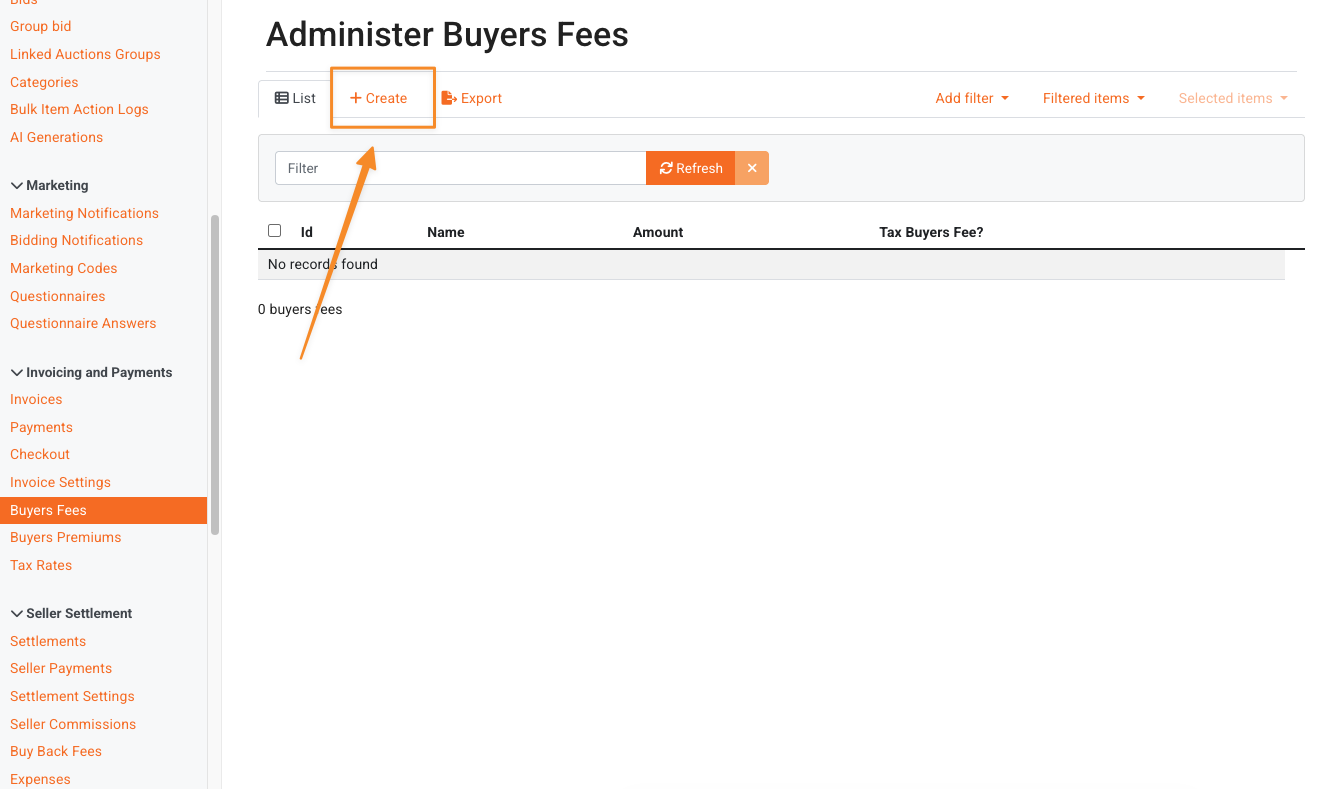
Log in to your Admin Portal, then navigate to Buyer's Fees under Invoicing and Payments.
Here you'll find all previously created fees. Click Create to add a new one.
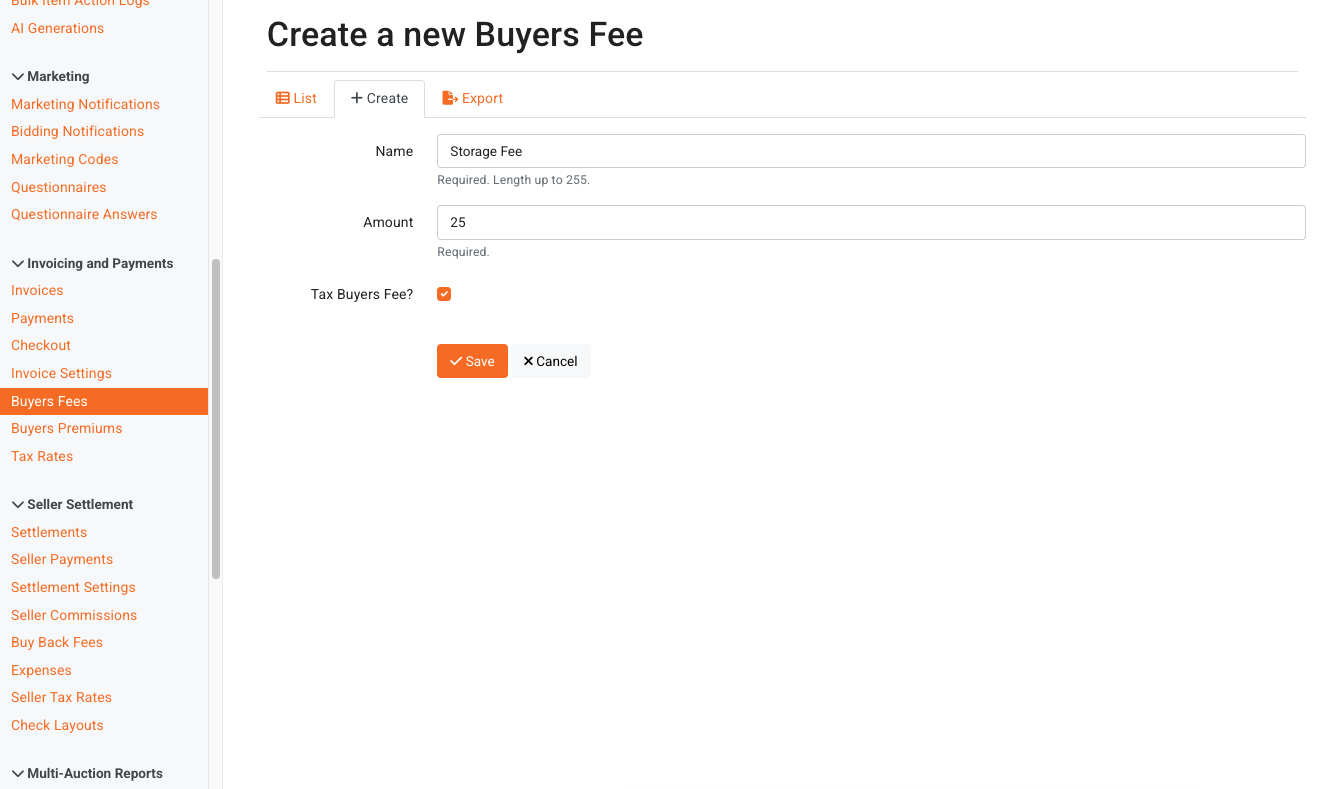
Complete the following fields:
Name: A descriptive title for the buyer's fee.
Amount: The flat-rate fee, entered as a dollar amount.
Tax Buyer's Fee?: Choose whether the fee is taxable or non-taxable.
Click Save when complete.
To manage existing fees from the same screen, click the Pencil icon to edit a fee or the X icon to delete it.
How to Apply a Buyer's Fee
Buyer's fees can be applied at the auction level, the item level, or directly to an invoice. Each method serves a different purpose, so the right choice depends on how broadly the fee should apply. The sections below explain each use case.
Adding a Buyer's Fee to an Auction
Applying a fee at the auction level is the least common method and should only be used when a single fee applies to every item in the auction—for example, a transfer fee on all items in a Firearms Only auction.
If you need different fees on different items, see Adding a Buyer's Fee to an Item or Adding Buyer's Fees to Multiple Items at Once with an Items Import below.
To add a buyer's fee to an auction:
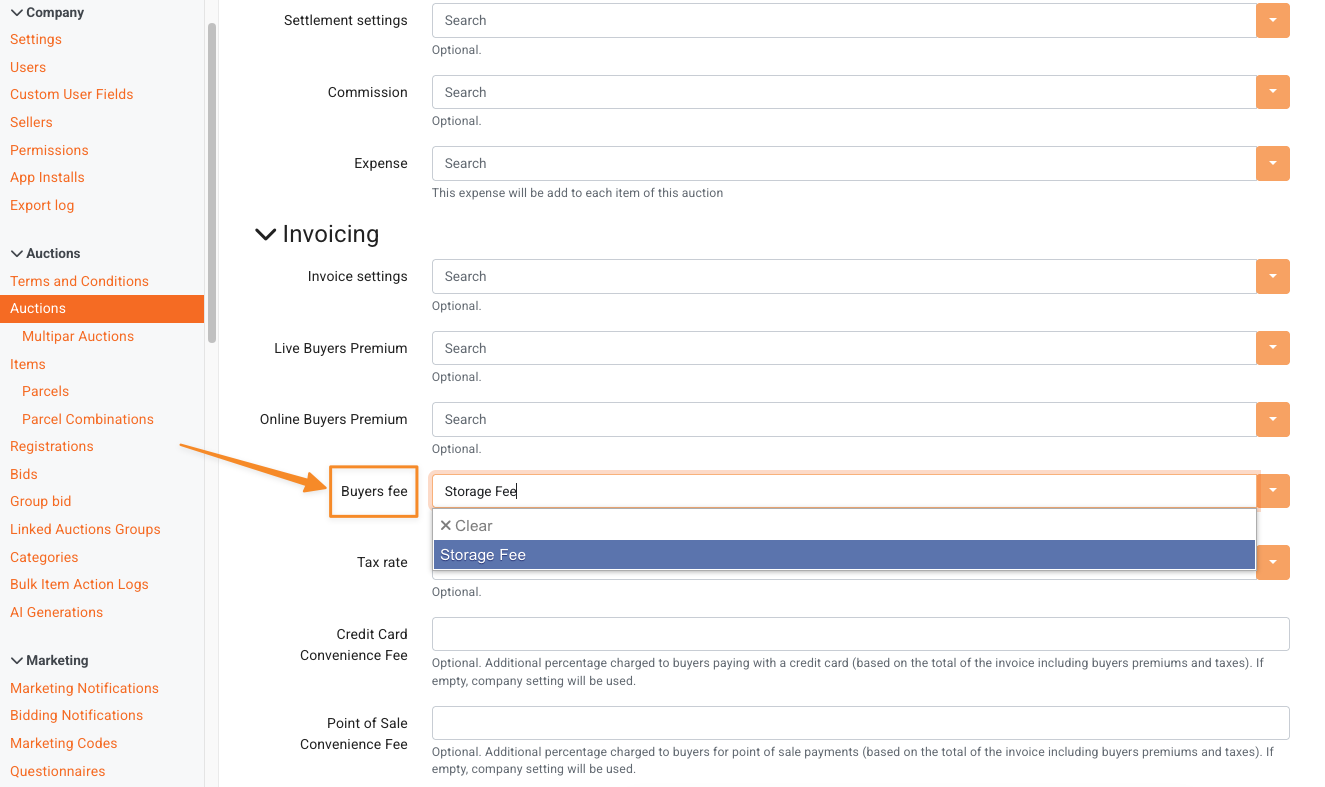
In your Admin Portal, navigate to Auctions.
Click the auction name to open the Edit Auction screen.
Scroll down to the Invoicing section.
Use the dropdown to select the desired buyer's fee.
Click Save to apply the fee.
Adding a Buyer's Fee to an Item
Buyer's fees are most commonly assigned at the item level within the item's settings. For example, you might apply a title transfer fee to the handful of vehicles in a large estate sale.
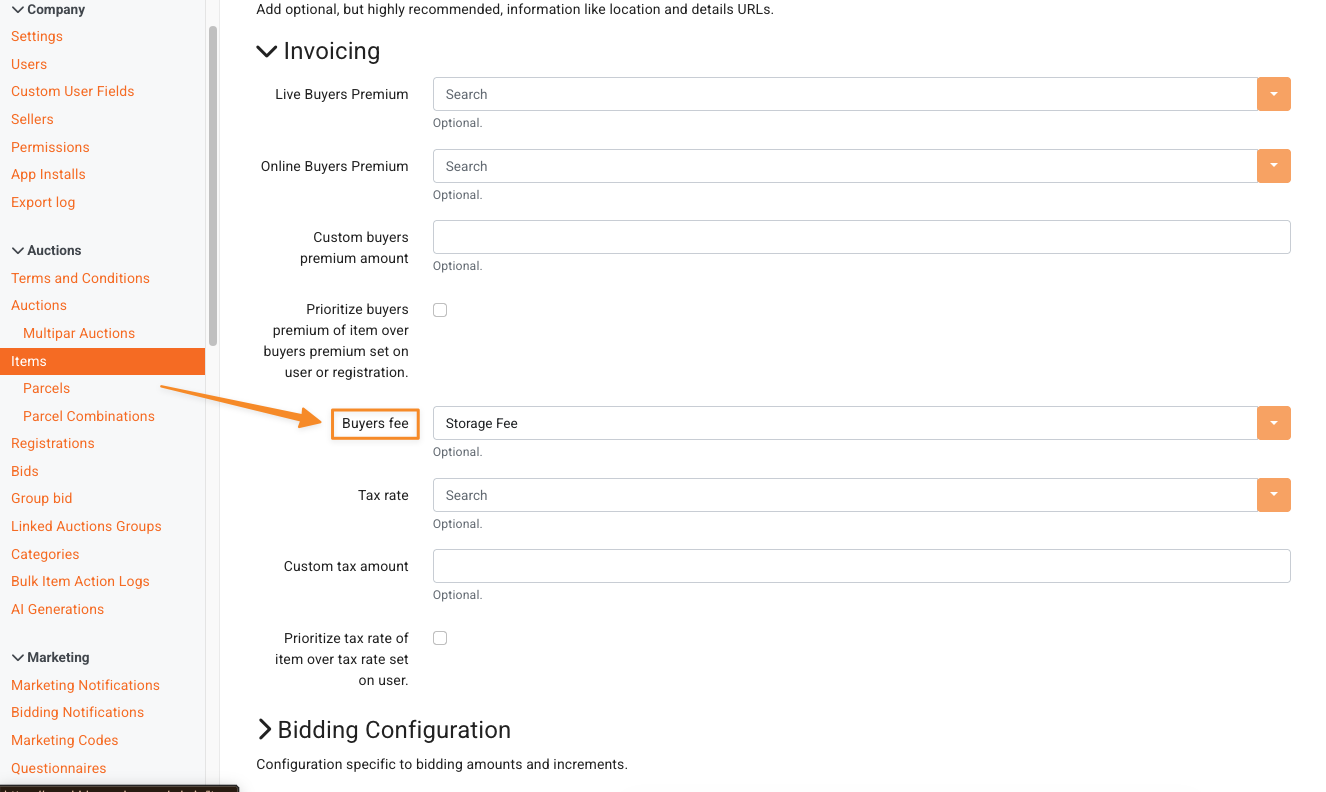
In your Admin Portal, navigate to Items.
Use Filter by Auction to locate the correct auction.
Click the item name to open the Edit Item screen.
Scroll down to the Invoicing section.
Use the dropdown to select the desired buyer's fee.
Click Save to apply the fee.
Adding Buyer's Fees to Multiple Items at Once with an Items Import
For auctions that require several different buyer's fees across many items, it's often more efficient to assign them using an Items Import. To do this, include a Buyer's Fee ID column in the .csv file used for your import.
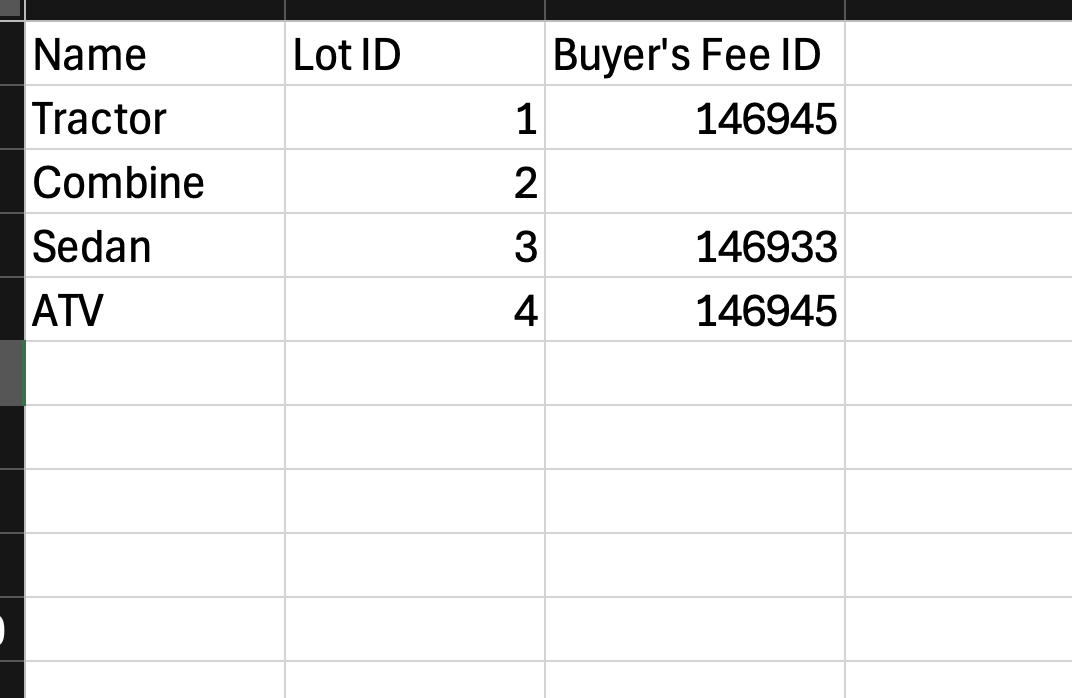
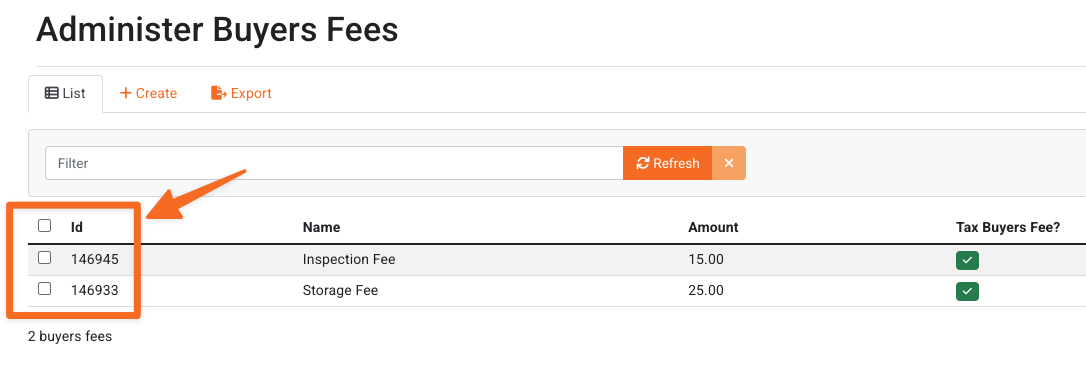
Note: You must create your buyer's fee in the Admin Portal before assigning it via Items Import. Copy the values from the ID column on the Buyer's Fees page into your spreadsheet to map each fee to the corresponding items.
Adding a Buyer's Fee Directly to an Invoice
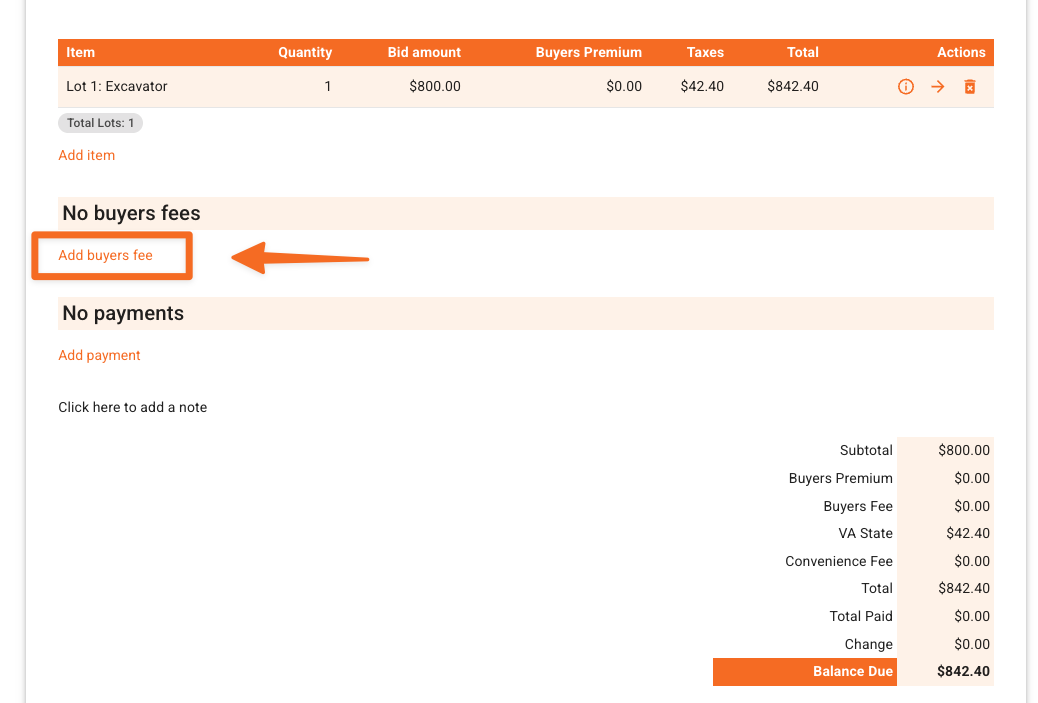
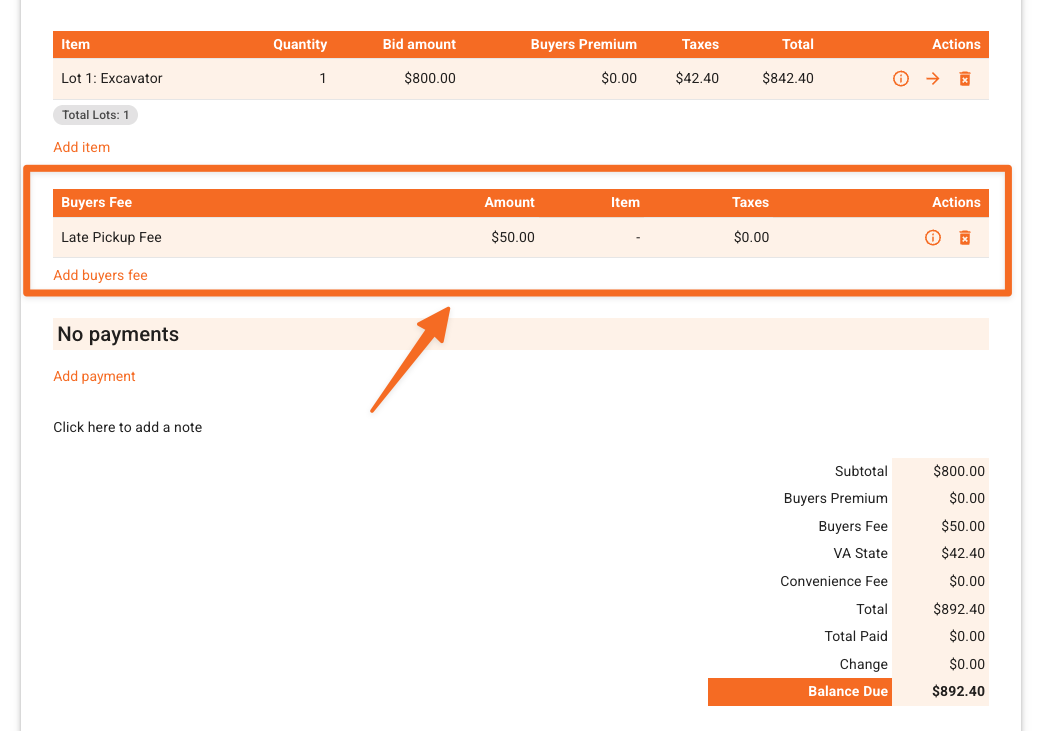
Buyer's fees can also be added directly to an invoice for charges that aren't item-specific. For example, if a buyer misses their pickup time, you can add a one-time fee to their invoice without attaching it to an item or auction.
In your Admin Portal, navigate to Invoices.
Locate the invoice using Filter by User or Filter by Auction.
Click the invoice number to open the invoice.
Scroll down and select Add Buyer's Fee.
Use the dropdown to select an existing buyer's fee, or fill in the fields to apply a custom one.
Click Save to apply the fee to the invoice.
Adding Buyer's Fees to invoices in Bulk
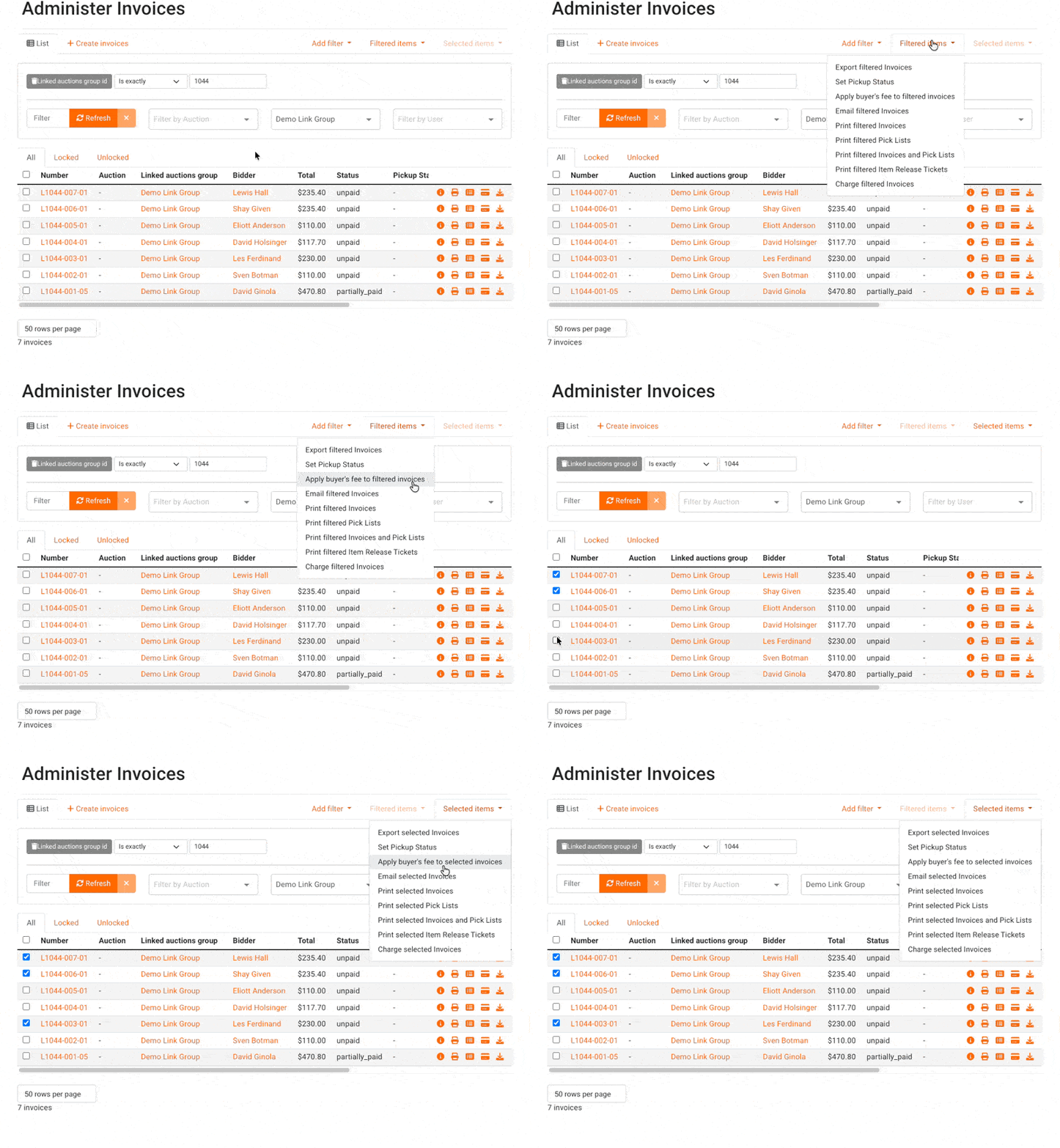
You can apply buyer's fees to invoices in bulk via the Filtered or Selected Items options.
From the Administer Invoices screen, apply filters and then choose Filtered Items, alternatively, use the checkbox to mark specific invoices and choose Selected Items.
Under either option, you will see 'Add buyer's fee to filtered/selected invoices'
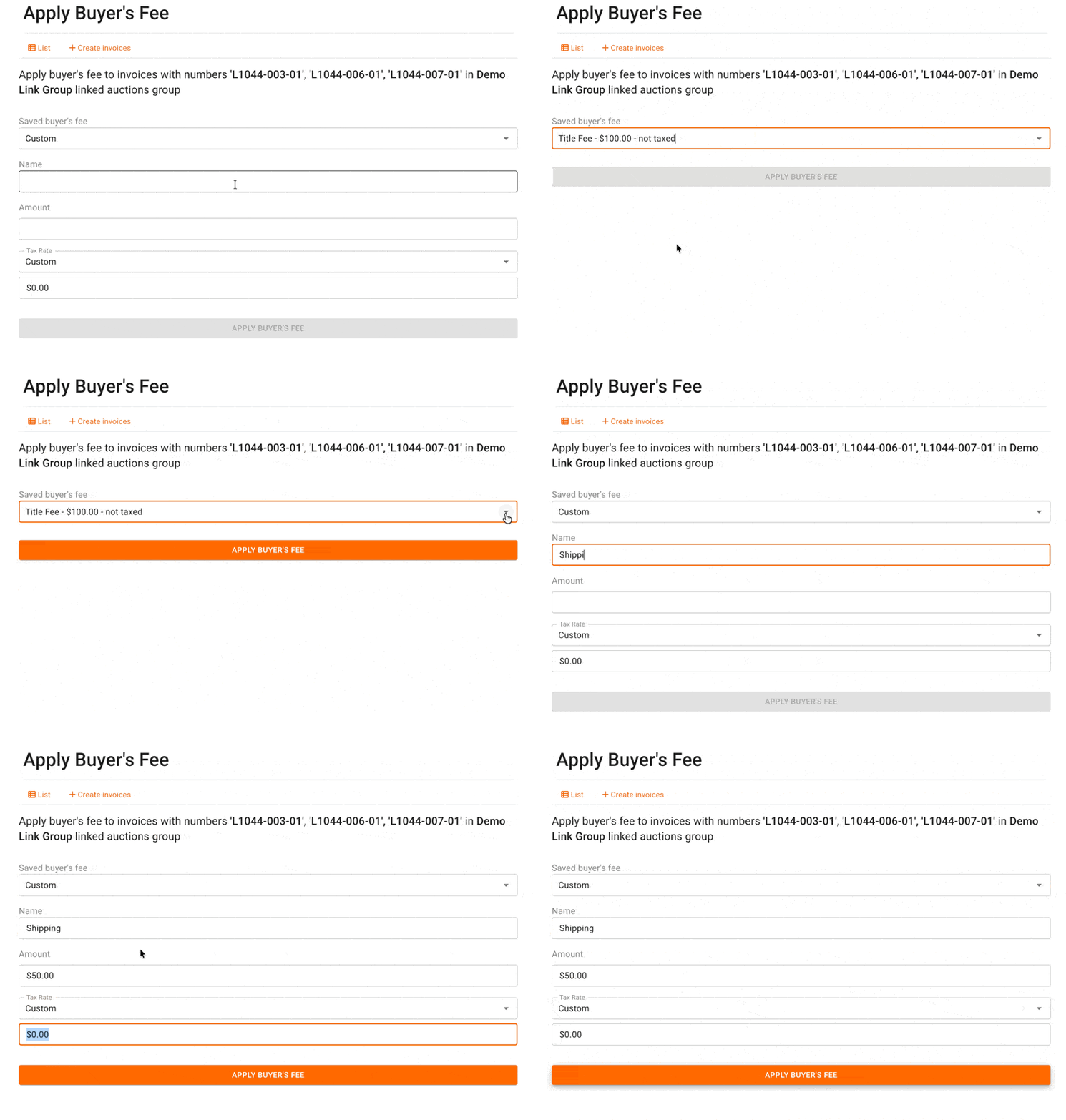
In the next screen, you can use the drop-down to choose a pre-made buyer's fee, or create a custom fee. Enter the details then Apply Buyer's Fee and Confirm.
Frequently Asked Questions
Can buyer's fees be percentage-based?
No. Buyer's fees in BidWrangler are flat-rate only, entered as a dollar amount. Percentage-based charges are not supported by this feature.
Where do I create a buyer's fee?
In the Admin Portal, under Invoicing and Payments > Buyer's Fees. A fee must exist here before it can be applied anywhere else.
Can I apply a buyer's fee to just one buyer?
Yes. Add the fee directly to that buyer's invoice rather than to the item or auction—ideal for one-off charges like a missed-pickup fee.
What's the best way to apply different fees to many items?
Use an Items Import with a Buyer's Fee ID column. This is the most efficient method for auctions with multiple fees across numerous items.