
Block Threshold: Preventing Repeat Fraudulent Bidder Registrations
What is Block Threshold?
Block Threshold is a fraud-prevention feature that helps stop previously blocked bidders from creating new accounts using slightly altered information (such as a new email address).
Instead of relying on email address alone, the system compares multiple pieces of bidder information from new registrations against bidders you’ve already blocked.
If enough information matches, the new registration is automatically blocked.
How Block Threshold Works
When a new account is created, BidWrangler compares it against all blocked bidders in your platform using details such as:
Name
Phone number
Physical address
Other identifying account fields
Each match contributes to a percentage score.
If the percentage match is equal to or greater than your Block Threshold, the system will:
Prevent the account from being approved for bidding
Mark the registration as not approved for online bidding
Notify admins (if email notifications are enabled)
Understanding the Threshold Percentage
The Block Threshold is a percentage match value, typically between 0–100.
Threshold Value | Behavior |
0 | Feature is disabled (no automatic blocking) |
80 | Common starting point |
75-70 | Stricter matching (blocks more attempts) |
Below 70 | Very aggressive; may flag legitimate bidders |
Example:
If your Block Threshold is set to 80%:
A new account that matches 80% or more of the information from a blocked bidder will also be blocked
Even if the bidder uses a new email address
Lowering the number makes the system more sensitive.
What Block Threshold Does Not Do
Block Threshold:
Does not block bidders based on unpaid balances
Does not automatically block existing bidders
Does not work unless the original bad account is manually blocked
Does not guarantee zero false positives
Manual blocking is still required for known bad actors so the system has something to compare against.
Where to Find Block Threshold
Navigate to:
Company → Settings → Customization → Block Threshold

What You’ll See When It Triggers
In the Admin Portal:
Registrations will show a red “X” under Approved for Online
You may see the bidder appear to unblock briefly, then re-block automatically if a matching blocked account still exists
Blocked users will have a blocked icon next to their surname
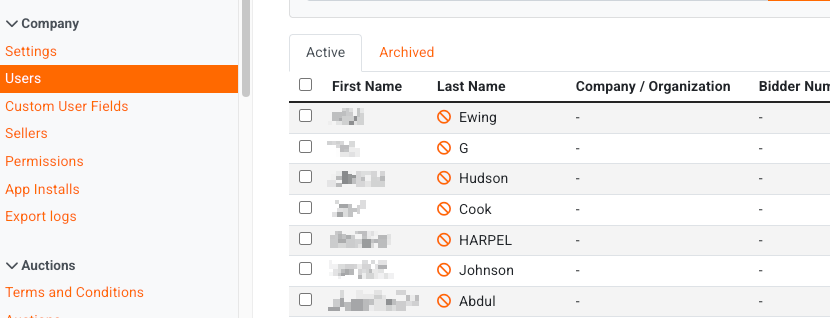
If you have email notifications enabled, Admins will also receive an email alerting you to the account being blocked with the opportunity to review the provided details and link to approve the bidder if necessary. Below is an example of the email notification:
NOTICE: BidWrangler Blocked a Potential Bidder
The bidder below attempted to register for: (AUCTION NAME)
Bidder Name
Bidder Address
City, State, Zip
1234567890
biddername@mail.com
This similar bidder was previously blocked:
Bidder Name
Bidder Address
City, State, Zip
1234567890
bidder@mail.com
Bidder Name will be permanently blocked from bidding in ALL of your auctions.
If this is correct, you do NOT need to take any further actions.
If this is not correct, you can make changes in the admin portal.
Permanently unblock bidder {link}
Approve bidder for this auction only {link}
If too many bidders are being incorrectly blocked please check your Block Threshold in your settings. Edit company settings {link}
On the Bidder’s Side:
They will see “Pending Approval”
They will not be able to bid unless manually approved
Common Scenarios & Gotchas
Duplicate Accounts Causing Re-Blocking
If a duplicate “DO NOT USE” account remains blocked:
The system may re-block the good account automatically
Please contact us to remove the duplicate blocked account to resolve the issue
Legitimate Bidders Occasionally Flagged
This can happen when:
Block Threshold is set low (e.g., 56–70)
Multiple bidders share similar names, cities, or addresses
This is expected behavior and is often preferable to allowing repeat fraud.
Recommended Best Practices
Always manually block confirmed bad bidders
Start with a Block Threshold of 80
Adjust in small increments:
80 → 75 → 70 (if needed)
Monitor registrations using:
Registrations page
Filter by Approved for Online = False
Expect occasional manual approvals - this means the system is working
Additional Option: Require New Bidder Approval
As an added safeguard, BidWrangler also offers a “Require New Bidder Approval” option within Terms & Conditions.
When enabled, first-time bidders must be manually approved before they are allowed to place bids. You’ll be notified when a new bidder registers, giving you the opportunity to review and approve them before bidding begins.
This setting can be applied per Terms & Conditions, allowing you to use it only for specific auctions or higher-risk events.
This option is commonly used alongside Block Threshold for an added layer of bidder vetting.

Click here to learn more about Requiring New Bidder Approval.
Need Help Finding the Right Balance?
Block Threshold is intentionally flexible because every auction company’s risk tolerance is different.
If you’d like help:
Reviewing blocked registrations
Adjusting your threshold
Troubleshooting unexpected behavior
Don't hesitate to reach out to us for assistance at helpdesk@bidwrangler.com