How to Update Image File Extensions in Bulk on Mac and Windows Operating Systems
If you are experiencing issues where your images appear to load during a bulk item import but are not processed successfully, the problem may be related to the capitalization of your image file extensions (e.g., using ".JPG" instead of ".jpg").
To ensure a successful image upload, all file extensions must be consistently formatted in lowercase. This includes common extensions such as ".jpg", ".jpeg", or ".png"
Below are instructions for quickly updating your file extensions in bulk on both Mac and Windows operating systems.
Bulk Renaming File Extensions on Mac
Renaming file extensions in bulk is straightforward using the built-in functionality on a Mac:
Select Images: Select all the images within the folder you need to update.
Choose Rename: Right-click the selected images and choose "Rename".
Find and Replace: Use the find and replace function to search for the capitalized extension (e.g., 'JPG') and replace it with the lowercase extension (e.g., 'jpg').
Bulk Renaming File Extensions on Windows
Method 1: Command Prompt
On Windows, you can use the Command Prompt for a quick and effective bulk rename:
Open Folder: Open the folder that contains your images.
Open Command Prompt: Click in the address bar of the folder, type
CMD, and press Enter.Run Rename Command: In the Command Prompt window that opens, run the following command, replacing ".JPG" with the current capitalized extension of your files (if needed):
ren *.JPG *.jpg
Method 2: Using an Online Web Tool (e.g., webrename.com)
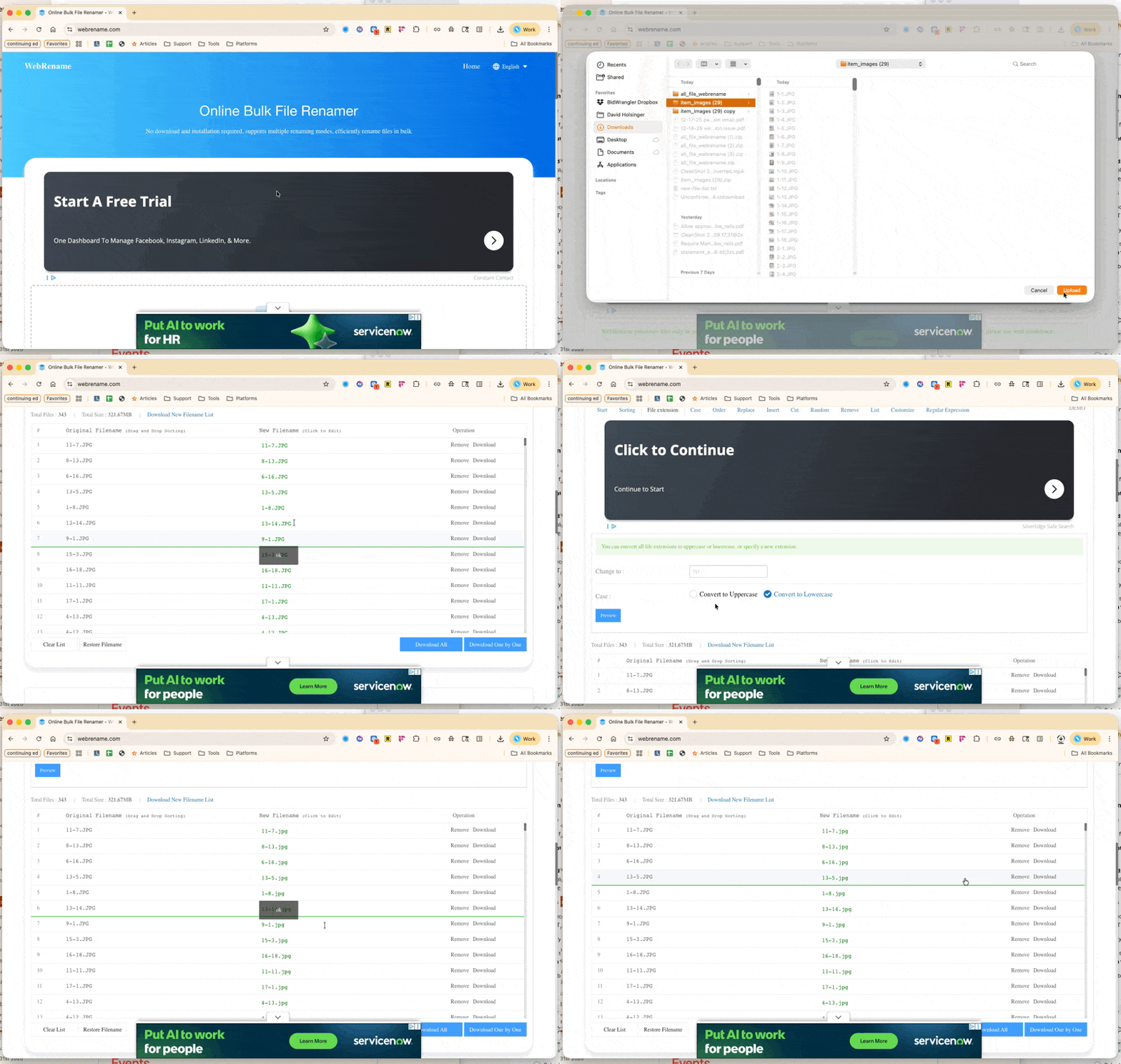
For users who prefer a non-technical method on a PC {can also work on Mac}, a bulk renaming web tool like https://www.webrename.com/ can assist:
Upload Folder: Upload your folder of images via "Select Folder"
Update the File extension: Select "File extension" from the options, then choose "Convert to Lowercase" and "Preview" to see the filenames update. Click "Apply" to finalize the changes.
Download the newly-renamed folder of images: Click "Download All" to create a new .zip file that will include all renamed files in the folder. Once the download is complete, unzip the .zip and you will have a folder of all original files with updated lowercase file extensions.
Here is a GIF walking through the process of updating file extensions to be lowercase with webrename.com: