How to Register All Permanent Bidders in Bulk via the Registration Import
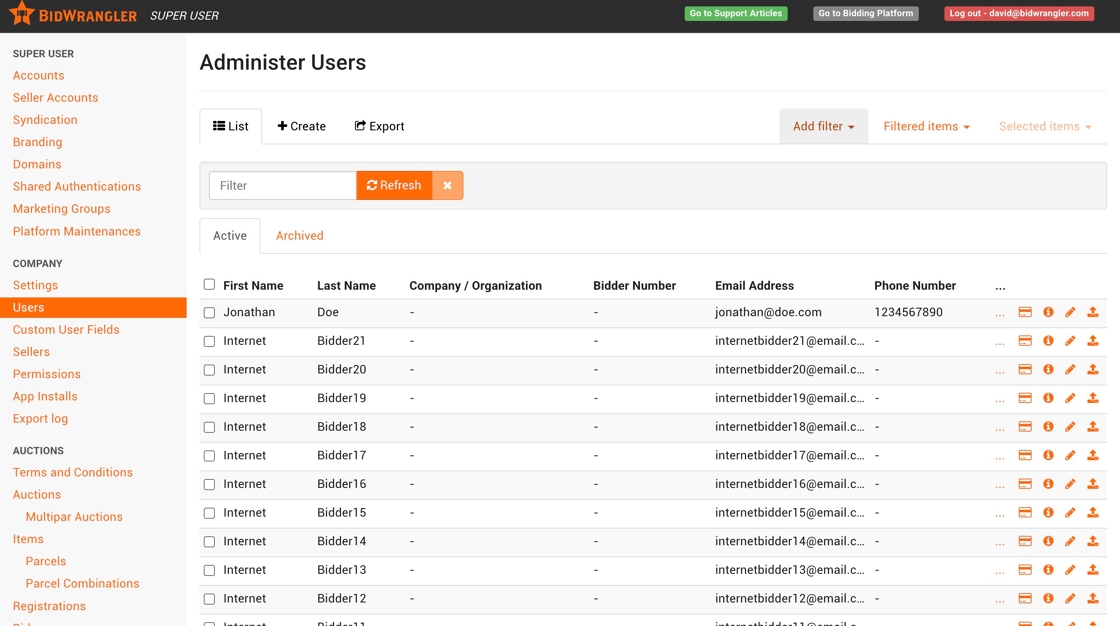
1. First, we want to filter for all Users with permanent Bidder Numbers from your bidding platform's Users screen.
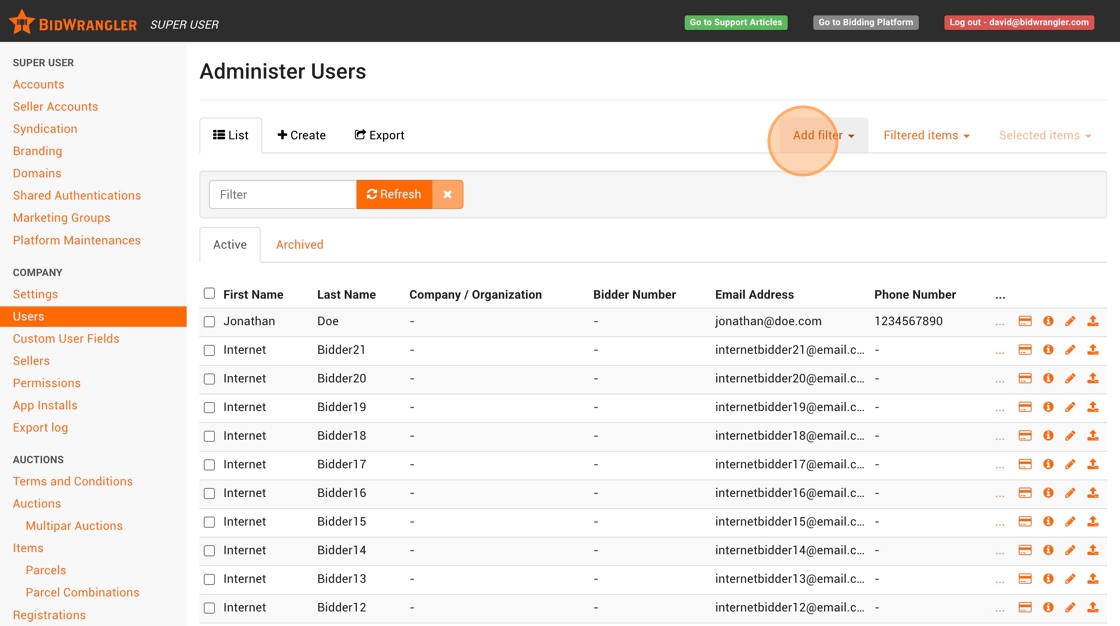
2. Let's filter for only users with a permanent Bidder Number entered by clicking "Add filter".
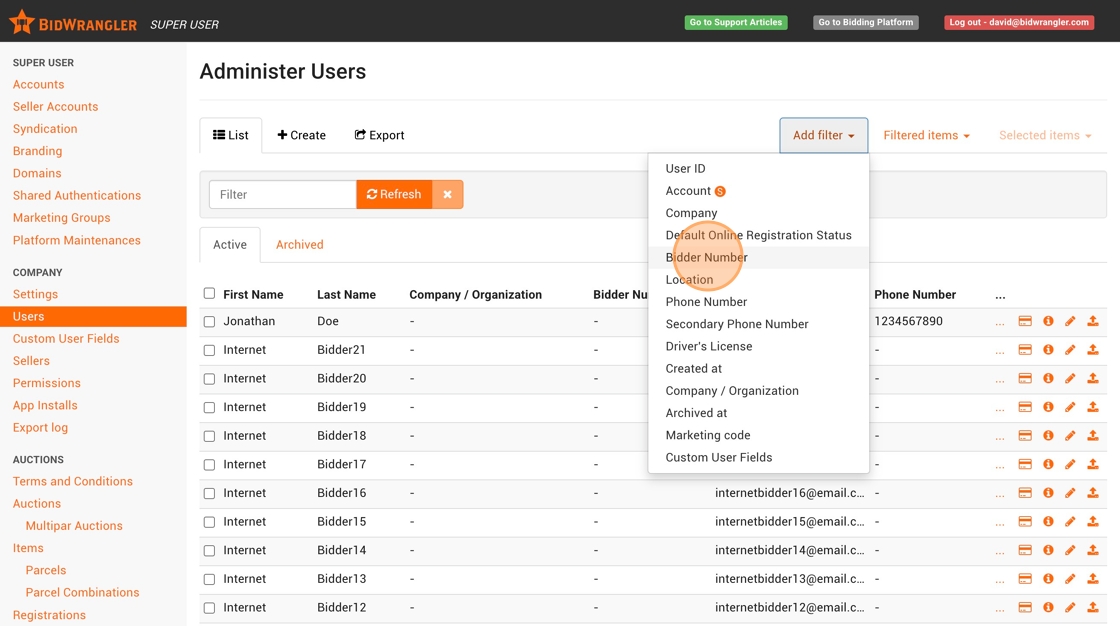
3. Click "Bidder Number"
4. Select the "Is present" option.
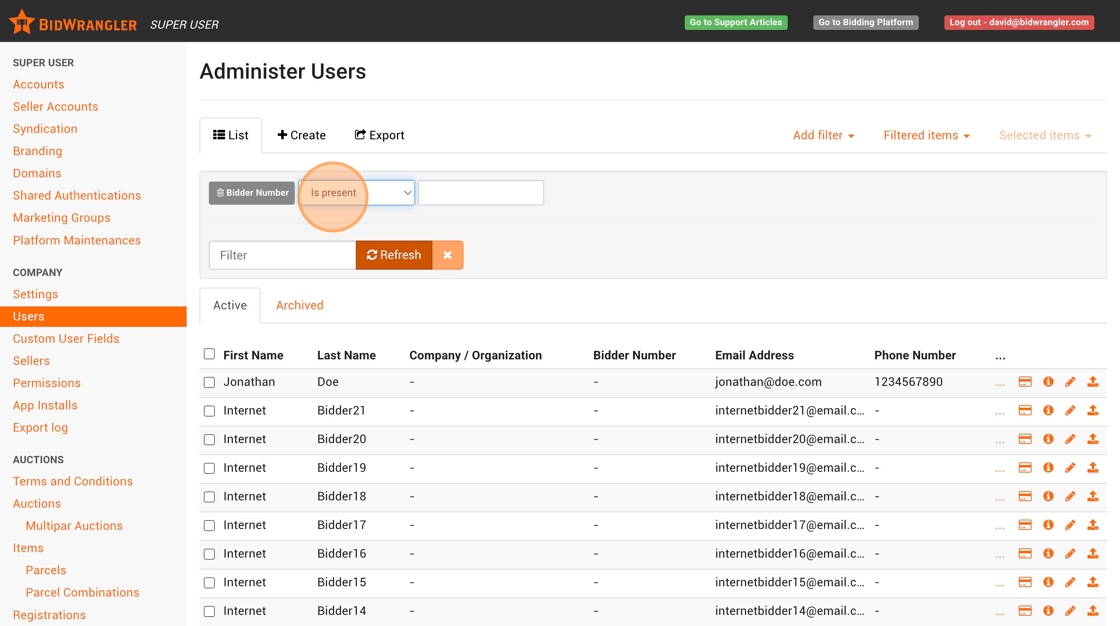
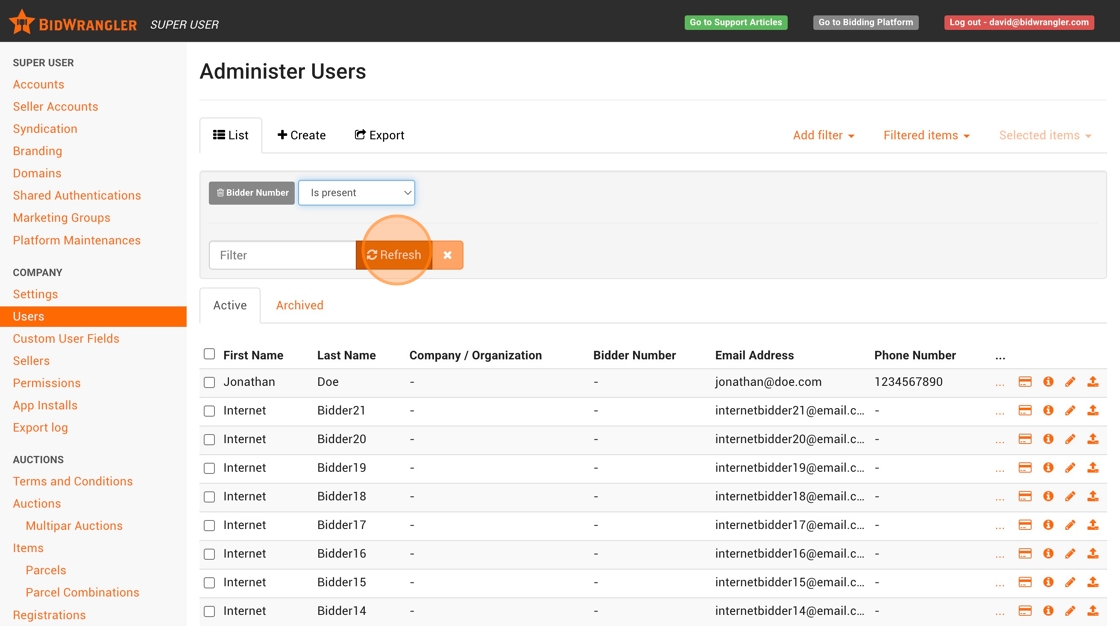
5. Click "Refresh" or ENTER key.
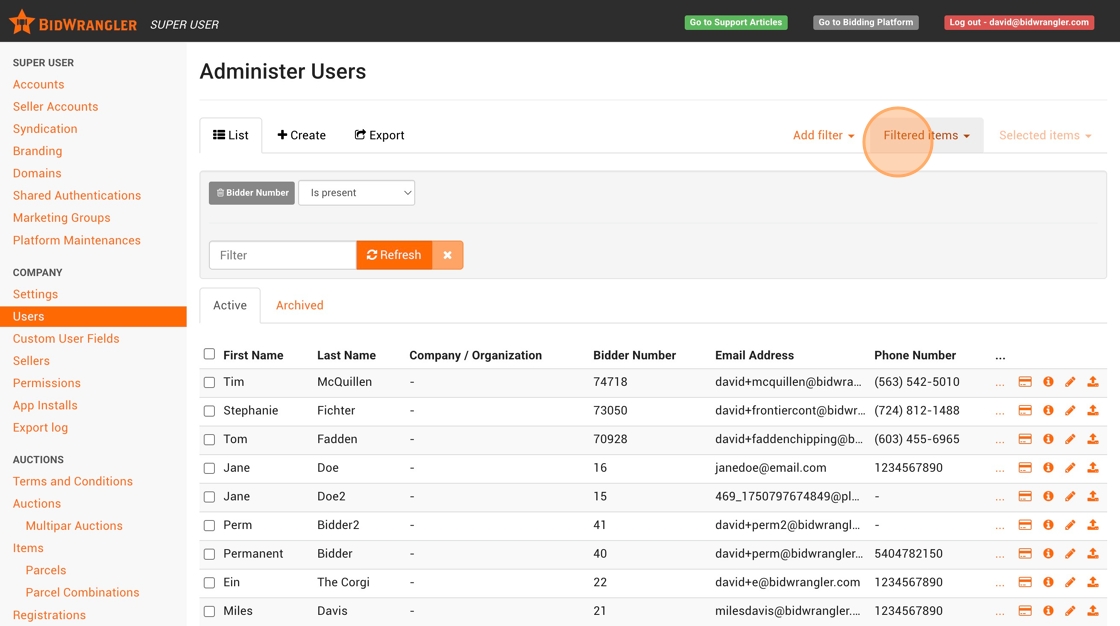
6. Click "Filtered items"
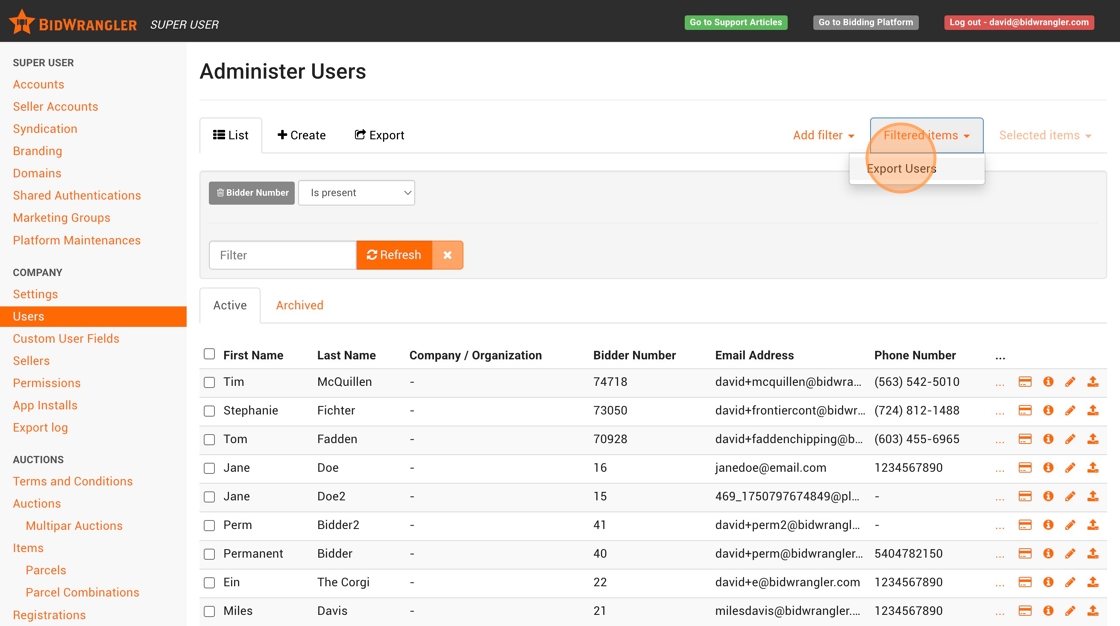
7. Click "Export Users"
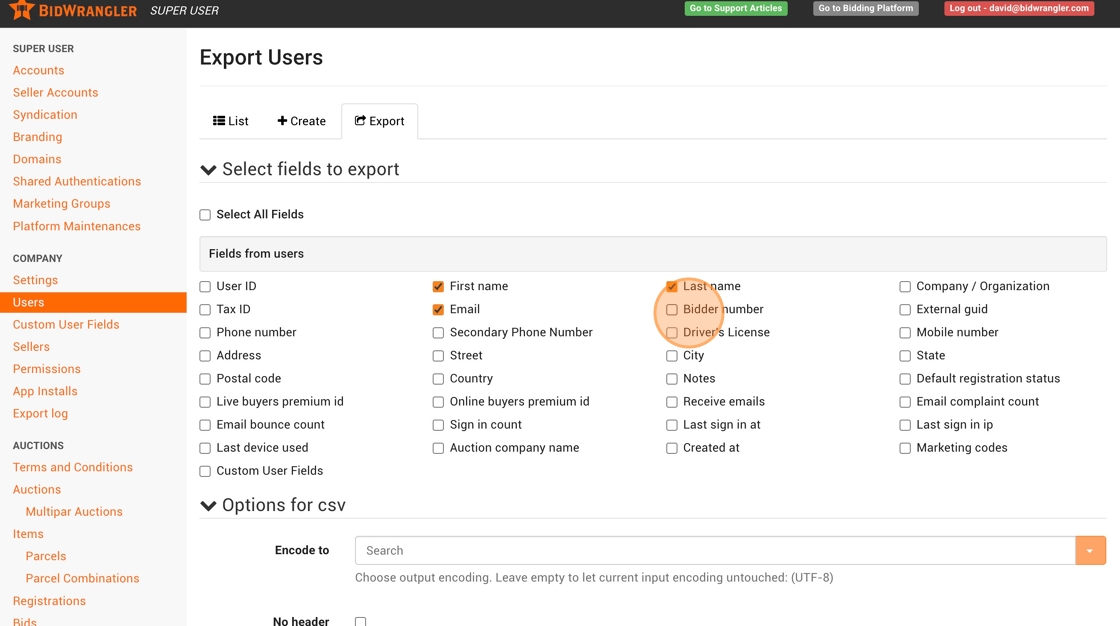
8. Unless you want to update user data in this import, we only need the First Name, Last Name, Email, and Bidder Number fields. Click the "Select All Fields" field to deselect all fields.
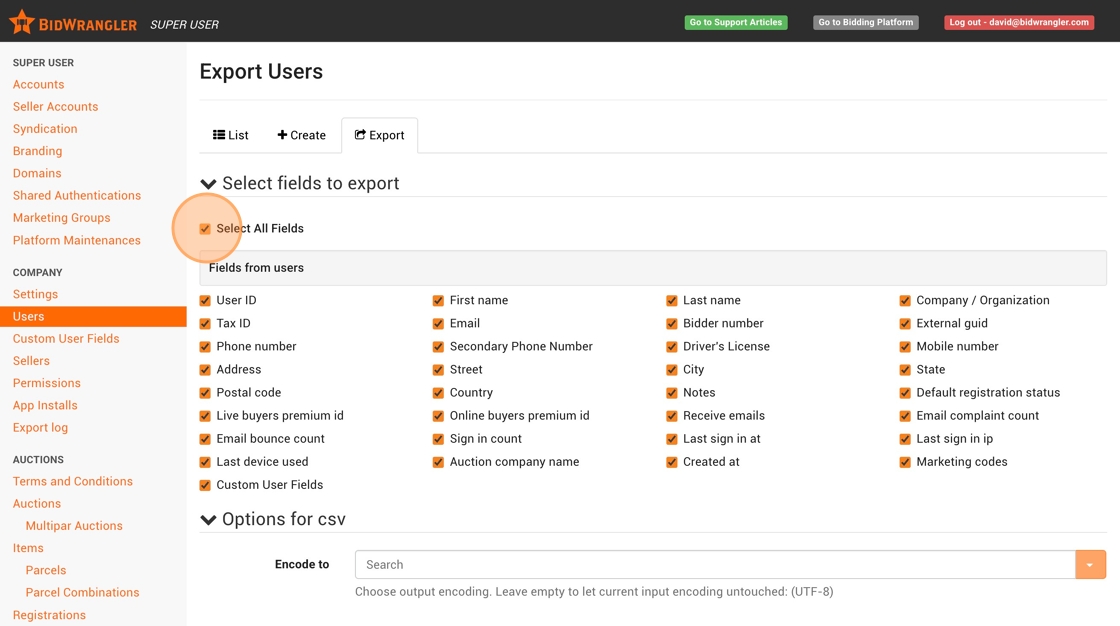
9. Click the "First name" field.
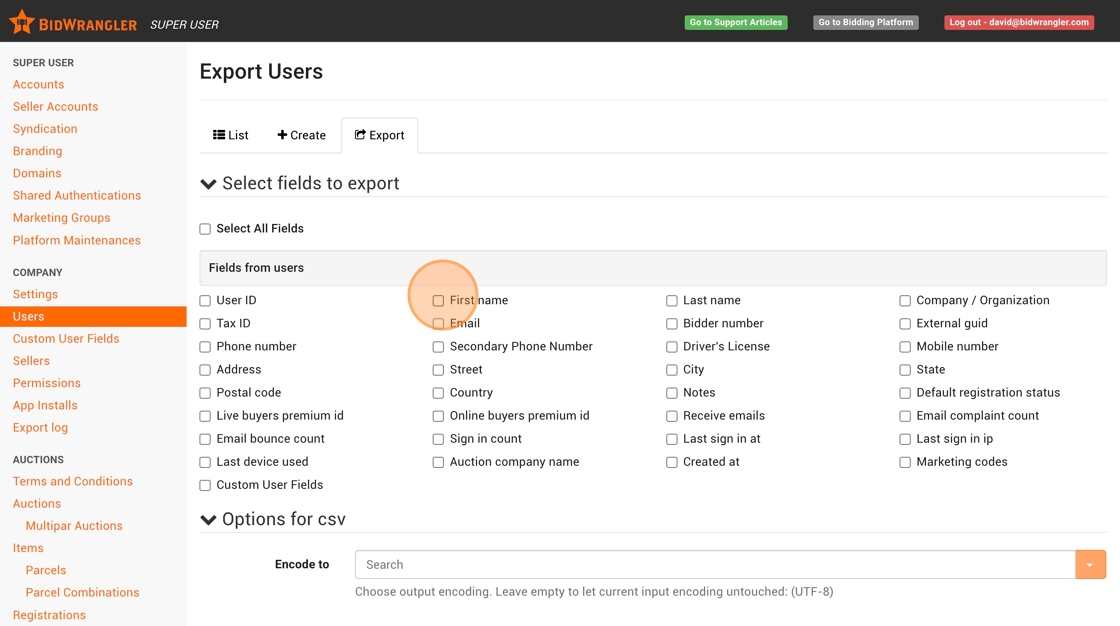
10. Click "Last name"
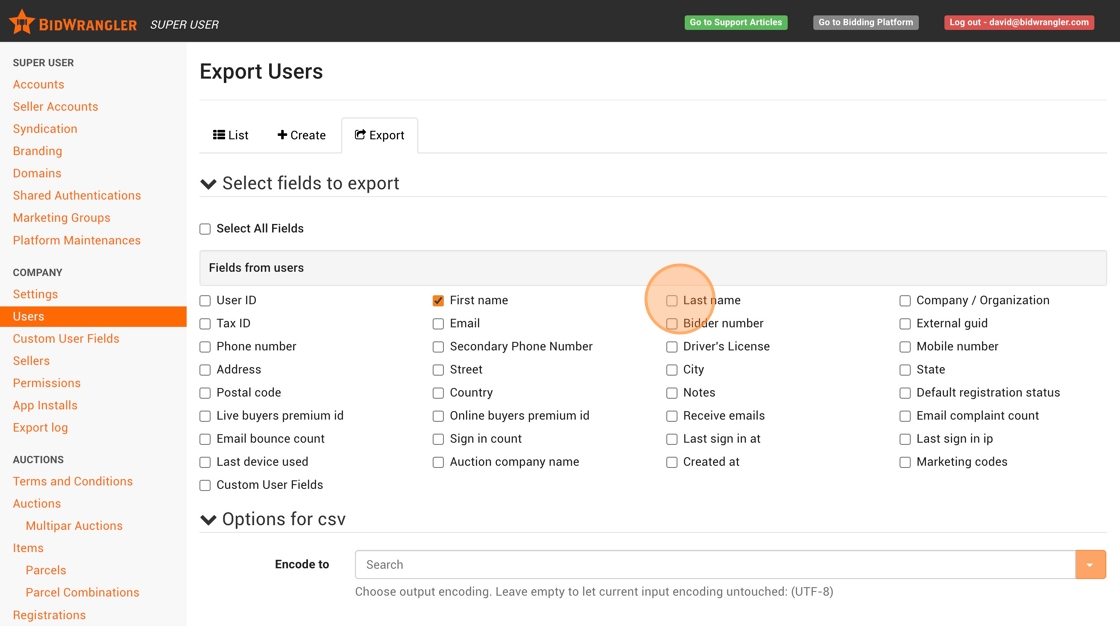
11. Click the "Email" field.
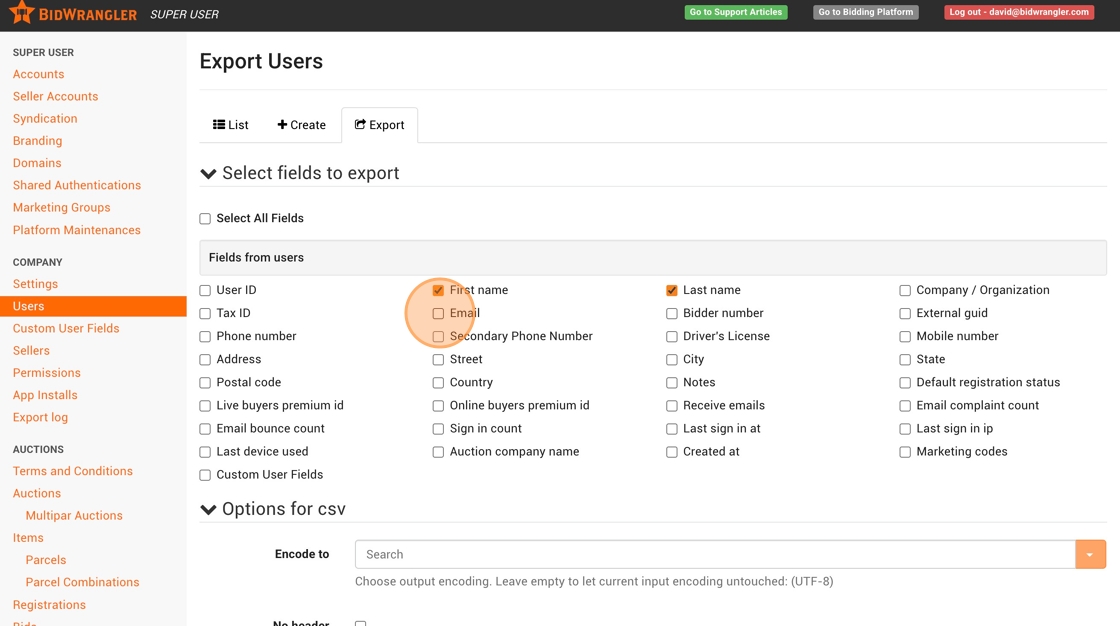
12. Click "Bidder number"
13. Click "Export to csv"
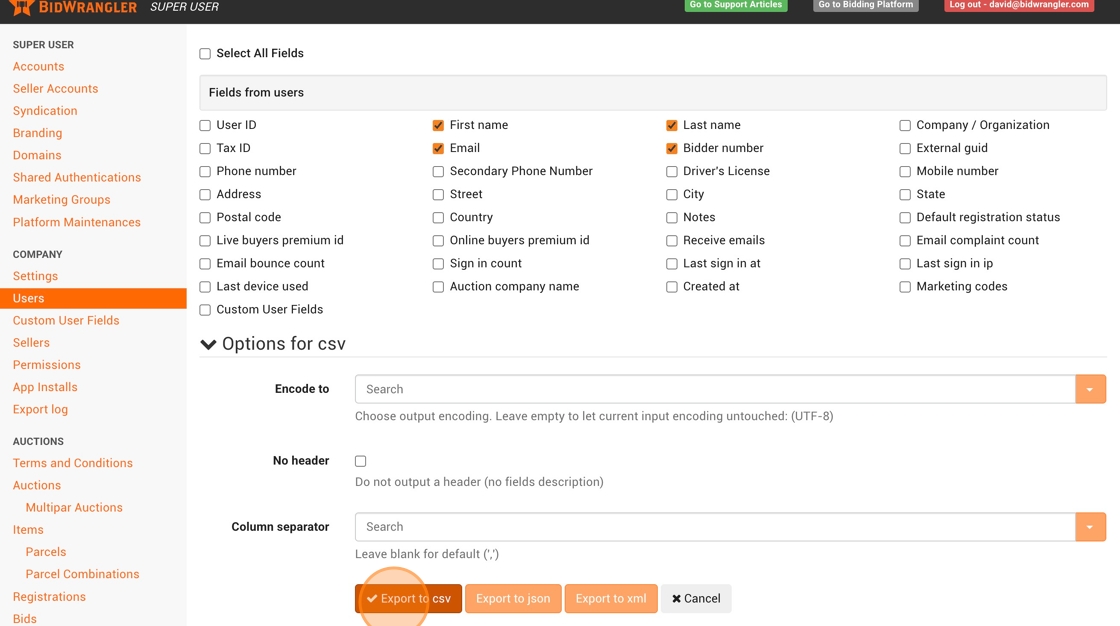
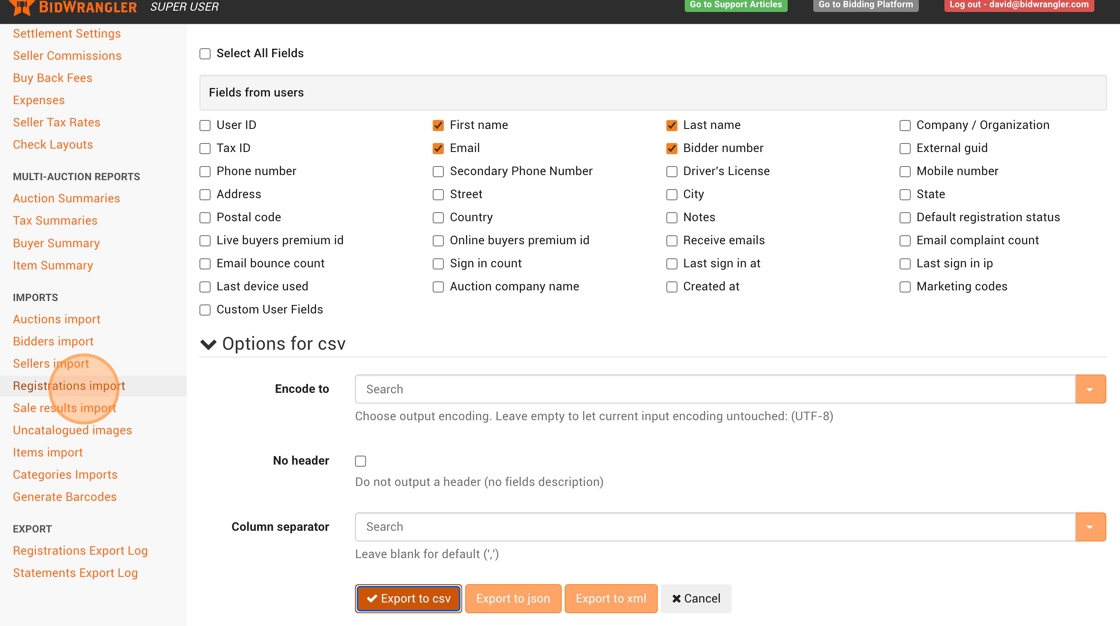
14. Next, we will run a registration import. Click "Registrations import"
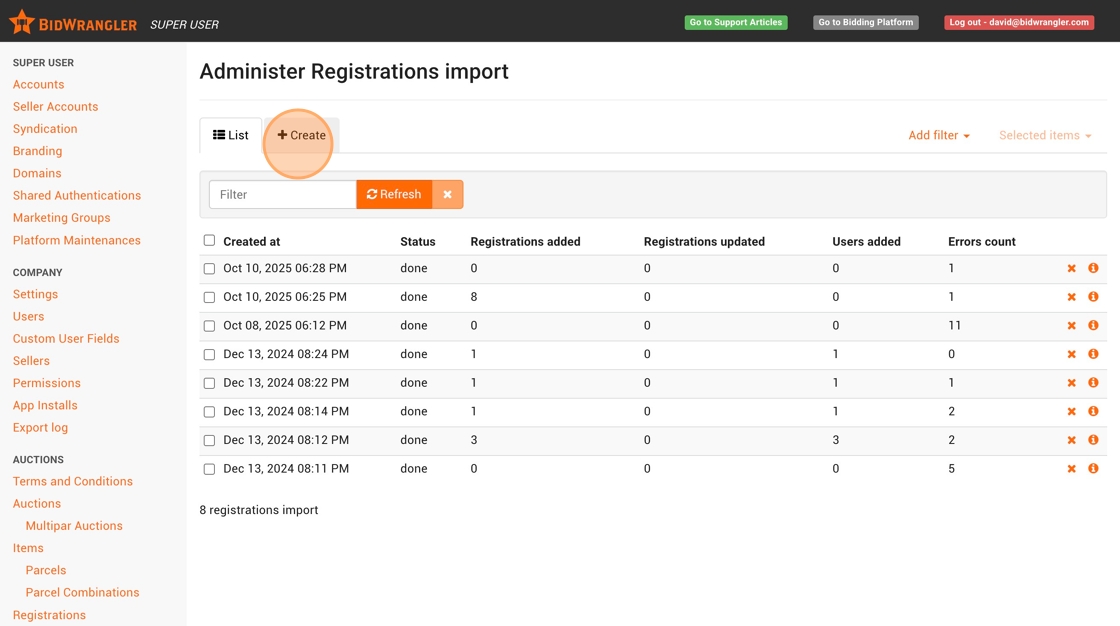
15. Click "Create"
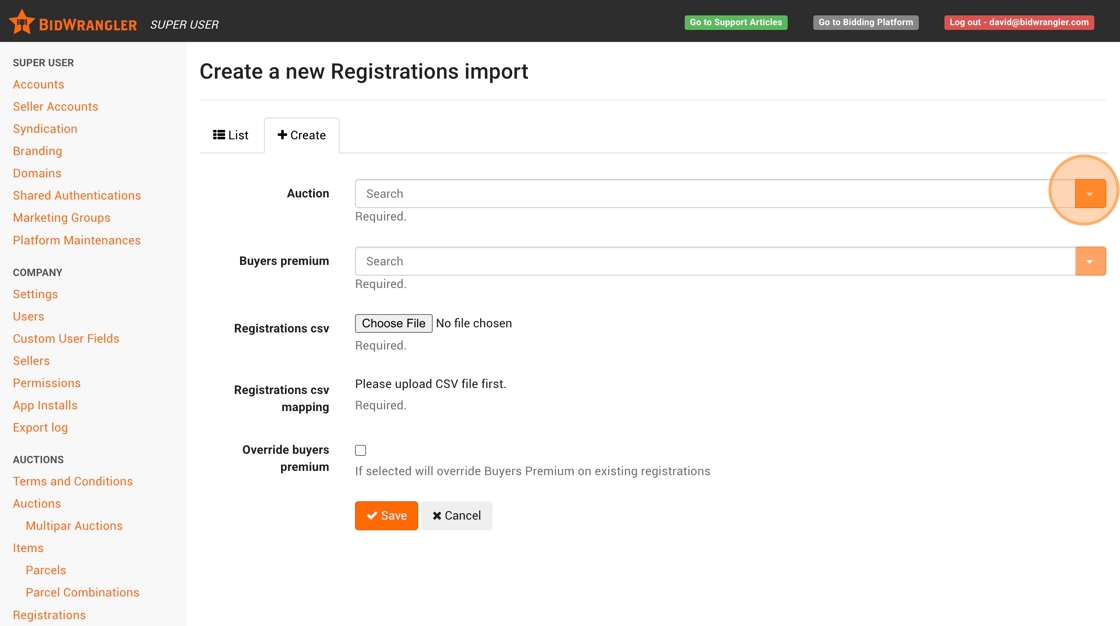
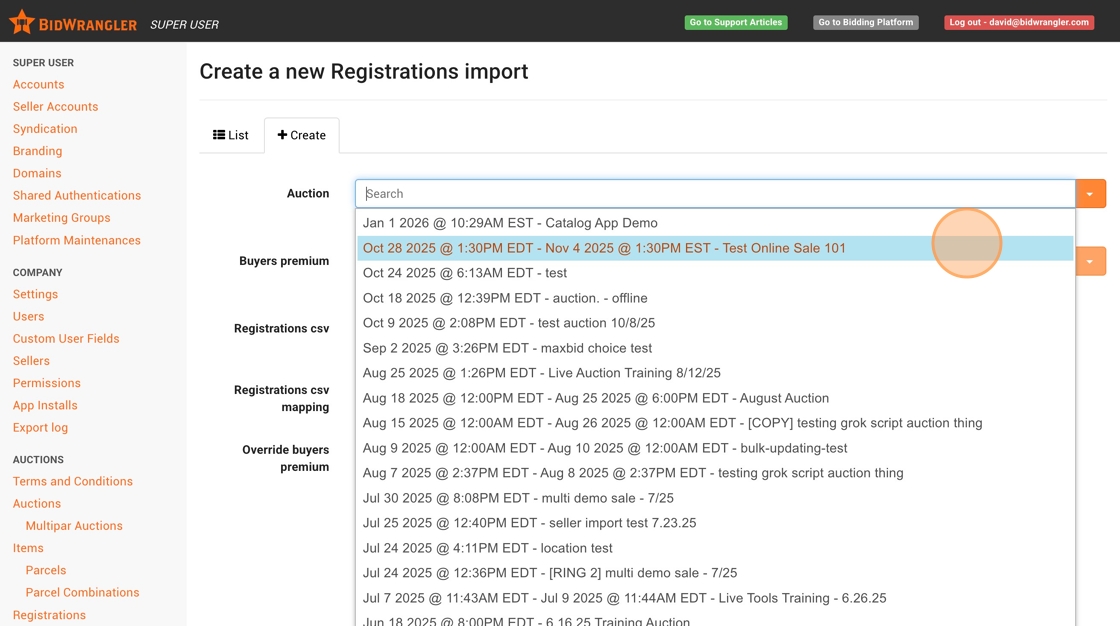
16. Click on the dropdown menu or type-to-search and select the desired auction.
17. Click on the name of the appropriate sale.
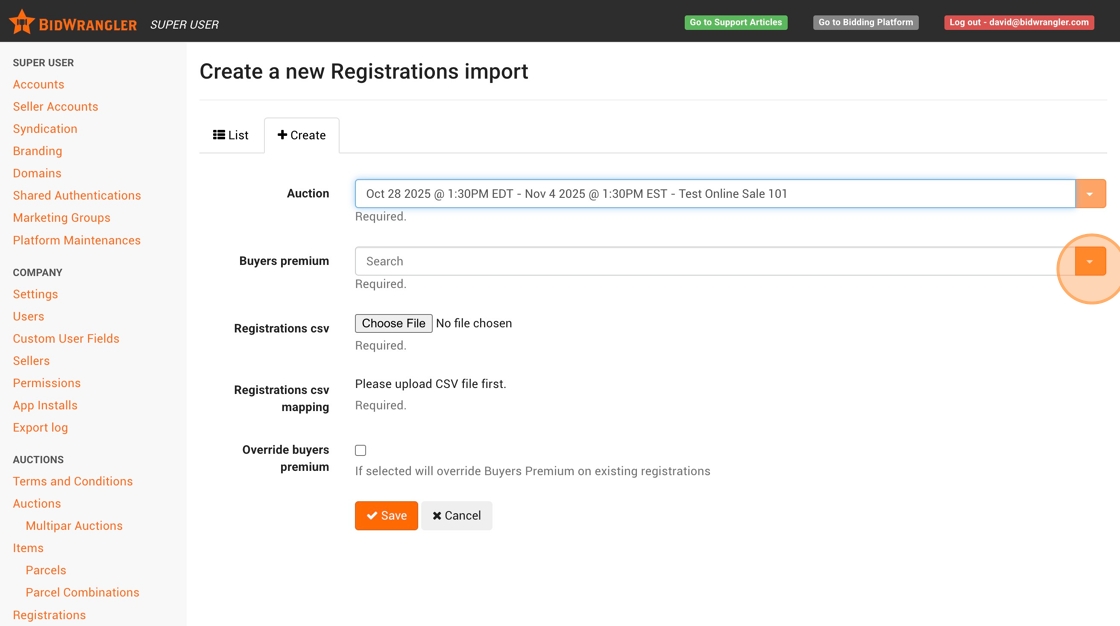
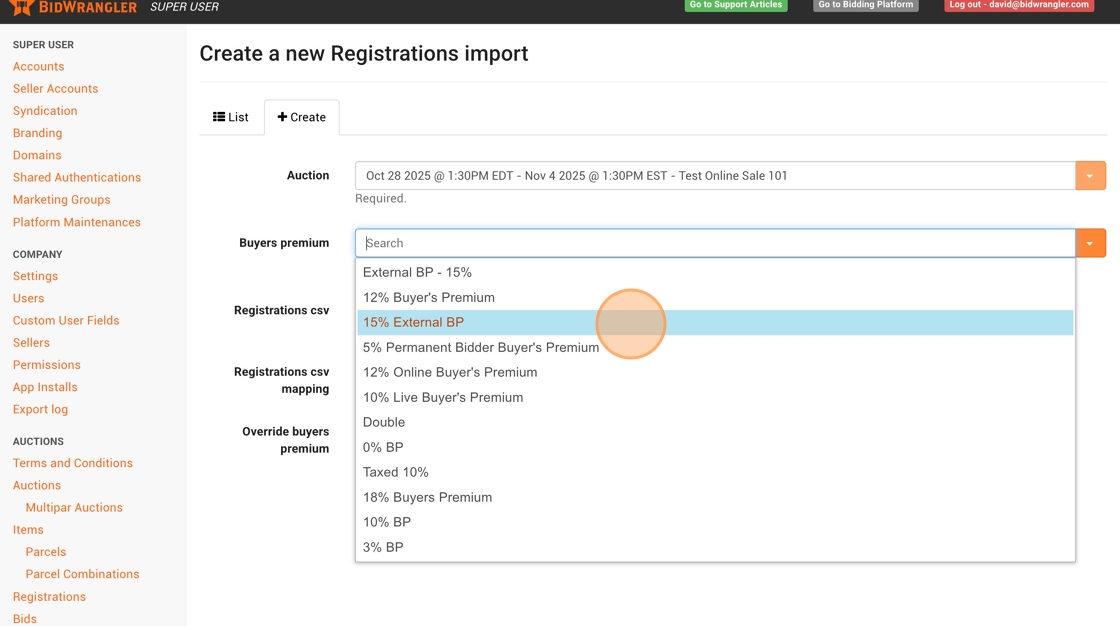
18. Select a Buyer's Premium
19. You may choose the same premium as the auction settings if you won't be using a different premium.
20. Click the "Choose File" button to select the User export we just generated.
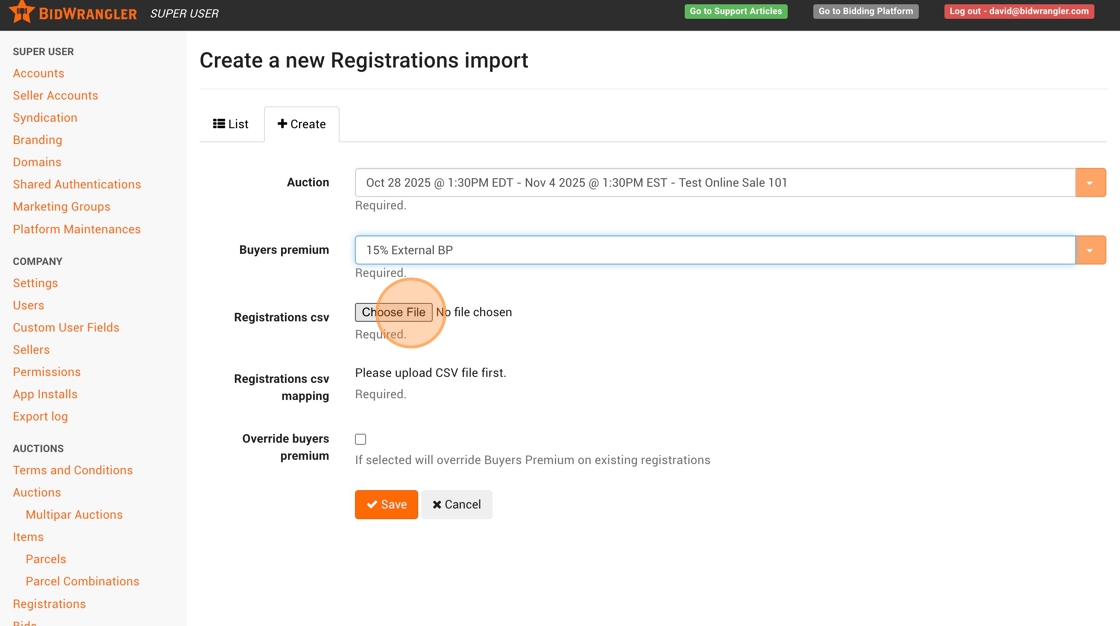
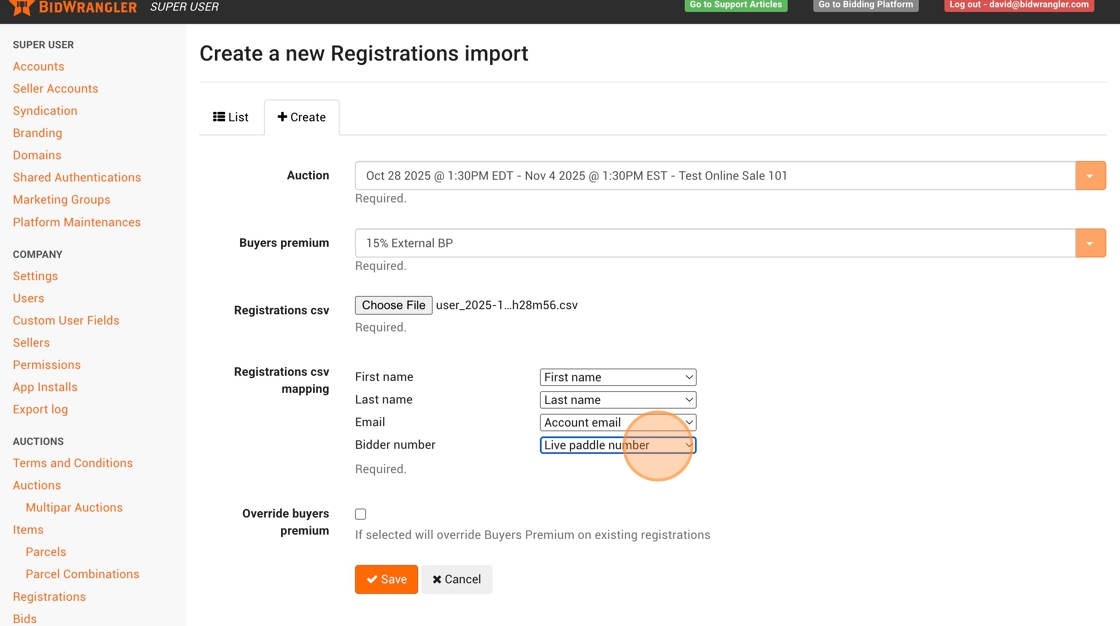
21. All fields/columns will map correctly except for Bidder Number, which needs to be assigned to the "Online paddle number" or "Live paddle number"
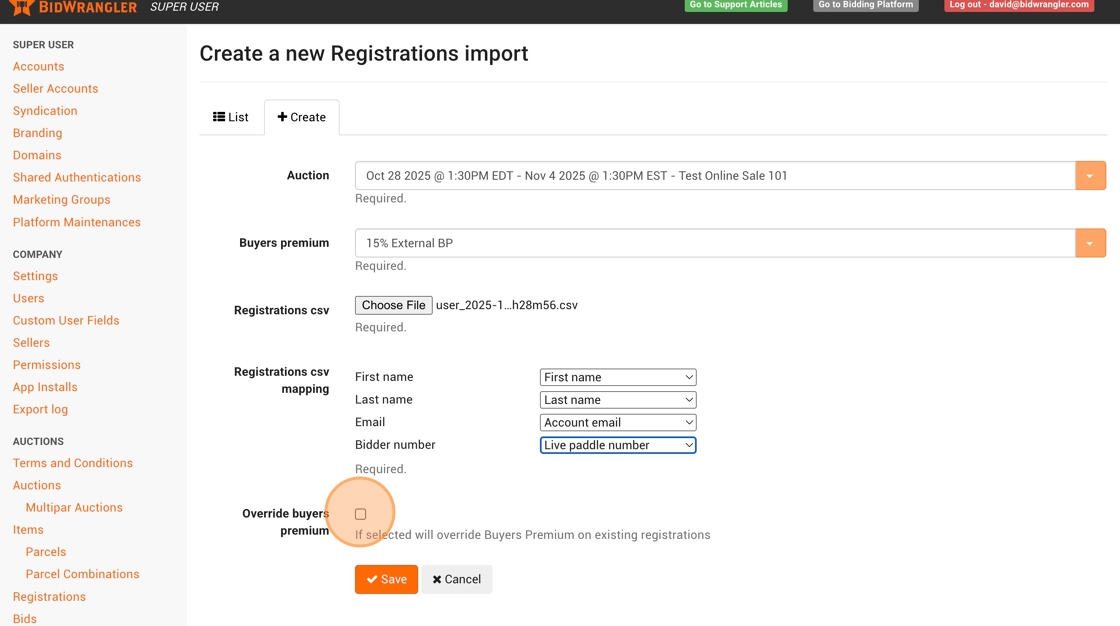
22. If you will be overriding the premium for any registration potentially present in the sale already, click the "Override buyers premium" field.
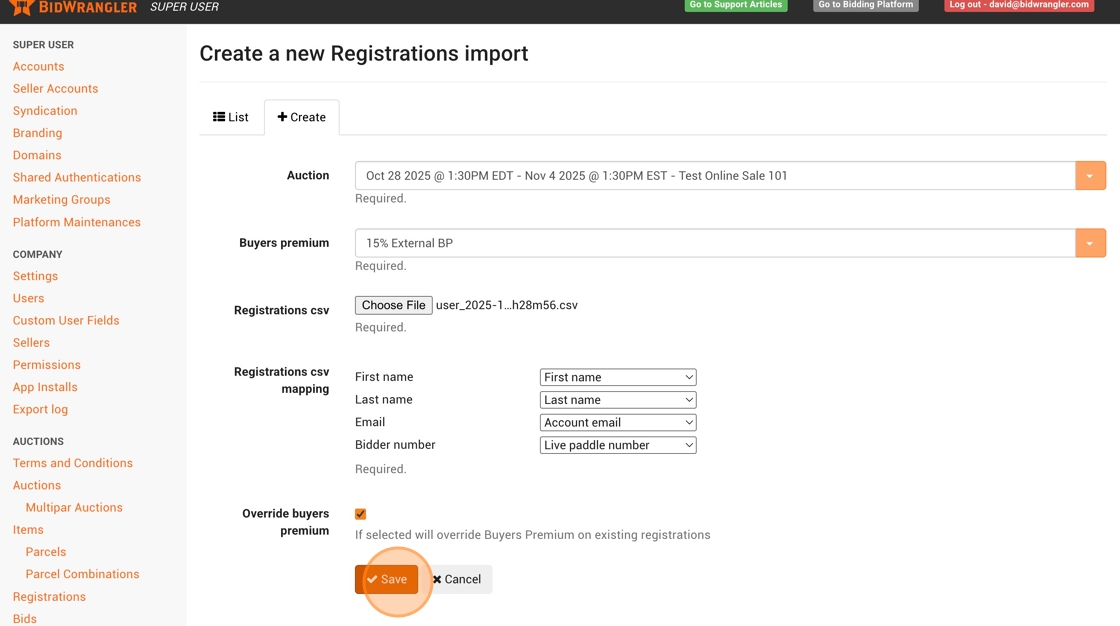
23. Click "Save" to run the import.
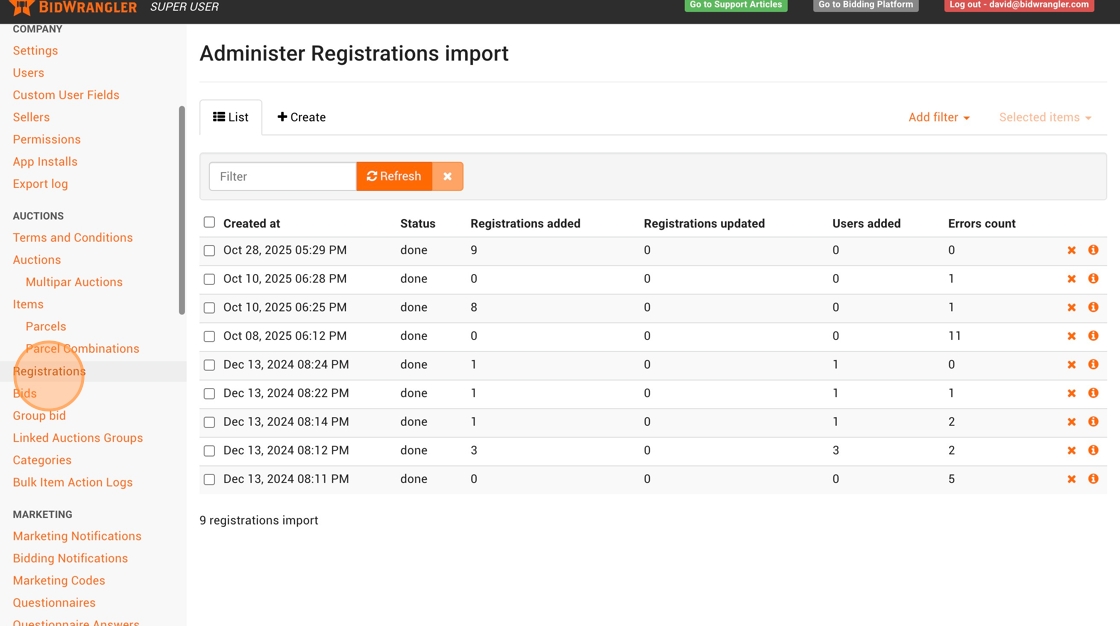
24. Refresh your screen to watch the progress. If there are any errors to address, click on the "i" icon to review. This import didn't have any errors and is done, so we can click "Registrations" to double-check they are present.
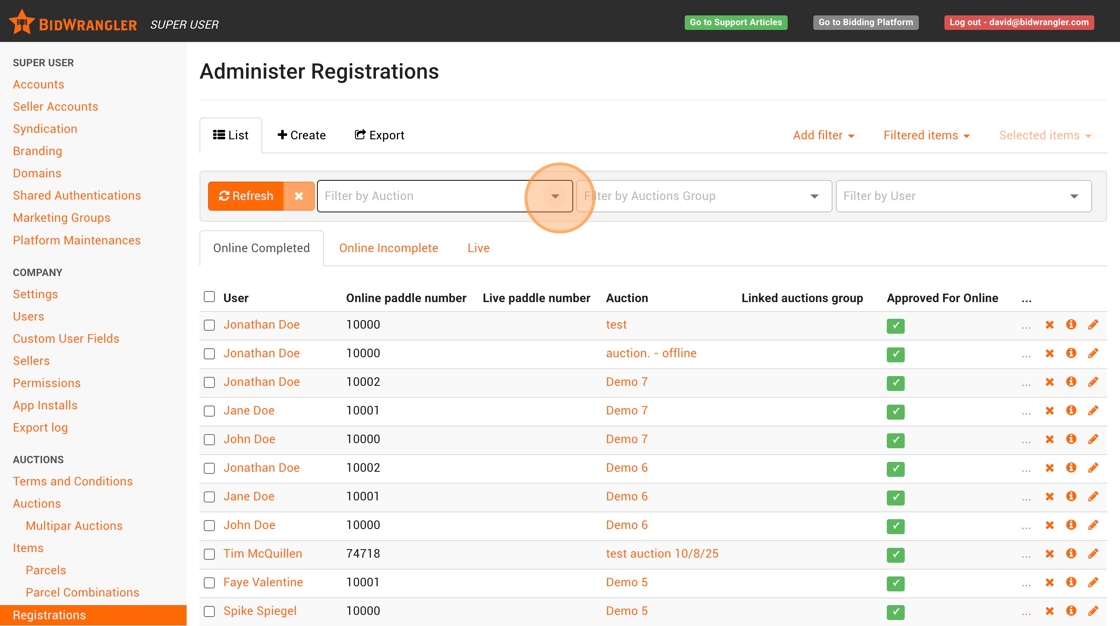
25. Filter for the auction.
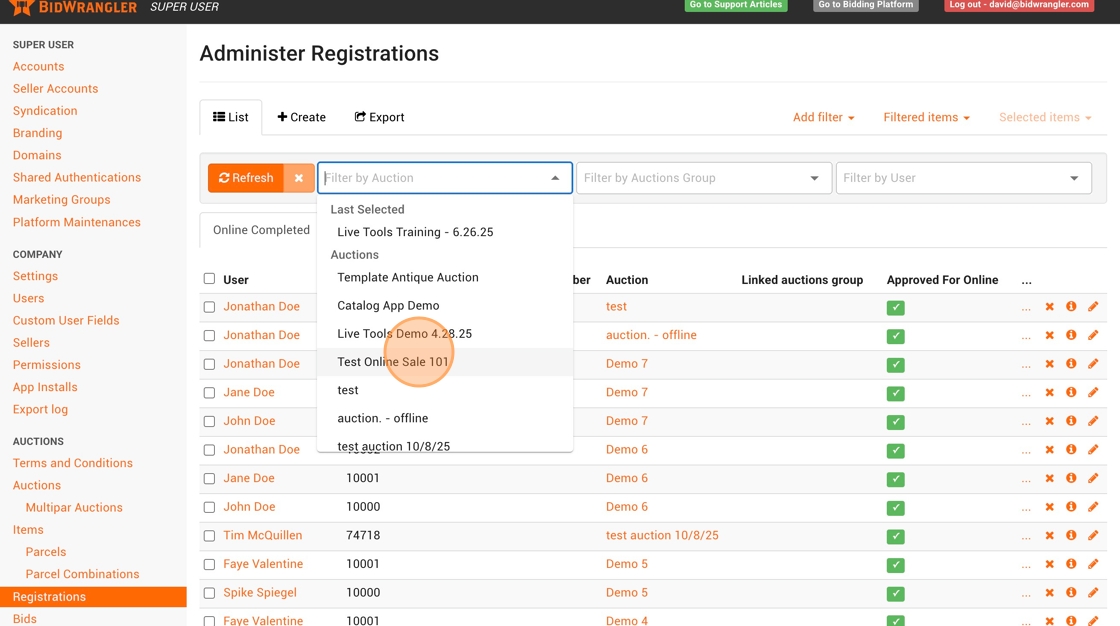
Select the auction.
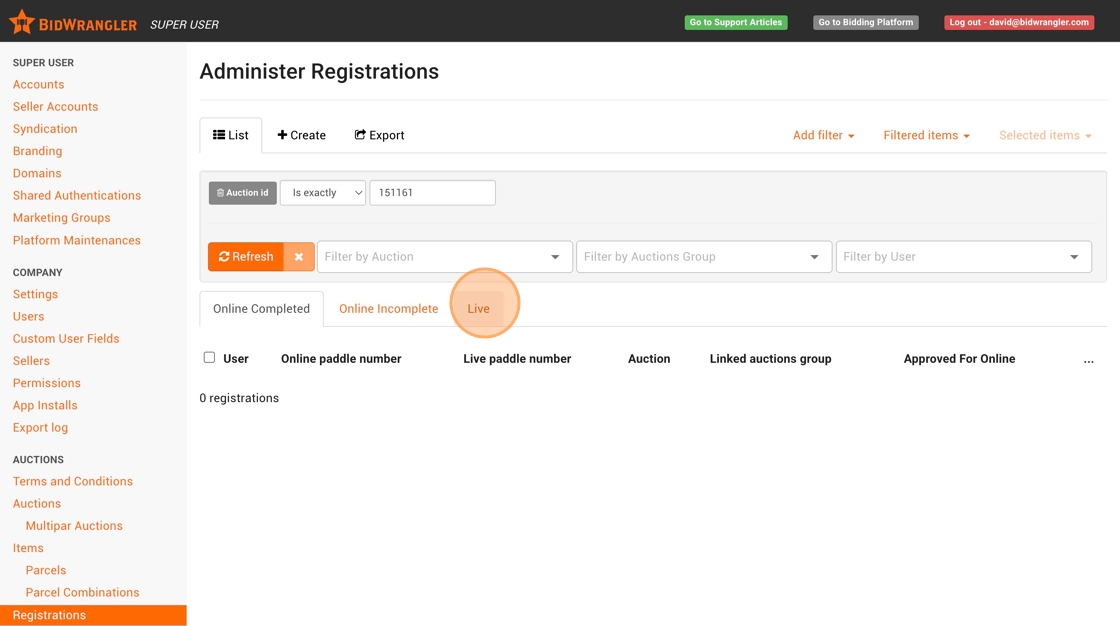
27. We imported our permanent bidders with their permanent bidder numbers as live paddle numbers, so we won't find them in the Online categories. Click "Live" to see the live registrations.