
How to use the BidWrangler Auction TV
Finding and Launching the Auction TV URL
1. Navigate to your bidding platform and click into a live auction.
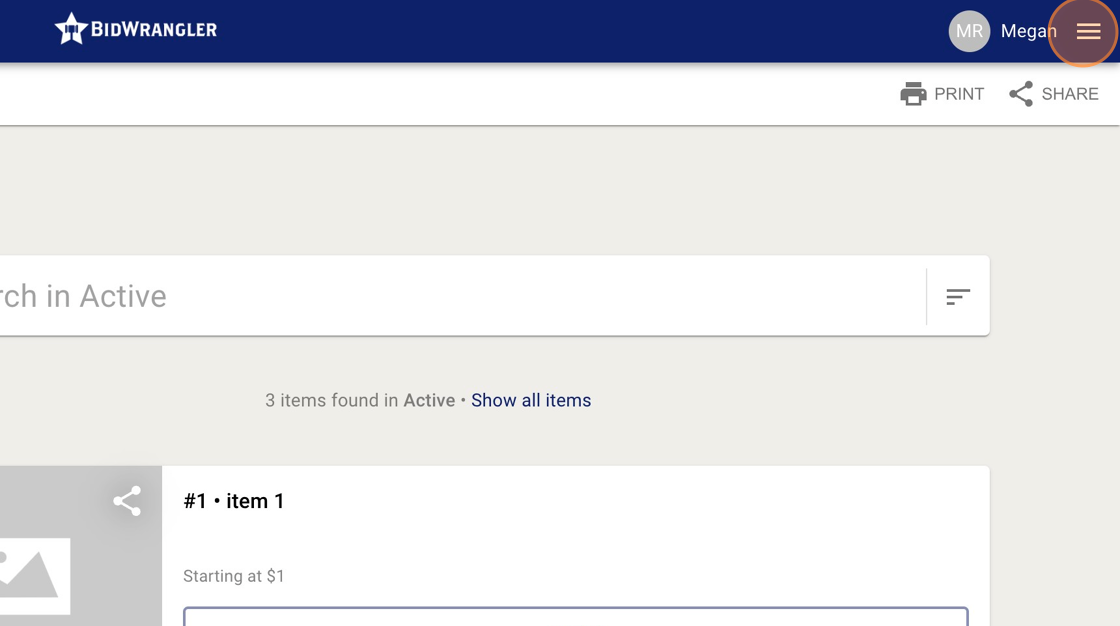
2. Once in the auction, click the hamburger menu.
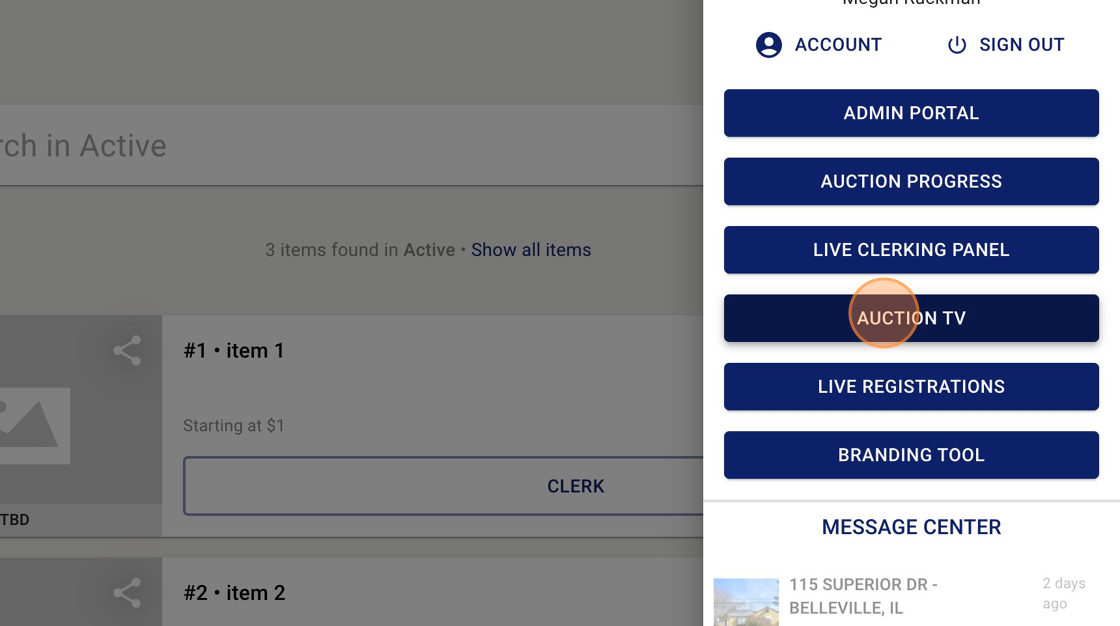
3. Click "AUCTION TV"
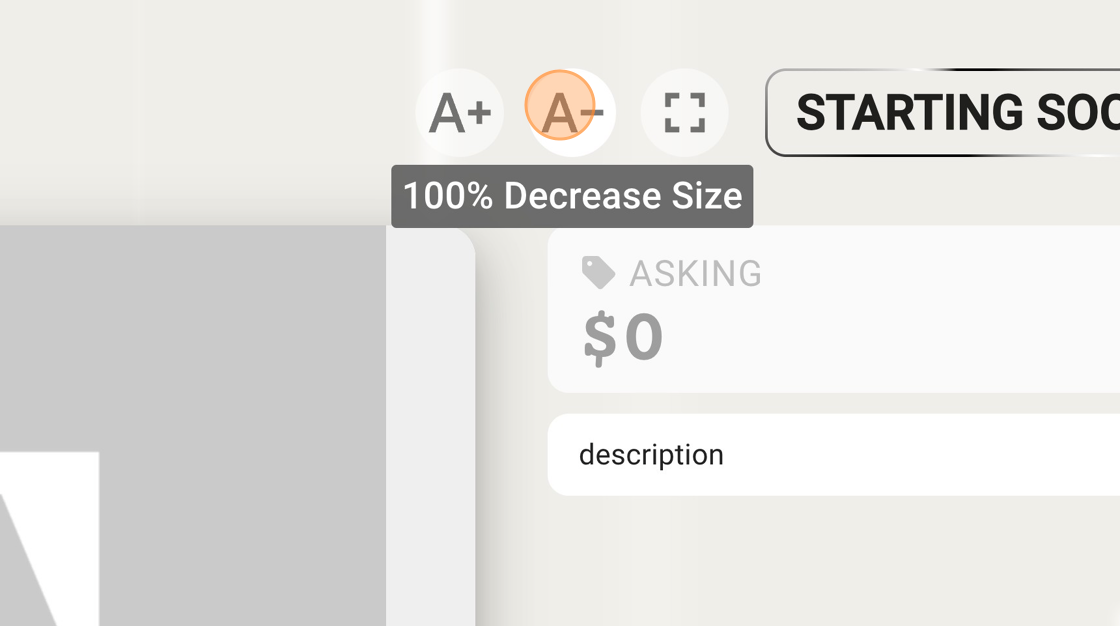
4. You can manage the settings of BidWrangler TV by increasing/decreasing size, or enabling full screen view.
How Auction TV Runs Automatically
The best part about Auction TV is that it runs itself. There is no need to assign a dedicated staff member to manage the TV screen during your event. Your bidders and your online operator using the online clerking panel work together to drive the auction TV display automatically.
The auction TV screen syncs instantly with all real-time auction actions:
Updating the Ask: When your operator updates the "Ask" value on the online clerking panel, that change is instantly reflected on the Auction TV screen.
Accepting Live Bids: Taking a live bid on the online clerking panel automatically recalculates and updates the next "Ask" value on the TV screen.
Online Bidder Activity: The moment an online bidder places a bid from their phone or computer, both the "High Bid" and "Ask" values are updated instantly on the TV screen.
Testing in Action (Using the Clerking Panel)
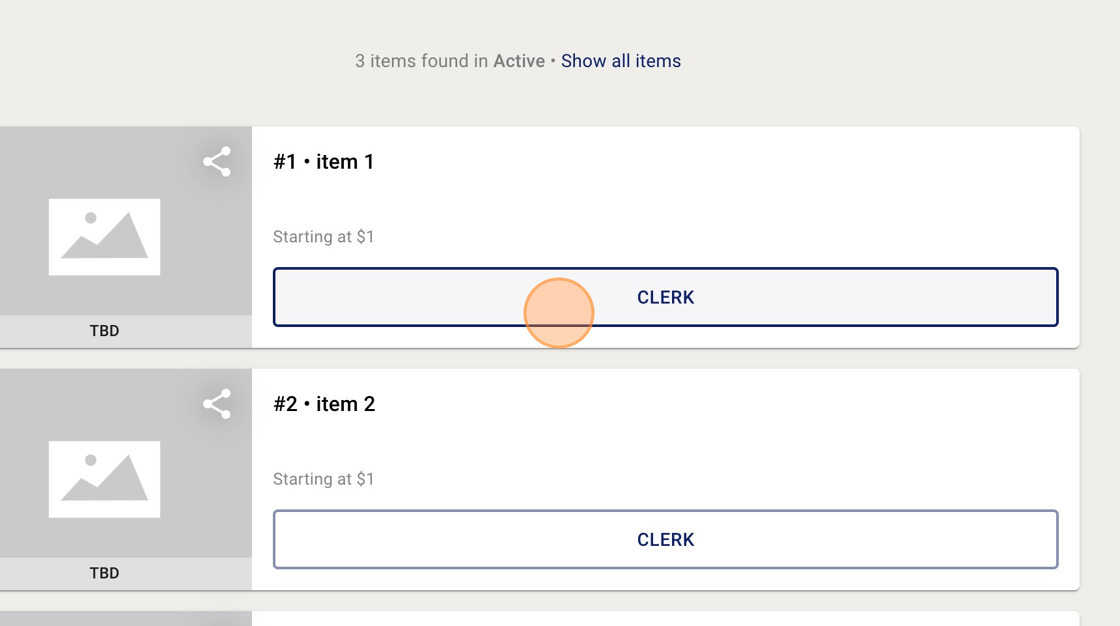
5. Now, let's see how it works in action. Navigate back to your auction, and click on "clerk" on a single item.
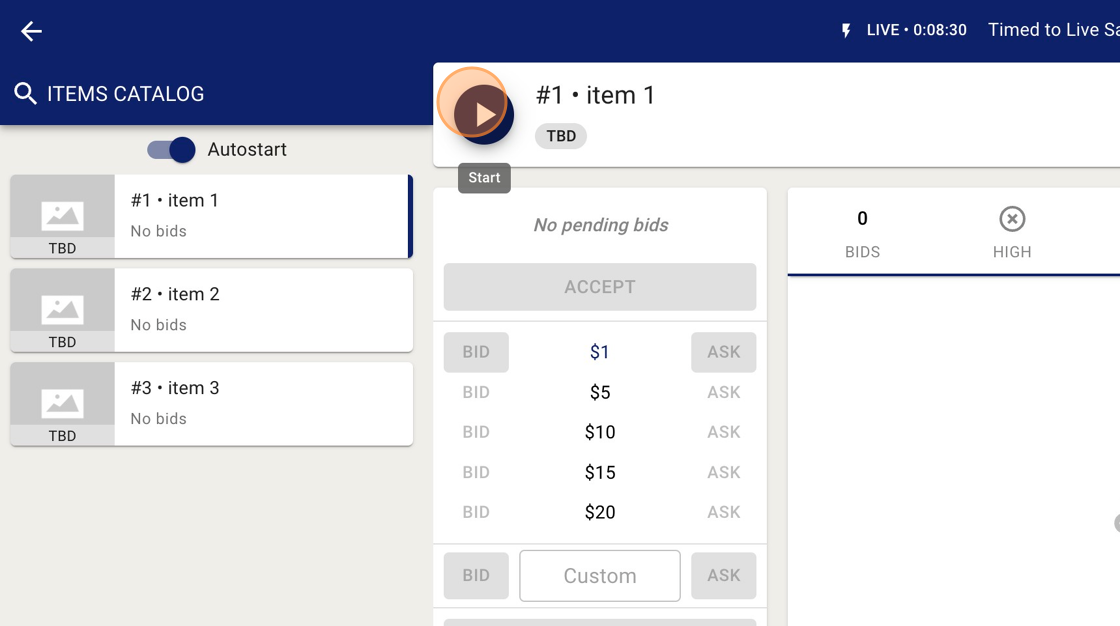
6. Start the auction by clicking the "play" button.
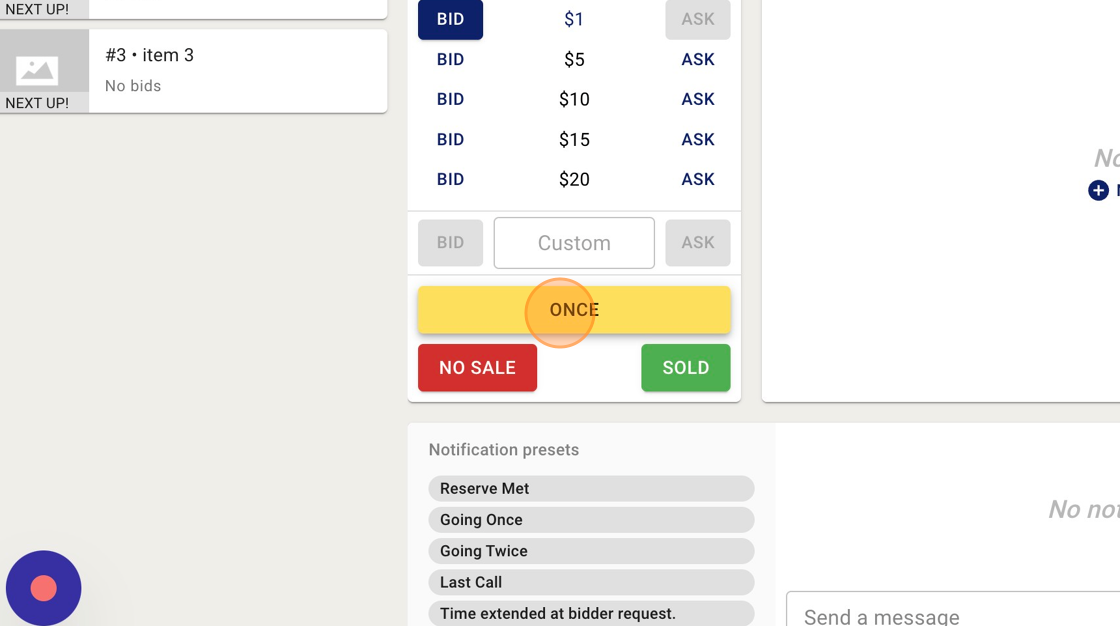
7. To view examples of what the audience will see, click "once" to let them know the item is close to ending.
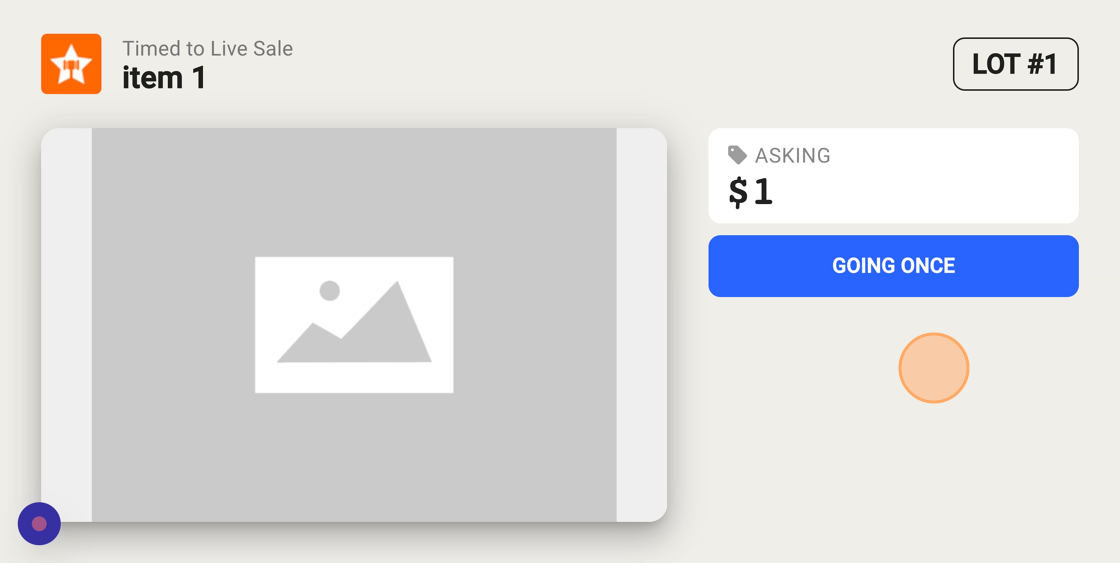
8. You can see the notification of the item going once will pop up on the BidWrangler TV display. If you go back to the clerk panel, clicking "sold" to sell the item will also appear on the display.
Customizing Your Display Settings
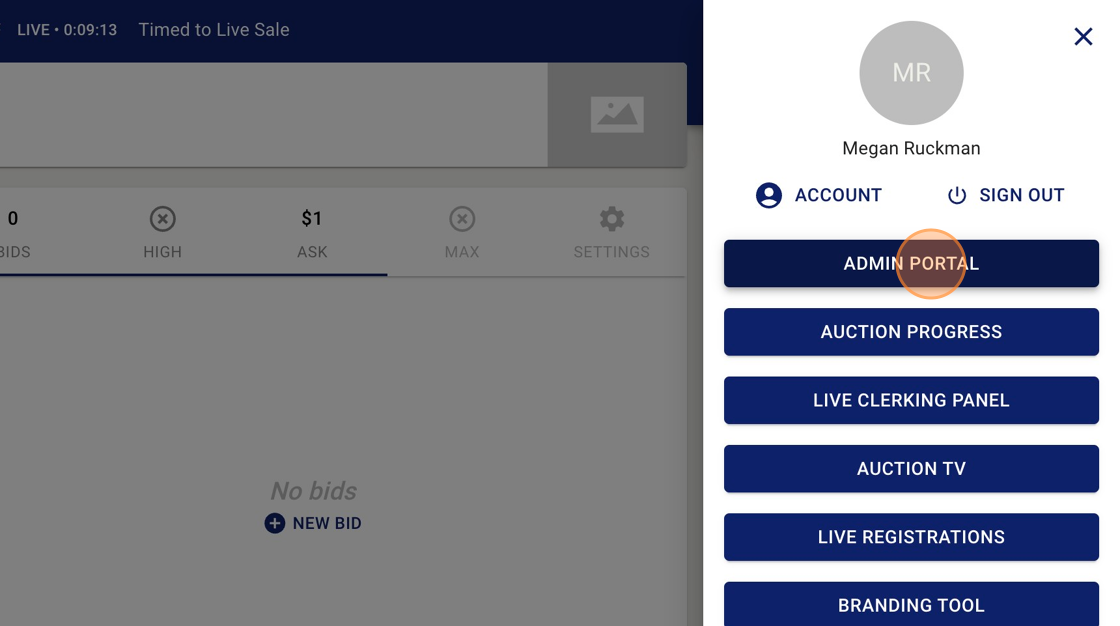
9. Let's check out the settings that we can edit for BidWrangler TV. Head to your admin portal.
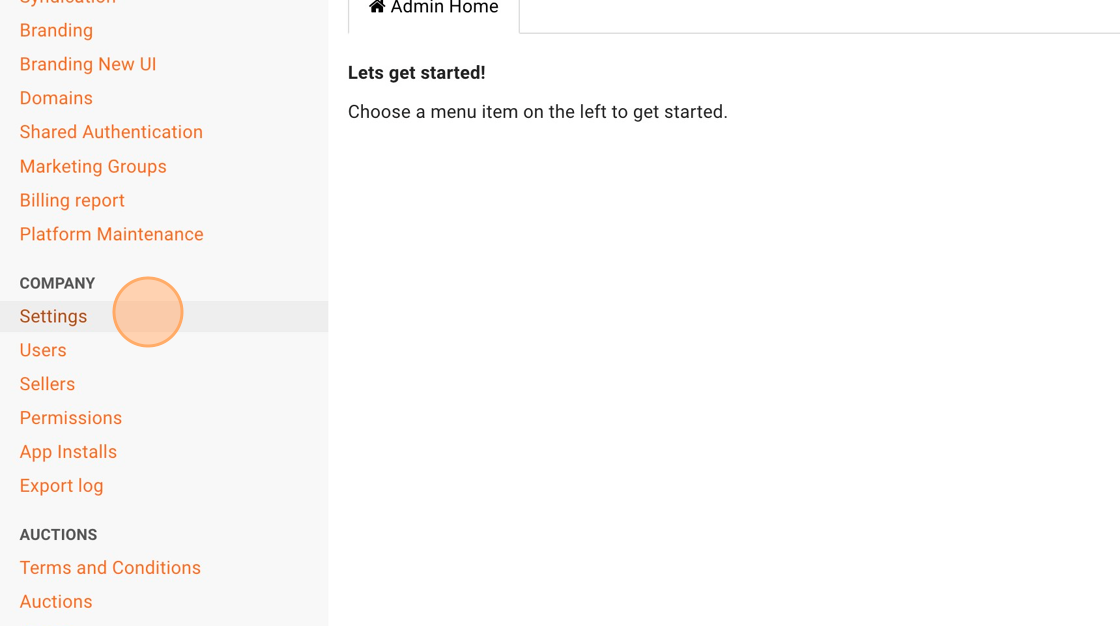
10. Click Company Settings.
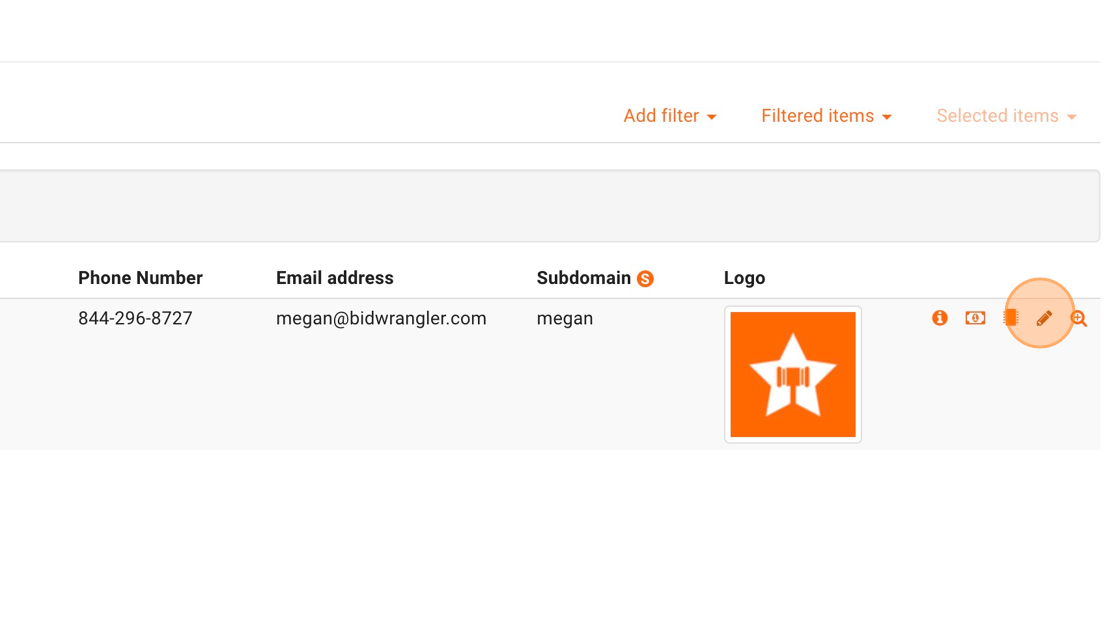
11. Click the pencil to edit your company settings.
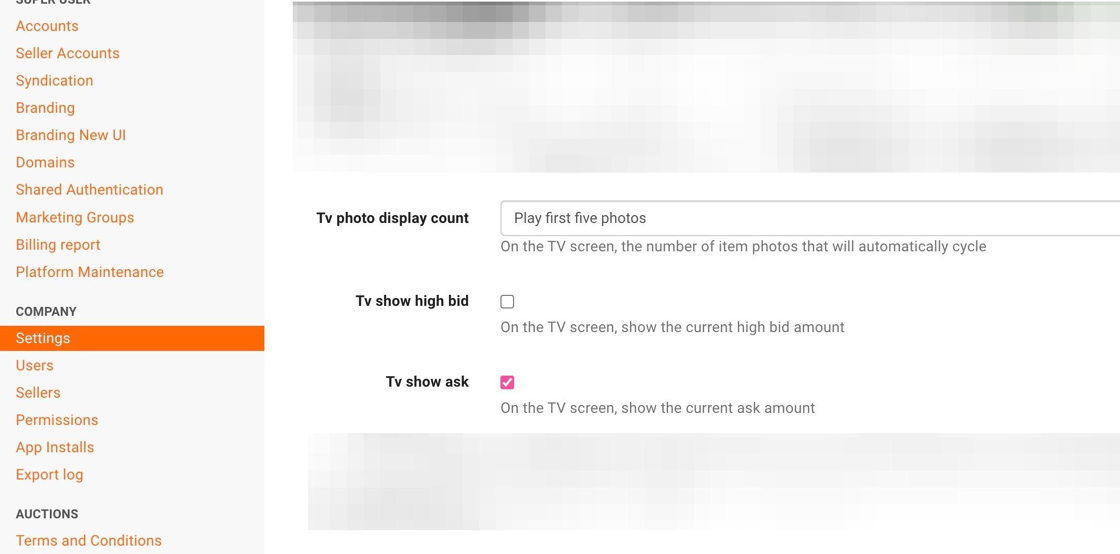
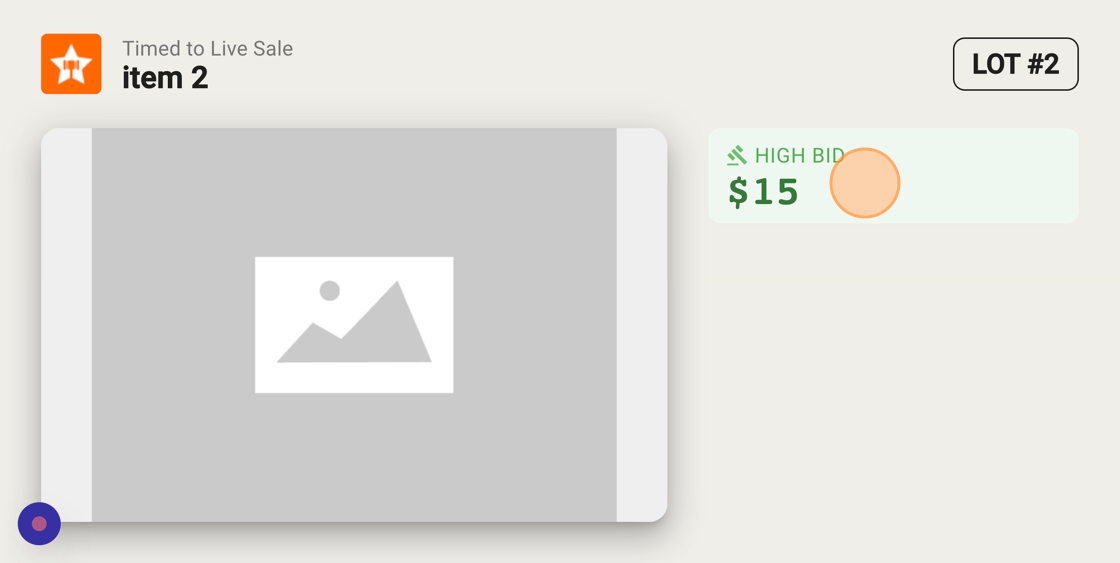
12. You can choose to show different variations of the item photos, and you can also choose to just show the high bid, show the ask, or show both.
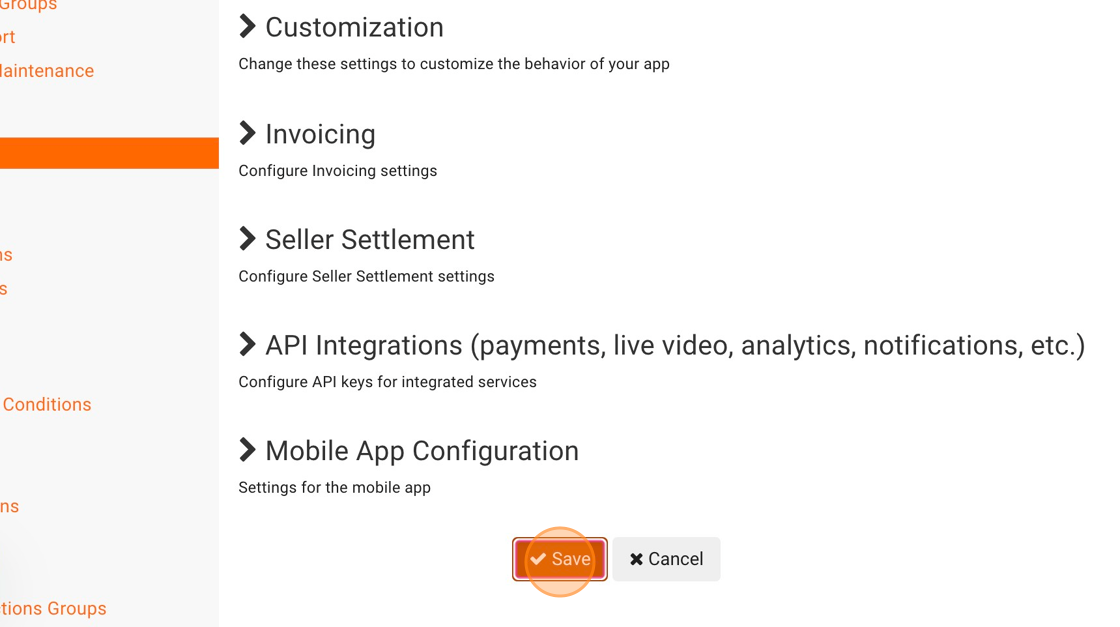
13. Click "Save"
Here's an example of BidWrangler TV just showing the high bid, not the ask.
Frequently Asked Questions
Q: Do I need a dedicated staff member to manage the Auction TV screen during my live event?
A: No. The screen is fully automated. Your bidders and your online operator using the clerking panel work together to drive the display in real time without any extra manual oversight.
Q: Can I hide the "Ask" value and only show the "High Bid" on the screen?
A: Yes. You have complete control over this in your settings. You can choose to show the high bid only, the ask only, or both at the same time.
Q: How do I access and adjust the Auction TV settings?
A: Navigate to your admin portal, select Company Settings, and click the pencil icon to edit. From there, you can configure your TV photo variations and bid visibility choices before clicking "Save".
Q: How does this work in multi-parcel auctions?
A: Auction TV uses an enhanced version of Auction TV when using the Multi-par feature - for more details please refer to this article.