
How do I use bidder's choice in a simulcast auction?
NOTE: In order to use bidder's choice, it must be enabled for your company. If bidder's choice is not enabled for your company, please reach out to us at helpdesk@bidwrangler.com to enable the feature.
Begin by navigating to your clerking panel. You can find information on how to do this here.
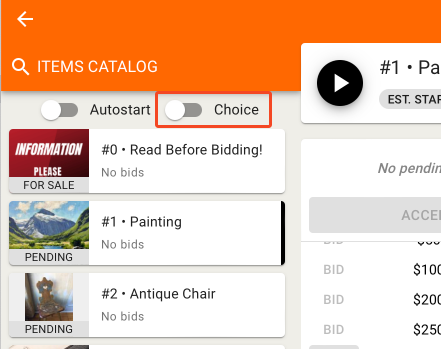
Toggle Choice
When you're ready to run choice, click on the "Choice" slider to set up your group of items.
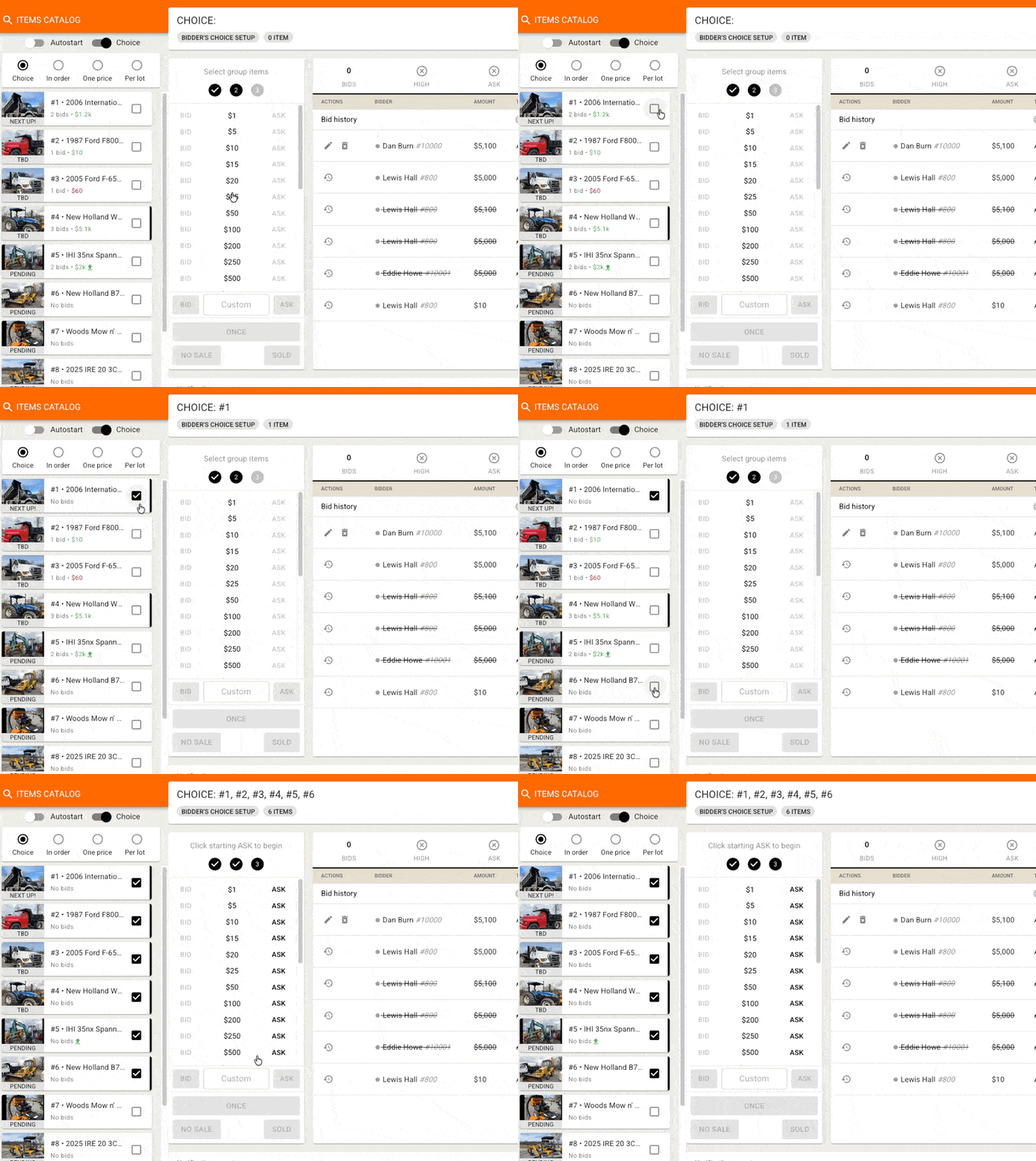
Select Items
Select the lots for your first group by clicking the checkbox next to each item. You can select a range of items by holding the SHIFT key on your keyboard while clicking the first and last items of that range:
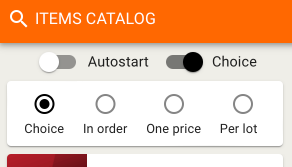
Choose what type of bidder's choice you'd like to run
Choice — allows bidders to select as many items as they would like, independent of item order
In order — allows bidders to select as many items as they would like, but only in lot order. For example, they can choose lots 1, 2, and 3, but NOT just items 1 and 2.
One Price — sells the entire group of items for a SINGLE PRICE.
Per lot — sells entire group, but the hammer price is the price PER LOT.
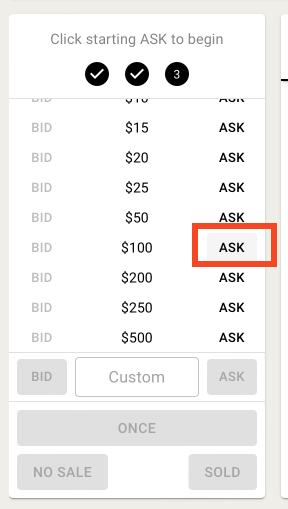
Set the ask
Click your starting ask to open bidding for the group.
Record bids
Clerk the group just as you would clerk any other lot.
Selling Online
Once you hit sold, you'll see the following information while waiting for bidder feedback.
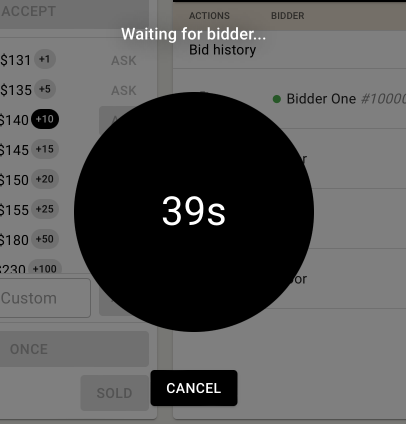
By default, online bidders will have 45 seconds to make their selection. This time can be adjusted from your Company Settings under the Customization options.
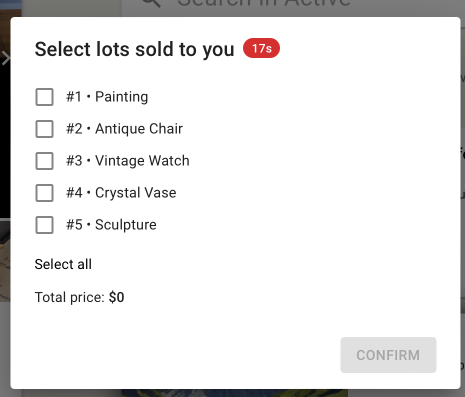
While you are waiting, the bidder sees the following dialog box, asking them which lots they would like to select.
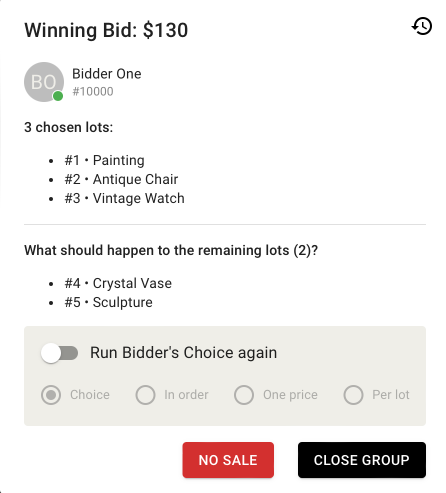
Once the bidder has selected the lots, you'll see this screen confirming their choice. It also asks you what to do with the rest of the lots — whether you'd like to run bidder's choice again with the remaining items or close the group.
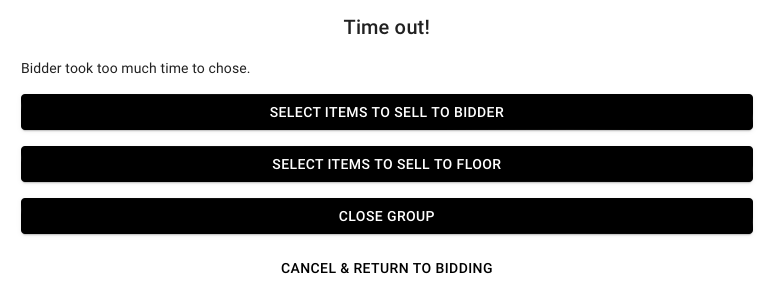
If the bidder does not select lots before the timer expires, the clerk will see the following screen, allowing them to manually select lots to sell to the bidder or floor. It also allows them to simply close the group. "Cancel and return to bidding" reopens the group and allows you to resume bidding at the point that you left off.
Selling to the Floor
If the item sells to the floor rather than online, you will see this dialog box asking you to specify which lots have been sold. Select the lots (Shift+click is also available here), and Confirm.
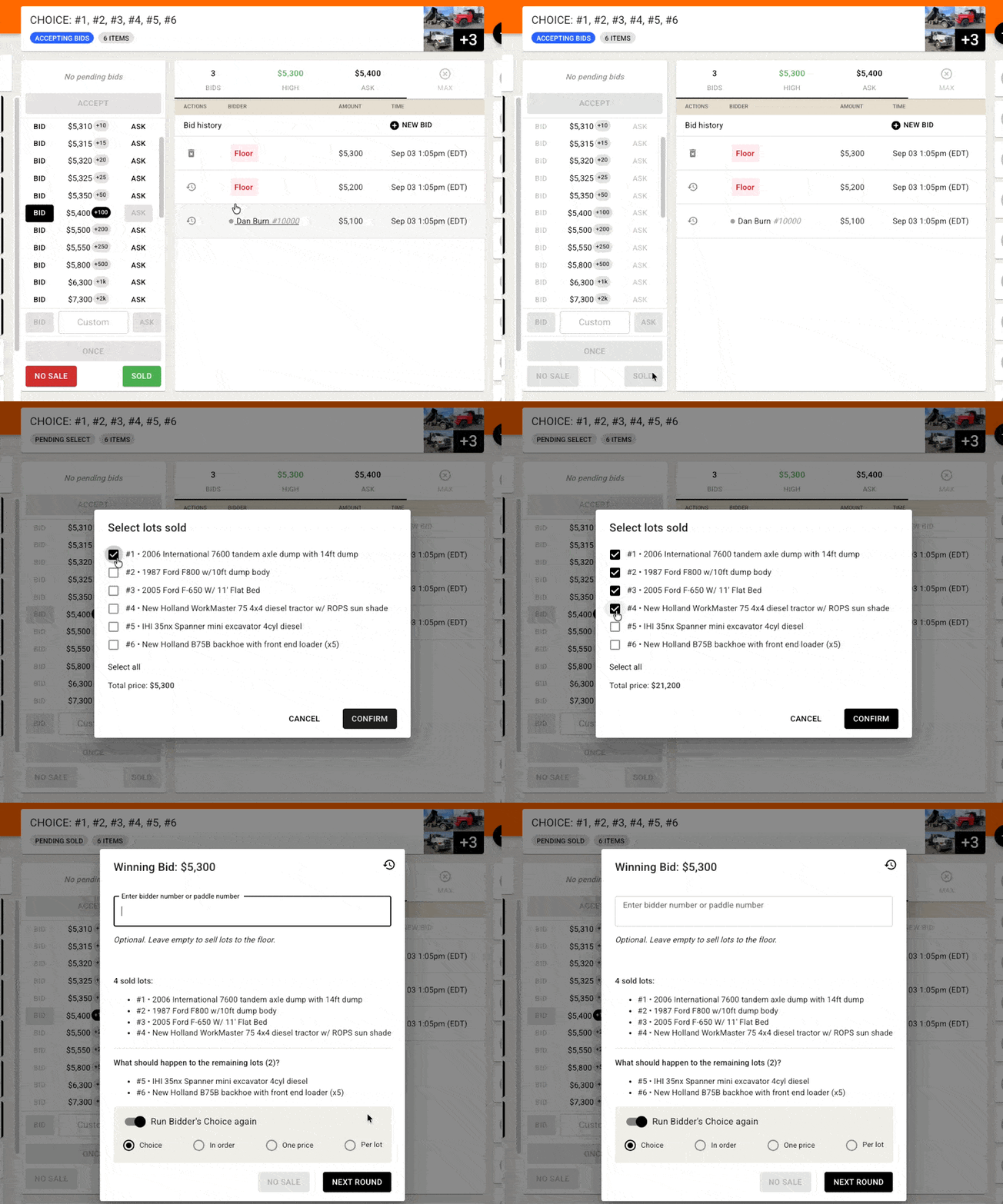
Enter the floor bidder number to finalize the sale. You'll be able to specify what happens to the remaining items.
If you have more questions on bidder's choice, please reach out to us at helpdesk@bidwrangler.com.